Hello! Welcome back to our module on Advanced Networking and Data Persistence.
In our last lesson, we mastered creating custom bridge networks to isolate our applications, a crucial step for building secure and organized multi-service systems. We saw how containers on the same custom network can communicate via DNS, while containers on different networks are kept separate.
But what if you need controlled communication between these isolated zones? Today, we'll address that exact scenario. Our learning outcome is to connect a single container to multiple networks for targeted communication. This is a powerful pattern used in real-world applications, such as an API gateway that needs to be accessible from a public-facing network while also communicating with services on a private backend network.
The "Mediator" Container: A Conceptual Overview
Before we write any commands, let's understand the architecture. Imagine a typical three-tier application: a reverse proxy (frontend), an application service (API), and a database (backend).
- The proxy should only talk to the API.
- The API should talk to both the proxy and the database.
- The database should only talk to the API. Critically, the proxy should have no direct access to the database.
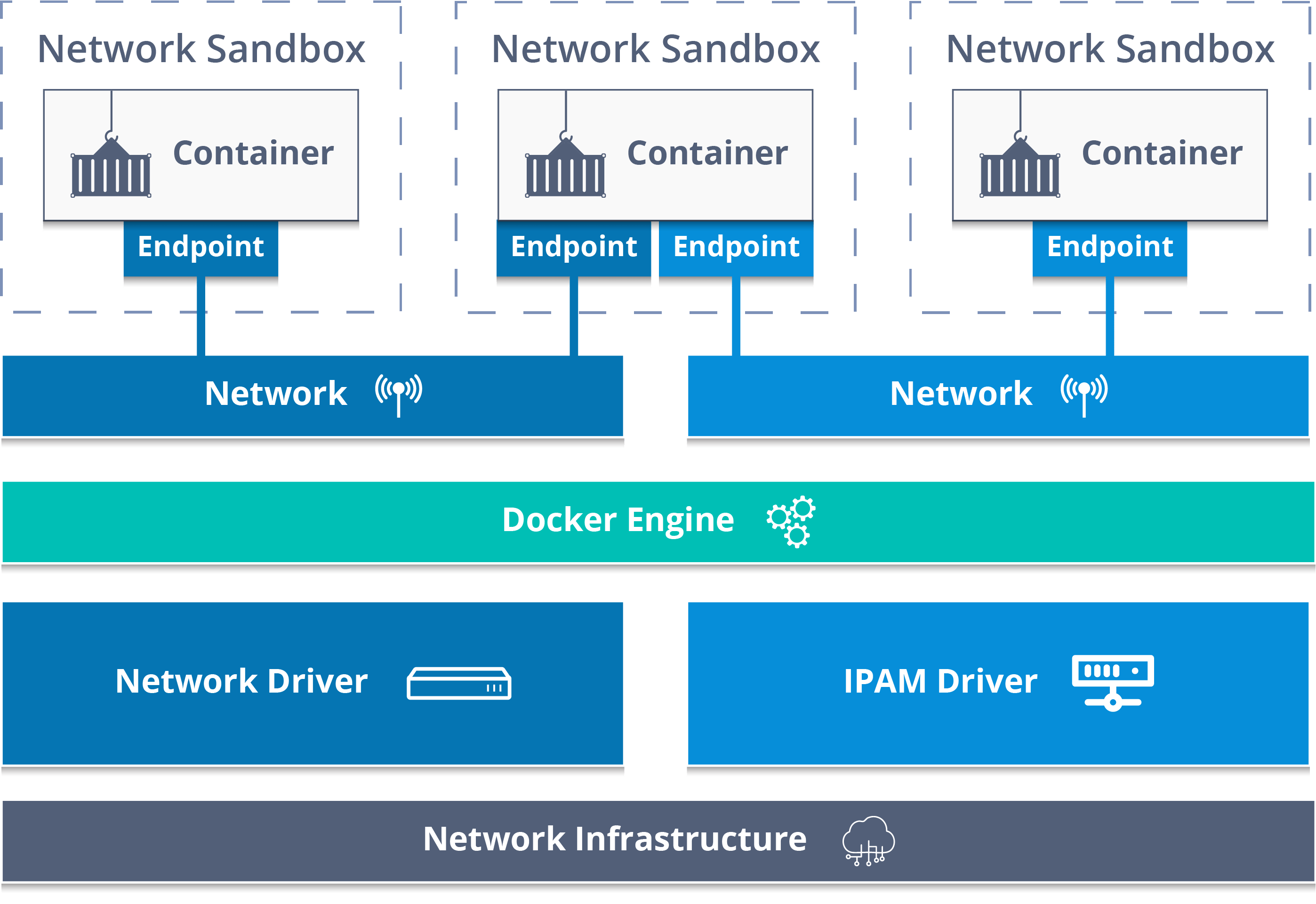
To achieve this, we can use two separate networks: frontend-net and backend-net. The API service container becomes our "mediator" by being the only component connected to both networks.
This diagram shows the core principle of what we're about to build. Notice how the middle container has endpoints on two different networks, allowing it to bridge them.
Attaching a Container to Multiple Networks with the CLI
Let's start with the Docker CLI to see the mechanics in action. We'll create a scenario where a container needs to be added to a second network after it's already running.
The following video demonstrates this process clearly.
Docker Networking Made Simple: Connecting Containers Like a Pro
In his video 'Docker Networking Made Simple', Matt Williams shows how to connect a running container to an additional network to enable communication.
Please watch from 05:21 to 06:20. The key command to watch for is docker network connect. Notice how after running this command, a container that was previously on a different network can now be reached by name.
Let's replicate this pattern with our three-tier application model.
-
Create the Networks:
First, create our two isolated networks.docker network create frontend-net docker network create backend-net -
Deploy the Isolated Services:
Launch a proxy on thefrontend-netand a database on thebackend-net. For this example, we'll use simplenginxcontainers as stand-ins.# This container only lives on the frontend network docker run -d --name proxy --network frontend-net nginx:alpine # This container only lives on the backend network docker run -d --name database --network backend-net nginx:alpine -
Attempt to Connect:
If you were toexecinto theproxycontainer, aping databasecommand would fail. They are on separate, isolated networks. -
Deploy and Connect the Mediator:
Now, let's launch ourapicontainer. We'll start it on thefrontend-netand then usedocker network connectto attach it to thebackend-netas well.# Start the api container on the frontend network docker run -d --name api --network frontend-net alpine sleep 3600 # Attach the running api container to the backend network docker network connect backend-net api -
Verify Connectivity:
Let's usedocker inspectto see the results.docker inspect apiIf you scroll down to the
Networkssection in the JSON output, you will see entries for bothfrontend-netandbackend-net, each with a unique IP address for theapicontainer on that specific network.Now, let's verify that our
apicontainer can talk to both services.# From inside the api container, ping the proxy on the frontend-net docker exec api ping -c 2 proxy # SUCCESS! # From inside the api container, ping the database on the backend-net docker exec api ping -c 2 database # SUCCESS!Our
apicontainer is successfully acting as a bridge between the two networks.
Declarative Multi-Network Setups with Docker Compose
While the CLI is great for imperative commands, your DevOps workflow will primarily use declarative tools like Docker Compose. This is where the pattern truly shines, as you can define this entire topology in a single file.
The official Docker documentation and a helpful article from linuxserver.io provide excellent examples of how to structure this.
First, review the official Docker documentation on 'Networking in Compose'. It provides the canonical syntax for defining and using multiple custom networks.
Read the section titled 'Specify custom networks'. Focus on the YAML example where the app service is connected to both frontend and backend networks. This is the core syntax we will be using.
Now, let's see a more complete, practical example.
Better Practices For Docker Networking
The article 'Better Practices For Docker Networking' from linuxserver.io offers a superb real-world example with detailed explanations.
Read the sections under the headings 'Compose Networking Basics' and the subsequent code blocks. Pay attention to how the speedtest-tracker service is connected to two networks (lsio and private) and how the private network is marked as internal for extra security. Also, review the verification steps where they use docker exec to test connectivity.
Let's synthesize what you've just read into our own docker-compose.yml for the three-tier app.
version: '3.9'

services:
  proxy:
    image: nginx:alpine
    container_name: proxy
    ports:
      - "8080:80"
    networks:
      - frontend-net # This service is ONLY on the frontend network

  api:
    image: alpine
    container_name: api
    command: ["sleep", "infinity"] # Keep container running
    networks:
      - frontend-net # Connected to frontend...
      - backend-net  # ...and also to backend. Our mediator!

  db:
    image: postgres:15-alpine
    container_name: db
    environment:
      POSTGRES_PASSWORD: "not-a-real-password"
    networks:
      - backend-net # This service is ONLY on the backend network

networks:
  frontend-net:
    driver: bridge
  backend-net:
    driver: bridge
    internal: true # A key security feature!
What happens when you run docker compose up?
- Compose creates two bridge networks:
myproject_frontend-netandmyproject_backend-net. - The
proxycontainer is started and attached only tofrontend-net. - The
dbcontainer is started and attached only tobackend-net. - The
apicontainer is started and attached to both networks.
The internal: true flag on the backend-net is a crucial security enhancement. It tells Docker that containers on this network should not have any access to the outside world (e.g., the internet or the host machine). This is perfect for databases or other sensitive internal services that should never be externally accessible.
Test your understanding!
Based on the docker-compose.yml file above, what would be the result of running docker exec proxy ping db? Explain your reasoning.
Show answer
The command would fail with an error like ping: bad address 'db'.
Reasoning: The proxy container is only connected to the frontend-net. The db container is only connected to the backend-net. Since they do not share a common network, Docker's DNS service will not be able to resolve the name db for the proxy container, and the networking rules (iptables) prevent any direct routing between the two distinct bridge networks. This isolation is the intended behavior and a core benefit of this pattern.
Conclusion
You have now learned how to implement a fundamental and powerful networking pattern in Docker. By connecting a single container to multiple networks, you can create segmented, multi-tiered applications with controlled communication paths, greatly enhancing security and organization.
Key Takeaways:
- A single container can be attached to multiple networks to act as a "mediator" or "gateway."
- This pattern allows you to create isolated network segments (e.g., frontend, backend) and control the flow of traffic between them.
- With the Docker CLI, you can use
docker network connectto attach a running container to an additional network. - In Docker Compose, you define all networks at the top level and then assign a list of networks to each service under its
networkskey. - For enhanced security, you can create
internalnetworks in Docker Compose, which prevents containers on that network from initiating outbound connections.
In our next lesson, we will address the inevitable question: what do you do when this setup doesn't work as expected? We will learn how to troubleshoot container connectivity issues using network inspection commands, giving you the tools to diagnose and fix problems in your complex network topologies.