Hello! Welcome back to our course.
In our last lesson, we built a secure, multi-tiered application by connecting a single container to two different networks, creating isolated frontend-net and backend-net zones. This is a powerful pattern, but in the real world, configurations break and connections fail. Today, we'll tackle exactly that.
Our learning outcome is to troubleshoot container connectivity issues using network inspection commands. You'll learn a systematic process for diagnosing why containers can't talk to each other, to the internet, or to the host, moving from high-level checks to deep dives with specialized tools. This is a critical skill for any DevOps professional responsible for containerized environments.
The Systematic Troubleshooting Workflow
When a service can't reach another, resist the urge to randomly change configurations. A methodical approach will save you time and frustration. Our workflow will be:
- Verify Network Configuration: Are the networks and containers set up as you expect?
- Test from the Inside: Can the container resolve names and reach IPs?
- Use Specialized Tools: When the container lacks tools, bring in a "Swiss Army knife" to get the job done.
Step 1: Inspecting the Big Picture
Your first step is always to verify the state of your Docker networks. The two fundamental commands are docker network ls and docker network inspect.
docker network ls: Lists all networks on your Docker host. Use this to confirm that your Compose project or CLI commands created the networks you expected.docker network inspect <network_name>: Provides a detailed JSON output about a specific network. This is your ground truth for what is actually configured.
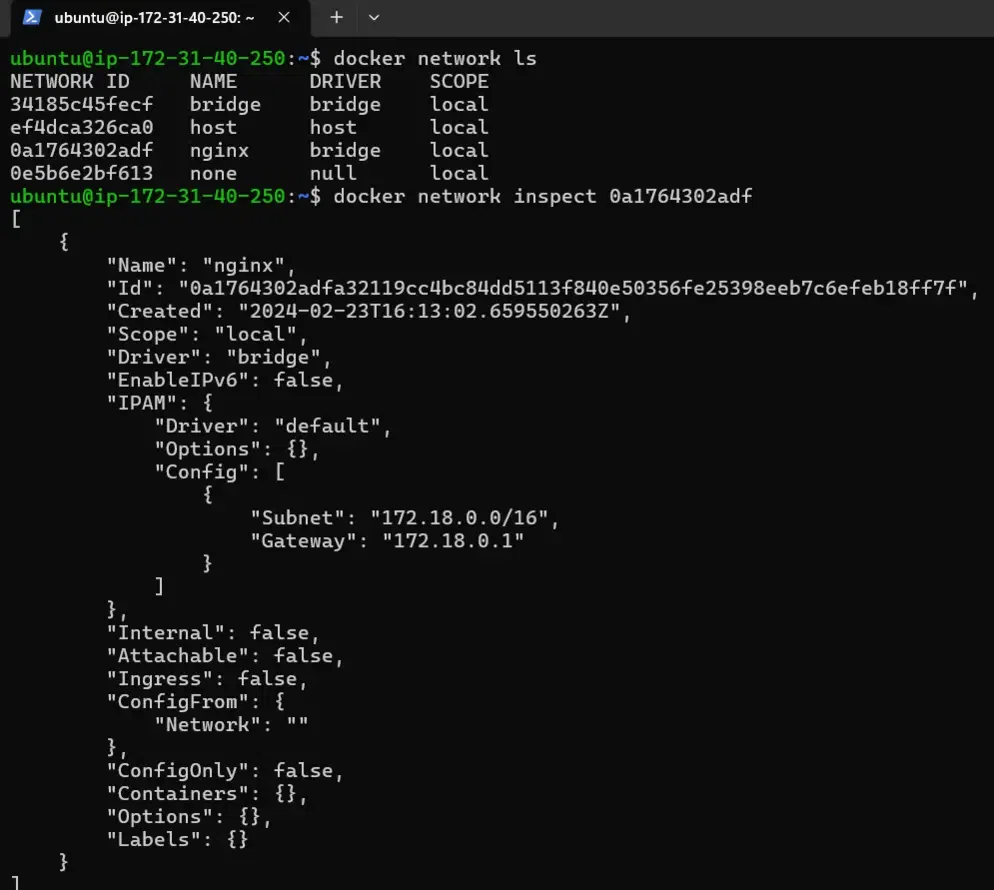
When you run docker network inspect, you should focus on two sections:
"IPAM">"Config": This shows the subnet and gateway for the network."Containers": This lists every container attached to the network, along with their specific IP address on this network.
This command immediately answers the question: "Are my containers on the correct networks?" If a container is missing from the list, you've found your problem.
For an even more targeted view, you can check a specific container's network settings:
# A quick way to get just the IP address
docker inspect -f '{{range .NetworkSettings.Networks}}{{.IPAddress}}{{end}}' <container_name>

# A full JSON view of the container's network settings
docker inspect <container_name> | jq '.[] | .NetworkSettings'
This confirms which networks a specific container believes it's a part of.
Step 2: Testing Connectivity from Inside the Container
Once you've confirmed the network attachments are correct, the next step is to test connectivity from the container's perspective using docker exec.
Let's imagine our api container can't connect to our db container.
docker exec api <command>
A. Test DNS Resolution
The first test is name resolution. Custom bridge networks provide automatic DNS resolution using container names.
# From inside a container on the same custom network as 'db'
ping db
- Success: The name
dbresolves to an IP address, and you get ICMP replies. This means DNS and basic network connectivity are working. - Failure (
bad address,name resolution error): This is a DNS problem. The most common cause is that the two containers are not on the same custom network. The default bridge network does not provide this functionality.
B. Test IP Connectivity
If DNS fails, or even if it succeeds but the application still can't connect, try pinging the IP address directly (which you can find from docker network inspect).
# Get the database container's IP on the backend-net
DB_IP=$(docker inspect -f '{{range .NetworkSettings.Networks}}{{.IPAddress}}{{end}}' db)

# From inside the api container
ping $DB_IP
ping <name>fails butping <ip>succeeds: This confirms a DNS issue. Your containers are likely not on the same user-defined network.ping <ip>fails: This points to a deeper issue. It could be a firewall rule on the host, a problem with Docker'siptablesrules, or a more complex routing problem.
Step 3: Using a Dedicated Troubleshooting Container
You'll quickly run into a problem: most official images are minimal and don't include tools like ping, traceroute, curl, or netstat. This is a good security practice, but it makes debugging difficult.
Instead of installing tools into your application container (which you should avoid in production), the professional approach is to use a dedicated, pre-built debugging container. The most popular one is nicolaka/netshoot.
The netshoot container is a "Swiss Army knife" packed with dozens of networking tools. The magic is in how you run it: you attach it to the network namespace of another container.
docker run --rm -it --network container:<name_of_problem_container> nicolaka/netshoot
This command starts netshoot but tells it to share the entire network stack of your target container. You are effectively "inside" your application's network environment, but with a full suite of diagnostic tools.
Let's watch a short video that introduces netshoot and demonstrates this exact technique.
Netshoot Docker container for Docker compose networking host troubleshooting
The video 'Netshoot Docker container' introduces this powerful tool and shows how to attach it to the network of another running container to troubleshoot connectivity from that specific context.
Watch from the beginning to 01:25 to understand what Netshoot is, and then skip to 05:03 - 08:01 to see the critical part: how to launch Netshoot connected to another container's network (--network container:<name>) and use its tools (ping, traceroute) to diagnose issues.
Now, with netshoot attached to your api container, you can run detailed diagnostics:
ping db: Test DNS and basic connectivity.traceroute db: See the network hops to the target.curl db:5432: Test if a specific port is open and reachable (useful ifpingis disabled).ip route: Check the container's routing table.
Common Problems and Diagnostic Playbooks
Let's use what we've learned to build some quick diagnostic playbooks for common issues. The following article is an excellent reference guide.
How to Troubleshoot Docker Container Networking Issues
The article 'How to Troubleshoot Docker Container Networking Issues' provides a clear, problem-oriented guide. We will use its structure to review common scenarios.
Skim through the sections 'Diagnostic Commands', 'Container Cannot Reach Internet', and 'Container-to-Container Communication Issues'. Then, pay close attention to the 'Debugging Tools' section, which reinforces the use of netshoot, and the 'Quick Reference' tables at the end, which provide a great summary.
Here is a summary of the workflow for two common scenarios:
| Problem | First Diagnostic Step | Likely Cause & Solution |
|---|---|---|
| Container-to-Container Fails | docker network inspect <network_name> to see if both containers are listed. |
Cause: Containers are on different networks, or one is on the default bridge network (which lacks DNS). Solution: Attach both containers to the same user-defined custom network in your docker-compose.yml or via docker run. |
| Container Cannot Reach Internet | docker exec <container> ping 8.8.8.8 |
Cause: DNS failure. If the ping to an IP works but ping google.com fails, the container can't resolve names. Solution: Check host DNS. Explicitly set DNS with --dns 8.8.8.8 or in your Docker daemon configuration. |
| Cannot Access Container from Host | docker ps to check port mappings (e.g., 0.0.0.0:8080->80/tcp). |
Cause: The app inside the container is listening on 127.0.0.1 instead of 0.0.0.0. Solution: Change the application code or configuration to bind to 0.0.0.0 (all interfaces). |
Test your understanding!
You have a web container and a db container running via Docker Compose. From your host machine, you run docker exec web ping db and get the error ping: bad address 'db'. What is the very first command you should run to diagnose this, and what are you looking for in its output?
Show answer
The first command should be docker network inspect <project_name>_default (or whatever your custom network is named).
You are looking for the "Containers" section in the JSON output. You need to verify that both the web container and the db container are listed there. If one is missing, it means they are not on the same network, which is the direct cause of the DNS resolution failure.
Conclusion
Troubleshooting is a methodical skill, not guesswork. By following a clear process—inspecting networks, testing from within the container, and using powerful tools like netshoot when needed—you can quickly and efficiently solve even complex Docker networking issues.
Key Takeaways:
- Start your diagnosis with
docker network lsanddocker network inspectto verify your setup. - Use
docker execto test for DNS issues (ping <name>) versus routing/connectivity issues (ping <ip>). - Minimal base images often lack networking tools. The professional solution is to use a debugging container like
netshoot. - The
--network container:<name>flag is the key to entering another container's network namespace for effective troubleshooting. - Failures in container-to-container communication on a custom network are almost always because they aren't on the same custom network.
In our next and final lesson for this module, we'll address the cleanup. After creating and debugging numerous networks and containers, it's important to know how to clean up unused volumes and networks to manage host resources.