Welcome back. In our last lesson, you successfully wrote your first Sub procedures from scratch, automating a sequence of formatting tasks. We used specific, hard-coded values and cell references, like Range("A1:E1") and "Annual Performance Review". This was a fantastic step, but what if you need to run the same macro for a different report title or on a different range? Changing the code every time isn't efficient.
Today, we'll solve that problem by learning about variables. Variables are named placeholders in your code that temporarily store data, making your macros flexible, powerful, and much easier to read and maintain. This is a fundamental concept in programming and a crucial skill for your goal of building sophisticated, client-ready solutions in Excel.
By the end of this lesson, you will be able to declare and use the most common types of variables—String, Long, Double, and Boolean—to write more dynamic and robust VBA code.
1. Why Use Variables?
In programming, a variable is essentially a named container in your computer's memory that holds a piece of information. Instead of writing a value directly into your code, you place it in a variable and then use the variable's name in your code instead.
This might seem like an extra step, but it provides three key advantages:
- Flexibility: If a value (like a tax rate or a client's name) is used in multiple places, you only need to update it once in the variable assignment, not everywhere in your code.
- Readability: Code like
finalPrice = itemCost * (1 + salesTax)is much clearer thanfinalPrice = 19.99 * (1 + 0.08). - Efficiency: When VBA knows what kind of data a variable will hold (e.g., a number or text), it can manage memory more efficiently, making complex macros run faster.
If you don't specify a data type, VBA uses a generic type called Variant. To see why this isn't ideal, let's watch a short video.
How to Declare (Dim) and Set VBA Variables (use data types correctly)
In this clip from "How to Declare (Dim) and Set VBA Variables", instructor Leila Gharani explains why declaring variables properly is important for performance.
Watch the opening segment from the beginning of the video. Pay attention to the comparison between the memory used by a specific data type versus the default Variant type. This difference becomes significant in larger, more complex macros.
2. Declaring Variables and Choosing Data Types
To create a variable, you must first declare it. This process tells VBA the variable's name and what type of data it will hold. The syntax is simple:
Dim variableName As DataType
Dim(short for Dimension) is the keyword that initiates the declaration.variableNameis the name you choose. It must start with a letter and cannot contain spaces or most special characters. A common convention is to use "camelCase" (e.g.,employeeName) or "PascalCase" (EmployeeName).DataTypespecifies the kind of information the variable will store.
For your work, you will frequently use four main data types:
- String: Used for text. (e.g., a name, an address, a message).
- Long: Used for large whole numbers. This is perfect for counting rows in Excel, as modern spreadsheets have over a million rows.
- Double: Used for decimal numbers. Essential for any calculations involving money, percentages, or measurements.
- Boolean: Used for values that can only be
TrueorFalse. This is invaluable for tracking states or making decisions in your code.
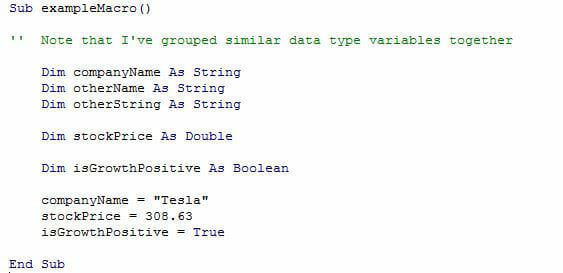
Here is a simple example showing these declarations in action. After declaring the variables, we assign values to them using the equals sign (=).
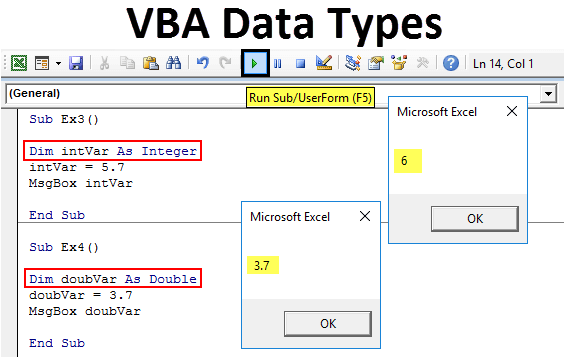
Choosing the correct data type is important. If you try to put a decimal value into a variable declared for whole numbers, VBA will round it, which could lead to incorrect calculations.
For a handy reference on these and other data types, I recommend reviewing the following resource.
Excel VBA Lesson 2: Working with Variables
This article from ExcelVbaTutor.com provides a clear and concise table of common VBA data types.
Focus on the table under the heading "Common VBA Data Types". Familiarize yourself with the Description and Example Values for String, Long, Double, and Boolean. You don't need to memorize the storage size, but it helps understand the efficiency concept we discussed earlier.
3. A Practical Example: Building a BMI Calculator
Now let's apply these concepts in a hands-on exercise. The best way to understand variables is to use them to build something. We are going to create a macro that calculates the Body Mass Index (BMI) for a list of people. This will involve:
- Declaring variables to hold the height and weight.
- Reading values from worksheet cells into our variables.
- Performing a calculation using the variables.
- Writing the result back to the worksheet.
Excel VBA Online Course - 4.1.1 Declaring Basic Variables
This excellent tutorial from WiseOwlTutorials, "Declaring Basic Variables", walks through a complete, practical example from start to finish. I encourage you to follow along and build this yourself.
Please watch the entire video from start to finish. You can set up a similar simple worksheet with columns for "Name", "Weight (kg)", "Height (m)", and "BMI". As you watch, pay close attention to: How variables are declared at the beginning of the Sub (variable declaration). How values from cells are assigned to variables inside the loop (assigning values). How the variables are used in the BMI calculation (performing calculation). How the final result is written from a variable back into a cell.
This exercise demonstrates the full lifecycle of using variables and is a perfect template for the kind of automation you'll build for clients: reading data, processing it, and outputting a result.
4. The Golden Rule: Use Option Explicit
What happens if you misspell a variable name? By default, VBA will silently create a new, empty variable of the Variant type. This can lead to maddening bugs where your calculations are wrong for no obvious reason.
To prevent this, we have a golden rule: always force variable declaration.
You do this by adding the line Option Explicit at the very top of your module, before any Sub procedures.
Option Explicit

Sub MyMacro()
    Dim myValue As Integer
    ' myvalue = 10 ' This line would cause an error because of the typo 'myvalue'
    myValue = 10   ' This is correct
End Sub
With Option Explicit in place, VBA will flag any undeclared or misspelled variable as an error, saving you hours of debugging. This is a critical best practice for writing professional, reliable code.
You can even tell the VBE to add Option Explicit to every new module automatically. In the VBE menu, go to Tools -> Options and check the "Require Variable Declaration" box. I highly recommend you do this now.
Conclusion
In this lesson, you've learned one of the most important concepts in programming. You moved beyond static, hard-coded macros and can now use variables to create flexible and powerful automation scripts.
Key Takeaways:
- Variables are named containers for storing data like text (
String), whole numbers (Long), decimals (Double), and true/false states (Boolean). - Declaring variables with a specific data type makes your code more efficient, readable, and reliable.
- You declare variables using the
Dim variableName As DataTypesyntax. - The
Option Explicitstatement is a crucial best practice that forces you to declare all variables, preventing typos and bugs.
Now that we can store data and states (True/False) in variables, we are ready to make our code truly "smart." In the next lesson, we will explore conditional statements (If...Then...Else), which allow your macro to make decisions and execute different blocks of code based on the values stored in your variables.