Welcome back. In our previous lesson, we established a crucial foundation by learning how to declare and use variables to store different types of data. You now know how to create flexible containers for text, numbers, and true/false values using String, Long, Double, and Boolean.
This lesson takes the next logical step. Now that we can store information, we'll learn how to make our macros "intelligent" by enabling them to make decisions and perform different actions based on that information. We will explore the If...Then...Else statement, the primary way to control the flow of your code in VBA. This is where your macros stop being simple command sequences and start becoming dynamic, responsive tools, a key skill for building the sophisticated freelance solutions you're aiming for.
By the end of this lesson, you will be able to construct conditional statements using If, ElseIf, and Else to make your VBA code execute different actions based on specific criteria.
1. The Core of Decision Making: If...Then
At its most basic, a conditional statement checks if a certain condition is true. If it is, VBA executes a specific block of code. The syntax for this is straightforward:
If [condition] Then
    ' Code to run if the condition is True
End If
The [condition] is an expression that evaluates to either True or False. This is usually a comparison between a variable and a value. To build these conditions, we use comparison operators. Since you're building your Excel knowledge from the ground up, let's explicitly define these operators:
| Operator | Meaning | Example | Result if score = 90 |
|---|---|---|---|
= |
Equal to | score = 90 |
True |
<> |
Not equal to | score <> 100 |
True |
> |
Greater than | score > 80 |
True |
< |
Less than | score < 80 |
False |
>= |
Greater than or equal to | score >= 90 |
True |
<= |
Less than or equal to | score <= 90 |
True |
Let's see this in a simple macro. Imagine you want to check if a sales total, stored in a variable, has met a target.
Option Explicit

Sub CheckSalesTarget()
    Dim salesTotal As Double
    salesTotal = 12500

    If salesTotal > 10000 Then
        MsgBox "Congratulations! You've met the sales target."
    End If
End Sub
If you run this code, the message box will appear because the condition 12500 > 10000 is true. If you change salesTotal to 9500, the macro will run but do nothing, because the code inside the If...End If block is skipped.
2. Providing an Alternative Path with Else
What if you want something to happen when the condition is false? This is where the Else statement comes in. It provides an alternative block of code to run.
The structure expands like this:
If [condition] Then
    ' Code to run if the condition is True
Else
    ' Code to run if the condition is False
End If
Let's improve our sales-checking macro:
Sub CheckSalesTarget_WithElse()
    Dim salesTotal As Double
    salesTotal = 9500

    If salesTotal > 10000 Then
        MsgBox "Congratulations! You've met the sales target."
    Else
        MsgBox "Target not yet met. Keep pushing!"
    End If
End Sub
Now, no matter the value of salesTotal, the user gets a relevant message. This branching logic is fundamental to programming. The flowchart below illustrates this concept visually.
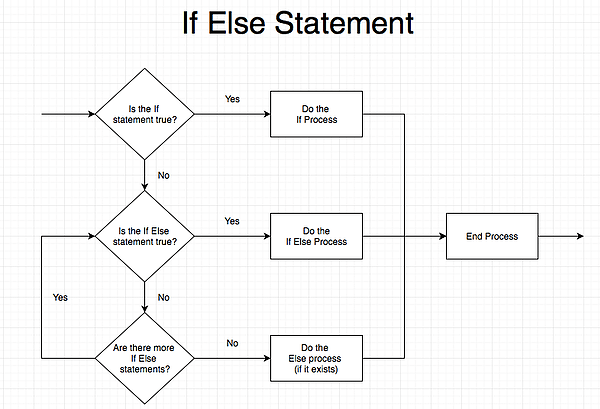
3. Handling Multiple Conditions with ElseIf
Often, you'll need to check for more than two possibilities. For instance, you might want to grade a score as "Excellent", "Good", or "Needs Improvement". You could nest If statements inside each other, but that gets messy. A much cleaner way is to use ElseIf.
The ElseIf statement allows you to add more conditions to the chain. VBA checks each condition in order, from top to bottom. As soon as it finds a condition that is True, it executes the corresponding code block and then immediately jumps to End If, skipping all other checks.
The full structure looks like this:
If [condition 1] Then
    ' Code for condition 1
ElseIf [condition 2] Then
    ' Code for condition 2
ElseIf [condition 3] Then
    ' Code for condition 3
Else
    ' Code to run if NONE of the above conditions are true
End If
The final Else is optional but serves as a useful "catch-all" for any cases you didn't explicitly check for.
To see a practical demonstration of building up these structures, let's turn to a video.
Excel VBA IF THEN Statement (with ELSEIF & Looping in cells)
In this video, "Excel VBA IF THEN Statement", Leila Gharani provides a clear, step-by-step guide to building conditional logic.
Please watch the following segments: First, see the basic If...Then structure in action from the simple If example. Next, see how the Else statement is added to provide an alternative from the Else explanation. Finally, watch how ElseIf is used to introduce multiple, ordered conditions from the ElseIf demonstration.
4. Creating Complex Conditions with And and Or
Sometimes a single comparison isn't enough. You might need to check if a value falls within a range, or if one of several possibilities is true. For this, we use the logical operators And and Or.
And: Requires that all connected conditions are true.
Example:If score >= 80 And score < 90 Then ...(This is true only for scores from 80 up to 89).Or: Requires that at least one of the connected conditions is true.
Example:If dayOfWeek = "Saturday" Or dayOfWeek = "Sunday" Then ...(This is true for either weekend day).
The following guide provides clear examples and truth tables that explain how these operators work.
VBA IF Statement - A Complete Guide
This guide from Excel Macro Mastery offers a detailed look at the components of an If statement.
First, read the section Using Conditions to reinforce your understanding of comparison operators. Next, focus on the section Using Logical Operators. Pay close attention to the And and Or truth tables, as they clearly define how these operators evaluate multiple conditions.
5. A Practical Application: Categorizing Data
Now, let's tie everything together. A common task in data analysis is to loop through a list of items and categorize each one based on its value. In the next lesson, we will formally cover loops, but seeing an If statement inside one now will show you its true power.
The video you watched earlier contains a perfect example of this. You'll see how to combine a loop with an If...ElseIf...Else structure to apply conditional logic to a whole range of cells at once.
Excel VBA IF THEN Statement (with ELSEIF & Looping in cells)
Let's revisit Leila Gharani's video to see a complete, practical application.
Watch the segment from looping through a range. Notice how a For Each loop is used to check each cell one by one, and an If statement with an And operator is placed inside the loop to decide what to do with each cell's value.
This process—looping through data and using If statements to process each piece—is a pattern you will use constantly as a VBA developer. The animated example below shows the exact same concept, categorizing products based on price.

Conclusion
Today, you've unlocked one of the most powerful features in programming. By mastering If...Then...Else statements, you've given your macros the ability to think and react, transforming them from simple scripts into dynamic and intelligent tools.
Key Takeaways:
- The
If...Then...End Ifblock executes code only when a condition is true. Elseprovides an alternative code block to run when theIfcondition is false.ElseIfallows you to test a series of ordered conditions, making your logic more sophisticated. VBA executes the code for the first true condition it finds and then exits the block.- Logical operators
And(all conditions must be true) andOr(at least one condition must be true) let you build complex conditional checks.
In this lesson, you got a preview of how powerful If statements become when placed inside a loop. In our next session, we will dive deep into that topic, formally learning how to use the For Each loop to efficiently iterate over collections of cells, worksheets, or other objects.