Welcome back! In our previous lesson, we mastered the art of combining text using functions like TEXTJOIN, a vital skill for preparing clean, readable data. You learned how to efficiently join names, create IDs, and even format addresses with line breaks—completing your foundational toolkit for text manipulation.
In this lesson, we pivot from text to another data type you'll constantly encounter as a freelancer: dates and times. Whether you're tracking project deadlines, calculating invoice due dates, or analyzing sales trends over time, a solid grasp of Excel's date functions is non-negotiable. We will explore how Excel handles dates behind the scenes and then learn to use the essential functions TODAY, NOW, DATE, and EOMONTH to perform common and powerful date calculations.
How Excel Thinks About Dates and Times
Before we jump into functions, it's crucial to understand a core concept: Excel stores all dates as sequential serial numbers. By default, January 1, 1900, is serial number 1. January 2, 1900, is 2, and so on. The date June 23, 2023, for example, is serial number 45099.
Time is stored as a decimal fraction of a day. For instance, noon (12:00 PM) is 0.5 because it's halfway through a 24-hour day. This system is what allows you to perform arithmetic with dates—subtracting one from another to find the number of days between them, for example. What you see in the cell (e.g., "6/23/2023") is just a formatting layer on top of this underlying number.
Getting the Current Date and Time: TODAY and NOW
Two of the simplest yet most useful date functions are TODAY() and NOW().
=TODAY()returns the current date's serial number.=NOW()returns the current date and time's serial number.
These are known as volatile functions, which means they automatically update every time your worksheet recalculates (for example, when you open the file or edit another cell). This makes them perfect for dashboards or reports that need to always show up-to-date information.
The following video provides a quick demonstration.
Highline Excel 2013 Class Video 31: Date Functions: EDATE, EOMONTH, DATE, YEAR, MONTH, DAY, More
This video from the excelisfun channel introduces the TODAY and NOW functions.
Watch the segment from the beginning. Notice that neither function requires any arguments inside the parentheses. The video also shows handy keyboard shortcuts for entering the current date (Ctrl+;) or time (Ctrl+Shift+;) as a static, non-updating value.
To solidify the difference, you can read this short explanation.
NOW vs TODAY Functions in Excel (3 Practical Examples)
This brief article from Exceldemy clearly summarizes the distinction between NOW and TODAY.
Read the two short sections titled Difference Between Functions and Things to Remember. This reinforces the key concept and the fact that they are argument-less functions.
Building and Deconstructing Dates
While getting the current date is useful, you'll often need to work with specific dates from your data or construct new ones. This is where the YEAR, MONTH, DAY, and DATE functions come in.
Extracting Components: YEAR, MONTH, DAY
These three functions do exactly what their names suggest: they take a date and extract a specific component as a number.
=YEAR(serial_number)returns the year.=MONTH(serial_number)returns the month (1-12).=DAY(serial_number)returns the day of the month (1-31).
These are incredibly useful for data analysis. For instance, you could use the =MONTH() function to create a helper column that allows you to group sales data by month for a report.
Assembling a Date: The DATE Function
The DATE function is the counterpart to the three functions above. It assembles a valid Excel date from three separate numbers:=DATE(year, month, day)
Using DATE is the most reliable way to create a date within a formula. While Excel can sometimes interpret a text string like "10/25/2024" as a date, this can fail depending on regional settings (e.g., US mm/dd/yyyy vs. European dd/mm/yyyy). The DATE function avoids this ambiguity entirely.
Let's watch a video that covers both deconstructing and constructing dates.
Highline Excel 2013 Class Video 31: Date Functions: EDATE, EOMONTH, DATE, YEAR, MONTH, DAY, More
The excelisfun video demonstrates these functions with practical examples.
First, watch the part on extracting components from this section. Pay attention to how the YEAR function is used to create a helper column for a SUMIFS formula—a perfect example of a real-world application. Next, watch the segment on the DATE function from this part. It shows how the function reliably creates a serial number date from year, month, and day inputs.
Calculating Month-End Dates: EOMONTH
A very common business requirement is to find the last day of a month. This is used for calculating payment terms (e.g., "due at the end of the month"), setting reporting periods, and more. The EOMONTH function is designed for exactly this.
The syntax is:=EOMONTH(start_date, months)
start_date: The date you want to start from.months: The number of months you want to move forward or backward.0for the last day of the current month.- A positive number (e.g.,
1) for the last day of a future month. - A negative number (e.g.,
-1) for the last day of a past month.
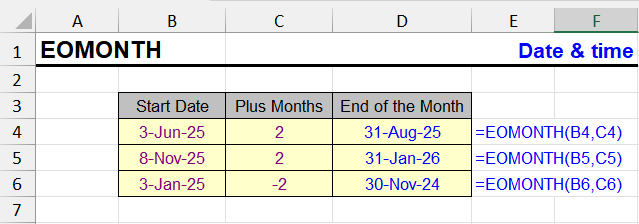
The following video provides a thorough explanation and some excellent practical examples.
EOMONTH Function in Excel: How to + 8 Examples | Excel Off The Grid
This video from Excel Off The Grid is dedicated to the EOMONTH function and its uses.
Start with the introduction (first 30 seconds) to understand the function's purpose. Watch the explanation of the arguments from this segment. It clearly shows how positive, negative, and zero values work for the months argument. Next, see a powerful practical example: finding the end of the current month using =EOMONTH(TODAY(), 0). Watch this from this part. Finally, watch the segment on best practices from this section. This is an important point that reinforces what we learned earlier: using the DATE function inside other date functions is the safest way to ensure your formulas work correctly everywhere.
Conclusion
You have now added the fundamental date functions to your Excel arsenal. This knowledge is a cornerstone of financial modeling, project management, and data analysis.
Here are the key takeaways from this lesson:
- Excel's Date System: Dates are stored as serial numbers, and time as fractions of a day, which allows for mathematical operations.
- Dynamic Dates:
TODAY()andNOW()provide the current date and date/time, respectively, and update automatically. - Building Dates: The
DATE(year, month, day)function is the most robust way to create a date in a formula, avoiding regional setting errors. - Analyzing Dates:
YEAR(),MONTH(), andDAY()are used to extract specific parts of a date for analysis and reporting. - Month-End Calculations:
EOMONTH(start_date, months)is the go-to function for finding the last day of a given month, essential for financial and scheduling tasks.
This lesson concludes our module on Excel Formula Fundamentals. You've built a strong base, from basic arithmetic to manipulating text and dates. In our next lesson, we will begin a new module by exploring more advanced date functions, such as DATEDIF and NETWORKDAYS, to calculate time intervals and working days between two dates.