Welcome to the next step in our journey through Excel's formula fundamentals. In our last lesson, you learned how to dissect text—pulling it apart with functions like LEFT, RIGHT, and MID to clean up messy data. This is a crucial skill for preparing data for analysis. Now, we'll learn the opposite and equally important skill: how to put text together.
This lesson focuses on combining, or "concatenating," text from multiple cells into a single cell. This is a task you'll face constantly as a freelancer, whether you're creating full names from separate first and last name columns, generating unique IDs for a project tracker, or assembling complete addresses for a client mailing list. We will cover the classic methods using the & operator and the CONCAT function, and then explore the modern, powerful TEXTJOIN function, which will quickly become your preferred tool for this job.
The Basics: Joining Text Manually
The simplest way to join text in Excel doesn't even require a function. You can use the ampersand (&) symbol as a concatenation operator. Think of it as the "+" for text.
For example, if cell A2 contains "Joan" and B2 contains "Williams", the formula =A2&B2 would produce "JoanWilliams". To add a space, you must explicitly include it as a text string in quotes: =A2&" "&B2.
Let's see a quick demonstration of this method.
Excel TEXTJOIN, CONCATENTATE and CHAR Functions to Join Text
This video from Chris Menard starts by demonstrating the ampersand (&) operator, which is a fundamental technique for text combination.
Watch the segment from the beginning. Notice how he manually adds a space and then a comma as delimiters between the first and last names. This manual approach is important to understand.
While the & operator is effective for simple joins, Excel also provides dedicated functions. The original function was CONCATENATE, but as you'll see, it has been replaced by a more capable function, CONCAT.
The primary difference is that CONCAT can accept a range of cells as an argument (e.g., A2:C2), whereas the older CONCATENATE required you to select each cell individually. This makes CONCAT more efficient.
CONCATENATE vs CONCAT vs TEXTJOIN formula in Excel | Understand the difference!
The video "CONCATENATE vs CONCAT vs TEXTJOIN" from the Excel Bonanza channel provides an excellent explanation of the history and differences between these functions.
Please watch the following parts: Introduction (first two minutes): The presenter explains why CONCATENATE is considered a legacy function and how CONCAT is its successor. Range Handling (this segment): Pay close attention to the demonstration of how CONCAT can handle a cell range directly (B12:E12), while CONCATENATE cannot. Adding Delimiters (this part): Observe how, just like with the & operator, you must manually insert delimiters like spaces as separate arguments in the formula. This manual insertion of delimiters is the key limitation that our next function, TEXTJOIN, elegantly solves.
The Modern Solution: The TEXTJOIN Function
TEXTJOIN is a more recent and far more powerful function introduced in Excel 2019 and available in Microsoft 365. It is designed specifically to address the shortcomings of CONCAT and CONCATENATE. Its key advantages are the ability to specify a delimiter once and apply it between all text items, and an option to automatically ignore any empty cells in your selection.
The syntax is:=TEXTJOIN(delimiter, ignore_empty, text1, [text2], …)
delimiter: The character(s) you want to place between each piece of text (e.g., a space" ", a comma and space", ", or a dash" - ").ignore_empty: ATRUEorFALSEvalue. IfTRUE, it will skip any empty cells in your range, preventing extra delimiters. IfFALSE, it includes them. You will almost always want this to beTRUE.text1, [text2], …: The cells or ranges you want to join.
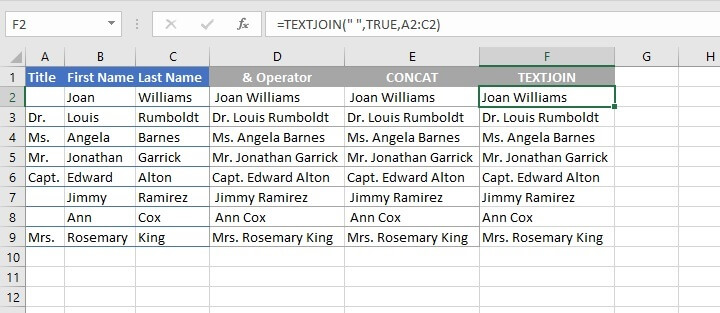
Let's see this function in action.
CONCATENATE vs CONCAT vs TEXTJOIN formula in Excel | Understand the difference!
The Excel Bonanza video now introduces the TEXTJOIN function.
Watch from this section. Notice how the delimiter (a space) is defined only once as the first argument, and then the function applies it automatically between each item in the range. This is significantly more efficient.
The ignore_empty argument is particularly useful in real-world data, which often has gaps. The next video shows a great example of this.
Excel TEXTJOIN, CONCATENTATE and CHAR Functions to Join Text
Chris Menard's video provides another look at TEXTJOIN, this time focusing on the ignore_empty argument.
Watch from this segment. See how setting the ignore_empty argument to TRUE cleanly skips the blank cell in the address, whereas setting it to FALSE results in an undesirable extra comma.

Pro Tip: Creating Line Breaks
A very practical use of TEXTJOIN is to combine text onto separate lines within the same cell, such as formatting a mailing address. You can achieve this by using the CHAR(10) function as your delimiter. CHAR(10) is Excel's code for a line break character. After entering the formula, you must also enable "Wrap Text" on the cell for the line breaks to be visible.
Excel TEXTJOIN, CONCATENTATE and CHAR Functions to Join Text
Let's see that pro tip in action.
Watch the final segment of the video from this section, where CHAR(10) is used within TEXTJOIN to stack address lines vertically in one cell.
Time to Practice
Your preference is for hands-on learning, and that's the best way to master these functions. The following resource provides a downloadable Excel file with 20 practice problems that cover a variety of real-world scenarios for CONCAT and TEXTJOIN.
Practice Problems Excel Free Download – CONCAT & ...
This guide from PivotXL is an excellent practical resource. It includes a dataset and a series of problems that will help solidify your understanding.
First, scroll to the section Example Dataset to familiarize yourself with the data you'll be using. Next, locate the download link. It may be near the top or bottom of the page, labeled Download Practice File. Download and open the spreadsheet. Work through the problems in the section titled 20 Skill Problems. Try to solve at least 10 of them, such as: Problem 1 & 2: Simple name combination. Problem 3: Creating an email address. Problem 4: Creating a unique identifier. Problem 10: Building a formatted directory listing. Problem 15 & 18: Joining multiple fields with different delimiters. Feel free to try more! The goal is to become comfortable building these formulas from scratch.
Conclusion
In this lesson, we completed our tour of fundamental text manipulation by learning how to combine text. This skill, paired with the text extraction techniques from the previous lesson, gives you a powerful toolkit for cleaning and restructuring data.
Here are the key takeaways:
- Methods for Joining: You can combine text using the ampersand
&operator, theCONCATfunction, or theTEXTJOINfunction. CONCATvs.CONCATENATE:CONCATis the modern replacement forCONCATENATEand is preferred because it can handle cell ranges.TEXTJOINis Superior: For most tasks,TEXTJOINis the best choice. It simplifies adding delimiters and can intelligently handle empty cells, making your formulas cleaner and more robust.
In our next lesson, we will shift gears from text to another common data type: dates. You will learn how to use Excel's basic date functions like TODAY, DATE, and EOMONTH to perform essential date-related calculations.