Welcome back to our course. In our previous lesson, we transformed a static range of cells into a dynamic Excel Table, unlocking a set of powerful features for managing data. We saw how Tables automatically expand to include new data, which is the foundation for building robust, automated reports.
Today, we'll build directly on that knowledge. We're going to learn the special language that Excel uses to communicate with these Tables: structured references. You will learn how to write formulas that use table and column names instead of cryptic cell addresses like B2:B50. This will not only make your formulas crystal clear and easy to understand but will also ensure they automatically adapt as your table grows, making your work more professional and reliable.
What Are Structured References?
A structured reference is a formula syntax that uses table and column names to refer to data. Instead of writing a formula like =SUM(B2:B5), which requires you to know the exact cell range, you can write =SUM(Table1[Sales]). This version is immediately understandable, and more importantly, it's dynamic.
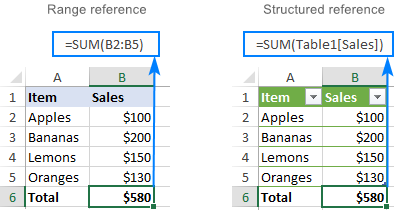
The key advantages of using structured references are:
- Readability: Formulas become self-documenting.
Sales[Revenue]is far more intuitive thanD2:D1048576. When you hand over a file to a client, they can understand your logic without deciphering cell addresses. - Auto-Expansion: This is the most powerful benefit. When you add new rows to your table, any formula using a structured reference automatically includes them. You don't need to manually update your formulas ever again.
- Resilience: If you rename a column header, Excel automatically updates all structured references that use it. Your formulas won't break.
The following article provides a concise introduction to the concept and its key features.
Structured references in Excel tables - Ablebits.com
This article from Ablebits.com clearly defines structured references and outlines their primary advantages over standard A1-style cell references.
Please read the first two sections of the article, starting from the top down to the end of the "Key features of structured references" list. Focus on the definition and the list of features like resilience and automatic updates.
The Anatomy of a Structured Reference
Structured references have a specific syntax that is easy to learn. Let's break down the most common components.
Fully Qualified vs. Unqualified References
The full, or fully qualified, syntax for a structured reference looks like this: TableName[ColumnName].
TableName: This is the name of your Excel Table (e.g.,SalesData, or the defaultTable1). You can rename your table in the "Table Design" tab that appears when you select any cell within it.[ColumnName]: This is the header of the column you want to reference, enclosed in square brackets (e.g.,[Revenue]).
You use a fully qualified reference when your formula is outside the table. For example, in a summary cell on your dashboard, you might write:
=AVERAGE(SalesData[Units Sold])
When your formula is inside the table, you can often omit the table name. This is called an unqualified reference. Excel understands you are referring to the table you're currently in. We'll see this in action with calculated columns.
The video below demonstrates how to create and rename a table and then explains the difference between writing a formula inside versus outside the table.
How to Use Structured References in Excel: Table, Column, and Item Specifiers
This video from BrainBell provides a clear visual for creating tables and understanding qualified vs. unqualified references.
First, watch the section on creating and renaming a table from this segment. Then, watch the explanation of fully qualified references (used outside the table) from this part.
The "@" Symbol: Referencing the Current Row
One of the most powerful features of tables is the calculated column, where a single formula automatically fills down for every row. To make this work, you need a way to tell Excel, "for this row, use the value from the 'Quantity' column in this same row."
This is done with the @ symbol, which is an item specifier for "[This Row]".
For example, if you are in a table and want to create a "Total Cost" column by multiplying "Quantity" and "Unit Price", you would enter this formula in the first cell of the new column:
=[@Quantity]*[@UnitPrice]
Excel automatically understands this syntax, applies it to the current row, and then fills the formula down the entire column.
Let's see a demonstration of this.
How to Use Structured References in Excel: Table, Column, and Item Specifiers
Continuing with the BrainBell video, this next segment shows exactly how the '@' symbol works within a calculated column.
Watch from this section to see the creation of a calculated column using unqualified references with the @ symbol. Pay close attention to how Excel auto-fills the formula down the column.
Referencing Specific Parts of a Table
Beyond just columns, you can refer to other specific parts of your table using special item specifiers, which almost always begin with a pound or hash symbol (#).
Here are the most common specifiers:
[#All]: The entire table, including headers, data, and the total row.[#Data]: Just the data rows, excluding headers and the total row. This is the default if you just use the table name, e.g.,=SUM(SalesData).[#Headers]: The header row only.[#Totals]: The total row only.[#This Row]or@: The current row.
These specifiers give you precise control. For example, if you wanted to count how many data rows are in your table, you could use a formula like =ROWS(SalesData[#Data]).
The following video gives a great overview of these five key specifiers.
How to Use Excel Tables Structured References
This video from Online Training for Everyone breaks down each of the main specifiers with clear examples.
Watch the following segments to understand how to reference different parts of a table: Introduction to specifiers Using [#All] Using [#Data] Using [#Totals] Using [#This Row]
For a quick reference, the article below provides a handy table summarizing these specifiers and the overall syntax.
Structured references in Excel tables - Ablebits.com
This section of the Ablebits article serves as an excellent reference guide for the syntax we've just discussed.
Review the section titled "Structured reference syntax". Pay special attention to the table under the "Item specifier" heading.
Practical Examples
Let's solidify your understanding with a few practical examples of how you would use structured references with functions you'll soon be mastering.
1. Summing a Column (Outside the Table)
To calculate the total revenue from a table named Sales, you would use:=SUM(Sales[Revenue])
This is clean, readable, and will automatically update if you add more sales records to the Sales table.
2. Calculating Commission (Inside the Table as a Calculated Column)
Imagine you want to add a "Commission" column that calculates 5% of the revenue for each sale. You would add a new column with the header "Commission" and enter this formula in the first row:=[@Revenue]*0.05
The formula automatically populates for all rows.
3. Conditional Logic with IF (Inside the Table)
Let's say you want to assign a "Status" to each salesperson based on their performance. If they sold more than 150 units, they are "Above Target"; otherwise, they are "Below Target". You could add a "Status" column and use this formula:=IF([@[Units Sold]]>150, "Above Target", "Below Target")
This article provides simple, step-by-step guides for these exact scenarios.
How to Use Structured Reference in Excel Formula (6 Examples)
This ExcelInsider article walks through several practical examples using functions with structured references.
Read through the following examples to see these concepts in practice: The SUM function example. The IF function example. The example for calculations across columns.
Conclusion
You've now learned the "language" of Excel Tables. By moving away from rigid A1-style references to flexible, readable structured references, you are adopting a best practice that is fundamental to professional spreadsheet design. For you as a future freelancer, this skill is not just a convenience; it is a mark of quality. It ensures the solutions you build are robust, maintainable, and easy for your clients to understand and use.
Key Takeaways:
- Structured references use table and column names (e.g.,
Sales[Revenue]) instead of cell addresses. - They make formulas highly readable and resilient to changes like renaming columns.
- They are inherently dynamic, automatically including new data added to a table.
- The
@symbol is used in calculated columns to refer to the value in the current row. - Specifiers like
[#Data],[#Headers], and[#Totals]allow you to precisely reference specific parts of a table.
In our next lesson, we will shift our focus from structure to presentation. You'll learn how to use number formatting, cell styles, and other tools to make your data not just functional, but also visually appealing and professional.