Introduction
In our last lesson, we focused on building a complete Profit & Loss statement, which provides a comprehensive view of a business's profitability over a period. This is crucial for understanding historical performance and forecasting future earnings. Now, we will pivot from analyzing broad operational results to evaluating specific financial decisions, such as taking out a loan or making an investment.
This lesson introduces you to the concept of the Time Value of Money (TVM) and the powerful Excel functions that bring this theory to life: PMT, PV, and FV. You will learn how to use these functions to answer critical financial questions like, "What will my monthly loan payment be?" or "How much will my savings be worth in the future?" Mastering these functions is a cornerstone of financial modeling and an essential skill for any freelance analyst advising clients on financial matters.
1. The Core Concept: Time Value of Money
Before we jump into the functions, it's important to grasp the fundamental principle they are all based on: the time value of money. In simple terms, this concept states that a sum of money is worth more now than the same sum will be at a future date. This is because money available today can be invested and earn interest, growing to a larger amount over time.
This principle is the foundation of finance. It allows us to compare the value of cash flows that occur at different points in time.
Mastering PMT, PV, and FV Calculations in Excel
This article from Sparkco provides a concise introduction to the time value of money and the role of PMT, PV, and FV.
Please read the sections Introduction to Financial Calculations and Understanding PMT, PV, and FV. As you read, focus on the core idea of why money has a time value and see the mathematical formula for Future Value. You don't need to memorize the formula itself, but notice how it incorporates the interest rate (r), number of years (t), and compounding periods (n).
2. An Overview of Excel's Core Financial Functions
Excel provides a set of functions to perform these TVM calculations easily. The three most essential ones are:
PV(Present Value): Calculates the value today of a future sum of money or a series of future payments.FV(Future Value): Calculates the value of an investment or loan at a future date.PMT(Payment): Calculates the constant periodic payment required to pay off a loan or achieve a savings goal.
The following infographic provides an excellent visual summary of these three functions, their common arguments, and typical scenarios where you would use them.
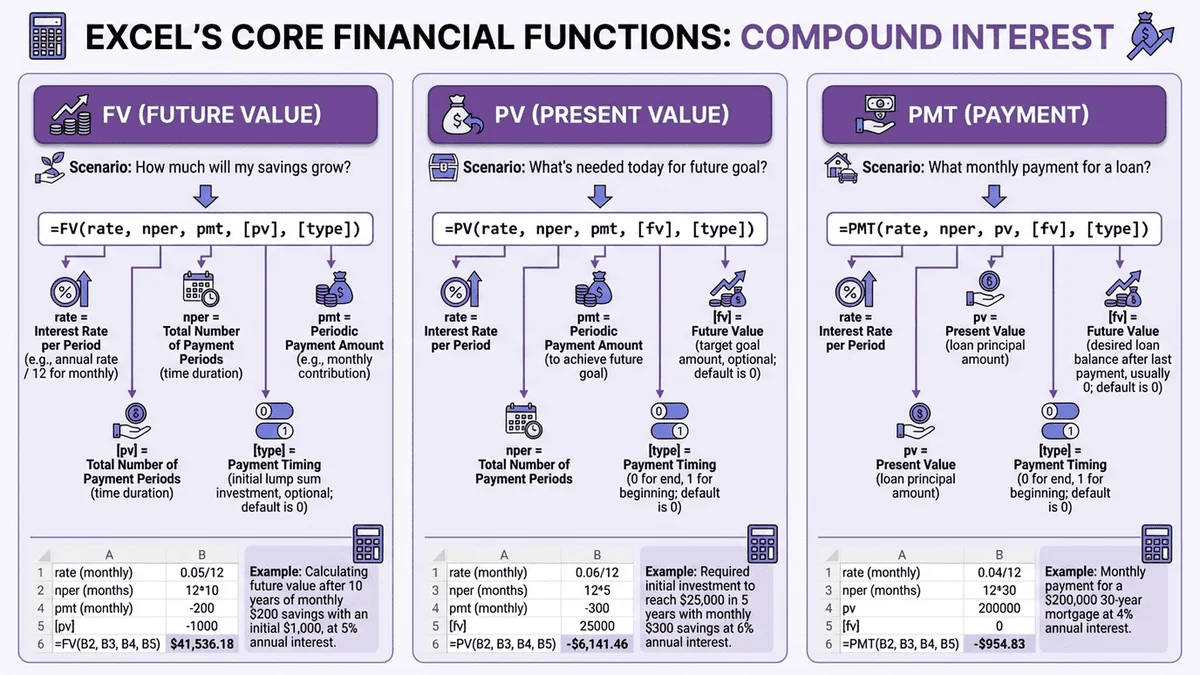
The arguments you see—rate, nper, pmt, pv, fv—are the building blocks for all these functions. Let's break them down.
3. Calculating Loan Payments with the PMT Function
The PMT function is one of the most frequently used financial functions. Its primary purpose is to calculate the payment for a loan based on constant payments and a constant interest rate.
Before using it, there are two crucial points to understand:
- Sign Convention: By default, Excel returns the
PMTresult as a negative number. This represents a cash outflow (money you are paying out). If you need to display it as a positive number, you can put a minus sign before the function, like=-PMT(...), or make thepv(loan amount) argument negative. - Unit Consistency: The
rateandnper(number of periods) arguments must be in the same time units. If you have an annual interest rate but are calculating monthly payments, you must divide the annual rate by 12 and multiply the number of years by 12. This is the most common source of errors.
Excel PMT function with formula examples - Ablebits.com
This guide from Ablebits provides a thorough explanation of the PMT function, its syntax, and the critical importance of unit consistency.
Please read the first two sections, What is the PMT function and syntax and basic uses. Pay close attention to the breakdown of each argument and the examples showing the conversion from annual to monthly units.
Now, let's see a practical demonstration of correcting a common mistake with the rate argument.
Learn 5 Financial Functions in Excel | PMT, RATE, NPER, PV, FV
This clip from Excel Tutorial clearly demonstrates how to use the PMT function and, more importantly, how to correctly adjust the interest rate for monthly payments.
Watch the segment from learning the PMT function. Notice how the initial formula produces an incorrect, massive payment because it's using the annual rate as a monthly rate. The key takeaway is the simple fix: dividing the rate by 12.
4. Finding Present Value (PV) and Future Value (FV)
The PV and FV functions are two sides of the same coin. PV tells you what a future amount of money is worth today, while FV tells you what an amount of money today will be worth in the future.
PVis useful for:- Determining how much you need to invest today to reach a specific future savings goal.
- Finding out the original principal of a loan if you only know the payment, rate, and term.
FVis useful for:- Projecting the growth of a lump-sum investment or regular savings contributions over time.
- Calculating the remaining balance of a loan after a certain number of payments have been made.
This video provides clear, straightforward examples for both functions.
BEST Financial Formulas on Excel | For Business & Finance Professionals
This video from Kenji Explains demonstrates both the PV and FV functions with simple, practical scenarios.
First, watch the demonstration of the PV function from calculating present value. This shows how to find the amount needed today to afford a car in the future. Next, watch the demonstration of the FV function from calculating future value. This builds on the previous example to show how that present value could grow over a much longer period.
5. Hands-On Practice: Building a Dynamic Loan Calculator
Now it's time to apply what you've learned in a practical way. We will build a small but powerful loan payment calculator. This exercise will not only use the PMT function but will also integrate skills from previous modules, such as data validation (drop-down lists) and lookup functions. This is a great example of the kind of tool you might build for a client.
Excel PMT function with formula examples - Ablebits.com
This section of the Ablebits guide provides a step-by-step tutorial for creating an interactive loan calculator.
Follow the instructions under the heading "How to make a PMT calculator in Excel" to build the tool in your own worksheet. The steps involve: Setting up input cells for the loan details. Creating drop-down lists for payment frequency (using Data Validation). Building a small lookup table and using VLOOKUP to get the number of periods per year. Writing the final PMT formula that dynamically adjusts based on the user's selections. This exercise is excellent practice for creating user-friendly and robust tools in Excel.
6. Troubleshooting Common Errors
When you start using these financial functions, you may encounter errors. Being able to quickly diagnose them is a valuable skill. The most common issues are:
#NUM!error: This often happens inPMTif therateis negative ornperis zero.#VALUE!error: This occurs if any of the arguments are non-numeric (e.g., text).- Incorrect Results: If the number seems wildly too high or too low, the cause is almost always an inconsistency between the
rateandnperunits. Double-check that you've converted annual rates and years into the correct period units (e.g., monthly).
Conclusion
In this lesson, you've moved beyond profit-and-loss analysis to evaluate specific financial instruments using the time value of money. These functions are fundamental for any financial analysis you will perform as a freelance Excel expert.
Key Takeaways:
- The Time Value of Money is the principle that money available today is worth more than the same amount in the future.
- The
PMTfunction calculates the constant payment for a loan. Remember to keep therateandnperunits consistent. - The
PVfunction calculates the present-day value of future cash flows, answering "What is it worth today?" - The
FVfunction calculates the future value of an investment, answering "What will it be worth later?" - Combining these functions with other Excel features like Data Validation and
VLOOKUPallows you to build powerful, interactive financial tools.
In our next lesson, we will continue exploring investment analysis. We'll learn how to use the NPV (Net Present Value) and IRR (Internal Rate of Return) functions. These build directly on the TVM concepts you've learned today and are used to assess the profitability of projects with varying cash flows over time.