Introduction
In our previous lesson, we transformed static PivotTables into dynamic, interactive reports using Slicers and Timelines. You learned to empower users to explore data on their own. However, a report is only as good as the data behind it. This raises a critical question: what happens when your source data is updated, new sales are added, or corrections are made?
This lesson addresses that exact challenge by focusing on how to refresh and maintain your PivotTables. We'll explore why a PivotTable might not update, the best practices to ensure it does, and various methods to automate the refresh process. Mastering these techniques is crucial for a freelance analyst, as it guarantees that the reports and dashboards you deliver to clients are always accurate and up-to-date. We will even touch on some VBA automation, aligning with your goal to build robust, automated solutions.
1. The Challenge of Changing Data
A PivotTable does not have a live link to its source data; it operates on a snapshot taken when it was created or last refreshed. This snapshot is stored in a special memory area called a Pivot Cache. If you add new data to your source range, the PivotTable and its cache remain unaware of these changes until you explicitly tell Excel to update them.
Imagine you have a sales report, and new rows of data for the current month are added to your source sheet. If your PivotTable is based on a fixed range (e.g., A1:D100), any data added in row 101 and beyond will be completely ignored.
The manual way to fix this is to redefine the source data range.
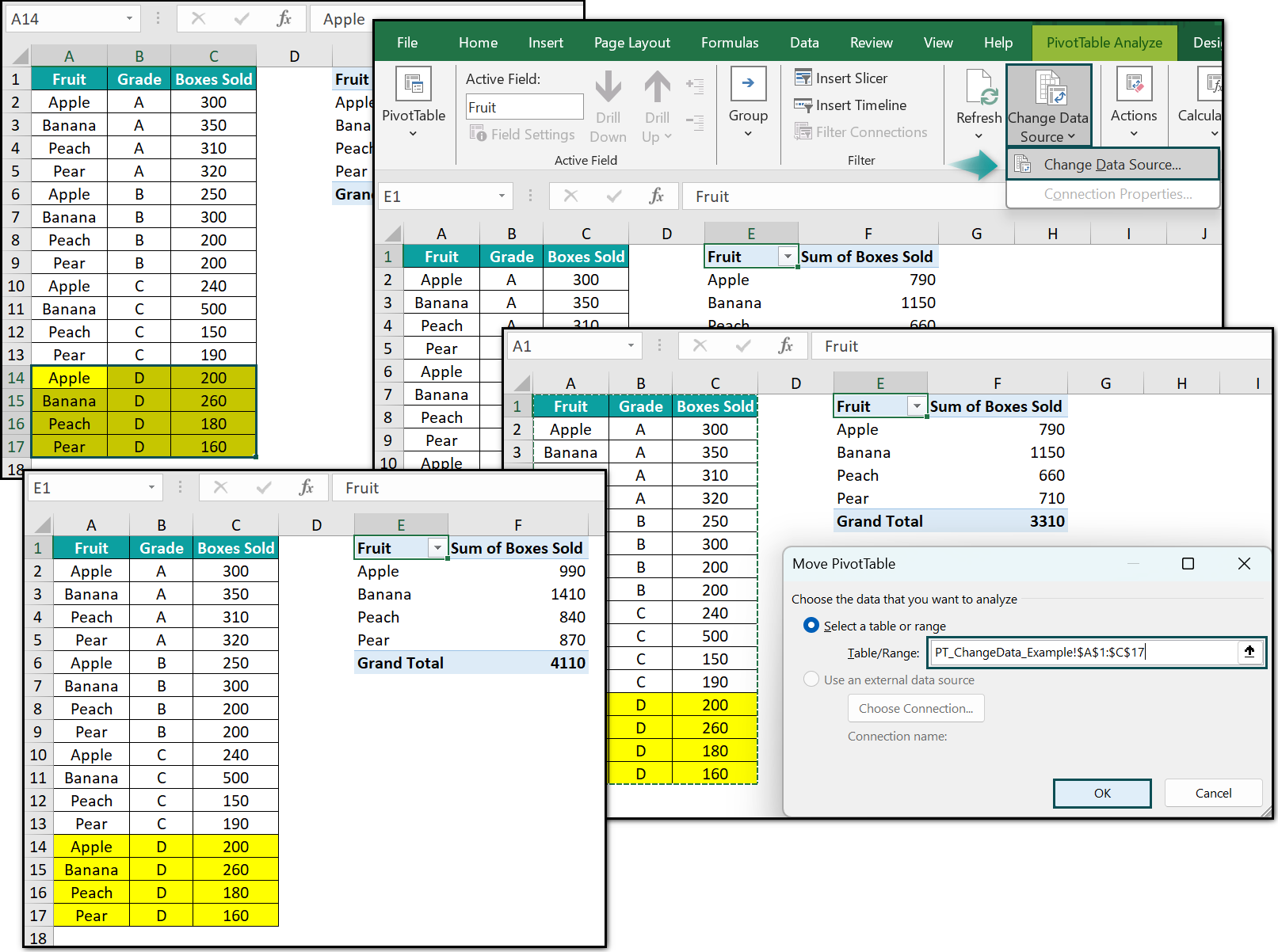
To see this cumbersome process in action, let's watch a short video.
Update PivotTable When Data Source Changes | Automatically Refresh a PivotTable With New Data
The video "Update PivotTable When Data Source Changes" by Chester Tugwell begins by demonstrating this exact problem.
Watch the section from redefining the range. Notice how the presenter has to go to the PivotTable Analyze tab, click Change Data Source, and manually adjust the range address. While this works, it's inefficient and highly prone to error, especially in a frequently updated report.
Clearly, this manual method is not sustainable for professional work.
2. The Best Practice: Using Excel Tables
The most effective solution to the static range problem is to convert your source data into an Excel Table. As we briefly touched on in Module 4, an Excel Table is a dynamic object. When you add new rows or columns, the table automatically expands, and any PivotTable built from it will recognize the new scope.
Once your data is in an Excel Table (Ctrl+T), you no longer need to use "Change Data Source." All you need to do is refresh the PivotTable.
You can do this in two simple ways:
- Right-click anywhere inside the PivotTable and select Refresh.
- Select the PivotTable, go to the PivotTable Analyze tab on the ribbon, and click the Refresh button.

Let's see the dramatic improvement this brings.
Update PivotTable When Data Source Changes | Automatically Refresh a PivotTable With New Data
We'll return to the same video from Chester Tugwell, where he demonstrates this best-practice workflow.
Watch the segment from using an Excel table. Pay close attention to how, after converting the data to a table, adding new records is seamless. The only action required to update the PivotTable is a right-click and Refresh. This is the foundational technique for building reliable, maintainable reports.
3. Automating the Refresh Process
Even with a simple Refresh command, you might forget to do it, or you might want to build a report for a client that updates itself. Excel provides several ways to automate the refresh process, ranging from simple options to powerful code-based solutions.
Method 1: Refresh on File Open
The easiest way to automate a refresh is to set the PivotTable to update every time the workbook is opened. This ensures that anyone opening the file always sees the most current data.
Excel Pivot Table Refresh Steps and Fixes
The article from Contextures.com provides clear, step-by-step instructions for this feature.
Read the section titled Refresh When File Opens. This will walk you through the simple process of changing a PivotTable's options to enable automatic refreshing when the file is opened.
This is a fantastic, no-code option for many reporting scenarios.
Method 2: The Power Query Approach
For more complex or larger-scale data, a more robust method is to use Power Query to connect to your data source. As we'll explore more deeply in later modules, Power Query can connect to folders of files, databases, and web sources. When you build a PivotTable from a Power Query connection, you get more advanced refresh options.
For instance, you can set a query to refresh periodically (e.g., every 30 minutes) or connect to a folder so that simply dropping a new monthly data file into it and hitting "Refresh All" will update your entire analysis.
The following article outlines a professional workflow using this method. You don't need to perform the steps now, but reading through the process will give you a clear vision of the powerful, scalable reports you can build.
A Better Way to Keep PivotTables Updated
This article from the CPA Journal demonstrates a best-practice, automated reporting workflow.
Start by reading the introduction and the list of advantages to understand why this method is so powerful. Then, skim through the main steps of the article to see the concept in action. Finally, read the section The Magic of Power Query carefully. It shows how adding a new file to a folder and clicking Refresh updates the PivotTable, and it also revisits the "Refresh data when opening the file" option in this new context.
Method 3: Automation with VBA
As you pursue your goal of becoming an automation expert, VBA offers limitless possibilities. You can write code to trigger a refresh based on specific user actions. A common and intuitive approach is to automatically refresh the PivotTable whenever a change is made to the source data worksheet.
Let's look at a simple but effective macro that does exactly this.
Update PivotTable When Data Source Changes | Automatically Refresh a PivotTable With New Data
The final section of the Chester Tugwell video introduces a VBA solution for automatic refreshing.
Watch the part from using a macro. The presenter explains how to add a Worksheet_Change event macro to the sheet containing your source data. This code automatically runs and refreshes a specific PivotTable whenever any cell on that sheet is modified.
Here is the structure of the VBA code shown in the video:
Private Sub Worksheet_Change(ByVal Target As Range)
    ' This code runs whenever a cell on this sheet is changed.

    ' It targets a specific sheet and a specific PivotTable by name
    ' and tells its cache to refresh.
    ThisWorkbook.Sheets("Report").PivotTables("PivotTable3").PivotCache.Refresh

End Sub
This is a great example of how a few lines of code can create a much more dynamic and user-friendly experience, a skill highly valued in freelance projects.
Conclusion
You've now learned the essential skills for keeping your PivotTable reports accurate and current. Moving beyond simple manual updates to adopting professional best practices is a significant step in your journey to becoming an Excel expert.
Key Takeaways:
- A PivotTable relies on a Pivot Cache and does not update automatically when source data changes.
- The most critical best practice is to base your PivotTables on an Excel Table (
Ctrl+T), not a static range. This makes your data source dynamic. - Once using an Excel Table, a simple Refresh command is all that is needed to update the PivotTable.
- You can automate the refresh process by setting the PivotTable to update when the file opens, by leveraging Power Query connections, or by writing a VBA macro to trigger a refresh on a specific event.
In our next module, we'll shift our focus from data summarization to data visualization. Now that you can reliably process and summarize data, you'll learn how to create compelling charts and build full-fledged interactive dashboards to tell powerful stories with your analysis.