Hello! Welcome to your final lesson in the "Scripting and Automation with Bash" module.
In our last session, you mastered jq, a powerful tool for parsing and processing JSON data from the command line. Having tools like jq is crucial, but just as important is how you integrate them into your scripts. A script that works is good, but a script that is readable, maintainable, and robust is professional.
Today, we'll focus on that professional standard. We'll shift from learning new commands to learning the principles of writing high-quality code.
Today's Learning Outcome: By the end of this lesson, you will be able to write scripts that adhere to common Bash style guides and best practices. This will ensure the automation you build is not just functional but also clean, easy to understand for you and your future teammates, and less prone to bugs.
1. Why Style Matters and How to Automate It
In a professional DevOps environment, you rarely write code that only you will see. Your scripts become part of a larger system, maintained by a team. Writing with a consistent style offers several key benefits:
- Readability: Code is read far more often than it is written. A clear, consistent style makes it easier for others (and your future self) to understand what a script does.
- Maintainability: When you need to fix a bug or add a feature, well-structured code is faster and safer to modify.
- Collaboration: When everyone on a team follows the same conventions, it reduces friction and makes code reviews more efficient.
- Bug Reduction: Many style guide rules are designed to prevent common, subtle bugs related to things like word splitting and error handling.
The best way to start applying these rules is to use a tool that automates the process. The most popular tool for this is ShellCheck.
Introducing ShellCheck: Your Automated Code Reviewer
ShellCheck is a static analysis tool that scans your shell scripts and provides warnings and suggestions for common issues. It's like a spell-checker for your code, catching everything from simple syntax errors to complex logical flaws.
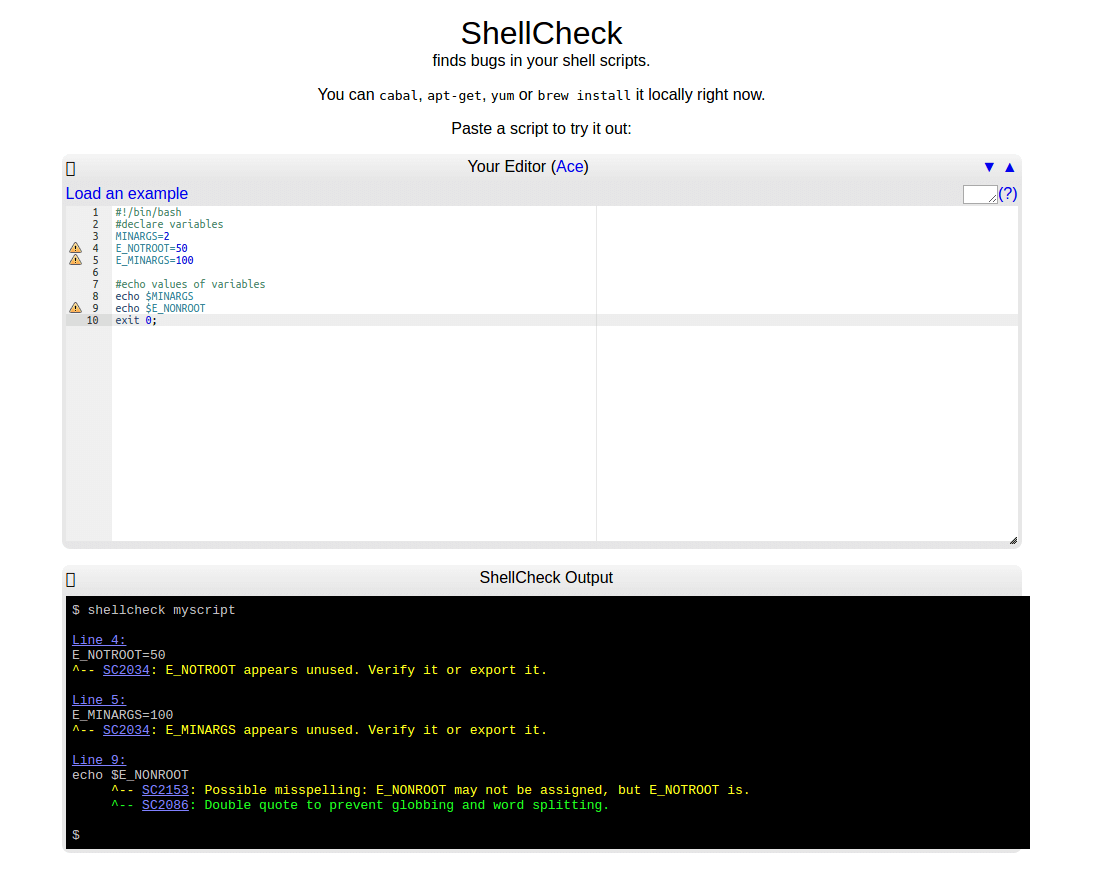
Many code editors (like VS Code) have extensions that integrate ShellCheck, providing real-time feedback as you type. Adopting ShellCheck early is one of the single best habits you can form.
Let's read about ShellCheck in one of the most respected style guides available.
The Google Shell Style Guide is a comprehensive resource used by developers at Google. We'll use it as our primary reference today. Let's start with what it says about ShellCheck.
From the resource, find the section titled 'Features and Bugs' and read the first subsection, 'ShellCheck'. The main takeaway is that using this tool is highly recommended for all scripts.
2. Core Principles of a Bash Style Guide
While ShellCheck is fantastic, it's also important to understand the principles behind its suggestions. We'll now explore the key pillars of a good style guide, using Google's guide as our foundation.
A. Readability and Structure
This set of rules is designed to make scripts easy to read and navigate.
- Comments: Good comments explain the why, not the how. A file should start with a header explaining its purpose, and any non-obvious function should have a comment block explaining what it does, its arguments, and what it returns.
- Naming Conventions: Use a consistent naming scheme. A common convention is
lower_case_with_underscoresfor functions and variables, andALL_CAPSfor constants and environment variables. - Formatting: Consistent indentation (2 spaces is common, no tabs), a reasonable line length (80 characters is the classic standard), and clear formatting for long commands or pipelines make code visually clean.
Let's read the specific rules for these topics in the Google Style Guide.
Please read the following sections: Comments: The entire section. Pay attention to the examples for file headers and function comments. Formatting: The subsections on 'Indentation', 'Line Length and Long Strings', and 'Pipelines'. Naming Conventions: The subsections on 'Function Names', 'Variable Names', and 'Constants, Environment Variables, and readonly Variables'.
B. Writing Robust and Safe Code
This is arguably the most critical part of any style guide, as these rules directly help prevent bugs.
- Quoting: This is a big one. Always double-quote your variables (
"$var") and command substitutions ("$(command)"). This prevents the shell from performing word splitting and glob expansion on values that contain spaces or special characters (*,?), which is a massive source of bugs. - Conditionals: Prefer using the double-bracket
[[ ... ]]test construct over the single-bracket[ ... ].[[is a Bash keyword with more features and safer behavior; for example, it doesn't perform word splitting on variables, which simplifies tests. - Error Handling: A command can fail. Don't assume
cdwill always succeed. Always check for failures on critical commands, for example:cd /some/dir || exit 1. - Dangerous Commands: Some commands are best avoided entirely.
evalis extremely dangerous as it can execute arbitrary code passed in its arguments. Similarly, parsing the output oflsis unreliable; use globbing (for f in *; do ...) instead.
These rules are fundamental to writing safe scripts. Both the Google guide and another popular guide from 'bahamas10' have excellent sections on these topics. Seeing them in both places will underscore their importance.
From the Google guide, please read: In 'Formatting': The subsection 'Quoting'. In 'Features and Bugs': The subsections 'Test, [ … ], and [[ … ]]', 'Wildcard Expansion of Filenames', and 'Eval'.
Now, let's see how the 'bahamas10/bash-style-guide' covers some of the same ground. This helps reinforce the concepts and introduces you to another perspective.
From this guide, please review the following: In 'Bashisms': 'test(1)' and 'Listing Files'. In 'Style': 'Quoting' and 'Error Checking'. In 'Common Mistakes': The entire section, which has great examples of quoting issues and using the wrong loop.
C. Consistency is King
You may have noticed that the Google guide and the bahamas10 guide have some different opinions (e.g., spaces vs. tabs, using the function keyword). This is normal. There is no single, universally-enforced style guide for Bash.
The most important rule of all is to be consistent. If you are working on an existing project, follow its style. If you are starting a new project, choose a guide and stick to it. This principle outweighs any minor debate over specific rules.
Test your understanding!
Below is a small script that works but violates many of the style and safety principles we've just discussed. Identify at least 5 issues and rewrite the script to be clean, safe, and well-styled.
#!/bin/bash
# script to process logs

FILES=/var/log/*.log
for f in $FILES
do
  if [ -f $f ]; then
    echo "Processing " $f
    cat $f | grep 'ERROR' > /tmp/errors.txt
  fi
done

CONST=100
echo "Done. Constant is" $CONST
Show answer
Here is the rewritten script, followed by an explanation of the issues fixed.
#!/usr/bin/env bash
#
# Processes all .log files in /var/log for lines containing 'ERROR' and
# saves them to a temporary file.

# A constant should be all caps and readonly.
readonly TMP_FILE="/tmp/errors.txt"

# Clear the temp file before starting.
> "${TMP_FILE}"

# Use a glob directly in the loop.
# Quote all variables to prevent word-splitting issues.
for f in /var/log/*.log; do
  # Use the safer and more powerful [[ ... ]] for tests.
  if [[ -f "${f}" ]]; then
    echo "Processing ${f}..."
    # Avoid 'Useless Use of Cat'. grep can read files directly.
    # Append to the file instead of overwriting it in each loop iteration.
    grep 'ERROR' "${f}" >> "${TMP_FILE}"
  fi
done

echo "Done. Errors saved to ${TMP_FILE}"
Issues Fixed:
- Shebang: Changed
#!/bin/bashto#!/usr/bin/env bashfor better portability. - Quoting: The variables
$FILES,$f, and$CONSTwere all unquoted, making the script unsafe for filenames with spaces. They are now quoted ("${f}","${TMP_FILE}"). - Unsafe
ls-like behavior: Assigning*.logto a variable and then using it unquoted is unreliable. The corrected version uses the glob directly in theforloop, which is safer. [vs[[: The test[ -f $f ]was changed to the more robust[[ -f "${f}" ]].- Useless Use of
cat: Thecat $f | grep ...pipeline is inefficient.grepcan read from files directly, so this was changed togrep 'ERROR' "${f}". - Logic Bug: The original script overwrote
/tmp/errors.txton every loop iteration (>). This was changed to append (>>) to collect errors from all files. - Naming Convention: The variable
CONSTwas renamed toTMP_FILEto be more descriptive, andreadonlywas added to make it a true constant. The all-caps convention was followed. - Comments: A proper file header was added to explain the script's purpose.
Conclusion
You have now completed the core lessons for Bash scripting! You've gone from basic commands to writing functions, processing structured data, and finally, understanding the principles of professional software development as they apply to shell scripts.
Key Takeaways:
- Style guides matter: They improve readability, maintainability, and collaboration while reducing bugs.
- Use a linter: ShellCheck is an essential tool for automatically finding and fixing common problems in your scripts.
- Write safe code: Always quote variables (
"$var"), use[[...]]for tests, and check for errors on critical commands. - Write clean code: Use consistent naming conventions, formatting, and add comments to explain the why.
- Be consistent: The most important rule is to pick a style for your project and stick to it.
Next Up
In the next module, "Practical Bash Automation Projects," you will put all this knowledge to use. Your first task will be to write a Bash script to capture and display current CPU, memory, and disk usage. This is a classic DevOps task, and with your new understanding of functions, command substitution, and style, you're perfectly prepared to build a professional-quality tool.