Hello! Welcome to your next lesson on Bash automation.
In the previous lesson, we dove into creating reusable functions, structuring your scripts with a main() function, and managing variable scope. This was a huge step toward writing professional, maintainable automation. A key task for such scripts is processing data, and in the modern cloud and API-driven world of DevOps, that data is very often in JSON format.
Simply using tools like grep or sed to parse JSON is brittle and error-prone because they don't understand its structure. Today, you'll learn the right tool for the job.
Today's Learning Outcome: By the end of this lesson, you will be able to parse and process JSON files from the command line using jq. This powerful utility is like sed or awk, but designed specifically for structured JSON data, making it an essential tool in any DevOps engineer's toolkit.
1. What is jq and Why Do You Need It?
JSON (JavaScript Object Notation) is a lightweight, human-readable format for data exchange. It's the de facto standard for APIs, configuration files, and log streams.
A simple JSON object might look like this:
{
  "serverName": "web-01",
  "ipAddress": "192.168.1.10",
  "status": "active",
  "services": ["nginx", "sshd"]
}
Trying to reliably extract the ipAddress with grep is difficult. What if the formatting changes? What if ipAddress appears elsewhere in a larger file?
This is where jq comes in. It's a command-line JSON processor that understands the structure of your data. You provide it with a "filter" to slice, dice, map, and transform the JSON into exactly the format you need.
To start, you'll need jq installed. The first resource provides installation instructions for various operating systems.
Guide to Linux jq Command for JSON Processing
Let's begin with an overview of what jq is and how to get it set up. This guide from Baeldung provides a solid introduction and installation instructions.
Read the sections '1. Overview' and '2. Installation'. The overview explains why tools like sed and grep are insufficient for handling JSON. Follow the installation instructions for your operating system (e.g., sudo apt install jq on Debian/Ubuntu).
2. The Basics: Pretty-Printing and Accessing Data
The simplest and one of the most common uses of jq is to "pretty-print" JSON. API responses are often sent as a single, unformatted line of text. Piping this through jq makes it instantly readable.
The filter for this is the identity operator, which is just a dot: .
# An unreadable, single-line JSON string
$ echo '{"serverName":"web-01","ipAddress":"192.168.1.10","status":"active"}' | jq '.'

# The beautifully formatted output from jq
{
  "serverName": "web-01",
  "ipAddress": "192.168.1.10",
  "status": "active"
}
This is invaluable when you're inspecting API responses with curl:curl 'https://api.example.com/v1/status' | jq '.'
Accessing Object Keys
To extract a specific value, you use the .key syntax.
$ echo '{"serverName":"web-01","ipAddress":"192.168.1.10"}' | jq '.serverName'
"web-01"
Notice the output is a valid JSON string, including the quotes. To get the "raw" string without quotes, use the -r flag:
$ echo '{"serverName":"web-01","ipAddress":"192.168.1.10"}' | jq -r '.serverName'
web-01
This is extremely useful in scripts where you want to assign the output to a variable.
Accessing Array Elements
JSON arrays are collections of items. jq has a special syntax for working with them.
- Iterate over elements: The
.[]operator unpacks an array, outputting each element on a new line. - Access by index:
.[0]gets the first element,.[1]the second, and so on. - Combine iteration and key access: This is a very common pattern. The pipe
|within thejqfilter passes the output of one filter to the input of the next.
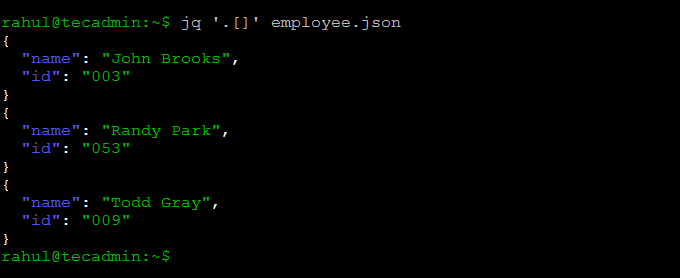
This image demonstrates the .[] iterator. It takes a JSON file containing an array of employee objects and outputs each object individually.
Let's see it in action with a file named servers.json:
[
  {"name": "web-01", "role": "webserver"},
  {"name": "db-01", "role": "database"},
  {"name": "cache-01", "role": "cache"}
]
# Get the name of every server
$ jq '.[] | .name' servers.json
"web-01"
"db-01"
"cache-01"
Guide to Linux jq Command for JSON Processing
The Baeldung guide covers these fundamental operations clearly. Let's read the relevant sections to solidify your understanding of accessing data in objects and arrays.
Read sections '3. Working With Simple Filters' and '4. JSON Arrays'. Pay close attention to: The syntax for accessing single keys (.fruit), nested keys (.fruit.color), and multiple keys (.fruit.color,.fruit.price). The difference between iterating over an array (.[]) and accessing a specific index (.[1]). How the pipe (|) is used within the jq filter to chain operations, as in .[] | .name.
3. Filtering and Transforming Data
Now we get to the core power of jq: conditional filtering and data transformation. This is where you move from just viewing data to actively processing it. The key functions for this are select(), map(), and add.
select(condition): Passes through only the input that makes the condition true.map(expression): Takes an array as input and applies the expression to each element, producing a new array.add: If the input is an array of numbers, it sums them. If it's an array of strings, it concatenates them.
Let's use these to perform a practical analysis.
How To Transform JSON Data with jq
This DigitalOcean tutorial provides an excellent, step-by-step walkthrough of a practical data analysis task. It will guide you through combining filters to answer specific questions about a dataset. Create the seaCreatures.json file as described so you can follow along.
Read and follow along with Steps 1 through 4. Step 1: Set up your seaCreatures.json file. Step 2: Learn to extract a list of names using .[] | .name. Step 3: See how map(.clams) and add are combined to calculate a total. Step 4: Learn how to use select() to filter data based on a condition before aggregation.
By working through that tutorial, you've seen how to build a complex query piece by piece. This is the standard workflow for developing jq filters: start simple, verify the output, and add another piece to the pipeline.
4. Creating New JSON Objects
Often, the goal isn't just to extract a value but to transform an incoming JSON structure into a new, more convenient one. You can construct new objects and arrays using the {} and [] syntax within jq.
The syntax for creating an object is { "new_key": <filter_for_value>, "another_key": <another_filter> }.
This allows you to pull data from various parts of a source document and assemble a clean, new object containing only the information you care about.
How To Transform JSON Data with jq
The final step in the DigitalOcean tutorial shows you exactly how to do this, combining all the filters you previously built into a single command that generates a completely new JSON object.
Read 'Step 5 — Transforming Data to a New Data Structure'. Notice how the filters you learned in the previous steps (map(.name), map(.clams) | add, etc.) are now used as values for the keys in a new JSON object.
An Interactive Playground: jqplay
Writing complex jq filters can involve some trial and error. jqplay.org is a web-based tool that gives you a live environment to test your filters against your JSON data. It's an excellent way to experiment and learn without having to repeatedly run commands in your terminal.
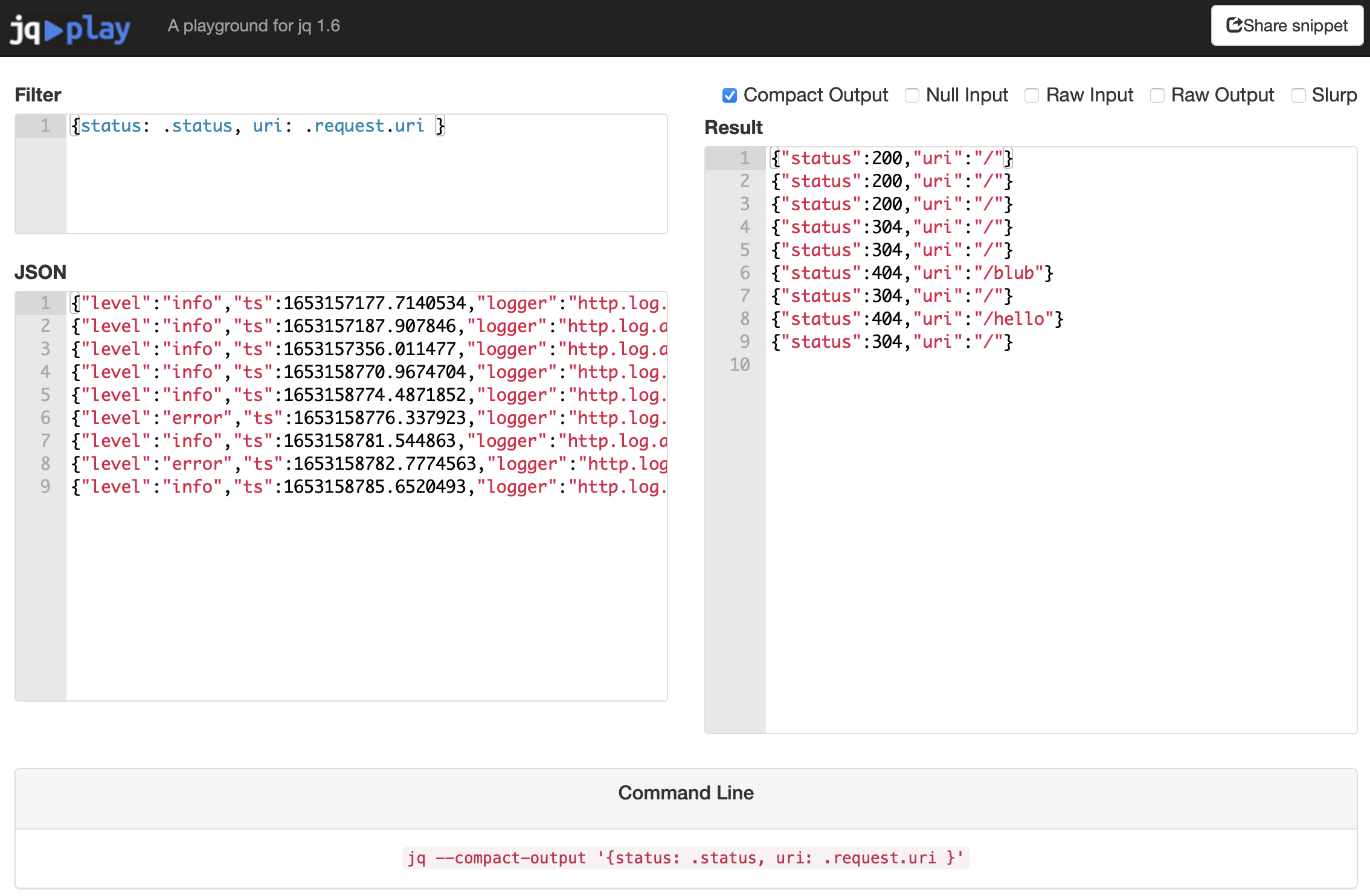
The jqplay interface is perfect for interactively developing and debugging your jq queries. You get immediate feedback as you type your filter.
Test your understanding!
Imagine you have a file instances.json from a cloud provider with the following content:
{
  "instances": [
    {
      "id": "i-12345",
      "state": "running",
      "type": "t2.micro",
      "region": "us-east-1"
    },
    {
      "id": "i-67890",
      "state": "stopped",
      "type": "t2.micro",
      "region": "us-east-1"
    },
    {
      "id": "i-abcde",
      "state": "running",
      "type": "m5.large",
      "region": "eu-west-2"
    }
  ]
}
Write a single jq command that produces a JSON array containing only the IDs of the instances that are currently "running".
The desired output is:
[
  "i-12345",
  "i-abcde"
]
Show answer
Here's the jq command:
jq '[.instances[] | select(.state == "running") | .id]' instances.json
Explanation:
.instances[]: First, we go into theinstanceskey and then iterate over each object in the array.| select(.state == "running"): We pipe each of those objects to theselectfunction, which only keeps the objects where thestatekey has a value of"running".| .id: For the objects that passed the filter, we extract the value of theidkey.[...]: Finally, we wrap the entire pipeline in square brackets[]to collect the resulting stream of IDs into a single JSON array.
Conclusion
You've now added a powerful data processing tool to your command-line arsenal. jq allows your Bash scripts to interact intelligently with the structured data that powers modern infrastructure and applications.
Key Takeaways:
jqis for JSON: Use it instead of text-based tools likegreporsedfor parsing JSON.- Filters are Key: You build queries using filters. The most basic is
.(identity). - Accessing Data: Use
.keyfor object properties and.[]or.[index]for arrays. - Piping
|: Chain filters together inside ajqexpression to build a processing pipeline. - Core Functions:
select()filters data based on a condition,map()applies an expression to an array, andaddcan sum or concatenate. - Transformation: You can create entirely new JSON objects using the
{ "key": <filter> }syntax.
In our next lesson, we will step back a bit and focus on the bigger picture of scripting. You'll learn how to write scripts that adhere to common Bash style guides and best practices. This will help you integrate tools like jq into scripts that are not just functional, but also clean, readable, and professional.