Hello and welcome to our next lesson!
In the previous session, we secured our server by setting up SSH and key-based authentication. Once you've securely logged into a server, one of the first things you'll often do is install or update software. This lesson addresses exactly that.
Today's learning outcome is to install, update, and remove software packages using apt or yum package managers. This is a fundamental skill for any DevOps engineer, as it's the basis for setting up applications, installing monitoring tools, and maintaining system security. We'll explore what package managers are and then dive into the practical commands for the two most common ones you'll encounter.
1. The Problem: Managing Software Manually
Imagine you need to install a web server. Without a system to help you, you would have to:
- Find the official source code online.
- Download the correct version for your system.
- Figure out all the other programs and libraries it depends on (its "dependencies") and install them first.
- Compile the source code.
- Place the resulting files in the correct directories.
- Repeat this process every time you need to update it or uninstall it.
This is tedious, error-prone, and difficult to automate. This is the problem that package managers solve.
2. The Solution: Package Managers
A package manager is an automation tool that handles the entire lifecycle of software on your system: installation, updates, dependency management, and removal.
The core concepts are:
- Package: An archive file containing the application's code, configuration files, and metadata (like its name, version, and dependencies).
- Repository: A centralized server that stores and manages a collection of software packages. Your system is configured to trust one or more repositories.
- Dependencies: Other packages that a package requires to function correctly. The package manager automatically identifies and installs these for you.
This workflow makes managing software simple, reliable, and secure.
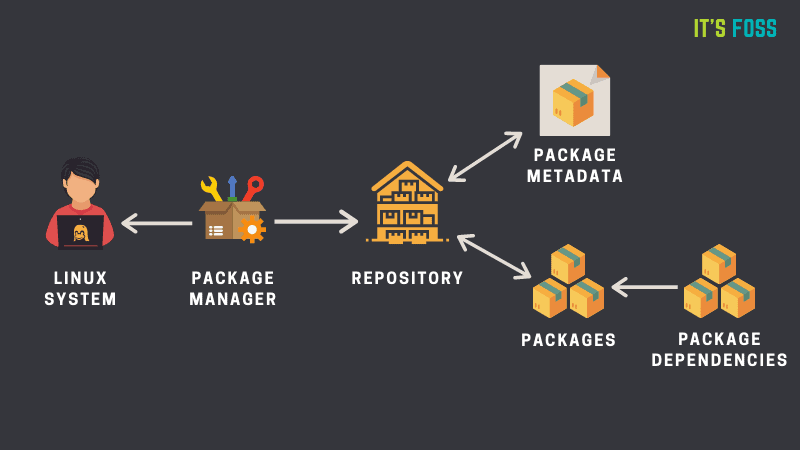
To get a quick and clear overview, let's watch a short video.
What is a Package Manager? Everything You Need to Know!
The video 'What is a Package Manager? Everything You Need to Know!' by KodeKloud provides a great introduction to these concepts.
Watch the segment from 00:04 to 01:52. Focus on understanding what a package manager does and how it handles dependencies.
3. The Two Major Families: apt and yum
In the Linux world, different distributions (or "distros") are often grouped into families. These families typically share a common underlying package management system. As a DevOps engineer, you will most frequently encounter two major families:
- Debian-based systems (like Ubuntu): These use the Advanced Package Tool (
apt). Under the hood,aptis a user-friendly tool that interacts with a lower-level system calleddpkg. - Red Hat-based systems (like RHEL, CentOS, Fedora): These use the Yellowdog Updater, Modified (
yum) or its modern successor,dnf. These tools manageRPMpackages.
Your choice of which tool to use is determined by the operating system of the server you are managing.

For a detailed breakdown of these two systems, the following article is a useful reference.
The article 'A Guide to Yum and Apt' from Baeldung provides a concise comparison of these two package managers. It's a great reference to have bookmarked.
Read the introductory sections 1, 2, 3, and 4. Pay attention to the distinction between the Debian (dpkg/apt) and Red Hat (rpm/yum) ecosystems. The article also clarifies the relationship between the modern apt command and the older apt-get, which is good to know.
4. Practical Package Management with apt (for Ubuntu/Debian)
Since Ubuntu is a very common choice for servers, let's focus on apt first. The workflow is logical and consistent. For these commands, you'll need sudo because you are making system-wide changes.
To get a detailed, step-by-step walkthrough of the apt workflow, we'll watch a few clips from a comprehensive tutorial.
Linux Commands for Beginners 11 - Intro to Package Management on Debian-based Distributions
The video 'Linux Commands for Beginners 11 - Intro to Package Management' by Learn Linux TV gives excellent, practical demonstrations. We will watch it in segments to cover each core task.
Follow along with these sections: Updating the Package Index (02:25 - 04:31): Before you can install anything, you must run sudo apt update. This command downloads the latest list of available packages from the repositories. It doesn't upgrade your software, it just updates the list. Searching for a Package (04:31 - 05:32): Use apt search <package_name> to find packages. For example, apt search htop. Installing a Package (05:32 - 08:35): Use sudo apt install <package_name>. Watch how the tool lists the dependencies it will also install and asks for your confirmation. Removing a Package (11:18 - 13:37): Use sudo apt remove <package_name>. Crucially, this clip also explains sudo apt autoremove, which uninstalls dependencies that were installed automatically and are no longer needed. This is a best practice for keeping your system clean. Upgrading Packages (13:37 - 15:45): Use sudo apt upgrade to upgrade all installed packages to their latest versions based on the currently updated package index.
The -y flag for Automation
When you run apt install or apt upgrade, the system prompts you for confirmation (Y/n). In scripts or automated setups, you can't have this interaction. You can pre-approve the action by adding the -y flag:sudo apt install -y nginx
This is essential for the automation tasks you'll perform in DevOps.
Test your understanding!
You have just SSH'd into a brand new Ubuntu server. Your task is to install the text editor vim and the process viewer htop. What are the exact commands you would run, in the correct order, to accomplish this? Assume you want to do this non-interactively.
Show answer
- First, you must update the package index to ensure you have the latest information about available packages.
sudo apt update - Next, you can install both packages in a single command, using the
-yflag to automatically say "yes" to the installation prompt.sudo apt install -y vim htop
5. A Quick Look at yum (for RHEL/CentOS)
If you're on a CentOS or RHEL server, the concepts are identical, but the command names are slightly different. You don't need to memorize them all right away, but it's important to know they exist and how they map to apt commands.
Here is a quick command comparison:
| Task | apt (Ubuntu/Debian) |
yum (RHEL/CentOS) |
|---|---|---|
| Update Package Index | sudo apt update |
sudo yum check-update |
| Install a Package | sudo apt install nginx |
sudo yum install nginx |
| Upgrade All Packages | sudo apt upgrade |
sudo yum update |
| Remove a Package | sudo apt remove nginx |
sudo yum remove nginx |
| Remove Unused Dependencies | sudo apt autoremove |
sudo yum autoremove |
| Search for a Package | apt search nginx |
yum search nginx |
As you can see, they are very similar. The yum command also accepts the -y flag for non-interactive operations, just like apt.
Conclusion
You now have the power to manage software on the most common types of Linux servers. This is a critical building block for a DevOps engineer, enabling you to provision servers, deploy applications, and maintain system health and security.
Key Takeaways:
- Package managers automate software installation, updates, and removal, crucially handling dependencies for you.
aptis the package manager for Debian-based systems like Ubuntu.yum(ordnf) is the package manager for Red Hat-based systems like CentOS and RHEL.- The standard workflow is:
- Update the local package list (
apt update). - Search for the software you need (
apt search <package>). - Install, Upgrade, or Remove software as needed.
- Update the local package list (
- Always use
autoremoveto clean up orphaned dependencies and keep your system tidy. - Use the
-yflag in scripts to bypass interactive confirmation prompts.
In our next lesson, we will focus on monitoring system resources including CPU, memory, and disk usage. Now that you know how to install tools, we can install popular monitoring utilities and learn how to use them to keep an eye on our server's health.