Hello! Welcome to your next lesson on Linux fundamentals.
In our last lesson, we covered process management, learning how to view and control running programs using tools like ps, top, and kill. We also saw how to manage long-running tasks with background and foreground jobs. These are essential manual skills. Today, we'll take the first step toward automating them.
This lesson marks the final topic in our "Linux Fundamentals" module. We're going to transition from typing single commands to writing simple programs that execute a series of commands for us. This is the heart of automation in a DevOps environment.
Your learning outcome for this lesson is to create and execute basic shell scripts with variables and command substitution. By the end, you'll be able to write small but powerful scripts that can store information and run other commands.
Let's begin scripting!
1. What is a Shell Script?
At its core, a shell script is just a plain text file containing a sequence of commands that you would otherwise type into your terminal one by one. The shell (in our case, Bash) reads this file and executes the commands in order. It's the most fundamental way to automate tasks on a Linux system.
Creating and running your first script involves three simple steps:
- Create a text file.
- Write your commands in the file.
- Make the file executable and run it.
To see exactly how this is done, the following reading provides a concise guide.
The Ultimate Bash Scripting Tutorial: From Beginner to ...
Let's walk through the creation of a classic "Hello, World!" script. The article 'The Ultimate Bash Scripting Tutorial' provides a clear, step-by-step guide.
Please read the section under the heading Getting Started. Focus on the four steps for creating, writing, making executable, and running your first script. Pay close attention to the explanation of the Key Components: #!/bin/bash (the shebang) # (comments) echo (the command to print text)
Let's quickly summarize those key components:
- The Shebang (
#!/bin/bash): This must be the very first line of your script. It tells the operating system which interpreter to use to run the commands in the file. In this case, it's the Bash shell. While scripts might run without it on your system if Bash is the default, including it makes your script portable and unambiguous. - Comments (
#): Any line beginning with a#(except the shebang) is a comment. The shell ignores it. Use comments to explain what your script does and why. - Permissions (
chmod +x): Before you can run a script directly (e.g.,./my_script.sh), you must give it "execute" permission. This is a security feature in Linux that prevents accidental execution of files.
2. Making Scripts Dynamic with Variables
Hardcoding values directly into a script is limiting. For scripts to be reusable and dynamic, they need to work with data that can change. This is where variables come in. A variable is simply a name that refers to a piece of data, like a string of text or a number.
Declaring and Using Variables
The syntax for creating a variable is straightforward.
# Assigning a string value to a variable
GREETING="Hello, World!"

# Assigning a number
USER_COUNT=5

# Using (accessing) the variables
echo $GREETING
echo "There are $USER_COUNT users online."
There are two critical syntax rules to remember:
- No spaces around the equals sign (
=).NAME = "John"will fail. It must beNAME="John". - When you use or reference a variable's value, you prefix its name with a dollar sign (
$), like$GREETING.
A best practice is to enclose your variables in double quotes when you use them (e.g., echo "$GREETING"). This prevents the shell from misinterpreting spaces or special characters within the variable's value.
Interactive Scripts: Reading User Input
You can make your scripts interactive by prompting the user for input and storing it in a variable using the read command.
The following resource provides a simple, practical example.
Day 3 of 30 Days of Bash Scripting
Let's look at a script that asks for a user's name and age. This example from the '30 Days of Bash Scripting' article clearly demonstrates how to use the read command.
Review the first exercise in the article. Look at the script named username.sh and see how it uses echo to prompt the user and read to store the input into the name and age variables.
3. Command Substitution: Capturing Command Output
This is an incredibly powerful feature. Command substitution allows you to run a command and "capture" its output, typically to store it in a variable or use it as part of another command.
The modern and recommended syntax is $(command).
For example, if you want to store your current working directory in a variable, you can capture the output of the pwd command:
CURRENT_DIR=$(pwd)
echo "You are currently in: $CURRENT_DIR"
Let's look at another practical example that combines this with what we've learned.
Day 3 of 30 Days of Bash Scripting
The userinfo.sh script in the '30 Days of Bash Scripting' article is a perfect example of command substitution in a real-world context.
Find and review exercise #4, which creates the userinfo.sh script. Notice how it uses $(whoami), $(pwd), and $(date) to capture system information into variables, which are then printed in a formatted message.
As you can see, this lets you integrate the output of any Linux command right into your script's logic, which is essential for automation.
Test your understanding!
Write a simple shell script named file_counter.sh that prints a message like: "The current directory contains X files." where X is the actual number of files and directories in the current directory.
Show hint
You'll need to combine ls with wc -l. The ls -1 (that's a number one) command lists one file per line. You can then pipe this output to wc -l to count the lines.
Show answer
Your script, file_counter.sh, should look like this:
#!/bin/bash

# Get the number of files by listing them and counting the lines
FILE_COUNT=$(ls -1 | wc -l)

# Print the result
echo "The current directory contains $FILE_COUNT files."
To run it, you would use:
chmod +x file_counter.sh
./file_counter.sh
4. Passing Information with Command-Line Arguments
Instead of prompting a user for input every time, you can design scripts to accept arguments directly from the command line. These are called positional parameters.
The shell makes these arguments available through special variables:
$1: The first argument.$2: The second argument, and so on.
There are other special variables that provide useful context about how the script was run:
$0: The name of the script itself.$#: The total number of arguments passed to the script.$@: All arguments passed to the script, treated as separate words.
The following resource introduces these concepts with clear examples.
The Ultimate Bash Scripting Tutorial: From Beginner to ...
To understand how these special variables work, we'll consult two resources. First, 'The Ultimate Bash Scripting Tutorial' for the definitions, and then '30 Days of Bash Scripting' for a practical application.
First, find the headings Positional Parameters and Special Variables. Briefly review the text and the table to understand what $0, $1, $#, and $@ represent.
Now, let's see them in action.
Day 3 of 30 Days of Bash Scripting
The arithmetic.sh script provides an excellent example of using positional parameters ($1 and $2) to perform calculations.
Review exercise #2 and its arithmetic.sh script. Notice how num1=$1 and num2=$2 capture the command-line arguments into variables. Also note the $((...)) syntax, which is how Bash performs arithmetic.
This ability to pass arguments makes your scripts far more flexible and powerful, turning them into reusable tools.
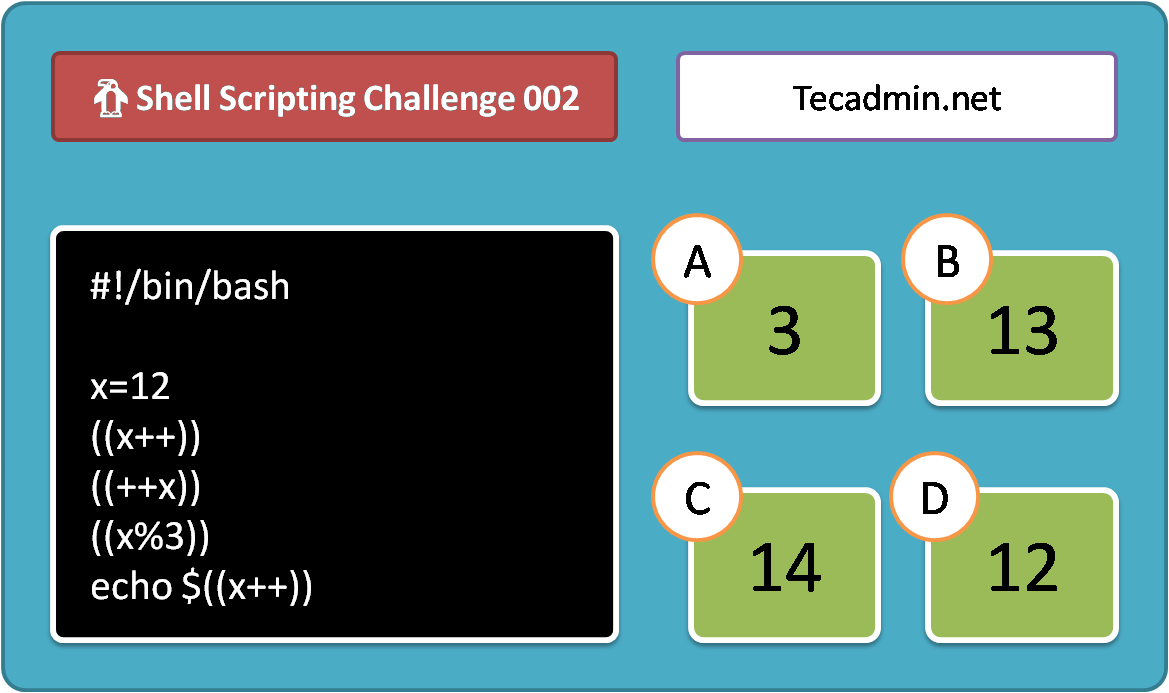
Test your understanding!
Based on the arithmetic.sh example and the challenge image above, what does the ((...)) syntax do? What do you think the output of the script in the image will be?
Show answer
The ((...)) syntax is for arithmetic expansion. It allows you to perform mathematical calculations in Bash.
Let's trace the script in the image:
x=12((x++)): This is a post-increment. The value ofxis used, then incremented. So, the expression's value is 12, andxbecomes 13.((++x)): This is a pre-increment.xis incremented first, then its value is used. Soxbecomes 14.((x%3)): This is the modulo operator. It calculates the remainder of14 / 3, which is 2. The value ofxremains 14.echo $((x++)): This is another post-increment. The current value ofx(which is 14) is used for theechocommand, and thenxis incremented to 15.
Therefore, the output will be 14.
A Glimpse into How the Shell Works
It can be helpful to have a mental model of how the shell processes a command you type. It's not a single, monolithic action. The shell performs a series of expansions in a specific order.

You don't need to memorize this chart, but notice where our topics for today fit in:
- Parameter expansion (using
$VAR) - Command substitution (using
$(cmd)) - Arithmetic substitution (using
$((...)))
These happen before the shell executes the final command. This is why you can write echo "Today is $(date)", and the shell first runs date, substitutes its output, and only then runs echo with the final string.
Conclusion
Great work! You've just taken a huge leap from being a command-line user to a command-line automator. You now have the foundational tools to write scripts that are dynamic, interactive, and can leverage the full power of other Linux commands.
Key Takeaways:
- A shell script is a text file of commands, starting with a shebang like
#!/bin/bash. - Scripts must be made executable with
chmod +xbefore being run. - Variables store data (
NAME="value") and are accessed with a$(echo "$NAME"). - Command substitution (
VAR=$(command)) captures the output of a command into a variable. - Positional parameters (
$1,$2, etc.) allow you to pass arguments to your script from the command line. - Special variables like
$#(argument count) and$@(all arguments) provide useful context.
This lesson concludes our module on Linux Fundamentals. You've built a solid base, from navigating the filesystem to managing processes and now writing basic scripts.
In our next lesson, we will begin a new module: Linux System Administration Essentials. Our first topic will be managing users and groups. You'll see very quickly how the scripting skills you learned today can be used to automate common administrative tasks.