Hello! Welcome to your next lesson on Linux fundamentals.
In the last lesson, we learned how to chain commands together using pipes (|) and how to control their input and output with redirection (>, <, 2>). This ability to create command pipelines is a cornerstone of working effectively in Linux.
Today, we'll shift our focus from the commands themselves to what happens when they run. We will explore process management. Every command you execute creates one or more "processes" on the system. As a DevOps engineer, you will constantly need to monitor these processes to ensure applications are running correctly, troubleshoot performance issues, and manage long-running tasks.
By the end of this lesson, you will be able to manage processes using ps, top, kill, and background/foreground jobs.
Let's dive in.
1. What is a Process?
First, let's clarify what a process is. When you run a program or a command (like ls or grep), the operating system loads it into memory and begins executing its instructions. This running instance of a program is called a process.
Every process on the system is assigned a unique number called the Process ID, or PID. This PID is how the system—and you—can identify and interact with a specific process.
Your Linux system is a multitasking environment, meaning many processes are running at the same time. These include the commands you run, the graphical desktop, and many background services (daemons) that are essential for the system to function.
Our goal is to learn how to see and manage all of this activity.
2. Viewing Processes: Snapshots vs. Real-Time
There are two primary ways to view processes: taking a static snapshot or watching them in real-time.
Taking a Snapshot with ps
The ps (process status) command gives you a snapshot of the processes running at the moment you execute it. It has many options, but one of the most common and useful combinations in DevOps is ps aux.
a: Show processes for all users.u: Display in a user-oriented format (shows the owner of the process).x: Show processes not attached to a terminal (includes background services).
Open your terminal and run:
ps aux
You will see a lot of output! Let's focus on the most important columns:
- USER: The user who owns the process.
- PID: The unique Process ID.
- %CPU: The percentage of CPU the process is using.
- %MEM: The percentage of memory the process is using.
- COMMAND: The command that started the process.
This is a great example of where our previous lesson on pipes becomes essential. The output of ps aux is often too much to read directly. We can pipe it to grep to find a specific process. For example, to check if the SSH service (sshd) is running:
ps aux | grep sshd
Real-Time Monitoring with top
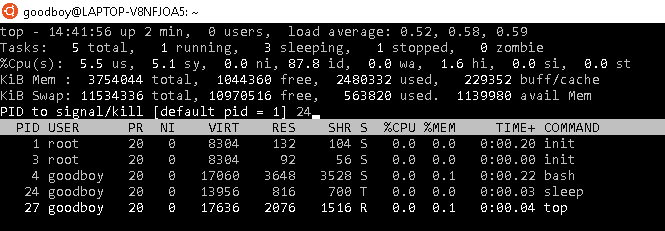
While ps is great for a snapshot, top provides a dynamic, real-time view of your system's processes. It's like a task manager for your terminal.
Run this command:
top
You'll see the screen is split into two parts:
- The Summary Area (top rows): This gives you an overview of the system's health, including system uptime, CPU load, and memory usage.
- The Task Area (the list): This is a list of the most resource-intensive processes, which updates every few seconds. By default, it's sorted by CPU usage.
To get a better handle on these tools, the following reading provides a detailed breakdown of their output.
103.5 Lesson 1 - Linux Professional Institute – Learning
The LPI Learning material on process monitoring provides a very detailed explanation of both top and ps. We'll use it to understand the output of these critical commands.
Please read the section titled top and ps. Focus on the detailed explanations provided for the output of both commands: For top, review the descriptions of the summary area and the task area columns (PID, USER, %CPU, %MEM, etc.). For ps, focus on the explanation of the ps aux command and its output columns. Don't worry about memorizing every single field; aim to understand the most important ones we've already highlighted.
top is interactive. Here are a few essential keys to use while it's running:
M(Shift+m): Sort the process list by memory usage.P(Shift+p): Sort by CPU usage (the default).k: Prompts you to enter a PID to "kill" (we'll cover this next).q: Quittopand return to the command prompt.
Test your understanding!
A web server on your machine seems to be consuming a lot of memory and you suspect a memory leak. Which command would be most appropriate to identify the process causing the issue, and what specific action would you take within that command's interface?
Show answer
The top command is the best choice because it provides a real-time view of resource usage. After running top, you would press M (Shift+m) to sort the processes by memory usage. The process at the top of the list would be the one consuming the most memory.
3. Terminating Processes with kill
Sometimes, a process becomes unresponsive or needs to be stopped. The kill command is used for this. Its name is a bit dramatic; more accurately, kill sends a signal to a process. The process can then decide how to react.
There are many types of signals, but you'll use these two most often:
- SIGTERM (Signal 15): This is the default signal. It's a "polite" request asking the process to terminate. A well-behaved program will catch this signal, save its work, close any open files, and exit gracefully.
- SIGKILL (Signal 9): This is the "sledgehammer." The process cannot ignore this signal. The operating system immediately terminates it. You should only use this as a last resort, as the process gets no chance to clean up, which could lead to corrupted files.
Here is the standard workflow for terminating a misbehaving process:
- Find the PID: Use
ps aux | grep <process_name>to find the PID of the process you want to stop. - Try a polite request:
kill <PID> - Check if it worked: Run
ps aux | grep <process_name>again. If the process is gone, you're done. - Use the sledgehammer: If it's still running, use
kill -9 <PID>.
For a practical look at this workflow, please review the following short reading.
Learn Process Management - Linux Tutorial
Ryan's Tutorials offers a clear, narrative example of finding and killing a crashed process.
Read the section titled Killing a Crashed Process. This will walk you through the exact steps of using ps and kill to terminate a program.
A handy shortcut: the pkill and killall commands let you send signals using the process name instead of the PID. For example, pkill firefox is a shortcut for kill $(pgrep firefox).
4. Managing Foreground and Background Jobs
When you run a command like sleep 10, your terminal is occupied for 10 seconds. This is a foreground process. It has control of your terminal. But what if you need to run a task that takes a long time (like a backup script or a software build) and want to keep using your terminal? You can run it as a background job.
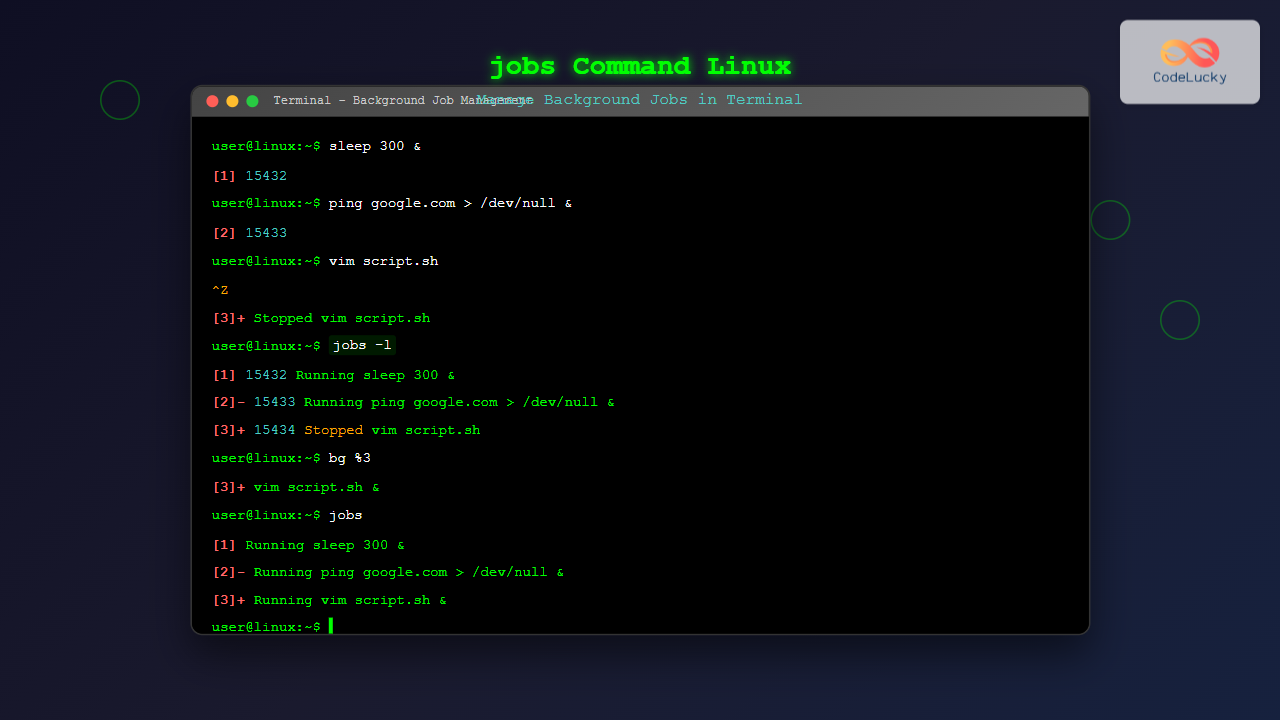
Here are the essential tools for job control:
| Command / Keystroke | Description | Example |
|---|---|---|
command & |
Appends an ampersand (&) to run a command in the background immediately. |
sleep 60 & |
Ctrl+Z |
Suspends the currently running foreground process. | (Press Ctrl and Z) |
jobs |
Lists all jobs running in the background in the current terminal session. | jobs |
bg %<job_id> |
Resumes a suspended (stopped) job and runs it in the background. | bg %1 |
fg %<job_id> |
Brings a background job into the foreground, giving it control of the terminal. | fg %1 |
To understand these concepts in more detail, let's turn back to the LPI guide.
103.5 Lesson 1 - Linux Professional Institute – Learning
The LPI guide provides a structured explanation of job control, including how to suspend processes and move them between the foreground and background.
Please read the following three sections: Job Control: Understands what a job is and how to use jobs and Ctrl+Z. Job Specification: Learn how jobs are referenced (e.g., %1). Job Status: Suspension, Foreground and Background: See how fg and bg are used to manage job states. Try out the sleep examples in your own terminal to get a feel for the workflow.
Job control is incredibly useful for managing long-running tasks without having to open multiple terminal windows.
Conclusion
Well done! You now have the fundamental skills to see what's happening on your Linux system and manage it effectively. These commands are not just theoretical; you will use them daily to check application status, diagnose performance problems, and control services.
Key Takeaways:
- A process is a running program with a unique PID.
ps auxgives a static snapshot of all running processes, which you can filter withgrep.topprovides a real-time, interactive dashboard of your system's resource usage.kill <PID>sends a politeSIGTERMsignal, whilekill -9 <PID>sends a forcefulSIGKILL.- You can manage long-running tasks using job control:
&to start in the background.Ctrl+Zto suspend a foreground job.jobs,bg, andfgto manage background jobs.
In our next lesson, we will move from running single commands to writing simple scripts. You will learn how to create and execute basic shell scripts with variables and command substitution, which is the first step toward automating the tasks you've been learning to perform manually.