Hello and welcome back!
In our first lesson, you successfully set up a Linux practice environment, either as a local virtual machine (VM) or a cloud instance. This sandbox is where you'll build your hands-on skills throughout the course.
Today, we'll dive into that environment and learn one of the most fundamental skills for any DevOps engineer: how to find your way around the Linux file system. Every action you take on a Linux server—from running a script to configuring a service—depends on your ability to navigate to the correct location.
By the end of this 60-minute lesson, you will be able to navigate the Linux file system confidently using absolute and relative paths. We'll cover the core commands pwd, ls, and cd, and you'll understand the concepts that make file system navigation fast and efficient.
Let's begin by starting your VirtualBox VM from the previous lesson and opening the Terminal application. All the commands in this lesson will be run there.
The Linux Filesystem: A Giant Tree
Imagine the Linux file system not as a set of separate drives (like C: or D: in Windows), but as a single, unified tree structure. Everything starts from a single point at the very top called the root directory, which is represented by a single forward slash (/). Every other file and directory on the system exists somewhere inside this root directory.
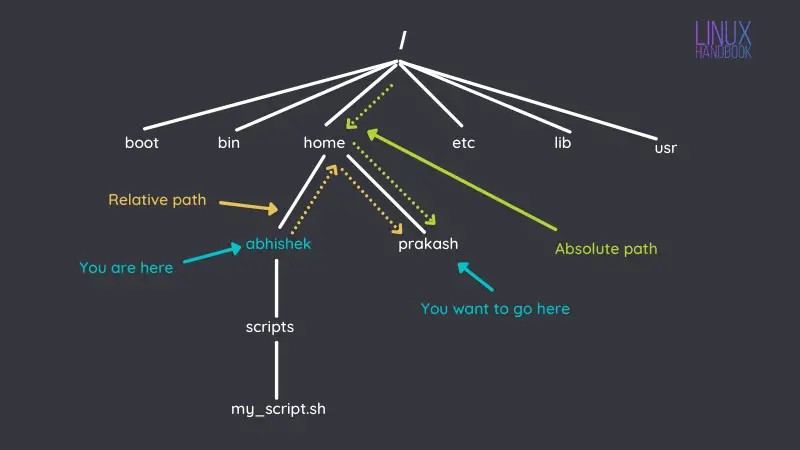
So, the first two questions we need to answer are:
- Where am I right now?
- What's in this location?
To answer these, we use two simple commands: pwd and ls.
pwdstands for Print Working Directory. It tells you your current location in the file system tree.lsis short for list. It lists the files and directories in your current location.
The following resource provides a great introduction to these commands and the core concepts of navigation.
Linux Tutorial - 2. Master File System Navigation
Let's read the first part of this tutorial from Ryan's Tutorials to understand the basic navigation commands and the fundamental concept of paths.
Please read from the 'Introduction' section down to the end of the 'Paths' section. This will cover pwd, ls, the hierarchical file system, and the crucial difference between absolute and relative paths.
Absolute vs. Relative Paths: Two Ways to Give Directions
As you just read, a path is a unique address for a file or directory. Linux gives you two ways to write this address:
-
Absolute Path: This is the full address, starting from the root directory (
/). It's unambiguous and will work from anywhere in the system.- Example:
/home/yourusername/Documents/report.txt - You can identify an absolute path easily: it always starts with a
/.
- Example:
-
Relative Path: This is a partial address, giving directions from your current location. Its meaning changes depending on where you are.
- Example: If you are currently in
/home/yourusername, the relative path to the same file isDocuments/report.txt. - You can identify a relative path easily: it never starts with a
/.
- Example: If you are currently in
The article you read also introduced some special characters that are essential for building relative paths:
~(tilde): A shortcut for your personal home directory (e.g.,/home/yourusername)..(single dot): A reference to your current directory...(double dot): A reference to the parent directory (the directory one level up).
Understanding the difference between absolute and relative paths is non-negotiable for working effectively in Linux.
Test your understanding!
Imagine your current working directory is /home/user/projects. You want to refer to a file located at /home/user/downloads/manual.pdf. Which of the following is the correct relative path to that file?
/home/user/downloads/manual.pdf../downloads/manual.pdfdownloads/manual.pdf../../manual.pdf
Show answer
The correct answer is 2. ../downloads/manual.pdf.
Let's break it down:
- Your starting point is
/home/user/projects. ..takes you up one level to the parent directory,/home/user.- From
/home/user, you can then go down into thedownloadsdirectory. - Finally, you specify the file
manual.pdf.
Option 1 is an absolute path. Option 3 would look for a downloads directory inside your current projects directory. Option 4 would take you two levels up to /home, which is incorrect.
Moving Around with cd and Tab Completion
Now that you know how to find your location (pwd), see what's there (ls), and write addresses (paths), it's time to move. The command for this is cd, which stands for change directory.
You use cd by giving it a path as an argument. This path can be absolute or relative.
cd /etc/systemd(absolute path): Takes you to the/etc/systemddirectory, no matter where you started.cd ../../var/log(relative path): Takes you two levels up from your current location, then into thevar/logdirectory.
Typing long paths is tedious and error-prone. The single most important productivity hack on the command line is Tab Completion. When you start typing a path and press the Tab key, the shell will automatically complete it for you. If there are multiple possibilities, pressing Tab a second time will show you all of them. Get into the habit of using this constantly!
Let's continue with the same tutorial to see cd and Tab Completion in action.
Linux Tutorial - 2. Master File System Navigation
This next section covers the cd command and the essential technique of tab completion. It also provides a helpful summary of everything covered so far.
Please read the section 'Let's Move Around a Bit' and pay close attention to the examples of using cd with different path types. Make sure to try out Tab Completion in your own terminal as you read.
Hands-On Practice
Theory is one thing, but muscle memory is what makes you fast and effective. It's time to explore your new Linux system. The best way to solidify your understanding is by actively using cd, ls, and pwd to move around.
Linux Tutorial - 2. Master File System Navigation
The final part of the tutorial provides a set of activities to practice your new navigation skills. This is the most important part of the lesson, so take your time and explore!
Follow the instructions in the 'Activities' section. Use cd and ls to explore the suggested directories like /etc, /var/log, and /bin. Try getting back to your home directory using at least two different methods (e.g., cd ~ and just cd). Use Tab Completion as much as possible.
Some interesting directories to explore in your VM:
/- The root directory. Do anls -l /to see the main folders of the operating system./home- Contains the personal directories for all users./etc- Contains most of the system-wide configuration files./var/log- Where system and application log files are stored. You'll spend a lot of time here as a DevOps engineer!/usr/bin- Home to many of the standard user command programs.
Conclusion
Excellent work! You've just mastered a skill that you will use every single day in your DevOps career. Being able to move through a file system quickly and accurately is the bedrock upon which all other command-line skills are built.
Key Takeaways:
- The Linux file system is a single hierarchical tree starting from the root directory (
/). pwdshows your current location, andlslists the contents of a directory.cdis used to change your location.- An absolute path is a full address starting from
/and works from anywhere. - A relative path is a partial address that starts from your current location.
~,., and..are powerful shortcuts for navigating relative to your home directory, current directory, and parent directory.- Tab completion is essential for speed and accuracy.
In our next lesson, we will build directly on what you've learned today. Now that you know how to get to any directory, you'll learn how to create, copy, move, and delete files and directories using command-line tools.