Hello and welcome back!
In our last lesson, you mastered navigating the Linux file system using pwd, ls, and cd. You learned the crucial difference between absolute and relative paths, which allows you to find your way to any location on the system.
Today, we'll build directly on that foundation. Now that you can move around, it's time to learn how to interact with the file system. This lesson covers the essential commands for creating, copying, moving, and deleting files and directories. These are the fundamental building blocks for managing projects, deploying applications, and automating tasks in a DevOps environment.
By the end of this 60-minute lesson, you will be able to:
- Create new files and directories using
touchandmkdir. - Copy files and directories with
cp. - Move and rename items using
mv. - Delete files and directories safely with
rmandrmdir.
Let's begin. First, open your terminal. To ensure we don't accidentally modify important system files, we'll work in a safe, temporary directory.
Execute these two commands:
mkdir /tmp/tutorialcd /tmp/tutorial
This creates a new directory named tutorial inside /tmp (a standard location for temporary files) and then moves you into it. Any work you do here will be isolated and safe.
1. Creating Files and Directories
The first step in any project is creating the necessary structure. This involves making directories to organize your work and files to hold your code, configurations, or notes.
Creating Directories with mkdir
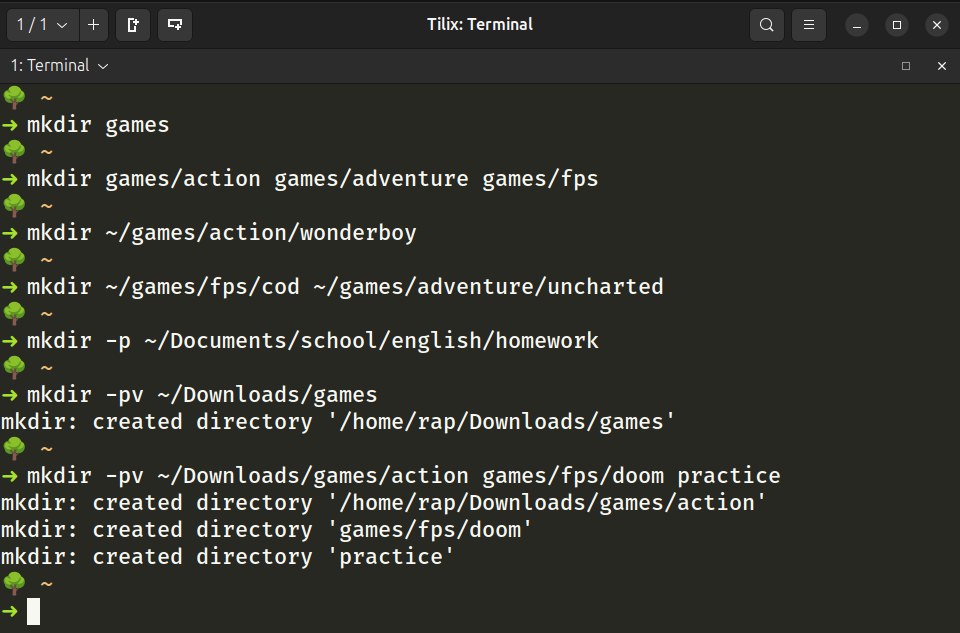
The mkdir (make directory) command is used to create new directories. You can create one or multiple directories at once.
For more complex structures, you might need to create a directory and its parent directories in a single step. The -p (parents) option does exactly that.
Creating Files with touch and Redirection
There are two common ways to create files from the command line:
-
touch: This is the simplest way to create a new, empty file. If the file already exists,touchwill update its modification timestamp instead of changing its contents.- Example:
touch server.conf
- Example:
-
Redirection with
echo: As you'll see in the reading, you can also use theechocommand combined with the output redirection operator (>) to create a file and write text to it in one go.- Example:
echo "Hello, World!" > greeting.txt
- Example:
The following reading will guide you through creating a sample structure in your /tmp/tutorial directory.
The Linux command line for beginners
This section of the Ubuntu tutorial provides a hands-on guide to creating a practice environment and populating it with directories and files. It's a great way to learn these commands in a practical context.
Please read section 4, 'Creating folders and files'. Follow the commands in your own terminal within the /tmp/tutorial directory you created. Pay close attention to how mkdir -p works and how redirection (>) is used to create files.
After completing the reading, try creating an empty file named empty_file.log using the touch command we just discussed. Use ls to verify it was created.
2. Moving, Renaming, and Copying
Once you have files, you'll need to organize them. This involves copying them for backups, moving them to different directories, and renaming them to be more descriptive.
Copying with cp
The cp (copy) command duplicates files or directories.
- To copy a file:
cp source_file destination_file - To copy a file into a directory:
cp source_file destination_directory/ - To copy a directory: You must use the
-r(recursive) option to copy a directory and all of its contents:cp -r source_directory/ destination_directory/
Moving and Renaming with mv
The mv (move) command serves two functions: it either moves a file/directory to a new location or renames it. The shell decides which action to take based on the last argument.
- To rename:
mv old_name.txt new_name.txt - To move:
mv file.txt destination_directory/

The next reading continues with the file structure you created, showing you how to manage it using mv and cp.
The Linux command line for beginners
Now that you've created some files and folders, let's learn how to organize them. This next section covers moving, renaming, and copying.
Read section 5, 'Moving and manipulating files'. Follow along with the mv and cp commands. Notice how mv is used for both moving and renaming, and how path shortcuts like . (current directory) are used to specify destinations.
Test your understanding!
You are in your home directory (~) and have a directory named ~/reports. Inside ~/reports, there is a file named draft.txt.
Which command would you use to create a copy of this file named draft_backup.txt inside the same reports directory?
cp ~/reports/draft.txt draft_backup.txtmv ~/reports/draft.txt ~/reports/draft_backup.txtcp ~/reports/draft.txt ~/reports/draft_backup.txtcp -r ~/reports/draft.txt ~/reports/draft_backup.txt
Show answer
The correct answer is 3. cp ~/reports/draft.txt ~/reports/draft_backup.txt.
Let's break it down:
cpis the command for copying.~/reports/draft.txtis the correct absolute path to the source file.~/reports/draft_backup.txtspecifies the full path and new name for the destination copy.
Option 1 is incorrect because it would create the copy in your current directory (~), not inside ~/reports. Option 2 would rename the file, not copy it. Option 4 uses the -r flag, which is unnecessary for copying a single file.
3. Deleting Files and Directories
The final core skill is deletion. This is arguably the most important one to use with caution, as command-line deletions are typically permanent.
rm(remove): The command for deleting files.rmdir(remove directory): Deletes empty directories only.rm -r(remove recursively): Deletes a directory and everything inside it.
A Critical Warning: rm is Forever
Unlike dragging a file to the Trash or Recycle Bin in a graphical interface, using rm on the command line is irreversible. There is no "undo." A small typo, especially when using wildcards (*), can lead to catastrophic data loss.
Always double-check your rm commands before pressing Enter.
When you are unsure, you can use the -i (interactive) flag, which will prompt you for confirmation before deleting each file: rm -i file_to_delete.
The final reading covers deletion and reinforces this crucial warning.
The Linux command line for beginners
The final operation is deletion. These commands are powerful and irreversible, so it's critical to understand them well. Pay special attention to the warnings in this section.
Read the subsection 'Deleting files and folders'. Note the difference between rm and rmdir. Most importantly, read and internalize the 'Important Warning' about the rm command.
Conclusion
Great job! You now have the four fundamental skills for managing the file system from the command line: creating, copying, moving, and deleting. Mastering these commands is essential for scripting, application deployment, and general system administration.
Key Takeaways:
- Create: Use
mkdirfor directories (-pfor nested) andtouchfor empty files. - Copy: Use
cpfor files andcp -rfor directories. - Move/Rename: Use
mv. It renames if the destination is a new name and moves if the destination is a directory. - Delete: Use
rmfor files,rmdirfor empty directories, andrm -rfor non-empty directories. - Be Careful! The
rmcommand is permanent. Always think twice before using it, especially with-ror wildcards.
In our next lesson, we will shift our focus from managing files as objects to working with what's inside them. You'll learn how to view file contents with cat and less, and how to search for specific text within files using grep.