Hello! Welcome back to our Django journey.
In the last lesson, we brought our templates to life with inheritance, creating a base.html file to enforce a consistent structure across our site. This was a huge step forward in writing clean, maintainable code, following the Don't Repeat Yourself (DRY) principle. However, our pages are still just plain HTML—they lack the visual appeal of CSS and the interactivity of JavaScript.
This lesson bridges that gap. We will focus on static files, which are assets like CSS, JavaScript, and images that are part of your application's design but aren't generated dynamically by user data. You'll learn how to tell Django where to find these files and how to correctly link them in your templates. This is a crucial step in building a complete, modern web application.
By the end of this lesson, you will be able to configure your Django project to manage and serve static files for local development.
What are Static Files?
First, it's important to understand what Django considers a "static file" and why it needs special handling.
Working with Static and Media Files in Django
The article 'Working with Static and Media Files in Django' from TestDriven.io starts by clearly defining the different types of files in a Django project. This distinction is fundamental.
Please read the section 'Types of Files'. Pay close attention to the difference between static files (like CSS/JS, which are part of your code) and media files (like user-profile pictures, which are uploaded by users). This lesson focuses only on static files.
In a simple HTML project, you might link a stylesheet with <link href="./css/style.css">. This works because the file system structure is simple. In Django, a project is composed of a project folder and potentially many apps, each of which might have its own static files. Django needs a consistent way to find all these files, no matter where they are located. This is where configuration comes in.
Configuring Django for Static Files
During development, Django's built-in server can serve static files for you, provided you tell it where to look. This is primarily done through two settings in your project's settings.py file.
The entire process is neatly visualized in the following flowchart.
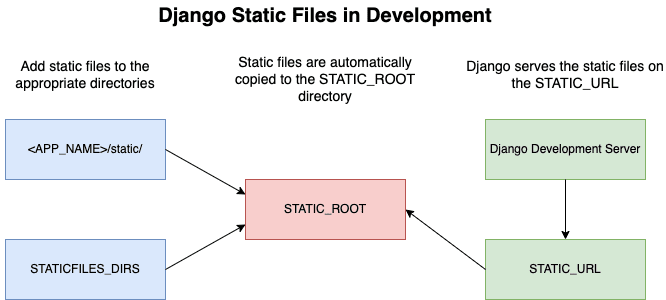
Let's break down the configuration seen in that diagram.
1. STATIC_URL
This setting defines the URL prefix that Django will use to serve static files. The default value is /static/. This means a file named style.css in your static files directory will be accessible at http://127.0.0.1:8000/static/style.css.
# myproject/settings.py

# ...

# The URL to use when referring to static files located in STATIC_ROOT.
STATIC_URL = 'static/'
You rarely need to change this, but it's essential to know what it does.
2. STATICFILES_DIRS
While Django automatically looks for a static/ subdirectory inside each of your apps, it's a common practice to have project-wide static files (like a main stylesheet, logo, etc.) that don't belong to any single app.
The STATICFILES_DIRS setting is a list of paths where Django should look for additional static files. The standard approach is to create a static directory at the root of your project (the same level as manage.py) and add it to this setting.
To do this, open your settings.py file and add the STATICFILES_DIRS setting near the STATIC_URL line.
# myproject/settings.py

# ... (at the top of the file, ensure this is present)
from pathlib import Path
BASE_DIR = Path(__file__).resolve().parent.parent

# ... (at the bottom of the file)
STATIC_URL = 'static/'

# Add this line
STATICFILES_DIRS = [
    BASE_DIR / 'static',
]
Your project structure should now look like this:
myproject/
├── manage.py
├── myproject/
│   ├── __init__.py
│   ├── settings.py
│   ├── urls.py
│   └── ...
├── static/  <-- Your new directory for project-wide static files
│   ├── css/
│   ├── js/
│   └── images/
└── ...
Using BASE_DIR ensures your path is absolute and your project remains portable, which is a critical best practice.
For a detailed walkthrough of this configuration, the following video is an excellent guide.
Using Static Files & StaticFiles Dirs in Django | Django Tutorial #13
The video 'Using Static Files & StaticFiles Dirs in Django' by ProgrammingWithHarry provides a step-by-step guide to setting up the STATICFILES_DIRS setting.
Watch from 00:55 to 04:39. This section covers: Creating the top-level static directory. Adding the STATICFILES_DIRS setting in settings.py. Explaining the importance of using BASE_DIR to create a reliable, absolute path.
Using Static Files in Templates
Now that Django knows where to find your static files, you need to tell your templates how to link to them. Hardcoding URLs like <link href="/static/css/style.css"> is a bad idea because if you ever change STATIC_URL, you'd have to update it everywhere.
Django provides a flexible and robust solution using a template tag. The process involves two steps:
- Load the static tag library: At the top of your template, add
{% load static %}. This must be done in every template that uses thestatictag. - Use the
statictag: Wrap the path to your file in the{% static %}tag.
Let's apply this to the base.html file we created in the previous lesson.
First, create a simple CSS file at static/css/style.css:
/* static/css/style.css */
body {
    font-family: sans-serif;
    color: #333;
}
header {
    background-color: #f2f2f2;
    padding: 10px;
    border-bottom: 1px solid #ddd;
}
Now, modify your templates/base.html to link to this stylesheet.
<!-- templates/base.html -->
{% load static %}
<!DOCTYPE html>
<html lang="en">
<head>
    <meta charset="UTF-8">
    <title>{% block title %}My Awesome Site{% endblock %}</title>
    <link rel="stylesheet" href="{% static 'css/style.css' %}">
</head>
<body>
    <header>
        <!-- ... your header content ... -->
    </header>

    <main>
        {% block content %}{% endblock %}
    </main>

    <!-- ... your footer content ... -->
</body>
</html>
By placing this link in base.html, every page that extends it will automatically inherit the stylesheet!
The following video demonstrates this process perfectly, first showing the "wrong" way (hardcoding) and then the "right" way (using the template tag).
Using Static Files & StaticFiles Dirs in Django | Django Tutorial #13
This part of the video clearly shows how to reference static files from within your HTML templates using Django's template tags.
First, watch from 04:39 to 05:57 to see how hardcoded URLs work but why they are brittle. Then, watch from 08:43 to 10:49 to learn the correct, recommended method using {% load static %} and the {% static %} template tag. Notice how this abstracts the URL, making your templates more robust.
Test your understanding!
Your task is to add a JavaScript file to the site. Following best practices, it should be loaded at the end of the <body> tag in your base.html template.
- Create a new file named
main.jsinside a newstatic/js/directory. For testing, just addconsole.log("JavaScript is loaded!");to it. - Modify your
templates/base.htmlto include this script correctly using Django's template tags.
What would the modified <script> tag line in your base.html look like?
Show answer
First, you would ensure {% load static %} is at the top of the file (it already is from our CSS example). Then, you would add the following line just before the closing </body> tag:
<script src="{% static 'js/main.js' %}"></script>
Your final templates/base.html would look something like this:
{% load static %}
<!DOCTYPE html>
<html lang="en">
<head>
    <meta charset="UTF-8">
    <title>{% block title %}My Awesome Site{% endblock %}</title>
    <link rel="stylesheet" href="{% static 'css/style.css' %}">
</head>
<body>
    <!-- ... header and main content ... -->

    <script src="{% static 'js/main.js' %}"></script>
</body>
</html>
After running the development server and loading a page, you would see "JavaScript is loaded!" in your browser's developer console.
Conclusion
Congratulations! You've successfully configured your Django project to handle static files for development. You now have the complete toolset to build the entire presentation layer of a Django application, from routing requests to rendering beautiful, styled, and interactive pages.
Key Takeaways:
- Static files (CSS, JS, images) are served assets that are part of your application's source code.
- During development, Django's
runservercan serve these files for you ifDEBUG=Trueanddjango.contrib.staticfilesis inINSTALLED_APPS. - The
STATIC_URLsetting defines the base URL path for your static assets (e.g.,/static/). - The
STATICFILES_DIRSsetting tells Django where to find project-wide static files on your filesystem. - Always use the
{% static %}template tag in your templates to generate URLs for static files, ensuring your project remains maintainable.
In our next lesson, we will shift our focus from the frontend to the backend. You'll learn how to define models, which are Python classes that map to your database tables. This is the foundation of storing, managing, and retrieving data in a Django application.