Hello! In our last session, we successfully configured a Layer 2 EtherChannel using LACP. Now that you know how to build the bundle, the next critical step is learning how to verify that it's functioning correctly. After all, you can't manage or troubleshoot what you can't see.
This lesson focuses on mastering the single most important command for this task: show etherchannel summary. We will dissect its output, learn to interpret the various status flags, and understand what a healthy EtherChannel looks like. This command provides the essential "vision" into the logical link you've created and is a skill you will use constantly in your project and beyond.
By the end of this lesson, you will be able to confidently interpret the output of show etherchannel summary to determine the status of any EtherChannel on a Cisco device.
The "Swiss Army Knife" of Verification
After configuring an EtherChannel, your first stop for verification should always be the show etherchannel summary command. It provides a concise, high-level overview of all port channels on the switch, their status, and their member interfaces.
Let's look at a typical output for a healthy, working Layer 2 EtherChannel.

The output can be broken down into three key areas:
- Flag Legend: A list at the top that decodes the status flags.
- Port-channel Status: Information about the logical interface (e.g.,
Po1(SU)). - Member Port Status: Information about the individual physical interfaces (e.g.,
Fa0/13(P)).
A perfectly functional Layer 2 channel will show (SU) next to the port-channel interface and (P) next to its member ports. To understand what these flags mean, let's consult a practical guide.
Cisco EtherChannel Protocols and Configuration - FlackBox
The FlackBox article on EtherChannel refers to show etherchannel summary as the "Swiss Army knife" command for verification. This section provides a great initial breakdown of a healthy configuration.
Please read the section titled "Verification – show etherchannel summary". Focus on the explanation of the S, U, and P flags, as this combination represents the ideal state you want to see for a working Layer 2 EtherChannel.
Decoding the Flags
While S, U, and P indicate a healthy channel, you will inevitably encounter other flags when things aren't working. Knowing what these other flags mean is the first step toward troubleshooting.
The video below provides a live demonstration of this command, showing both a working channel and what the output looks like when there's a problem.
Free CCNA | EtherChannel | Day 23 | CCNA 200-301 Complete Course
This video from Jeremy's IT Lab demonstrates the show etherchannel summary command in various scenarios, making the meaning of the flags much clearer.
Start by watching the segment on the summary command. The instructor explains the ideal S, U, and P flags, and then shows what happens when an interface is shut down (the D flag) or misconfigured (the lowercase s flag). Next, watch from Layer 3 EtherChannel. This part shows how the output changes for a Layer 3 channel, introducing the R (Routed) flag.
As you can see, there are quite a few possible flags. The following resource provides a complete legend and is an excellent reference to bookmark.
EtherChannel Configuration with Example
The article from learncisco.net offers a comprehensive breakdown of the show etherchannel summary output and its flags.
Find the section that begins "I said that there were two things that you really want to have mastered...". Study the list of flags provided. You don't need to memorize all of them immediately, but make sure you understand the meaning of these common and important ones: S - Layer 2 R - Layer 3 U - In use (This is what you want to see!) D - Down P - Bundled in port-channel (The desired state for member ports) s - Suspended (Indicates a misconfiguration) I - Stand-alone (Port is not bundled)
Interpreting Different Scenarios
Let's practice interpreting an output.
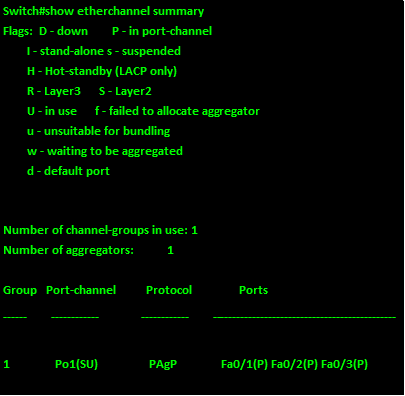
Based on this output and your knowledge of the flags:
- What protocol is in use? The
Protocolcolumn showsPAgP. - Is the channel Layer 2 or Layer 3? The
(S)flag next toPo1indicates it's a Layer 2 channel. - Is the channel operational? The
(U)flag means it is in use, so yes. - Which physical ports are part of the bundle?
Fa0/1,Fa0/2, andFa0/3. - Are the ports bundled correctly? The
(P)flag next to each port confirms they are properly bundled in the port-channel.
This is a healthy, working PAgP EtherChannel.
Now, let's test your knowledge with a quick question.
Free CCNA | EtherChannel | Day 23 | CCNA 200-301 Complete Course
This quiz question from Jeremy's IT Lab directly tests your understanding of a key flag.
Watch the question at quiz question. Pause the video to select your answer before the explanation is revealed.
A Deeper Look: show etherchannel port-channel
While show etherchannel summary gives you a great overview, sometimes you need more detail. For that, you can use the show etherchannel port-channel command. It provides more specific information about the protocol, port states, and even load distribution.
EtherChannel Configuration with Example
The same learncisco.net article also explains this more detailed command.
Read the section that follows the show etherchannel summary discussion. This section breaks down the output of show etherchannel port-channel. Pay attention to the new information this command provides, such as the Port state (e.g., Port-channel Ag-Inuse), the EC state of individual ports (e.g., Active), and the Load column, which relates to load balancing.
While configuring the load-balancing algorithm is a more advanced topic, seeing the Load column helps you understand that EtherChannel doesn't just split traffic 50/50. It uses a hashing algorithm to determine which link to send a frame over. This command gives you a glimpse into how well that load is being distributed.
Conclusion
In this lesson, you've learned how to use the primary command for verifying EtherChannel status, show etherchannel summary. Understanding its output and decoding the flags is a fundamental skill for any network engineer. A quick check with this command tells you immediately if your channel is Layer 2 or Layer 3, if it's up, and if all its member ports are participating correctly.
Key Takeaways:
show etherchannel summaryis the essential command for verifying EtherChannel status.- For a healthy Layer 2 channel, look for the
(SU)flags on the port-channel and the(P)flag on member ports. - For a healthy Layer 3 channel, look for
(RU). - Flags like
D(down),I(stand-alone), ors(suspended) indicate a problem that needs investigation. - The
show etherchannel port-channelcommand provides a more detailed, "magnifying glass" view of a specific EtherChannel.
Now that you can identify what an EtherChannel is doing (or not doing), you're ready for the next step. In our next lesson, we will use this knowledge to troubleshoot common EtherChannel configuration issues. We'll look at scenarios that cause suspended or stand-alone states and learn the commands to fix them.