Hello! In our last lesson, you learned how to verify a healthy, functioning EtherChannel by interpreting the show etherchannel summary command. You now know that the (SU) and (P) flags are signs of a correctly bundled Layer 2 channel.
However, in the real world (and in your project), configurations don't always work on the first try. This lesson focuses on what to do when you don't see those ideal flags. We'll explore the most common EtherChannel configuration issues, how to diagnose them using the verification skills you just learned, and the specific commands needed to fix them.
By the end of this 60-minute lesson, you will be able to systematically troubleshoot and resolve common problems like protocol mismatches, incompatible modes, and mismatched interface parameters.
A Systematic Approach to Troubleshooting
When an EtherChannel fails to form, the problem is almost always a misconfiguration on one or both sides of the link. The key to efficient troubleshooting is knowing what parameters must match. Think of it as a pre-flight checklist.
Cisco EtherChannel Protocols and Configuration - FlackBox
This article from FlackBox provides an excellent starting point by listing the essential parameters that must be consistent across all interfaces in a bundle.
Please read the section titled "EtherChannel Parameters". As you read, create a mental checklist of the settings that must be identical on all bundled interfaces for the channel to come up successfully.
As you just read, for an EtherChannel to form, the bundled physical interfaces on both switches must have identical configurations for:
- Speed and duplex
- VLAN configuration (if it's a trunk, the native VLAN and allowed VLANs must match; if it's an access port, it must be in the same VLAN)
- Switchport mode (Access vs. Trunk)
With this checklist in mind, we can start diagnosing problems. The show etherchannel summary command will be our primary diagnostic tool. Flags like I (stand-alone), s (suspended), or D (down) are your clues that something on the checklist is wrong.
Scenario 1: Protocol and Mode Mismatches
One of the most frequent errors is a mismatch in the negotiation protocol (LACP vs. PAgP) or the negotiation modes (e.g., both sides set to passive).
Let's watch a video that demonstrates how to spot and fix these exact issues.
FREE CCNA Lab 051: EtherChannel Troubleshooting
This video from Jeremy's IT Lab provides clear, concise demonstrations of troubleshooting common EtherChannel problems.
First, watch the segment on a protocol mismatch. Notice how the show etherchannel summary command shows the ports as I (stand-alone). The fix involves removing the incorrect configuration and reapplying it with the correct protocol (desirable for PAgP). Next, watch the segment on a mode mismatch. Here, both switches are configured for LACP passive mode, which prevents the channel from forming. The fix is to change one side to active.
To summarize the valid and invalid mode combinations:
- LACP:
active--active-> Forms a channelactive--passive-> Forms a channelpassive--passive-> Does not form a channel
- PAgP:
desirable--desirable-> Forms a channeldesirable--auto-> Forms a channelauto--auto-> Does not form a channel
- Static (
on): Must beonon both sides. No negotiation occurs.
Scenario 2: Interface Parameter Mismatches
Even if your protocol and modes are correct, the channel can still fail if the underlying physical interfaces don't match. This can result in a port being D (down) or, more commonly, s (suspended).
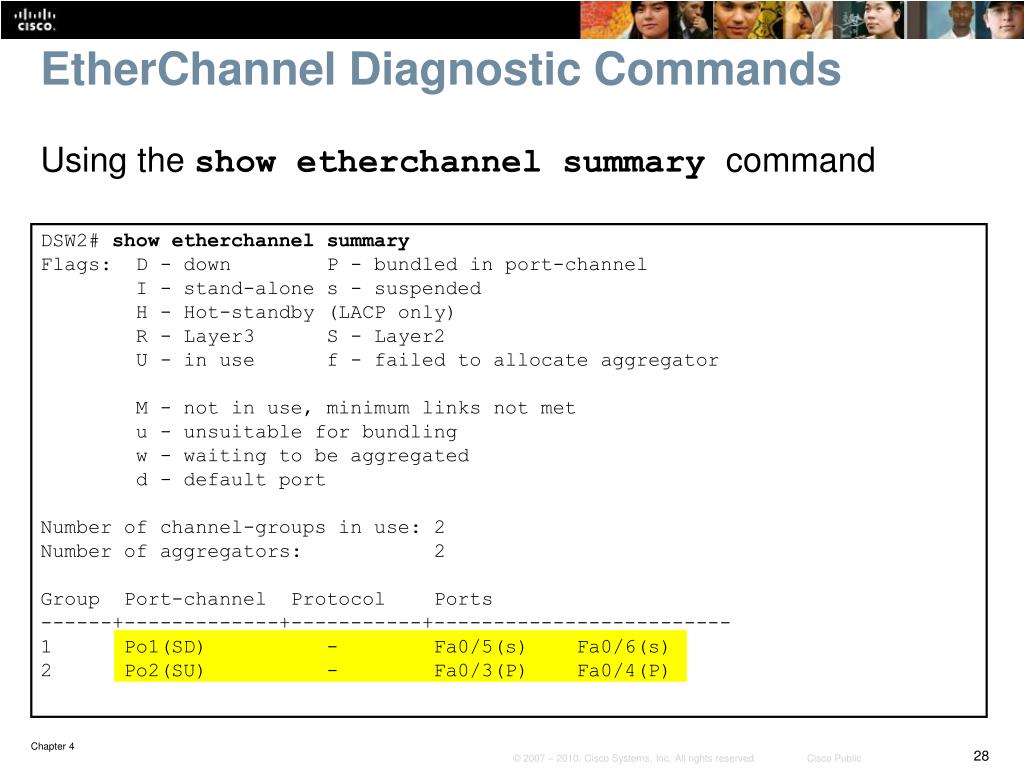
Let's return to the video from Jeremy's IT Lab to see how to diagnose and fix these types of issues.
FREE CCNA Lab 051: EtherChannel Troubleshooting
This video continues with excellent examples of parameter mismatches.
Watch the segment on speed mismatch. The troubleshooter uses show interface to find the speed difference and then configures the correct speed on the problematic interface. Next, see how a Layer 2 vs. Layer 3 mismatch is resolved. This is a less common but important issue where one side is a switchport and the other is a routed port.
Another common interface mismatch not shown in that video is when one port is configured as a trunk and the other is an access port. You would diagnose this using the show interface trunk or show interface <interface> switchport commands and correct it by ensuring both the physical interfaces and the logical port-channel interface are configured with switchport mode trunk.
A Complete Troubleshooting Walkthrough
Now let's see these principles applied in a more complex scenario. The following video walks through a Packet Tracer lab where multiple EtherChannel links are broken for different reasons. This is very similar to what you might encounter in your project.
6.3.4 Packet Tracer - Troubleshoot EtherChannel
This Packet Tracer lab from Tech Acad is a comprehensive troubleshooting exercise that combines several of the issues we've discussed.
Follow the presenter's logical troubleshooting process: Examine L2 Trunking Issues: Watch from Part 1. The presenter methodically uses show interface switchport to find physical ports that are incorrectly in access mode and corrects them to trunk mode. This is a critical first step. Examine Protocol and Port Assignment Issues: Watch from identifying the mismatch and then skip to the final verification from final verification. In the first segment, the presenter uses show etherchannel summary to find a clear protocol mismatch: one switch is using LACP, while the other is using PAgP. After attempting to fix the configurations, the output still doesn't look right. In the second segment, the presenter reloads the switches, and the show etherchannel summary command finally shows the correct protocol (LACP) on all switches. This is a valuable practical lesson: sometimes a device's running state needs a refresh for changes to be reflected properly.
This walkthrough reinforces the importance of a systematic approach: check Layer 2 parameters first, then move to the EtherChannel protocol and mode settings, and verify at each step.
Troubleshooting Checklist
To bring everything together, here is a practical troubleshooting guide based on the resources we've reviewed. When your EtherChannel isn't forming, work through these steps.
Understanding EtherChannel Configuration and Best Practices
The "Dynamic Threads" article provides a concise troubleshooting checklist that summarises our lesson.
Read the section titled "Troubleshooting EtherChannel". This list is an excellent summary of the steps you should take when diagnosing a problem.
Conclusion
Troubleshooting is a process of elimination, and today you've built a solid foundation for diagnosing EtherChannel issues. You learned that when an EtherChannel fails, the show etherchannel summary command provides the initial clues—flags like I, s, or D. From there, you can systematically investigate and correct the most common configuration mismatches.
Key Takeaways:
- Start with
show etherchannel summaryto identify which ports are not bundled (I,s,D). - Check for protocol mismatches: Ensure both sides use LACP, PAgP, or are statically set to
on. - Verify compatible modes: An LACP
passiveport cannot form a channel with anotherpassiveport. - Ensure physical interface consistency: Speed, duplex, and switchport settings (trunk/access, native/allowed VLANs) must match on all ports in the bundle and on both sides of the link.
- The fix often involves
no channel-group, correcting the underlying interface issue, and then re-applying thechannel-groupcommand.
In our next lesson, we will cover two protocols that are invaluable for network discovery: Cisco Discovery Protocol (CDP) and Link Layer Discovery Protocol (LLDP). These tools help you automatically learn about directly connected devices, which is an essential first step before you even begin configuring features like EtherChannel, as it helps you verify which local ports are connected to which remote ports.