Welcome back! In our previous lesson, you successfully created your Canva account and took a tour of the main dashboard. You're now set up with the essential workspace where all your design projects will begin.
Today, we'll take the exciting first step in actually creating an ebook: setting up a blank project. This lesson focuses on choosing the right dimensions for your ebook and using Canva's "Custom size" feature to create your first page. This is a critical decision that affects how your ebook will look and feel to your readers on their various devices.
Choosing Your Ebook's Dimensions
Before you add a single word or image, you must decide on the size and shape of your pages. Since you're using Canva, you'll most likely be creating your ebook as a PDF file. A PDF has a fixed layout, meaning the text and images stay in the exact position you place them, much like a page in a printed magazine. This gives you complete creative control.
This is different from the ePub format used by many e-readers, which has a reflowable layout where text can resize and wrap differently depending on the reader's screen size and font settings. For the highly visual, design-focused ebooks we're creating in this course, a fixed-layout PDF is the perfect choice.
But what size should it be? The answer depends on your audience and how they will likely read your book.
Layout and Design: create your PDF ebook with Canva -
This article offers a great perspective on how to approach this decision.
Read the section titled "The choice of the format of the ebook." Pay close attention to the author's advice about considering the reader's device—the key questions to ask yourself—and the recommendation to stick to a classic format for simplicity and compatibility.
As the article suggests, thinking about your reader is key. Will they be reading on a large computer screen, a tablet, or a small phone? For our purposes, we can simplify this by looking at two common approaches for ebook sizes.
1. Traditional Book Sizes (in Inches)
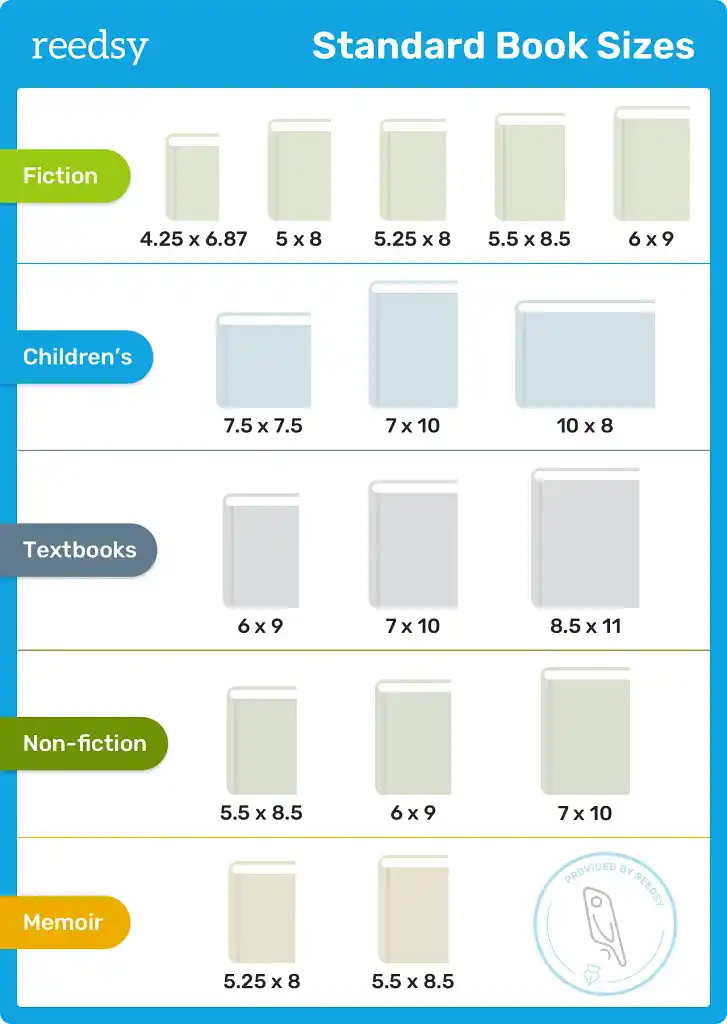
Many designers use standard print book dimensions for their ebooks. This gives the digital file a familiar, book-like feel and is a great option if you think some readers might print it out. A very common size for fiction and non-fiction is 6 x 9 inches.
This chart shows some standard sizes used in the publishing industry. Notice how different genres often have different typical dimensions.
2. Digital Device Sizes (in Pixels)
Alternatively, you can design your ebook to perfectly fit the screen of a specific device, like an iPad or a Kindle. This approach prioritizes the on-screen reading experience. Dimensions for digital designs are usually measured in pixels (px).
This infographic shows a variety of standard pixel dimensions for different ebook platforms and devices.

Our Recommendation for This Course:
To keep things simple and practical, we'll use traditional book sizes measured in inches. This is a versatile approach that works well across most devices.
- For your informational ebook projects, 8.5 x 11 inches (standard US Letter size) is an excellent choice.
- For your fiction/story ebook projects, 6 x 9 inches is the perfect starting point.
Now, let's learn how to create a project with these custom dimensions in Canva.
Creating Your First Project with Custom Dimensions
Canva makes it very easy to start a project of any size. You'll use the "Custom size" button, which we located on the dashboard in the last lesson.
The official Canva Help Center provides a straightforward guide to this process.
Design from scratch - Canva Help Center
This guide walks you through the exact steps for creating a custom-sized design.
Please read the steps under the heading "Set custom dimensions for a new design." Notice the instruction on how to change the measurement unit (from the default px to in, mm, or cm).
To see this in action, the following short video clips demonstrate the process for both of our recommended ebook sizes.
First, here is how to set up an 8.5 x 11 inch document, which is ideal for an informational guide.
How To CREATE AN EBOOK using Canva (Step by Step Tutorial)
The presenter in this video from Latoya Nicole Official shows you exactly where to click to get started.
Watch how she navigates from the "Create a design" button to the custom size menu from this section.
Next, here is a demonstration for a 6 x 9 inch document, which we'll use for fiction.
How to Make an Ebook in Canva (Step by Step Guide) 2025
This clip from Easy Canva Tutorials is quick and to the point, showing the same process for different dimensions.
Watch from this clip to see the dimensions being changed from pixels to inches and set to 6x9.
Your Turn: Create Your First Page
Now it's time for you to do it yourself.
- Go to your Canva dashboard.
- Click the purple Create a design button in the top-right corner.
- In the dropdown menu, select Custom size at the bottom.
- A small box will appear. Click the dropdown menu for the unit and change it from px to in.
- Enter 6 for the width and 9 for the height.
- Click the Create new design button.
You will be taken to the Canva editor with a fresh, blank white page. This is your canvas! You have successfully created the first page of your ebook.
Conclusion
In this lesson, you've learned the importance of choosing the right dimensions for your ebook and the difference between fixed and reflowable layouts. You explored both traditional book sizes and digital device sizes, and you now know how to create a new, custom-sized project in Canva from scratch. You have successfully set the stage for your design.
In our next lesson, we will begin to fill this blank page. You will learn how to use the text tool to add and format your first heading and paragraph, which are the fundamental building blocks of any ebook.