Hello! In our last lesson, we focused on managing concurrency by using blob leases to lock resources for your own application's processes. This is a powerful tool for preventing data corruption when multiple parts of your system need to access the same blob.
Today, we're shifting from internal process control to securely granting access to external clients. Instead of giving out your powerful account keys, you can provide temporary, restricted access. This is achieved using Shared Access Signatures (SAS).
This lesson directly addresses the learning outcome: Implement Shared Access Signatures (SAS) for delegated access to Azure Storage resources. We will cover what SAS tokens are, the different types available, and how to create and use them programmatically in a .NET application. This is a fundamental security concept for Azure Storage and a key topic for the AZ-204 exam.
1. Understanding Shared Access Signatures (SAS)
A Shared Access Signature is a signed URI that grants specific, delegated permissions to an Azure Storage resource. Think of your storage account connection string as a root key with full administrative power. A SAS token, by contrast, is a temporary, limited-privilege key that you can safely give to a client application (like a web browser or mobile app) to perform a specific task, such as uploading a photo or downloading a report, for a limited time.
Let's begin with a video from Microsoft Azure that introduces the core concepts.
Introduction to SAS (Shared Access Signature)
This video, "Introduction to SAS (Shared Access Signature)," provides a clear and concise overview of what a SAS is, its different forms and types, and its primary use cases.
Please watch the following segments: Start with the definition to understand the two parts of a SAS (URI and token) and what it defines (resources, permissions, time). Next, watch the two forms to learn about ad hoc SAS vs. a service SAS with a stored access policy, noting the important benefit of revocation. Continue with the three types, which explains the crucial differences between Account, Service, and User Delegation SAS. Finally, watch the use cases to see practical scenarios for when to choose each type of SAS.
To summarize the key points from the video:
| SAS Type | Secured By | Scope | Supports Stored Access Policy? | Key Use Case |
|---|---|---|---|---|
| User Delegation | Azure AD Credentials | Blob Storage only | No | Most secure. Avoids using account keys. Recommended best practice. |
| Service | Storage Account Key | A specific resource (e.g., one blob, one container) | Yes | Granular access to a single resource; allows for revocation via policies. |
| Account | Storage Account Key | One or more storage services (Blob, Queue, etc.) | No | Broader, service-level operations not possible with other SAS types. |
A common architecture is to have a backend API generate a SAS token on-demand for a trusted frontend client. The client then uses that token to interact directly with Azure Storage, offloading the data transfer from your backend service.

2. The Structure of a SAS Token
A SAS token is a query string appended to the resource URI, starting with a ?. It contains a series of key-value pairs that define the access rules, plus a cryptographic signature (sig) to prove its authenticity.
The Azure Portal provides a user-friendly interface for generating these tokens, which helps visualize the different parameters.
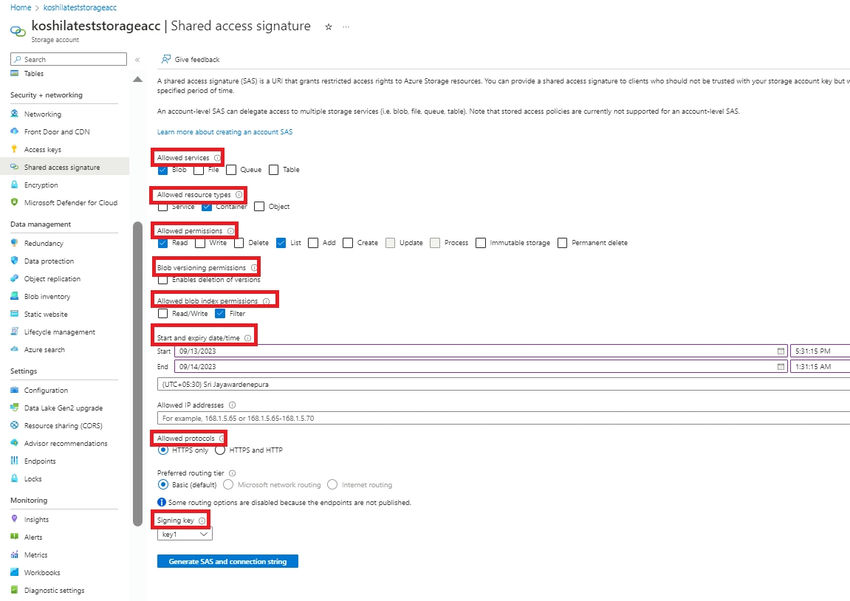
Let's dive into what these parameters mean.
Introduction to SAS (Shared Access Signature)
The same "Introduction to SAS" video also has an excellent, detailed breakdown of a SAS URI's structure.
Please watch the segment from SAS URI Format. The speaker walks through a sample SAS URI, explaining each parameter, such as sv (signed version), ss (signed services), srt (signed resource types), and sp (signed permissions).
Understanding these parameters is vital for constructing SAS tokens correctly in code and for troubleshooting access issues. For example, if a client receives a 403 Forbidden error, it could be due to an incorrect permission (sp), an expired token (se), or a mismatched signature (sig).
3. Implementing SAS with the .NET SDK
Now, let's translate these concepts into C# code. Your extensive experience with .NET will make working with the Azure.Storage.Blobs SDK straightforward. We'll explore two ways to generate a SAS: first, the common Service SAS signed with the account key, and second, the more secure User Delegation SAS signed with Azure AD credentials.
3.1. Generating a Service SAS
A service SAS is signed using your storage account's access key, which you can get from the connection string. It's ideal for granting access to a specific resource, like a single blob.
The following video provides a practical demonstration of generating a SAS-protected URL for blobs in a container.
Securely Access Azure Blob Storage Containers in C# with SAS Tokens & Generate Download URLs AZ-204
This video from the Learn Smart Coding channel, "Securely Access Azure Blob Storage Containers in C# with SAS Tokens," shows a real-world implementation in a .NET Core Web API.
Focus on these two parts: Code Structure: This section explains the C# code for getting a blob client and using the GetSasUri method (though the video uses an older method, the concept is the same) with a BlobSasBuilder to configure permissions and expiry. URL Generation: See how the generated SAS token is appended to the blob's URI to create a full, temporary download link.
The key class you will use is BlobSasBuilder. You configure it with the desired container, blob, permissions, and expiration, and then use it to generate the SAS query parameters.
Practical Exercise: Generate a Read-Only SAS URL
Let's modify our console application to generate a read-only SAS URL for a blob that is valid for one hour.
- Create a
BlobClientfor a specific blob. - Create an instance of
BlobSasBuilder, setting the permissions toReadand the expiration time. - Use the
blobClient.GenerateSasUri()method, passing in the builder, to create the final URI. - Print the URI to the console.
Here is some starter code. Place your logic where indicated.
using Azure.Storage.Blobs;
using Azure.Storage.Sas; // Add this for SAS builder
using System;
using System.IO;
using System.Threading.Tasks;

class Program
{
    static async Task Main()
    {
        Console.WriteLine("Azure Blob Storage - SAS Generation\n");

        string connectionString = "PASTE_YOUR_CONNECTION_STRING_HERE";
        BlobServiceClient blobServiceClient = new BlobServiceClient(connectionString);

        string containerName = "sas-demos-" + Guid.NewGuid().ToString();
        BlobContainerClient containerClient = await blobServiceClient.CreateBlobContainerAsync(containerName);

        // Upload a sample blob
        string fileName = "sample-file.txt";
        string localFilePath = Path.Combine("data", fileName);
        Directory.CreateDirectory("data");
        await File.WriteAllTextAsync(localFilePath, "This is a sample file for SAS testing.");
        BlobClient blobClient = containerClient.GetBlobClient(fileName);
        await blobClient.UploadAsync(localFilePath, true);
        Console.WriteLine($"Uploaded sample blob: {blobClient.Uri}");

        // --- TODO: GENERATE A SERVICE SAS URL ---
        // 1. Check if the blob can be read without SAS (it shouldn't if the container is private).
        // 2. Create and configure a BlobSasBuilder for read access, expiring in 1 hour.
        // 3. Call blobClient.GenerateSasUri() to get the full URI with the SAS token.
        // 4. Print the generated SAS URI.

        Uri sasUri = null; // Replace this line with your implementation

        Console.WriteLine($"\nGenerated Read-Only SAS URI (valid for 1 hour):\n{sasUri}\n");

        // Cleanup
        Console.Write("Press any key to delete resources...");
        Console.ReadLine();
        await containerClient.DeleteAsync();
        File.Delete(localFilePath);
        Console.WriteLine("Done.");
    }
}
Click to see the complete solution
using Azure.Storage.Blobs;
using Azure.Storage.Sas; // Added this
using System;
using System.IO;
using System.Threading.Tasks;

class Program
{
    static async Task Main()
    {
        Console.WriteLine("Azure Blob Storage - SAS Generation\n");

        string connectionString = "PASTE_YOUR_CONNECTION_STRING_HERE";
        if (connectionString.Contains("PASTE_YOUR"))
        {
            Console.WriteLine("Please update the connection string in the code.");
            return;
        }

        BlobServiceClient blobServiceClient = new BlobServiceClient(connectionString);

        string containerName = "sas-demos-" + Guid.NewGuid().ToString();
        BlobContainerClient containerClient = await blobServiceClient.CreateBlobContainerAsync(containerName);

        // Upload a sample blob
        string fileName = "sample-file.txt";
        string localFilePath = Path.Combine("data", fileName);
        Directory.CreateDirectory("data");
        await File.WriteAllTextAsync(localFilePath, "This is a sample file for SAS testing.");
        BlobClient blobClient = containerClient.GetBlobClient(fileName);
        await blobClient.UploadAsync(localFilePath, true);
        Console.WriteLine($"Uploaded sample blob: {blobClient.Uri}");

        // --- GENERATE A SERVICE SAS URL ---
        if (blobClient.CanGenerateSasUri)
        {
            // Create a SAS builder
            BlobSasBuilder sasBuilder = new BlobSasBuilder()
            {
                BlobContainerName = blobClient.BlobContainerName,
                BlobName = blobClient.Name,
                Resource = "b", // "b" for blob
                StartsOn = DateTimeOffset.UtcNow,
                ExpiresOn = DateTimeOffset.UtcNow.AddHours(1)
            };

            // Specify read permissions
            sasBuilder.SetPermissions(BlobSasPermissions.Read);

            // Generate the SAS URI
            Uri sasUri = blobClient.GenerateSasUri(sasBuilder);
            Console.WriteLine($"\nGenerated Read-Only SAS URI (valid for 1 hour):\n{sasUri}\n");

            // You can now paste this URI into a browser to download the file.
        }
        else
        {
            Console.WriteLine("Cannot generate SAS URI. Check your credentials.");
        }

        // Cleanup
        Console.Write("Press any key to delete resources...");
        Console.ReadLine();
        await containerClient.DeleteAsync();
        File.Delete(localFilePath);
        Console.WriteLine("Done.");
    }
}
3.2. Generating a User Delegation SAS
The User Delegation SAS is the most secure type because it doesn't require the account key. Instead, it's signed with a special, short-lived "user delegation key" obtained using Azure AD credentials. This aligns with modern security best practices.
The process involves a few more steps:
- Authenticate using Azure AD (e.g., via
DefaultAzureCredential). - Use the authenticated client to request a
UserDelegationKeyfrom the storage service. - Use this key, along with a
BlobSasBuilder, to generate the SAS token.
The official Microsoft documentation provides the definitive guide and code for this.
Create a user delegation SAS for a blob with .NET - Azure Storage
This article explains the security benefits and shows the complete .NET implementation for creating a user delegation SAS.
Please read the following sections carefully: About the user delegation SAS: Understand why this is the recommended approach. Get the user delegation key: Review the code example showing how to call GetUserDelegationKeyAsync. This is the core new step. Create a user delegation SAS: Examine the code snippet for creating the SAS for a blob. Notice how the ToSasQueryParameters method now takes the userDelegationKey as an argument.
The key difference in the code is the two-step process: first, get the delegation key, then use it to sign the SAS. This eliminates the need to handle the storage account key in your application code, significantly improving your security posture.
4. SAS Best Practices
Using SAS tokens introduces great power and flexibility, but also potential risks if not managed carefully.
Grant limited access to data with shared access signatures (SAS)
This overview document contains a crucial section on best practices.
Please read the section titled Best practices when using SAS. Focus on these key recommendations: Always use HTTPS. Prefer user delegation SAS. Have a revocation plan (using stored access policies for Service SAS). Use near-term expiration times. Grant the least possible privilege.
Conclusion
In this lesson, you have learned how to delegate access to Azure Storage resources securely and granularly using Shared Access Signatures. This capability is essential for building scalable and secure cloud applications.
Here are the key takeaways:
- SAS tokens provide limited, temporary access to storage resources without exposing your account key.
- There are three types: User Delegation (most secure, uses Azure AD), Service (scoped to a resource), and Account (scoped to a service).
- In .NET, you use the
BlobSasBuilderclass to define the permissions, expiry, and other parameters of a SAS. - For a Service SAS, you sign with the account key (via
GenerateSasUri). - For a User Delegation SAS, you first obtain a user delegation key with Azure AD credentials and use it to sign the SAS.
- Always follow security best practices, such as using HTTPS, short expiration times, and the principle of least privilege.
In our next lesson, we will shift from access control to automated data management. You will learn how to configure blob storage lifecycle management policies to automatically transition data between access tiers or delete it, helping you optimize costs and manage data retention.