Hello! In our last lesson, we saw how a failed blob processing attempt can result in a "poison" message being placed in a special queue. This provides a perfect entry point to our topic today, where we'll learn how to build functions that are explicitly designed to listen to and process messages from queues.
This lesson directly addresses the learning outcome: Implement a queue-triggered Azure Function to process messages from Azure Queue Storage. You'll learn how to use queues to build resilient, decoupled systems—a core pattern in modern cloud architecture and a key competency for the AZ-204 exam.
We will explore why queues are so useful, build a .NET function that triggers from a queue message, and walk through the full development lifecycle from local testing to secure deployment in Azure.
1. The Role of Queues in Application Architecture
Before we jump into the code, let's establish why we use queues. In distributed systems, it's common to have different components that need to communicate without being tightly coupled. For example, a web front-end shouldn't have to wait for a long-running background task (like generating a report or processing a video) to complete.
Azure Queue Storage provides a simple, reliable messaging service to solve this problem. It allows one component (the producer) to drop a message into a queue, and another component (the consumer) to pick it up and process it later. This is often called the Web-Queue-Worker pattern.
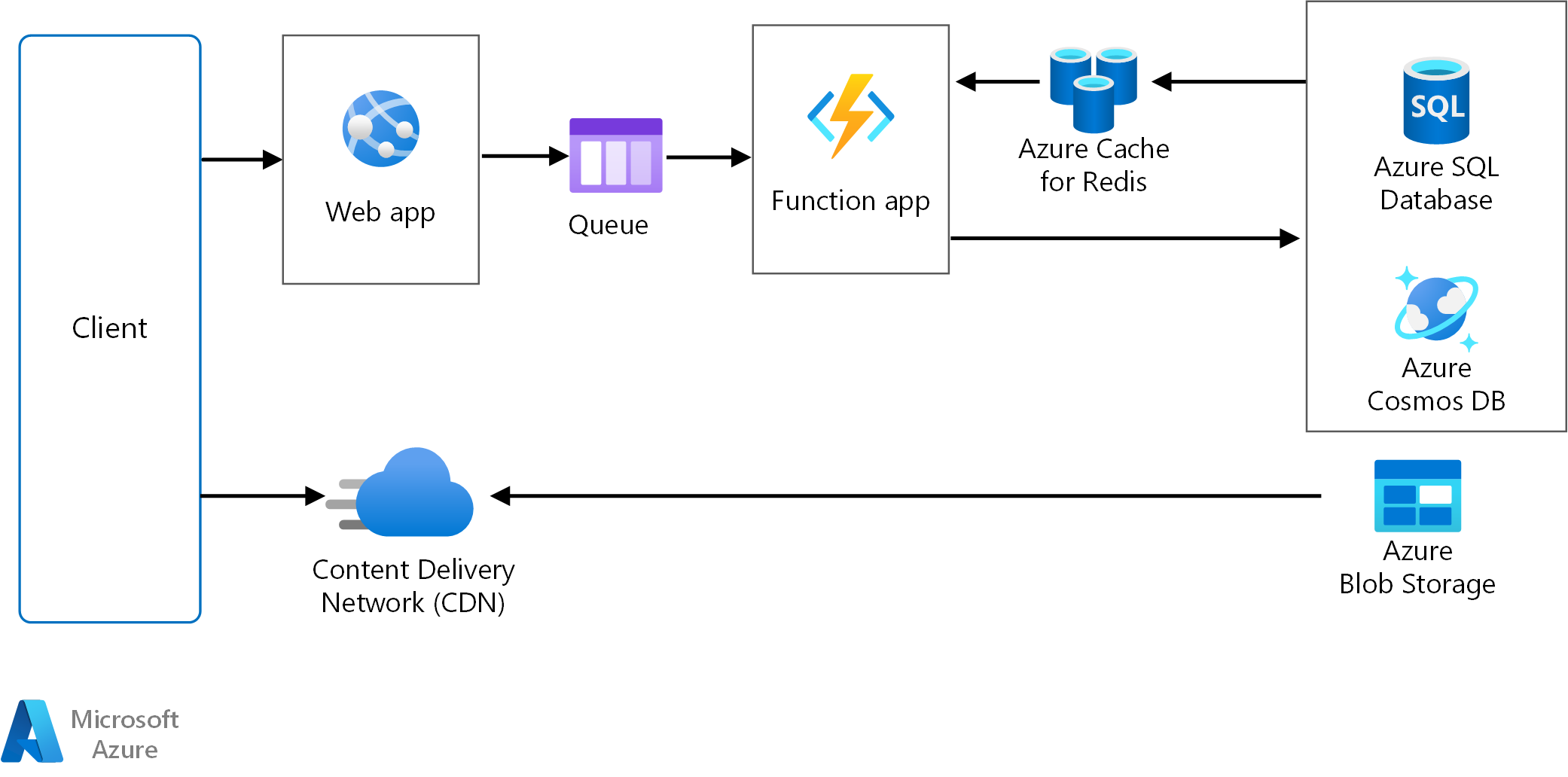
This asynchronous, decoupled approach offers several benefits:
- Scalability: You can scale the number of workers (Functions) independently of the web front-end based on the queue length.
- Resilience: If a worker function fails, the message can be retried later without affecting the producer.
- Load Leveling: During traffic spikes, the queue can absorb the burst of messages, allowing your workers to process them at a steady pace.
2. Creating a Queue-Triggered Function
Now, let's see how to implement this pattern. A queue-triggered function automatically executes whenever a new message arrives in a specified Azure Storage Queue.
You'll create the function using a template in Visual Studio, which is a familiar process for you.
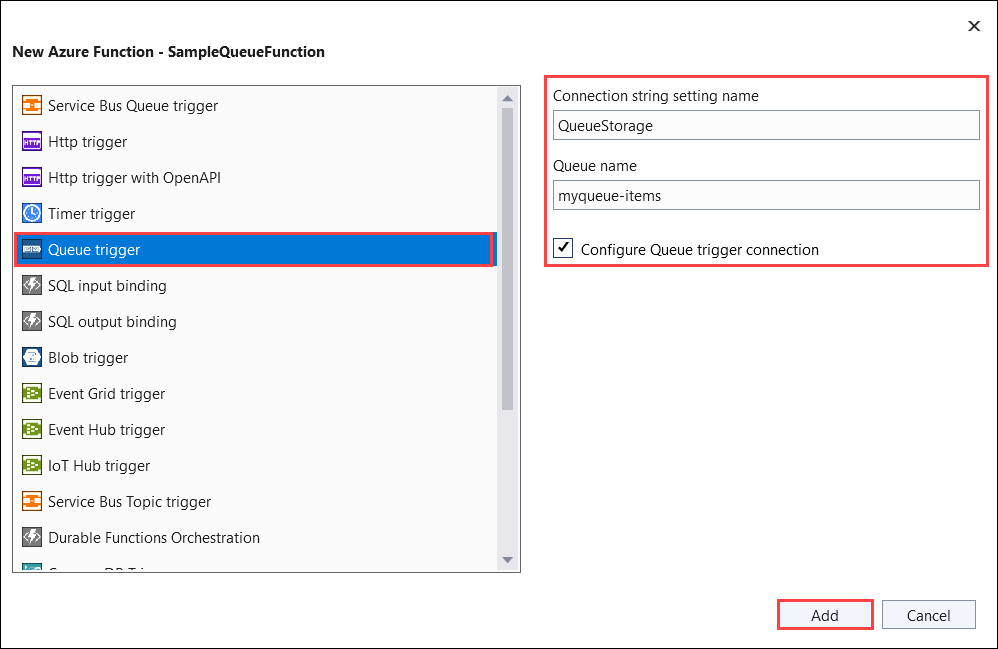
The core of the function's configuration lies in the [QueueTrigger] attribute. Let's examine the key documentation to understand its properties and usage.
Azure Queue storage trigger for Azure Functions | Microsoft Learn
This official Microsoft documentation provides the essential details for configuring and using the queue trigger.
Review the C# example under the "Example" section (ensure the "In-process model" tab is selected, as it's common in tutorials, though we'll use the isolated model). This shows the basic structure. Read the "Attributes" section. Focus on the QueueTrigger attribute and its two main parameters: the queueName and the Connection property, which points to your connection string setting. Finally, look at the "Usage" section. Notice the different types you can bind the message to, such as string, byte[], or a custom POCO class if the message is JSON. We will primarily use string for simplicity.
A typical function signature looks like this:
[Function("ProcessQueueMessage")]
public void Run([QueueTrigger("my-work-items", Connection = "AzureWebJobsStorage")] string myQueueItem)
{
    // Function logic to process myQueueItem
    _logger.LogInformation("C# Queue trigger function processed: {queueItem}", myQueueItem);
}
[QueueTrigger("my-work-items", ...)]: This attribute tells the runtime to monitor the queue namedmy-work-items.Connection = "AzureWebJobsStorage": This specifies that the connection string is stored in an application setting namedAzureWebJobsStorage.string myQueueItem: The body of the queue message is passed into the function as a string.
3. Hands-On: Building and Testing a Queue-Triggered Function
The best way to understand the complete workflow is to build it. The following video provides a comprehensive, practical guide from local development to cloud deployment, perfectly suited to your .NET background.
AZURE FUNCTION ⚡ - Integrate with Azure Queue Storage | Getting Started With ASP.NET Core Series
This video, "Integrate with Azure Queue Storage" by Rahul Nath, is an excellent end-to-end tutorial. It covers everything from project setup to deployment with managed identity.
Create and Configure the Project: Watch how to create a new Queue Trigger function in Visual Studio and understand the initial template. Encoding and Local Configuration: Pay close attention to two critical points here: Base64 Encoding: By default, the queue trigger expects the message body to be a Base64 encoded string. The video shows how to configure the sender to encode messages correctly. This is a common point of failure. Connection String: See how the connection string to the queue is configured in the local.settings.json file. Local Testing: Observe how to run both a sender application (a Web API in this case) and the Function app locally. You'll see the function automatically trigger and process the message. Notice that on successful execution, the message is automatically deleted from the queue. Handling Failures (Poison Messages): This section demonstrates what happens when the function throws an exception. The runtime automatically retries several times. After the final retry fails, the message is moved to a poison queue (<your-queue-name>-poison). This is the same mechanism we discussed in the last lesson. Customizing Behavior with host.json: Learn how you can override default behaviors, like the maximum retry count (maxDequeueCount), by modifying the host.json file. Using Managed Identity: This is a crucial section for security and the exam. Watch how to remove the connection string from configuration and set up the function to use an identity-based connection instead. This uses DefaultAzureCredential to authenticate seamlessly, both locally with your developer account and in Azure with a managed identity. Deploy and Test in Azure: Finally, follow the steps to publish the function to Azure. The video covers creating the Function App, enabling its managed identity, granting it the necessary permissions (Storage Queue Data Contributor) on the storage account, and configuring the service URI in the application settings.
4. Understanding the Processing Lifecycle
The video demonstrated the key lifecycle events, but let's formalize them. This behavior is managed entirely by the Functions runtime, so you don't have to write the code for it.
Using Azure Storage Queue messages with ...
This article by Andrew Lock provides a clear, narrative explanation of the message processing lifecycle.
Please read the sections "How does the function process your messages?" and "Changing the configuration of the Storage Queue trigger with host.json". Focus on these key points: The peek-lock pattern: Messages are made invisible, not deleted, when retrieved. Success: The function completes, and the runtime deletes the message. Failure: The function throws an exception, the message becomes visible again for another attempt. Poison Queue: After 5 failed attempts (the default maxDequeueCount), the message moves to the -poison queue. host.json properties like maxDequeueCount, batchSize, and visibilityTimeout that allow you to customize this behavior.
Conclusion
In this lesson, you've mastered a fundamental building block of serverless and event-driven applications. By implementing a queue-triggered function, you've learned how to create robust, scalable, and decoupled systems.
Here are the key takeaways:
- Azure Queue Storage enables asynchronous communication between application components using the Web-Queue-Worker pattern.
- The
[QueueTrigger]attribute connects your .NET function to a specific queue. - The Functions runtime automatically manages the message lifecycle, including peek-lock, deletion on success, and retries on failure.
- After repeated failures, messages are moved to a poison queue for manual inspection or separate processing.
- You can customize retry and batching behavior in the
host.jsonfile. - For optimal security, you should use identity-based connections (Managed Identity in Azure) instead of storing connection strings in application settings.
In our previous lessons, we've built functions that are triggered by a schedule, a blob, and now a queue message. These handle discrete, single-step tasks well. But what if you need to orchestrate a more complex, multi-step workflow? In our next lesson, we will describe the core concepts and common patterns of Durable Functions, which allow you to build stateful, long-running serverless orchestrations.