Welcome to our next lesson in the "Developing Serverless Solutions with Azure Functions" module. In our previous session, we built a timer-triggered function, which introduced you to the core concept of a trigger initiating your code. You saw how a schedule could serve as that event source.
Today, we will explore one of the most common and powerful event-driven patterns in Azure: processing data as it arrives. This lesson directly addresses the learning outcome: Implement a blob-triggered Azure Function to process data from Azure Blob Storage. We will build a function that automatically runs whenever a file is uploaded to a storage container, a foundational skill for building data-processing pipelines and a key topic for the AZ-204 exam.
We'll start by understanding the mechanics of the blob trigger, then walk through creating, deploying, and testing a .NET function that reacts to blob events.
1. The Anatomy of a Blob-Triggered Function
At its core, a blob-triggered function is a piece of code that executes in response to a new or updated blob in an Azure Storage container. This is an incredibly useful pattern for tasks like image resizing, log processing, or data validation.
A common workflow involves watching an 'input' container and writing a processed result to an 'output' container, as illustrated below.

Polling vs. Event-Driven Triggers
It's important to understand that there are two primary ways a blob trigger can be invoked:
- Polling: The function runtime periodically scans the storage container's logs to check for new or updated blobs. This is the traditional method and can have some latency (up to 10 minutes on a Consumption plan if the app is idle).
- Event-based: The function subscribes to events from the storage container via Azure Event Grid. When a blob is created, Event Grid sends a notification almost instantly, triggering the function with very low latency. This is the modern, recommended approach and is required for some hosting plans like Flex Consumption.
The choice between these mechanisms has a significant impact on the responsiveness of your application.
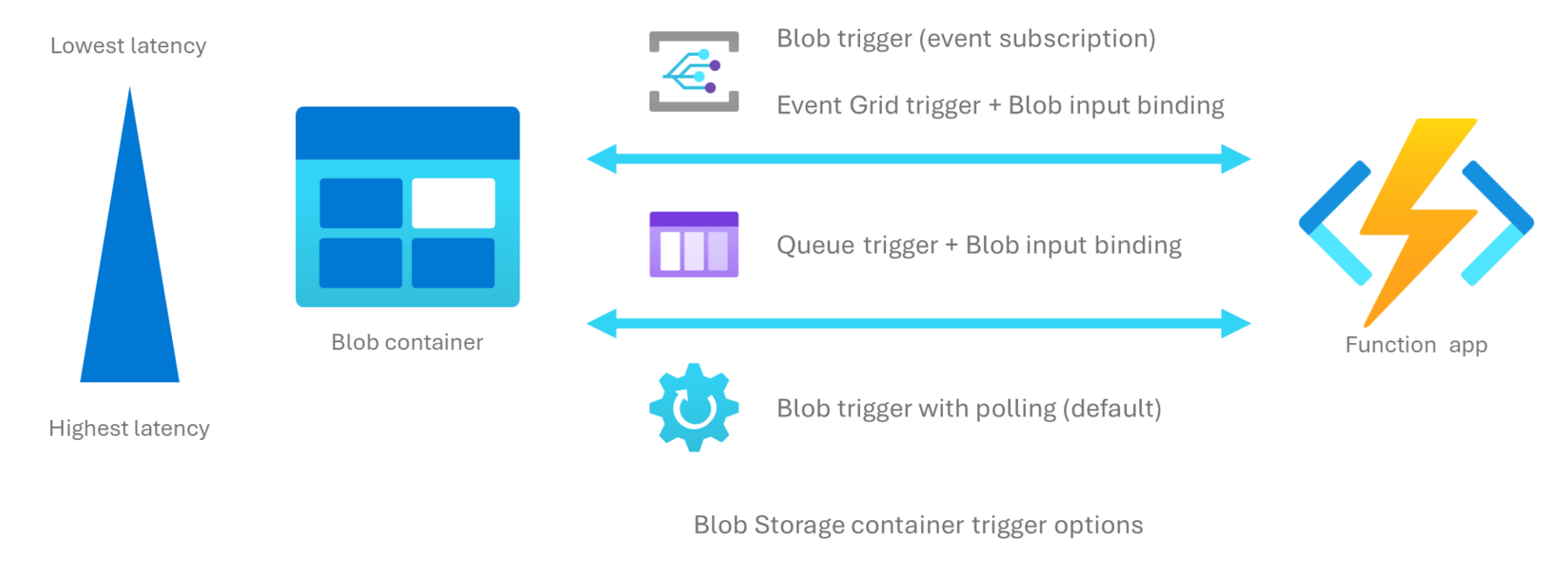
We'll focus on the standard, polling-based trigger for simplicity in our first example, but it's crucial to know about the event-based alternative for the exam and for performance-sensitive applications.
2. Implementing the Trigger in C#
Given your background in .NET, you'll find the implementation straightforward. The logic is defined using attributes directly in your C# code. Let's examine the key components.
Azure Blob storage trigger for Azure Functions | Microsoft Learn
This official Microsoft documentation is the definitive reference for blob triggers. It provides code examples and explains the trigger's configuration in detail.
First, review the C# example under the "Example" section, making sure the "Isolated worker model" tab is selected. This shows a complete function with both a trigger and an output binding. Next, read the "Attributes" section. Focus on the BlobTrigger attribute and its constructor parameters. The path parameter is especially important, as it defines which container and blobs the function will monitor. Finally, scan the "Blob name patterns" section. This explains how to use expressions like {name} and {blobextension} in the path to capture parts of the blob's filename and use them as parameters in your function.
Let's break down a typical function signature:
[Function("ProcessBlob")]
[BlobOutput("samples-output/{name}-processed.txt")] // Output binding
public string Run(
    [BlobTrigger("samples-input/{name}")] string myTriggerItem, // Trigger
    string name,
    FunctionContext context)
{
    var logger = context.GetLogger("ProcessBlob");
    logger.LogInformation("Triggered by blob: {name}", name);
    logger.LogInformation("Blob content: {content}", myTriggerItem);

    // Process the input and return the result for the output binding
    return $"Processed content from {name}: {myTriggerItem}";
}
[BlobTrigger("samples-input/{name}")]: This attribute tells the runtime to execute this function when a blob appears in thesamples-inputcontainer. The{name}part is a binding expression; it captures the filename of the triggering blob and makes it available in thenamestring parameter.string myTriggerItem: The function receives the content of the blob as a string. You could also bind to aStreamorbyte[]for binary data.[BlobOutput("samples-output/{name}-processed.txt")]: This is an output binding. The string returned by the function will be automatically saved as a new blob in thesamples-outputcontainer. Notice how we reuse the{name}expression from the trigger to construct the output filename.
This declarative approach, where attributes handle the boilerplate of connecting to storage, allows you to focus purely on your business logic.
3. Hands-On: Build and Deploy a Blob-Triggered Function
Now, let's build and deploy a function that's triggered by an image upload and writes a modified version to another container. The following video provides an excellent end-to-end walkthrough using Visual Studio.
Create and Deploy Blob Triggers with Azure Functions
The video "Create and Deploy Blob Triggers with Azure Functions" by Tech With Pat is a complete, practical guide. Follow along to build, test, and deploy your function.
Prepare Azure Resources: The first step is to create a Storage Account and two blob containers (e.g., input-images, output-images). Create the Function Project: In Visual Studio, create a new Azure Functions project and select the Blob Trigger template. You'll specify the connection string setting and the path to your input container. Refactor and Understand the Code: The video explains how to move the connection string to local.settings.json (best practice) and breaks down the trigger's signature. Add an Output Binding: Add a [BlobOutput] attribute to save the processed file to your output container. The example in the video involves image resizing, but for this exercise, you can simply copy the input stream to the output stream. Test Locally: Run the project. Use the Azure Storage Explorer (in Visual Studio or standalone) to upload a file to your input container and verify that the function triggers and creates a file in the output container. Deploy and Configure: Publish the function to Azure. This is a critical step: after deployment, you must add your storage connection string to the Function App's Configuration settings in the Azure portal. The key must match the name you used in your function's Connection property (e.g., BlobConnectionString). Test in Azure: Once configured, upload a file to the container in Azure and verify that the deployed function executes correctly by checking the output container and the function's logs under the Monitor blade.
4. Handling Failures: Poison Blobs
What happens if your function fails repeatedly while processing a specific blob? For example, your code might throw an exception if it encounters a malformed file. You wouldn't want the function to be stuck retrying the same bad message forever.
The Azure Functions runtime has a built-in mechanism for this. After a certain number of retries (5 by default), the trigger will move the problematic blob message to a queue named webjobs-blobtrigger-poison.
This prevents a single "poison" blob from blocking the processing of other valid blobs. You can then inspect this queue to diagnose the issue or even create another function that triggers off this poison queue to handle these failures specifically. This provides a natural transition to our next topic.
Conclusion
In this lesson, you've implemented one of the most fundamental serverless patterns: event-driven processing using Azure Blob Storage and Azure Functions. This ability to automatically execute code in response to data arriving is a cornerstone of scalable cloud applications.
Here are the key takeaways:
- Blob Triggers execute a function when a new or updated blob is detected in a specified container.
- The recommended trigger mechanism uses Event Grid subscriptions for low latency, though the default is a polling mechanism.
- The
[BlobTrigger]attribute in C# defines the path and connection for the trigger, with binding expressions like{name}capturing parts of the filename. - Output bindings like
[BlobOutput]provide a declarative and simple way to write data back to blob storage. - Connection strings must be managed in
local.settings.jsonfor local development and as Application Settings in the deployed Function App. - The runtime automatically handles repeated failures by moving the message for a problematic blob to a poison queue.
In our next lesson, we'll explore that poison queue mechanism more deeply. You will learn to implement a queue-triggered Azure Function to process messages from Azure Queue Storage, enabling you to build even more robust and decoupled systems.