Hello! In our last lesson, we explored how to execute transactional logic directly on the database server using stored procedures. This was about initiating server-side operations from your application. Today, we'll explore another powerful server-side capability that flips this model around: reacting to events as they happen in the database.
This lesson addresses the learning outcome: Implement a change feed processor to react to changes in a Cosmos DB container. We will learn how to build an application that listens for inserts and updates in a Cosmos DB container in near real-time. This is a fundamental pattern for building modern, event-driven architectures on Azure and a key topic for the AZ-204 exam.
1. What is the Cosmos DB Change Feed?
Imagine you need to send a push notification every time a user's order status is updated. A traditional approach would be to have an application constantly poll the database, asking "Has anything changed yet?". This is inefficient and can be slow to react.
The Cosmos DB change feed provides a much more elegant solution. It is a persistent, ordered log of all document changes (inserts and updates) within a container. Instead of your application polling for changes, it can subscribe to this feed and be notified as changes occur.
To get a solid conceptual overview of the change feed and its common use cases, let's watch a short video from the Azure Cosmos DB team.
Understanding the Azure Cosmos DB change feed (2019)
This video, "Understanding the Azure Cosmos DB change feed," provides a great introduction to the feature.
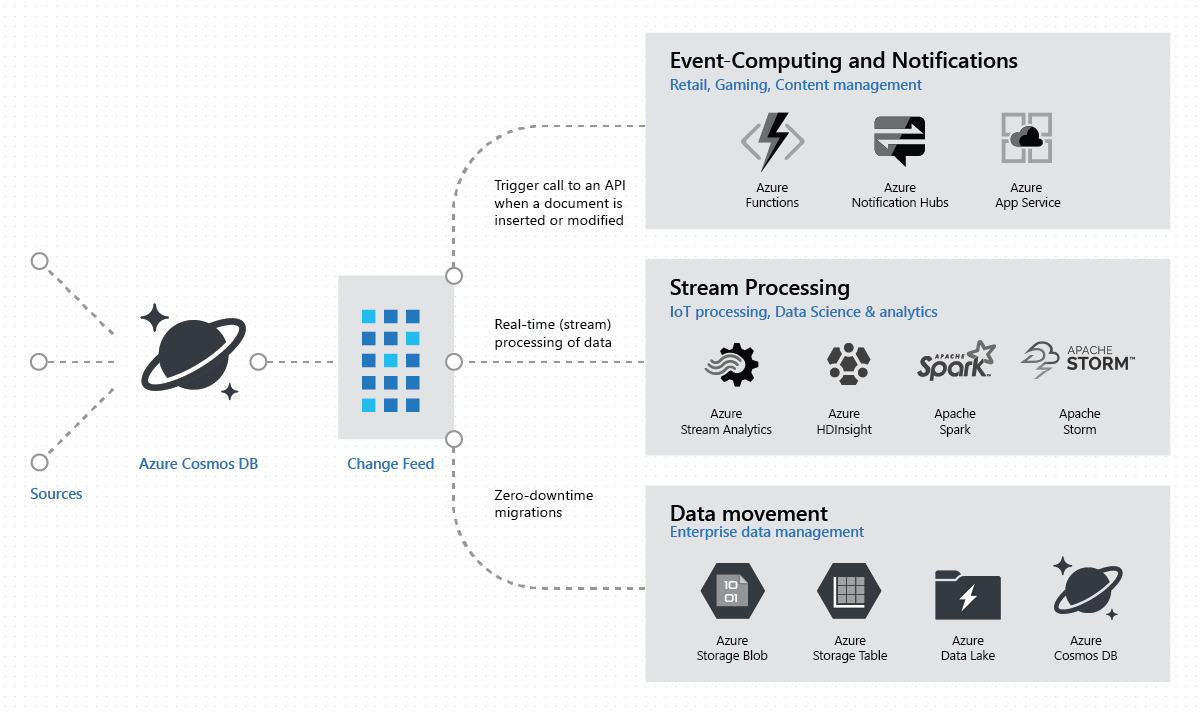
Watch the following two segments: What is Change Feed?: This explains the core characteristics of the change feed. Note that it's enabled by default and tracks inserts and updates. Real-world examples: This section explores various architectures you can build with the change feed, such as triggering notifications, performing real-time analytics, and archiving data.
As the video highlights, the change feed is not just a feature; it's an enabler for a wide range of architectural patterns.
2. The Change Feed Processor Library
While you can read the change feed directly using the Cosmos DB SDK, the recommended approach for building robust listeners in a .NET application is to use the Change Feed Processor library. This library, which is built into the Microsoft.Azure.Cosmos SDK you're already using, provides a high-level abstraction that handles the complexities of reading the feed.
The main benefit of the processor is its fault-tolerant design. It automatically manages checkpointing and distributes the processing work across multiple application instances, ensuring an at-least-once delivery of all changes.
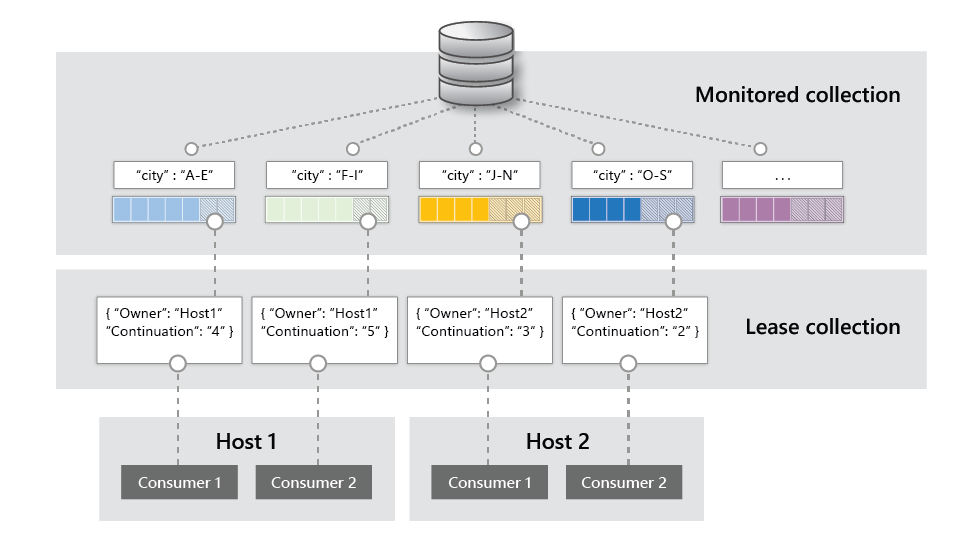
There are four essential components to understand when working with the change feed processor:
- Monitored Container: The source container whose changes you want to track.
- Lease Container: A separate container that the processor uses to store its state. It contains small documents (leases) that track which partitions are being processed by which application instance and how far along the processing is. This is the secret to its scalability and fault tolerance.
- Compute Instance: The host running your processor code (e.g., your console app, a web job, etc.). Each instance should have a unique name.
- Delegate: Your C# code—a method that gets called with a batch of changes from the feed. This is where you define what to do with the changes.
The relationship between these components is illustrated perfectly in the official documentation.
3. Implementing a Change Feed Processor in .NET
Now, let's dive into the code. Implementing a change feed processor in your .NET application involves three main steps:
- Ensuring you have a lease container.
- Building and configuring the processor instance.
- Defining the delegate method to handle the changes.
The official Microsoft Learn documentation provides the most direct and authoritative guide for this.
Change Feed Processor - Azure Cosmos DB
This document covers the implementation details for the Change Feed Processor in .NET.
Please read the following sections: Start at the heading Implement the change feed processor. Focus on the .NET tab. Review the first code block showing the GetChangeFeedProcessorBuilder and the HandleChangesAsync delegate. This is the core pattern. Jump to the heading Reading from the beginning. This shows how to use WithStartTime(DateTime.MinValue.ToUniversalTime()) to process all historical changes in a container, a common requirement.
Let's break down the key parts of the code you just reviewed.
1. Create Containers
First, you need Container objects for both your monitored container and your lease container. The lease container is just a standard Cosmos DB container. It's often created with a partition key of /id.
// The container we want to monitor for changes
Container monitoredContainer = cosmosClient.GetContainer("MyDatabase", "SourceContainer");

// The container to store leases
Container leaseContainer = cosmosClient.GetContainer("MyDatabase", "leases");
2. Build the Processor
You use a builder pattern that starts with monitoredContainer.GetChangeFeedProcessorBuilder(...).
ChangeFeedProcessor changeFeedProcessor = monitoredContainer
    .GetChangeFeedProcessorBuilder(
        processorName: "my-change-processor", // Name for this group of processors
        onChangesDelegate: HandleChangesAsync) // Your delegate method
    .WithInstanceName("console-host-1") // Unique name for this running instance
    .WithLeaseContainer(leaseContainer)
    .Build();
3. Define the Delegate
This is an async method that receives the context and a collection of the changed items. The items will already be deserialized into your POCO class if you provide it as the generic type.
static async Task HandleChangesAsync(
    ChangeFeedProcessorContext context,
    IReadOnlyCollection<MyItem> changes,
    CancellationToken cancellationToken)
{
    Console.WriteLine($"Received {changes.Count} changes on lease {context.LeaseToken}");
    foreach (MyItem item in changes)
    {
        Console.WriteLine($"Detected change for item: {item.Id}");
        // Add your business logic here, e.g., send an email, update a search index, etc.
    }
}
4. Start and Stop the Processor
Finally, you start the processor, which will run in the background, and stop it gracefully when your application shuts down.
await changeFeedProcessor.StartAsync();
Console.WriteLine("Change Feed Processor started. Press any key to stop...");
Console.ReadKey();
await changeFeedProcessor.StopAsync();
4. A Practical Walkthrough
Theory and code snippets are great, but seeing it in action solidifies the concepts. The simplest way to consume the change feed is with an Azure Function using a Cosmos DB trigger. Under the hood, this trigger uses the Change Feed Processor library we've just discussed.
Let's watch a video that demonstrates this. As you watch, notice how the concepts map directly to the builder code we just saw.
Working with the Azure Cosmos DB Change Feed using Azure Functions and C#
This video, "Working with the Azure Cosmos DB Change Feed using Azure Functions and C#," provides an excellent practical demonstration.
Watch from the demo section. The presenter builds an Azure Function that listens to a books container. Pay attention to the following: Configuration (CosmosDBTrigger attribute): The databaseName, collectionName, connectionStringSetting, and leaseCollectionName are all parameters you'd provide to the ChangeFeedProcessorBuilder. CreateLeaseCollectionIfNotExists=true: This handy setting automatically creates the lease container. The Function Input: The IReadOnlyList<Document> input is the equivalent of the changes collection in our delegate. Processing Logic: Inside the foreach loop, the presenter deserializes the document and inserts it into another container—a classic materialized view pattern. Verification: At the end, you can see the new leases container created automatically and the documents successfully copied to the target container.
This demonstration, although using Azure Functions, perfectly visualizes the moving parts of the Change Feed Processor: listening to a source, coordinating via a lease container, and executing code in response to changes.
5. Scaling and Error Handling
- Scaling: To scale out your processing, you simply run another instance of your application with the same
processorNamebut a differentinstanceName. The Change Feed Processor library will automatically rebalance the leases across the running instances, distributing the workload. - Error Handling: The processor provides an "at-least-once" guarantee. If your
HandleChangesAsyncdelegate throws an unhandled exception, the processor will stop processing that partition and another (or the same) instance will eventually pick it up and retry the same batch of changes. To avoid getting stuck, you should implement robust error handling (e.g., atry-catchblock) and consider writing failed items to a "dead-letter" queue for later analysis.
Conclusion
In this lesson, we transitioned from actively calling the database to passively reacting to its changes. You've learned how to leverage the Cosmos DB change feed and the Change Feed Processor library to build resilient, event-driven components in .NET.
Here are the key takeaways:
- Change Feed is a persistent log of inserts and updates in a Cosmos DB container, enabling event-driven architectures without inefficient polling.
- The Change Feed Processor is a .NET library that simplifies consuming the feed by managing state, checkpointing, and scaling.
- It relies on four components: the monitored container, the lease container (for state), the compute instance (your app), and the delegate (your code).
- Implementation involves using the
GetChangeFeedProcessorBuilderto configure the processor and defining a delegate method to process batches of changes.
In the next module, we will begin our deep dive into Azure Functions. You have already seen a preview of how a Cosmos DB trigger works; we will build on that foundation to explore how to create, test, and deploy various types of serverless functions on Azure.