Introduction
In the last lesson, you successfully configured the MONGO_URI environment variable in your hosting provider's dashboard, resolving the initial database connection error. This triggered a new deployment, and if all went well, your API is now running live and connected to your MongoDB Atlas database.
However, in backend development, "if all went well" is a rare luxury. Things often break, especially during deployment. The most critical skill in this phase is not avoiding errors, but diagnosing and fixing them quickly. This lesson focuses on that exact skill. You will learn how to trigger deployments and inspect server logs to debug and resolve common startup errors. Mastering this is non-negotiable for passing your exam and for any professional backend work.
Your Primary Debugging Tool: The Logs
When your application runs on a remote server, you lose access to local tools like your terminal's immediate output or a code editor's debugger. Your only window into what's happening—or what's going wrong—is the server logs.
Hosting platforms provide a stream of all console output from your application. This includes:
- Build/Deploy Logs: Output from commands like
npm install. - Runtime Logs: Output from your running application, including
console.logstatements and, most importantly, crash reports and error stack traces.
Let's learn how to find and read them.
First, read this brief introduction from the Render documentation. It perfectly explains why deployments can fail and establishes the golden rule of debugging: always check the logs first.
Read the introduction and the first section, '1. Check the logs'. Pay attention to where it says to find logs: in the 'Events' feed for a specific deploy, and on the 'Logs' page for runtime errors.
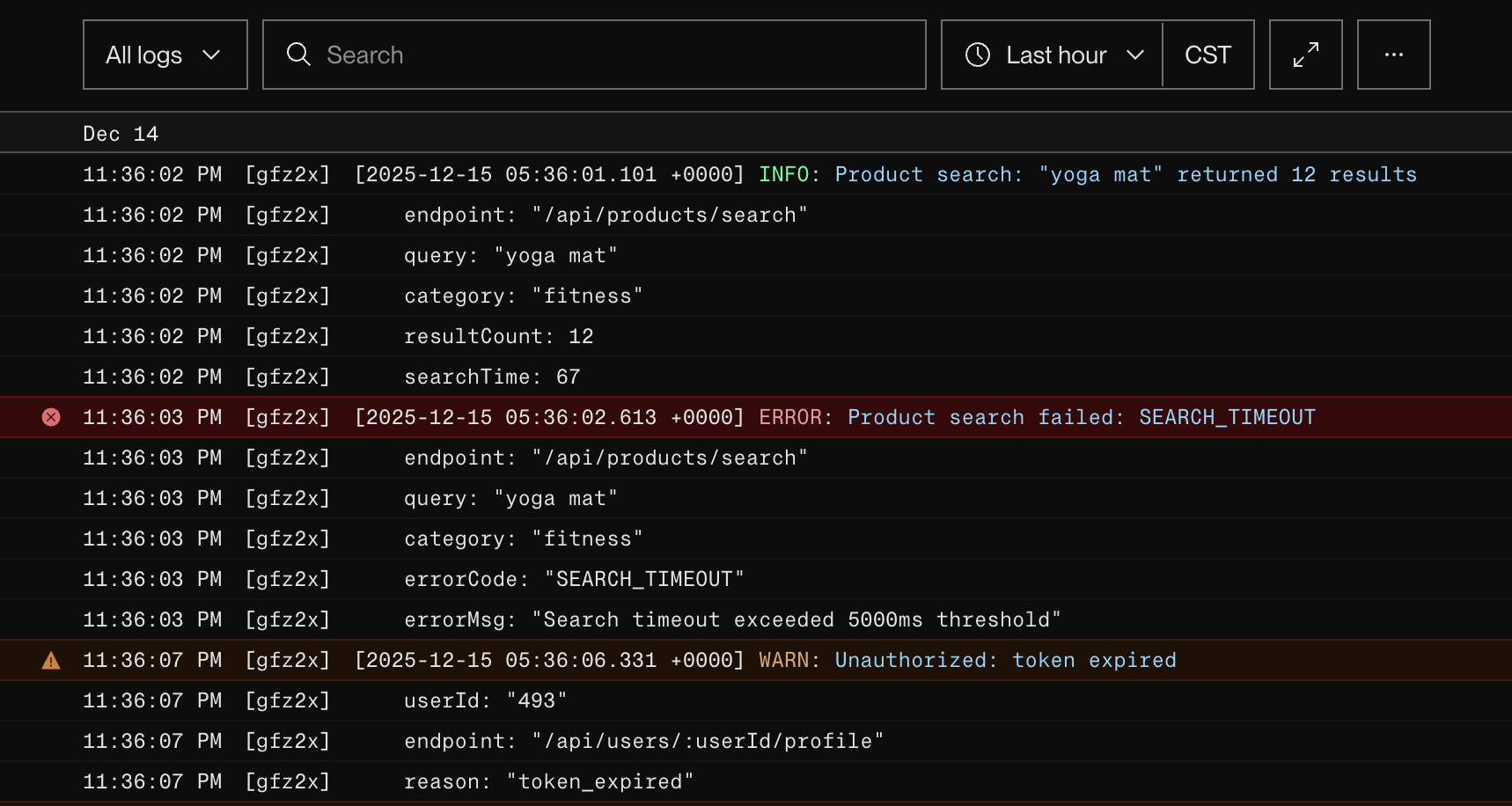
The log interface on your platform will look something like this, with color-coding to help you spot errors quickly.
A Systematic Approach to Debugging Deployments
When a deployment fails, don't guess. Follow a systematic process. The error message in the logs will almost always tell you exactly what is wrong. Let's examine the most common startup errors you'll encounter and how to decipher them from the logs.
We will use the "Troubleshooting Your Deploy" document as a reference guide for these common issues. It's an excellent real-world resource.
Error Type 1: Missing Files or Incorrect Paths (Module Not Found)
This is one of the most frequent deployment errors. It happens when your code tries to require() a file that doesn't exist at the specified path on the server.
Common Causes:
- You created a new file but forgot to
git addandgit commitit. - You have a typo in the file path (e.g.,
require('./routes/userRoute')instead ofrequire('./routes/userRoutes')). - Case sensitivity: Your local machine (Windows or macOS) might be case-insensitive, allowing
require('./middleware/errormiddleware')to work. However, the deployment server runs on Linux, which is case-sensitive. If the file is actually namedErrorMiddleware.js, the build will fail.
What to Look For in the Logs:
You will see an error that explicitly says Error: Cannot find module.

How to Fix:
- Read the error message to identify the missing file path.
- Check your local project. Is the file path correct, including capitalization?
- Run
git statusin your terminal. Did you forget to commit the file? - Correct the path in your code or commit the missing file, then
git pushto trigger a new deployment.
Error Type 2: Invalid Configuration
This category includes mistakes in how you've instructed the platform to run your application.
The 'Troubleshooting Your Deploy' guide has an excellent section on this. Let's review the most relevant parts.
In the document, find the section 'Common errors' and then the subsection 'Build & deploy errors'. Read the part under the heading 'Invalid configuration'. Focus on 'Invalid build command' and 'Invalid start command'.
Common Causes & Fixes:
-
Invalid Start Command: Your
package.jsonmust have astartscript that correctly runs your main server file (e.g.,"start": "node server.js"). The hosting platform runsnpm startby default. If this script is missing or has a typo, the server will fail to start. The logs will often show an error likesh: 1: nodee: not foundor simply exit immediately.- Fix: Ensure your
package.jsonhas a correctstartscript and that the file it points to (server.js) exists in the root directory.
- Fix: Ensure your
-
Incorrect Port Binding: Your server must listen on the port provided by the hosting environment via
process.env.PORT. If you hardcode a port likeapp.listen(3001, ...), the platform will not be able to route traffic to your application, and the deployment will fail its health check and time out.- Fix: Your server start code must look like this:
const port = process.env.PORT || 3001; app.listen(port, ...);.
- Fix: Your server start code must look like this:
Error Type 3: Missing Environment Variables
You already fixed the most common version of this by adding MONGO_URI. But if your application depends on any other environment variables, their absence will also cause a crash.
What to Look For in the Logs:
The error will depend on how the variable is used.
- If used in a connection string, you'll see a connection error (e.g.,
MongoParseError). - If used for something like a JWT secret, you might see an error like
Error: secretOrPrivateKey must have a value.
How to Fix:
- Identify the part of your code that's failing from the stack trace in the logs.
- Note which environment variable is being used there.
- Go to the "Environment" or "Variables" tab in your hosting dashboard and add the missing variable.
- The platform will trigger a new deployment. Monitor the logs to confirm the fix.
Your Debugging Workflow for the Exam
When a deployment fails, stay calm and execute this checklist:
- Trigger: A deployment is automatically triggered by a
git pushor a change in environment variables. - Observe: Watch the deployment process in your hosting dashboard. If it fails, turns red, or gets stuck in a restart loop, proceed to the next step.
- Inspect: Go directly to the Logs page. Don't look anywhere else first.
- Identify: Scroll through the logs and find the first line that contains
error,fail,crash,exit code 1, or a stack trace. This is your root cause. - Diagnose: Read the error message.
Cannot find module-> It's a file path or uncommitted file issue.SyntaxError-> You're using code that the server's Node.js version doesn't support.MongoParseError-> YourMONGO_URIis wrong or missing.... is not a function-> A variable is likelyundefined, possibly from a missing environment variable.- Timeout / Health Check Failed -> You're probably not using
process.env.PORT.
- Resolve: Fix the issue in your local code, commit the change, and
git push. This restarts the workflow from step 1.
Conclusion
You now have a robust, repeatable strategy for debugging live applications. The ability to calmly read server logs and pinpoint an error's cause is what separates beginners from professionals. You've learned to identify the most common startup failures—from missing modules and incorrect paths to invalid start commands and port binding issues—and how to resolve them.
Key Takeaways:
- Server logs are your single most important tool for debugging deployed applications.
- Deployment failures are normal. A systematic debugging process is the key to resolving them quickly.
- Common startup errors are almost always related to differences between your local environment and the production server: case-sensitivity,
process.env.PORT, and environment variables. - Always read the error message carefully. It will tell you what's wrong.
Next Up:
With your application now successfully deployed and stable, we move to the final step before the exam: preparing your submission package. In the next lesson, you will perform a final review, clean up your project, and assemble all the required artifacts, including the project ZIP file, live links, and Postman collection, ensuring you're 100% ready for submission.