Introduction
Welcome back! In our last lesson, we demystified the default gateway, identifying it as your local network's exit door to the internet. We finished with a quick command-line exercise to find its IP address.
Today, we will expand on that practical exercise. Your device needs more than just a gateway address to function; it requires a complete IP configuration. This lesson is dedicated to mastering the command-line tools that reveal this configuration. You'll learn to use ipconfig (on Windows) and its counterparts on macOS and Linux to find your device's full IP configuration: its unique IP address, its subnet mask, and its default gateway. This is a fundamental skill for anyone looking to understand how their machine communicates on a network.
1. The "Big Three" of IP Configuration
Before we dive into the commands, let's quickly recap the three essential pieces of information that form your device's core IP configuration. Think of them as your device's postal address, its local street map, and the location of the nearest post office.
- IP Address: Your device's unique identifier on the network, like a specific house number.
- Subnet Mask: The tool your device uses to determine if another device is on the same local network ("on the same street") or on a remote network.
- Default Gateway: The IP address of the router your device sends data to when the destination is on a remote network ("the post office").
To get a quick, energetic refresher on how these three components work together, let's watch a short summary.
what is an IP Address? // You SUCK at Subnetting // EP 1
This clip from NetworkChuck provides a great summary of the roles of the IP address, subnet mask, and default gateway.
Watch the video from 13:58 to 15:05. The video uses the analogy of a street address, which is a helpful way to think about how these three elements define your device's place on the network.
Now, let's find these three critical values on your own machine.
2. Finding Your Configuration: The Command Line
Your operating system provides command-line utilities to view and manage network settings. Since you have a background in computer science, you're likely comfortable in the terminal, which is the fastest way to get this information. We'll cover the tools for Windows, macOS, and Linux.
Ipconfig: A Guide to Diagnosing and Troubleshooting Network Issues
For a quick reference on how to access the command line and run the necessary commands on different operating systems, please review the following article.
Read the section titled 'How to run ipconfig'. It provides simple, step-by-step instructions for opening the command line on Windows, macOS, and Linux.
Now that you have your terminal open, let's execute the commands.
On Windows: ipconfig
The primary tool on Windows is ipconfig. Running it without any options provides the "big three."
IPCONFIG Explained - Flush DNS Cache
This video from PowerCert Animated Videos gives a clear, animated demonstration of the basic ipconfig command.
Watch the first 1 minute and 32 seconds. The video walks through the command and explains each part of its basic output: IPv4 Address, Subnet Mask, and Default Gateway.
Your computer might have multiple network adapters (e.g., one for Wi-Fi and one for a wired Ethernet cable). ipconfig will list the configuration for each active adapter.
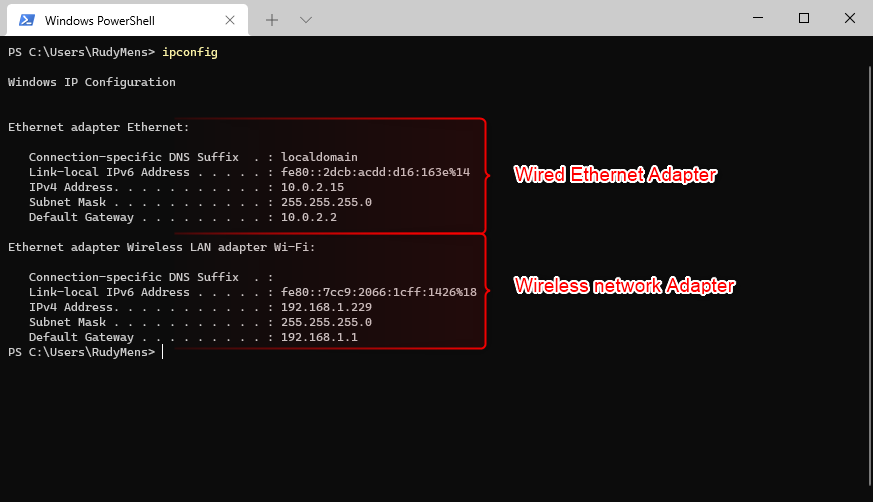
Activity 1: Find your Windows IP Configuration
- On a Windows machine, open Command Prompt or PowerShell.
- Type
ipconfigand press Enter. - Identify your active network adapter (it will likely be "Wireless LAN adapter Wi-Fi" or "Ethernet adapter").
- Find and note down your IPv4 Address, Subnet Mask, and Default Gateway.
On macOS and Linux: ifconfig and ip route
On Unix-like systems, the classic command is ifconfig. However, on many modern Linux systems, this has been superseded by the ip command. We'll look at the common patterns.
ifconfig: This command will show you the IP address (inet) and subnet mask (netmaskormask) for each interface.ip addr show: This is the modern equivalent on Linux and does the same thing.ip route | grep default: This command on Linux is used specifically to find the default gateway. On macOS,netstat -rn | grep defaultis common.

Activity 2: Find your macOS/Linux IP Configuration
- On a macOS or Linux machine, open the Terminal.
- Type
ifconfigorip addr showand press Enter. - Identify your active network interface (e.g.,
en0,wlan0, oreth0). Note the IP address (inetorinet addr) and subnet mask (netmaskormask). - Next, type
ip route(Linux) ornetstat -rn(macOS) and press Enter. - Look for the line that starts with "default" to find your Default Gateway.
3. Getting the Full Picture with ipconfig /all
The basic commands give you the essentials for IP routing, but there's a lot more going on. On Windows, using the /all switch with ipconfig provides a much more detailed report. This is extremely useful for troubleshooting and understanding how your configuration was assigned.
IPCONFIG Explained - Flush DNS Cache
Let's return to the PowerCert video to see what additional information ipconfig /all provides.
Watch from 3:20 to 4:56. Pay close attention to the new pieces of information shown, such as the 'Physical Address' (MAC address), 'DHCP Enabled', and 'DNS Servers'.
This extended output gives us a preview of topics we will cover in great detail later:
- Physical Address: This is the MAC address we will discuss in Module 4. It's the hardware address of your network card, used for communication on the local network.
- DHCP Enabled: This tells you if your IP configuration was assigned automatically. We will dive deep into DHCP in Module 6.
- DNS Servers: These are the servers your computer asks to translate domain names (like
www.google.com) into IP addresses. We'll cover DNS in Module 10.
Activity 3: Explore the Full Configuration
- On your Windows machine, go back to the command prompt.
- Type
ipconfig /alland press Enter. - Find your active adapter again. In addition to the IP, subnet mask, and gateway, locate your Physical Address, and the IP addresses of your DHCP Server and DNS Servers.
Conclusion
In this lesson, you've moved from theory to practice, using standard command-line tools to inspect your computer's live network configuration. This is a fundamental skill that bridges the gap between networking concepts and real-world application.
Key Takeaways:
- A device's core IP configuration consists of its IP address, subnet mask, and default gateway.
- On Windows, the
ipconfigcommand displays this basic information, whileipconfig /allprovides a complete view, including the MAC address, and DHCP and DNS server information. - On macOS and Linux, a combination of commands like
ifconfig(orip addr) andip route(ornetstat -rn) is used to find the same information. - This configuration is what enables your device to correctly route packets to destinations both on and off your local network.
Preview of the Next Lesson:
Now that you know how to find your own configuration and identify your default gateway, we can start to visualize the journey your data takes across the internet. In the next lesson, we will use the traceroute (or tracert) command to trace the path packets take from your computer to a remote destination. You'll see your default gateway appear as the very first "hop" in that journey, followed by all the other routers along the way.