Introduction
Welcome back! In our previous lesson, we distinguished between static and dynamic routing, and I mentioned that one of the most common uses for a static route is to define a "default route." This special route points to a device known as the default gateway.
Today, we'll focus entirely on this crucial concept. The default gateway is the missing piece that explains how your computer, sitting on your local home or university network, can send a request to a web server located anywhere in the world. By the end of this lesson, you will be able to explain what a default gateway is, how your computer decides when to use it, and how it enables communication beyond your local network.
1. The Gateway: Your Network's Exit Door
Imagine your local network (like your home Wi-Fi) is a small neighborhood. All the houses in your neighborhood can communicate directly with each other. But what if you need to send a letter to someone in a different city? You can't just walk it over. You have to take it to the local post office, which acts as the exit point for all mail leaving your neighborhood.
In networking, the default gateway is that post office. It's a device—almost always a router—that serves as the exit point for all data packets that are destined for a different network.
To get a clear visual of this, let's watch a short video.
This animated video from PowerCert Animated Videos provides an excellent and straightforward introduction to the concept.
Watch the segment from 0:23 to 1:42. Focus on how the router acts as the gateway between the local network and the internet.
As the video explains, for your computer to access a website on the internet, the data has to pass through the default gateway. It's the "doorway" connecting your local network to the vast collection of other networks that make up the internet.
2. The Core Decision: Local or Remote?
This raises a fundamental question: how does your computer know whether to send a packet directly to a device on the local network or to send it to the default gateway?
The answer lies in the IP address and subnet mask, which we've discussed in previous modules. Your computer performs a simple logical test for every packet it sends:
- It looks at the destination IP address.
- It applies its own subnet mask to both its own IP address and the destination IP address to find their respective network IDs.
- It compares the two network IDs.
- If the network IDs match: The destination is on the local network. The computer will send the packet directly to the destination device (using its MAC address, which it finds via ARP).
- If the network IDs are different: The destination is on a remote network. The computer will send the packet to the default gateway.
Let's see this decision-making process in action.
The same video explains this comparison process very clearly.
Continue watching from 1:42 to 4:16. Pay close attention to how the subnet mask is used to determine if a destination computer is on the same network or a different one. The example comparing communication with Computer B (local) vs. Computer D (remote) is particularly helpful.
This logic is the foundation of IP routing on every host computer. It's a simple if-else condition: if destination_network == my_network, send locally; else, send to gateway.
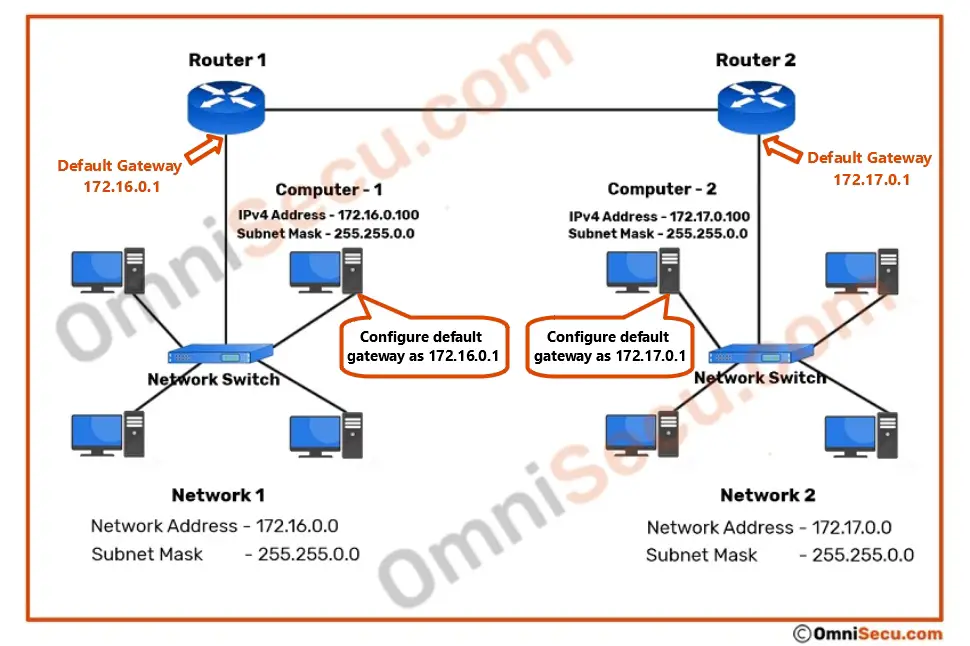
The diagram below provides a static view of this setup. Computer-1 (192.168.1.100) wants to send a packet to a server on the internet. Since the server is not on the 192.168.1.0 network, Computer-1 forwards the packet to its configured default gateway, the router at 192.168.1.1.
3. Forwarding to the Gateway
Once your computer decides the destination is remote, it prepares to send the packet to the default gateway. Here’s a crucial detail that connects the Network Layer (Layer 3) to the Data Link Layer (Layer 2):
- The IP packet still has the final destination IP address (e.g., the web server's IP). This address does not change.
- The Ethernet frame that wraps the IP packet is addressed to the MAC address of the default gateway.
Your computer essentially says, "I don't know how to get to this final IP address, but my gateway does. I'll just hand the packet to the gateway, and it can figure out the rest." If your computer doesn't know the gateway's MAC address, it will perform an ARP request to find it, just as it would for any other local device.
What is the Role of the Default Gateway?
This short clip from CBT Nuggets explains exactly how the destination MAC address is set to the gateway's MAC when sending traffic off-network.
Watch the segment from 1:26 to 2:48. Focus on the distinction between the destination IP address (which remains the final destination) and the destination MAC address (which becomes the gateway's MAC).
4. A "Route of Last Resort"
Let's tie this back to the routing table we discussed in the last two lessons. On your computer, the default gateway is represented as a default route. This is a special static route that acts as a catch-all. It tells the operating system where to send a packet if it doesn't have a more specific route in its table.
This route is often shown with a destination of 0.0.0.0 and a subnet mask of 0.0.0.0 (or /0 in CIDR notation). This notation means "any possible IP address."
To see a formal definition of this process, the following reading is very useful.
TCP/IP addressing and subnetting - Default gateways
This article from Microsoft provides a precise, technical explanation of how a host computer uses the default gateway.
Read the section titled 'Default gateways,' which starts with 'If a TCP/IP computer needs to communicate with a host on another network...'. This will reinforce the comparison process your computer performs to decide whether a destination is local or remote.
5. Practical Application: Find Your Gateway
Now, let's connect this theory to your own computer. Your IP address, subnet mask, and default gateway are all assigned to you automatically (usually via DHCP) when you connect to a network. You can easily find them using a simple command.
This is a perfect opportunity to apply what you've learned.
Activity (5-10 minutes):
- Open the command line interface on your computer:
- On Windows, open Command Prompt or PowerShell (press
Win + R, typecmd, and press Enter). - On macOS or Linux, open the Terminal.
- On Windows, open Command Prompt or PowerShell (press
- Type the appropriate command and press Enter:
- On Windows:
ipconfig - On macOS or Linux:
ip route showorifconfig(you may need to find the active interface likeen0oreth0).
- On Windows:
- Look through the output for "Default Gateway" (on Windows) or the line starting with "default via..." (on macOS/Linux).
You will see an IP address. This is the address of your router—your personal gateway to the internet!
Conclusion
In this lesson, we've explored the essential role of the default gateway. It's the simple but powerful mechanism that allows devices on a small, local network to communicate with the rest of the world.
Key Takeaways:
- The default gateway is a router on a local network that acts as the exit point for traffic destined for remote networks.
- A host computer uses its IP address and subnet mask to perform a logical comparison to determine if a destination is local or remote.
- If the destination is remote, the host sends the IP packet inside an Ethernet frame addressed to the MAC address of the default gateway.
- In a routing table, this is known as the default route or "route of last resort," often represented as
0.0.0.0/0.
Preview of the Next Lesson:
We just used commands like ipconfig to find our default gateway. In the next lesson, we will fully dissect the output of these commands to understand your device's complete IP configuration: its IP address, subnet mask, and default gateway. Following that, we will use the traceroute command to watch our default gateway in action as the very first "hop" on a packet's journey across the internet.