Introduction
Welcome back! In our last lesson, you learned how to use command-line tools like ipconfig to find your computer's essential IP configuration, including the all-important default gateway. You now know that the default gateway is your local network's exit point to the wider internet.
Today, we'll follow a packet on its journey beyond that gateway. We'll explore traceroute (or tracert on Windows), a powerful diagnostic tool that reveals the entire sequence of routers, or "hops," your data traverses to reach a destination. This lesson will connect the concepts of routing and IP headers to a practical, real-world application, allowing you to visualize the internet's infrastructure in action. By the end, you'll be able to run traceroute yourself and understand the story it tells.
1. What is Traceroute? From Ping to Path
You've already used the ping command, which is great for answering a simple yes/no question: "Can I reach this destination?" Traceroute, however, answers a much more detailed question: "What is the exact path my data takes to get there?"
It does this by identifying every router along the way. In networking, each router that a packet passes through is called a hop.
Traceroute Explained | Real World Examples
To start, let's get a quick overview of what traceroute does and how it differs from ping.
Watch the first 1 minute and 8 seconds of this video from CertBros. It clearly defines the purpose of traceroute and the concept of a 'hop'.
Now for the interesting part: how does it actually discover these hops?
2. The Core Mechanism: Manipulating Time-To-Live (TTL)
The magic behind traceroute is a clever use of the Time-To-Live (TTL) field in the IP packet header. TTL isn't a measure of time, but rather a hop counter. Each time a router forwards a packet, it decrements the TTL value by one. If the TTL reaches zero, the router discards the packet and sends an ICMP "Time to live exceeded" error message back to the sender.
Traceroute exploits this behavior:
- It sends a packet to the destination with a TTL of 1.
- The first router (your default gateway) receives it, decrements TTL to 0, discards the packet, and sends back a "Time to live exceeded" message.
Traceroutenow knows the identity of the first hop. - It then sends a new packet with a TTL of 2. This packet makes it past the first router, but the second router decrements its TTL to 0 and sends back the error message.
Traceroutehas now identified the second hop. - This process repeats, incrementing the TTL by one each time, until the packet finally reaches the destination.
The following article and diagram provide an excellent text-based explanation of this process.
Traceroute - NetworkLessons.com
This article from NetworkLessons.com gives a clear, step-by-step explanation of how traceroute uses the TTL field. The diagrams are particularly helpful for visualizing the process.
Read the section titled 'So, how does traceroute work?'. Focus on the text and the four diagrams that show the packet's journey with increasing TTL values.
To solidify this concept, here's a single diagram that visualizes the entire sequence.

Now, let's see this happen in a live network capture, which is the best way to connect theory to the actual packets on the wire.
Traceroute explained // Featuring Elon Musk // Demo with Windows, Linux, macOS
This video from David Bombal uses Wireshark to show you the exact packets being sent and received during a traceroute. This will confirm everything you just read.
Watch from 4:03 to 7:48. Pay close attention to how he points out the 'Time to live' field in the outgoing packets and the 'Time to live exceeded' messages coming back from the routers.
3. Your Turn: Running traceroute
Now that you understand the mechanics, it's time to run the command yourself. The command differs slightly between operating systems.
- Windows:
tracert destination_ip_or_domain - macOS & Linux:
traceroute destination_ip_or_domain
What is Traceroute? How It Works and How to Read Results
For a quick reference on how to run the command on your specific operating system, please consult this guide.
Read the section 'How to run a traceroute' and follow the steps for your OS.
Activity: Trace Your Path
- Open your command prompt (Windows) or terminal (macOS/Linux).
- Run a traceroute to a well-known destination, for example:
tracert google.comortraceroute google.com. - Let the trace complete. It may take a minute or two.
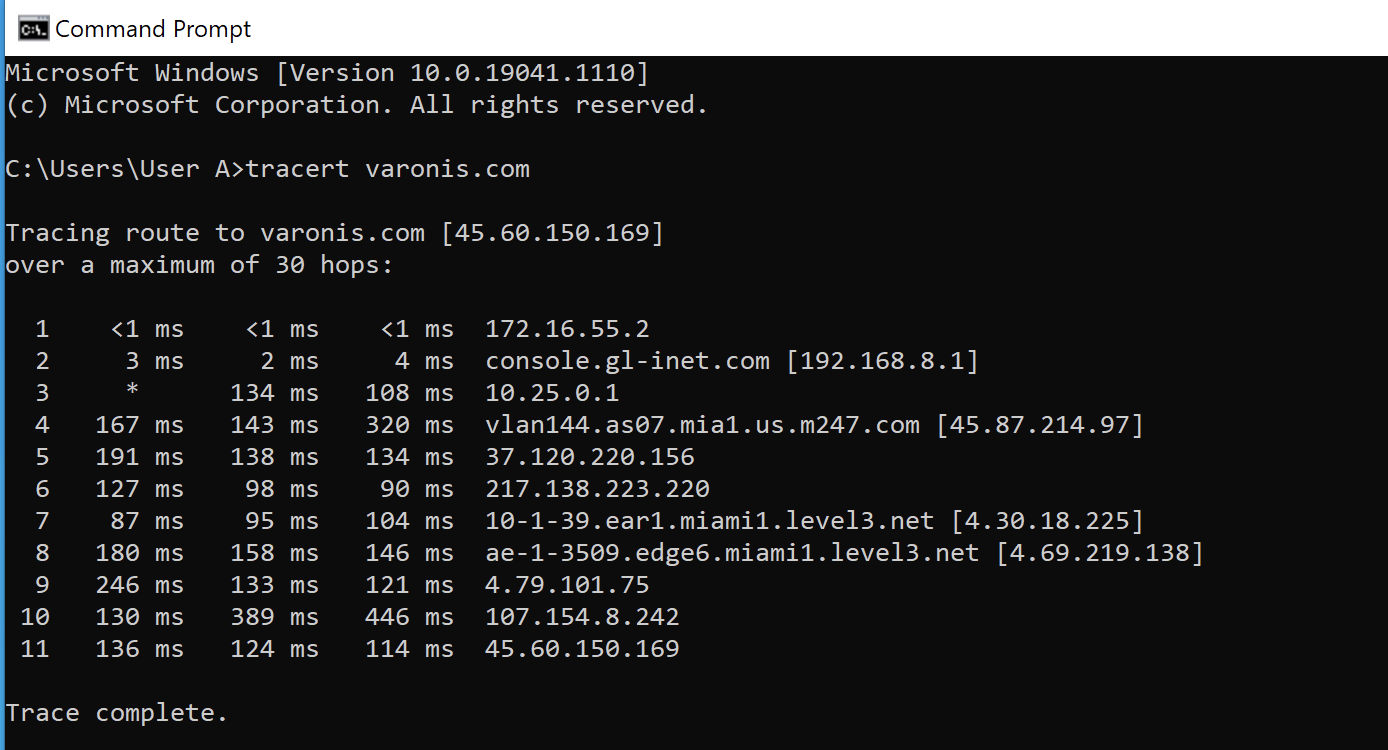
- Examine the output. Can you identify the first hop? It should be the IP address of your default gateway that you found in the last lesson!
Here is an example of what your output might look like on a Windows machine:
4. A Note on Different Implementations
As a computer science student, you'll appreciate this detail: tracert on Windows and traceroute on macOS/Linux work slightly differently by default.
- Windows
tracertsends ICMP Echo Request packets (the same kind used byping). - macOS/Linux
traceroutesends UDP packets to an unused high port number.
In both cases, the intermediate routers respond with the same ICMP "Time to live exceeded" message. However, when the packet reaches the final destination:
- The Windows host gets an ICMP Echo Reply.
- The Linux/macOS host gets an ICMP "Destination Unreachable (Port Unreachable)" message, because no service is listening on that random UDP port. This error message confirms to
traceroutethat it has reached the end.
This difference is important because some firewalls might block one type of packet but not the other, leading to different traceroute results.
Traceroute explained // Featuring Elon Musk // Demo with Windows, Linux, macOS
Let's go back to David Bombal's video, where he explains this exact difference and shows the UDP packets used by macOS and Linux.
Watch from 15:32 to 18:30. He demonstrates traceroute on a Mac, filters for UDP in Wireshark, and shows how the underlying protocol is different from the Windows tracert he showed earlier.
Conclusion
Today you've added a fundamental and powerful tool to your networking toolkit. You've gone beyond simply testing connectivity and learned how to map the entire digital supply chain that delivers data to and from your computer.
Key Takeaways:
traceroute/tracertis a diagnostic tool that identifies the sequence of routers (hops) between your computer and a destination.- It works by sending a series of packets with incrementally increasing Time-To-Live (TTL) values.
- Each router that drops a packet due to an expired TTL sends back an ICMP "Time to live exceeded" message, revealing its IP address.
- The output shows each hop, its IP address/hostname, and the round-trip latency to that hop.
- Implementations vary: Windows uses ICMP by default, while macOS and Linux use UDP.
Preview of the Next Lesson:
Now that you can generate a traceroute output, the next step is to master its interpretation. In the next lesson, we will focus on interpreting the results to identify specific hops, analyze latency patterns, and understand what timeouts (* * *) signify. This will move you from simply running the tool to using it effectively for network troubleshooting.