Hello! Welcome back to our exploration of the Data Link Layer.
In our last lesson, we established the fundamental theory behind MAC addresses. We learned that they are unique hardware identifiers that operate at Layer 2, answering the "who" question for communication within a single local network. We contrasted this with IP addresses, which answer the "where" question for routing data across the internet.
Today, we're moving from theory to practice. Our goal is to achieve the next learning outcome: Use ipconfig/ifconfig to find your device's MAC address. This is a core skill for anyone involved in networking, from developers to system administrators. By the end of this lesson, you'll be able to retrieve the MAC address—and other key network details—from your own computer using standard command-line tools.
Your Network Configuration Toolkit
Every major operating system comes with built-in command-line utilities for inspecting and configuring network interfaces. These tools are the first step in any network troubleshooting process. For our purposes, the two most important commands are:
ipconfig(Internet Protocol Configuration): The standard command on Windows.ifconfig(Interface Configuration): The traditional command on Linux and macOS. (Note: Modern Linux systems also use theipcommand, butifconfigremains very common and is excellent for our learning purposes).
These commands give you a direct view into how your computer is configured on the network. Let's use them to find that physical address we talked about in the last lesson.
Finding Your MAC Address
We'll now walk through the steps for different operating systems. You should follow the instructions for the system you are currently using. Don't just read—open up a command prompt or terminal and try it yourself!
For a comprehensive guide that covers multiple operating systems, the following article is a great reference.
What is a MAC Address and How Do I Find It?
This article from TechTarget, titled 'What is a MAC Address and How Do I Find It?', provides clear, step-by-step instructions for finding the MAC address on various operating systems. We'll focus on the sections for Windows and Linux.
Please read the section titled 'How to find the MAC address'. You can stop reading when you reach the 'Types of MAC addresses' section. Pay close attention to the specific commands for your operating system.
Now, let's apply those instructions.
On Windows
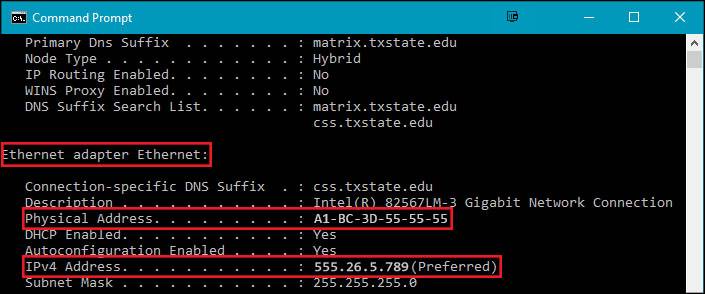
If you are using a Windows machine, you'll use the ipconfig command.
- Open the Command Prompt: You can do this by searching for
cmdin the Start Menu. - Run the command: Type
ipconfig /alland press Enter.
The /all switch is important. Running ipconfig by itself gives you basic information (like your IP address), but ipconfig /all provides a detailed report for all your network interfaces, which is where we'll find the MAC address.
After you run the command, you'll see a list of network adapters. You might have several, for example:
- An "Ethernet adapter" for your wired connection.
- A "Wireless LAN adapter" for your Wi-Fi connection.
- Virtual adapters if you use software like a VPN or virtualization tools.
For each adapter, look for the line labeled "Physical Address". This is your MAC address.
On macOS or Linux
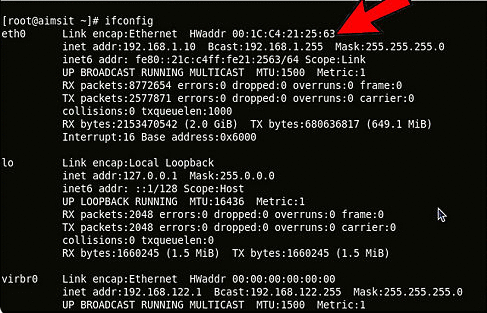
If you are using macOS or a Linux distribution, the traditional command is ifconfig.
- Open the Terminal.
- Run the command: Type
ifconfigand press Enter. (On some Linux systems, you may need to typeifconfig -aor/sbin/ifconfigif the command is not in your default path).
The output will list your network interfaces, such as eth0 (the first Ethernet adapter on Linux) or en0 (on macOS), along with lo (the loopback interface). For your physical network card, look for the field labeled ether (on macOS and modern Linux) or HWaddr (on older Linux). This is your MAC address.
A Quick Practical Note:
You probably noticed your computer has more than one MAC address. This is perfectly normal. As we learned, a MAC address is tied to a piece of network hardware (a Network Interface Card, or NIC). Since your laptop might have both an Ethernet port and a Wi-Fi card, it has two separate NICs, and therefore, two unique MAC addresses. The output of ipconfig /all or ifconfig shows you the configuration for each of them.
Why Is This Useful?
Finding your MAC address isn't just an academic exercise. It's used in many real-world scenarios:
- Network Filtering: Some Wi-Fi networks are configured to only allow devices with specific MAC addresses to connect.
- DHCP Reservations: You can configure your router to always assign the same IP address to a specific device based on its MAC address.
- Troubleshooting: Network administrators use MAC addresses to track down problematic devices on a local network.
Being able to quickly find this information is a fundamental step in diagnosing and managing network connections.
Conclusion
In this lesson, we bridged the gap between theory and practice. You've now used essential command-line tools to inspect your computer's network configuration and identify its unique hardware identifier.
Key Takeaways:
- The
ipconfigcommand is used on Windows to view network settings. Theipconfig /allvariant provides detailed information, including the MAC address. - The
ifconfigcommand is the traditional tool for the same purpose on macOS and Linux. - The MAC address is typically labeled as "Physical Address" in the
ipconfigoutput andetherorHWaddrin theifconfigoutput. - A single device (like a laptop) often has multiple MAC addresses—one for each network interface (e.g., Wi-Fi, Ethernet).
Preview of the Next Lesson:
Now that we know what a MAC address is and how to find it, our next step is to see it in action. In the next lesson, we will describe the structure of an Ethernet frame. We'll examine how the source and destination MAC addresses you just found are packaged with your data to be sent across the local network. This will set the stage for using Wireshark to see these frames for yourself.