Hello! Welcome back to our module on Amazon EMR.
In the last lesson, we locked down the network perimeter of our EMR cluster using VPCs and security groups. Now that the cluster is properly isolated, we need to configure how it securely interacts with its primary data source and destination: Amazon S3.
This lesson directly addresses the learning outcome: Configure EMR to read from and write to S3 using EMRFS, including encryption settings. We will cover the EMR File System (EMRFS) which enables this integration, and then dive deep into configuring encryption to protect your data at rest in S3. Your strong background with S3 will be a great asset here, as we'll focus specifically on the EMR integration points.
1. EMRFS: Decoupling Compute and Storage
The magic that allows EMR to use S3 as if it were a local file system is the EMR File System (EMRFS). EMRFS is a special implementation of the Hadoop Distributed File System (HDFS) that connects directly to S3.
This architecture provides a powerful advantage: the decoupling of compute and storage. Your data can live persistently and cost-effectively in S3, while your EMR clusters—the compute layer—can be created on-demand for specific jobs and terminated when finished to save costs.
Intro to Amazon EMR - Big Data Tutorial using Spark
To start, let's watch a brief segment from the 'Intro to Amazon EMR' video by jayzern, which introduces this core concept.
Watch from 02:07 to 02:54. Focus on how EMRFS allows you to use S3 as your persistent data store, separating it from the compute nodes.
Before your EMR cluster can interact with S3, it needs permission. This is granted via an IAM role attached to the EC2 instances that make up the cluster, known as an EC2 instance profile. The default role, EMR_EC2_DefaultRole, typically has the necessary S3 permissions, but for production environments, you should always follow the principle of least privilege.
The video below briefly touches on the importance of this instance profile.
Intro to Amazon EMR - Big Data Tutorial using Spark
This clip from the same video highlights where the instance profile is specified.
Watch from 08:24 to 08:50. The key takeaway is that an 'EC2 instance profile' is what gives your EMR cluster (specifically, the Hadoop services on the nodes) access to your S3 buckets.
2. Encryption for Data at Rest in S3
Since you're using S3 as the primary data lake storage for EMR, ensuring that data is encrypted at rest is a critical security requirement. EMRFS supports multiple encryption options, which can be categorized into two main types:
- Server-Side Encryption (SSE): You upload an object to S3, and S3 encrypts it after receiving it, before saving it to disk.
- Client-Side Encryption (CSE): The EMR cluster (the "client") encrypts the data before uploading it to S3. The data is never transmitted over the network in plaintext.
The modern and recommended way to manage these settings for EMR is through a Security Configuration. This is a reusable set of security options that you can create once and apply to any number of clusters.

3. Implementing Encryption with a Security Configuration
Let's walk through how to create and configure a security configuration for S3 encryption.
Create a security configuration with the Amazon EMR console ...
The official AWS documentation, 'Create a security configuration with the Amazon EMR console...', is the definitive guide. We will focus on the at-rest encryption options for S3.
Please read the section titled 'Specifying encryption options using the console'. Focus on the subsection 'S3 data encryption' and understand the four primary encryption modes you can select. You can skim the parts about 'Local disk encryption' and 'In-transit encryption' for now.
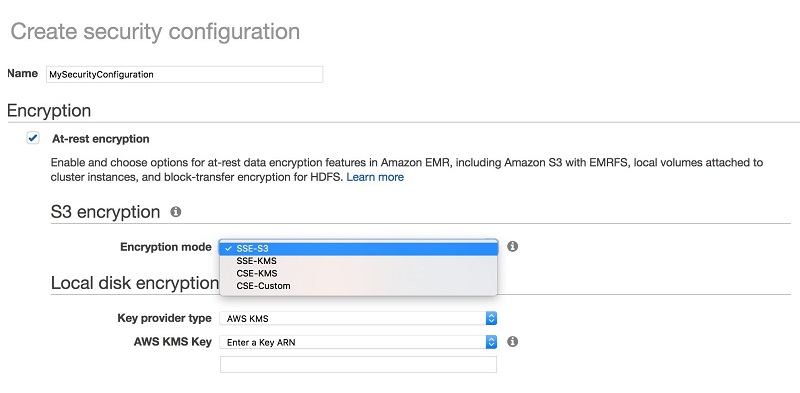
As you read, you'll see the console presents four choices for S3 encryption. Let's clarify what they mean:
- SSE-S3: The simplest option. S3 manages the encryption keys for you. It provides a baseline level of encryption with minimal configuration.
- SSE-KMS: S3 still performs the encryption, but it uses a key that you manage in AWS Key Management Service (KMS). This is a common choice as it gives you control over the key's policies and provides an audit trail of its usage via CloudTrail.
- CSE-KMS: The EMR cluster encrypts the data before sending it to S3, using a key managed in AWS KMS. This ensures end-to-end encryption from your cluster to the S3 service.
- CSE-Custom: The EMR cluster encrypts the data using a custom key provider you supply (e.g., a hardware security module). This offers the most control but also the most management overhead.
The Legacy Method: emrfs-site Properties
Before security configurations were introduced (in EMR release 4.8.0), encryption was configured using emrfs-site properties passed to the cluster at launch. While security configurations are now the best practice, you may still encounter this method in older setups or exam questions.
Specifying Amazon S3 encryption using EMRFS properties
It's useful to be aware of this older method. The document 'Specifying Amazon S3 encryption using EMRFS properties' explains it.
First, read the introduction (the first section) which explicitly states that security configurations are the recommended approach. Then, read the section 'Using AWS KMS keys for EMRFS encryption'. Pay close attention to the critical step of granting the EMR_EC2_DefaultRole permissions to use the KMS key by adding it as a 'Key User' in the KMS console.
4. Step-by-Step Configuration Workflow (Using KMS)
Let's synthesize this into a practical workflow for enabling S3 encryption with a customer-managed KMS key, which is a very common pattern for the exam.
-
Create a KMS Key: In the AWS KMS console, create a symmetric KMS key in the same region as your EMR cluster and S3 bucket.
-
Grant Permissions to the EMR Role: This is a crucial and often-missed step. The EC2 instance profile role used by your cluster (e.g.,
EMR_EC2_DefaultRole) must be given permission to use the KMS key. The easiest way to do this is to edit the key policy in the KMS console and add theEMR_EC2_DefaultRoleas a "Key User". -
Create a Security Configuration:
- Navigate to the EMR console and select "Security configurations".
- Click "Create security configuration".
- Give it a name (e.g.,
s3-sse-kms-config). - Under "S3 encryption", select
SSE-KMSorCSE-KMSas the mode. - For the AWS KMS key, select the key you created in Step 1.
- Click "Create".
-
Launch the EMR Cluster:
- When you create your EMR cluster, navigate to the "Security configuration and permissions" section.
- In the Security configuration dropdown, select the configuration you just created (
s3-sse-kms-config). - Ensure the Permissions are set to use an instance profile role that has been made a Key User (e.g.,
EMR_EC2_DefaultRole).
Now, any data that your EMR jobs write to S3 will be automatically encrypted according to the policy defined in your security configuration.
Test your understanding!
Your company's security policy mandates that for a new project involving sensitive financial data, the data must be encrypted before it is transmitted from the EMR cluster to S3. The policy also requires a full audit trail of who uses the encryption key and when.
Which S3 encryption mode should you choose in your EMR Security Configuration, and why?
Show answer
You should choose CSE-KMS (Client-Side Encryption with AWS KMS).
- Client-Side Encryption (CSE) meets the requirement that data must be encrypted before transmission. The encryption happens on the EMR nodes themselves, so the data is never in plaintext on the network path to S3.
- Using AWS KMS meets the audit trail requirement. Every time EMRFS requests a data key from KMS to perform encryption, that API call is logged in AWS CloudTrail. This provides a detailed, auditable record of key usage.
Conclusion
In this lesson, we bridged the gap between your EMR cluster and your S3 data lake. You learned how EMRFS enables the powerful decoupling of compute and storage and, most importantly, how to secure the data EMR writes to S3 using encryption.
Key Takeaways:
- EMRFS is the connector that allows EMR to use S3 as its primary, persistent file system.
- Security Configurations are the modern, recommended best practice for managing encryption and authentication settings for EMR clusters.
- You must choose between Server-Side Encryption (SSE) and Client-Side Encryption (CSE) based on your security requirements. SSE-KMS and CSE-KMS are common choices that provide auditability and control.
- A critical configuration step is ensuring the EC2 instance profile for your EMR cluster has IAM permissions to use the specified AWS KMS key.
Next Up:
We've now configured the cluster's compute resources, secured its network, and established a secure connection to its data store. In the next lesson, we'll finally put it to work! We will learn how to "Write a Spark application using PySpark to perform common data transformations (e.g., select, filter, join, groupBy)." This will be our first step into the application layer, where you'll see how data is actually processed on the cluster.