Hello! In our previous lesson, we established the groundwork for working with Pandas by creating DataFrames in memory and mastering the essential techniques for selecting data with .loc, .iloc, and boolean indexing. While creating data from scratch is useful, the real power of data analysis comes from working with existing datasets.
This lesson bridges that gap. We will focus on the fundamental input/output (I/O) operations that are the starting point for nearly every data science project. You will learn how to read data from and write data to common file formats like CSV and Excel. This skill is crucial for moving from theoretical exercises to analyzing real-world data.
1. Working with CSV Files
CSV (Comma-Separated Values) is one of the most common file formats for storing tabular data. It's a simple text file where values in a row are separated by a delimiter, usually a comma. Pandas provides a powerful and flexible function, pd.read_csv(), to import this data directly into a DataFrame.
The following video provides a practical, hands-on demonstration of reading from and writing to CSV files, covering many of the common scenarios you'll encounter.
Python Pandas Tutorial 4: Read Write Excel CSV File
This video from the codebasics channel, "Read Write Excel CSV File," is a concise tutorial on the most important I/O functions in Pandas.
Please watch the following segments on handling CSV files: Reading CSVs: This part covers the basic pd.read_csv() function. Pay close attention to the optional parameters used to handle common issues, such as skipping rows (skiprows), specifying a header row (header), or providing column names when they are missing (names). Handling Missing Values on Import: The video demonstrates a powerful feature: using na_values to tell Pandas which strings in your file should be treated as missing data (NaN). Notice how you can apply this to the entire DataFrame or specify it on a per-column basis using a dictionary. This is an excellent data cleaning practice. Writing to a CSV: Learn how to save your DataFrame to a CSV file using .to_csv(). Focus on the index=False parameter, which is almost always used to prevent Pandas from writing the DataFrame index as an unnamed column in your file.
As you saw, pd.read_csv() and df.to_csv() are straightforward but come with a rich set of parameters for fine-tuning the I/O process. The article below provides a handy reference table of the most common parameters.
pandas read_csv() Tutorial: Importing Data
This article from DataCamp offers a quick-reference guide for both reading and writing CSV files.
Review the two tables in this article: "Common read_csv() parameters": This table summarizes key arguments like sep, header, usecols, and dtype. The usecols parameter is particularly useful for memory efficiency when working with large files, as it allows you to load only the columns you need. "Common to_csv() parameters": This table recaps arguments for the to_csv() method, such as index, header, and mode (for appending to a file).
2. Interacting with Excel Files
Excel is another ubiquitous format for storing data, especially in business contexts. Pandas can read and write Excel files (.xls or .xlsx) just as easily as CSVs. However, there's a key difference: Excel files can contain multiple worksheets.
A Quick Prerequisite
To work with Excel files, Pandas requires you to install some additional libraries. You only need to do this once in your Python environment. Given your experience, you'll find this straightforward. Open your terminal or command prompt and run the following pip command:
pip install openpyxl xlrd
openpyxlis used for reading and writing modern.xlsxfiles.xlrdis used for reading older.xlsfiles.
With those installed, you're ready to go.
Reading and Writing Excel Data
The functions for Excel are pd.read_excel() and df.to_excel(). Their usage is very similar to the CSV functions, with the addition of parameters to handle worksheets. Let's return to the video you were watching.
Python Pandas Tutorial 4: Read Write Excel CSV File
Let's continue with the same video from codebasics to see how Excel I/O works.
Watch the final parts of the video: Reading from Excel: Notice the sheet_name parameter, which allows you to specify which worksheet you want to load. You can use the sheet's name (a string) or its integer position (e.g., 0 for the first sheet). The video also introduces converters, a powerful way to apply custom functions to columns as they are being read. Writing to Excel: This section shows how to use .to_excel(), again using sheet_name to name the destination sheet. A particularly useful technique shown is using pd.ExcelWriter to save multiple DataFrames to different sheets within the same Excel file.
3. Other Common I/O Scenarios
While CSV and Excel are the most frequent file types, there are a couple of other scenarios worth knowing.
Reading Data Directly from a URL
You don't always need to download a file to your computer. If a CSV or other supported file is hosted online, you can pass its URL directly to the appropriate read_* function.
Python Pandas Tutorial (Part 11): Reading/Writing Data to Different Sources - Excel, JSON, SQL, Etc
This clip from another excellent tutorial by Corey Schafer demonstrates how to read data directly from a URL.
Watch this short segment to see it in action: Reading from a URL: Observe how pd.read_json() is used with a URL pointing to a raw JSON file on GitHub. The same principle applies to pd.read_csv().
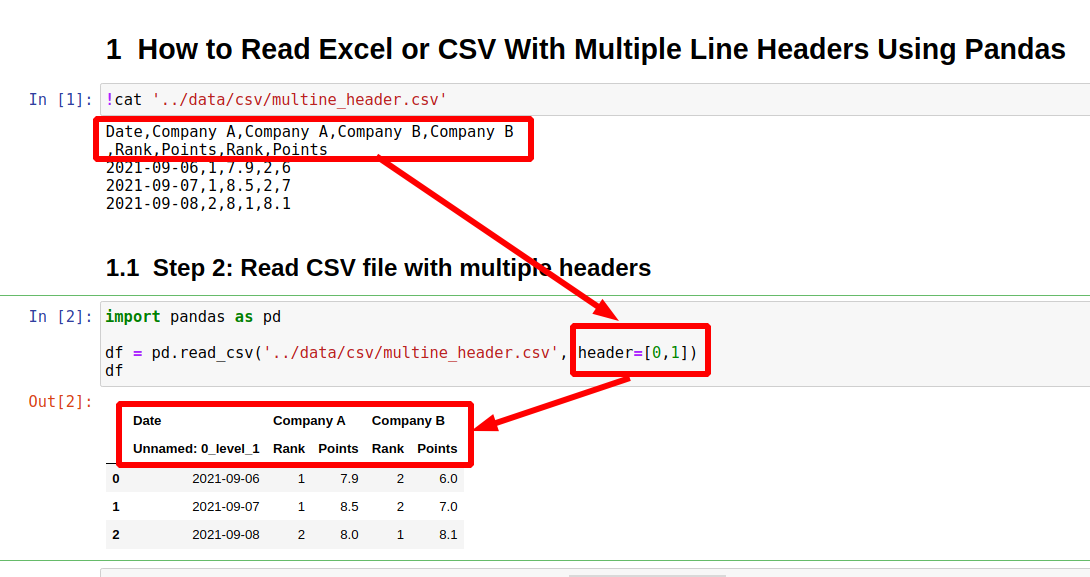
Handling Files with Complex Headers
Sometimes, data files don't have a simple, single-line header. They might have descriptive titles or multi-level column headers. You can tell Pandas to treat multiple lines as the header by passing a list of row numbers to the header parameter.
Your Turn: Practice I/O Operations
Let's put this knowledge into practice. The following code block will create a DataFrame, then save it to both a CSV and an Excel file, and finally read the data back in. Before running it, make sure you have openpyxl installed as mentioned earlier.
import pandas as pd
import os


# Create a sample DataFrame
df_practice = pd.DataFrame({
    'product_id': ['P101', 'P102', 'P103'],
    'product_name': ['Laptop', 'Mouse', 'Keyboard'],
    'price_usd': [1200, 25, 75],
    'in_stock': [True, True, False]
})

print("Original DataFrame:")
print(df_practice)
print("-" * 30)


# --- Writing Files ---


# 1. Write to a CSV file without the index
csv_path = 'products.csv'
df_practice.to_csv(csv_path, index=False)
print(f"DataFrame successfully saved to {csv_path}")


# 2. Write to an Excel file, on a sheet named 'Inventory'
excel_path = 'inventory.xlsx'
df_practice.to_excel(excel_path, sheet_name='Inventory', index=False)
print(f"DataFrame successfully saved to {excel_path} on sheet 'Inventory'")
print("-" * 30)


# --- Reading Files ---


# 3. Read the data back from the CSV file
df_from_csv = pd.read_csv(csv_path)
print("Data read from CSV:")
print(df_from_csv)
print("-" * 30)


# 4. Read the data back from the Excel file
df_from_excel = pd.read_excel(excel_path, sheet_name='Inventory')
print("Data read from Excel:")
print(df_from_excel)
print("-" * 30)


# Clean up the created files
os.remove(csv_path)
os.remove(excel_path)
Run this code and observe the output. Notice how the files are created in your working directory and then read back in, perfectly recreating the original DataFrame.
Conclusion
You have now learned one of the most practical and essential skills in data analysis: getting data into and out of Pandas. This ability unlocks the vast world of publicly available datasets and allows you to save the results of your hard work.
Key Takeaways:
- Use
pd.read_csv()andpd.read_excel()to load data from CSV and Excel files into a DataFrame. - Use
df.to_csv()anddf.to_excel()to save a DataFrame to a file. - Always consider using
index=Falsewhen writing to a file to avoid an extra, unwanted column. - Leverage key parameters to handle real-world data complexities:
sheet_namefor specifying Excel worksheets.header,names, andskiprowsfor managing file headers.usecolsto selectively load data and save memory.na_valuesto proactively clean messy data on import.
Now that you can load real-world datasets, you'll quickly find they are rarely perfect. In our next lesson, we will tackle the most common data imperfection: missing values. You will learn to handle missing data using various strategies like dropping it or filling it in with meaningful values, which is the first essential step in data cleaning.