Introduction
In our last lesson, we covered how to create a Dockerfile, which acts as a recipe to build a Docker image. We meticulously went through the key instructions like FROM, RUN, COPY, CMD, and EXPOSE.
This lesson logically follows up by answering the question: "Now that I have an image, what do I do with it?" We will focus on the learning outcome: Explain the function of a container registry like Docker Hub for storing and distributing container images.
You'll learn what a container registry is, why it's essential in the Docker workflow, and how Docker Hub functions as the world's largest public registry. This knowledge is crucial for understanding how containerized applications are shared between developers and deployed onto servers, a common topic in your university exams.
1. What is a Container Registry?
At its core, a container registry is a storage system for container images. Think of it as a library or a central warehouse specifically for Docker images. Instead of developers storing images on their local machines, they can upload them to a registry to be shared, versioned, and accessed by others or by deployment systems.
A registry is organized hierarchically. To understand this structure, which is important for exam definitions, let's look at the key components.
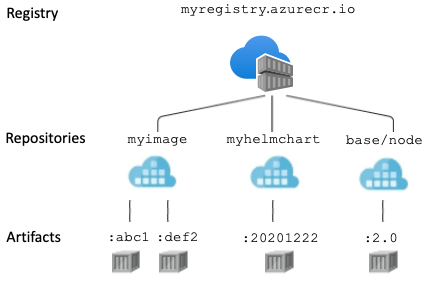
The key terms to define are:
- Registry: The entire storage service that hosts repositories (e.g., Docker Hub, Google Container Registry).
- Repository: A collection of related images, usually for a single application or service. For example, there is a repository for
ubuntuimages and another forpythonimages. - Image Tag: A label used to identify a specific version of an image within a repository. For example,
ubuntu:20.04andubuntu:22.04are two different images in theubunturepository. If no tag is specified, Docker defaults to using thelatesttag.
To solidify these concepts, the following reading provides a concise definition of a Docker Registry and its components.
The article 'What is Docker Hub?' from JFrog gives a clear, formal definition of a Docker registry and its purpose. It's a good source for the kind of precise definitions your exams require.
Read the section titled 'What is a Docker Registry?'. Focus on the definitions of registry, repository, and tags, and note the examples of other popular registries mentioned.
2. The Docker Workflow: Pushing and Pulling Images
A registry's primary functions are to store and distribute images. This is accomplished through two main operations: push and pull.
docker push: This command uploads an image from your local machine to a registry. You would use this after you have built your own custom image with aDockerfile.docker pull: This command downloads an image from a registry to your local machine. This is how you get pre-built images (likepythonornginx) or images shared by your team.
The diagram below visualizes this core workflow, placing the registry at the center of image distribution.
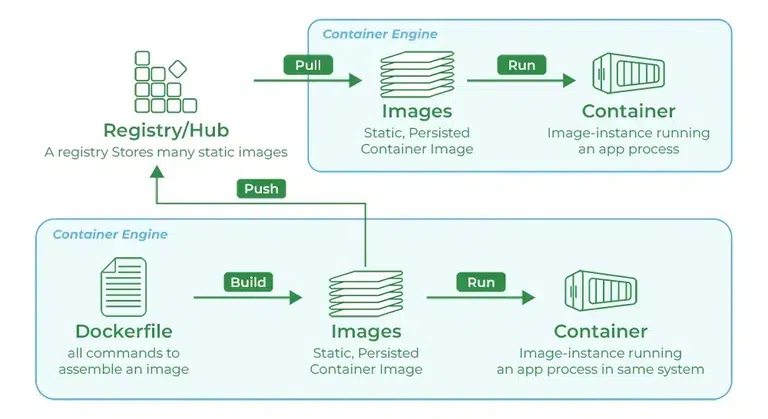
When you execute the docker run command for an image that isn't on your local machine, the Docker Engine automatically performs a docker pull from the default registry to fetch it first.
To get a quick, real-world analogy for how this works, watch the following video clip.
Lec-34: What is Docker 🚢 Best Explanation with Real Life Examples
The video 'What is Docker' by Gate Smashers uses a simple analogy to explain Docker Hub's role as a repository for sharing container images.
Watch the segment from 07:16 to 08:00. The video draws a parallel between Docker Hub and GitHub, which is an excellent way to frame its purpose: GitHub is for code, and Docker Hub is for container images.
3. Docker Hub: The Default Public Registry
While many registries exist, Docker Hub is the official and default registry for Docker. When you pull an image without specifying a registry address (e.g., docker pull nginx), Docker automatically searches for it on Docker Hub.
Docker Hub is the largest library of container images in the world, containing over 100,000 images. For your exams, it's useful to know how these images are categorized, as this relates to trust and security.
Docker Certified Associate Exam: Image Creation, Management and ...
To understand the different types of images on Docker Hub, please read this section from the 'Docker Certified Associate Exam' guide on KodeKloud.
Read the section 'The Docker Image Registry and Operations'. Pay close attention to the definitions of Official Images, Verified Images, and User Images.
Here is a summary table comparing the types of images on Docker Hub, which is a format well-suited for exam answers.
| Image Type | Description | Maintained By | Example | Trust Level |
|---|---|---|---|---|
| Official Images | Curated images that meet Docker's standards for quality, security, and best practices. | Docker and upstream maintainers | python, nginx |
High |
| Verified Images | Images from commercial software vendors who are part of the Docker Verified Publisher program. | The software vendor (e.g., Oracle) | oracle/database |
High |
| User/Community Images | Images created and shared by any user on Docker Hub. Quality and security can vary widely. | Individual developers or organizations | my-username/my-app |
Variable |
4. Public vs. Private Registries
Docker Hub is primarily a public registry, meaning most of its repositories are visible and accessible to anyone. This is ideal for open-source projects.
However, companies building proprietary software need a private registry to store their application images securely. Access to a private registry is restricted, requiring authentication (docker login) to push or pull images.
Let's watch a video that clearly explains this distinction and introduces other registry providers.
Docker Crash Course for Absolute Beginners [NEW]
The 'Docker Crash Course for Absolute Beginners' video by TechWorld with Nana has an excellent segment explaining the difference between public and private registries.
Watch the video from 00:46:50 to 00:49:08. Focus on understanding why companies need private registries and take note of the examples provided, such as AWS ECR, GCR, and Azure's service.
The key differences are summarized in the table below.
| Feature | Public Registry | Private Registry |
|---|---|---|
| Example | Docker Hub | AWS ECR, Google GCR, Azure ACR, JFrog Artifactory, Docker Hub (Private Repos) |
| Use Case | Sharing open-source software, public applications. | Storing proprietary company code, internal applications. |
| Access Control | Open to the public for pulling images. | Restricted. Requires authentication for all operations. |
| Security | Images may not be vetted (unless official/verified). | High. Control is maintained over who can access and push images. |
| Cost | Usually offers a generous free tier. | Typically a paid service based on storage and data transfer. |
When you push an image to a private registry, you must tag it with the registry's address first. For example, to push an image my-app to a private AWS registry, the workflow would look conceptually like this:
- Tag the image:
docker tag my-app:1.0 <aws-account-id>.dkr.ecr.us-east-1.amazonaws.com/my-app:1.0 - Log in to the registry:
aws ecr get-login-password | docker login --username AWS --password-stdin ... - Push the image:
docker push <aws-account-id>.dkr.ecr.us-east-1.amazonaws.com/my-app:1.0
Conclusion
In this lesson, we established the critical role of a container registry as the central hub for managing and distributing Docker images. Understanding this concept connects the development process (building an image) with the deployment process (running a container).
Key Takeaways:
- Container Registry: A service for storing and distributing container images, composed of repositories that hold different tagged versions of an image.
- Core Function: To
push(upload) andpull(download) images, enabling sharing and deployment. - Docker Hub: The default public registry for Docker, which categorizes images into Official, Verified, and User-submitted.
- Public vs. Private: Public registries (like Docker Hub) are for open sharing, while private registries (like AWS ECR) are for securely storing a company's proprietary application images.
Preview of the Next Lesson:
So far, we've learned to build an image (Dockerfile) and share it via a registry (Docker Hub). But what happens when your application consists of many different containers that need to work together? How do you manage, scale, and ensure they are always running? Manually starting and stopping hundreds of containers is not feasible.
This is where container orchestration comes in. In our next lesson, we will begin exploring your syllabus topic of Container Orchestration with Kubernetes, starting with why orchestration is necessary and what Kubernetes is.