Introduction
Hello! In our previous lessons, we've explored how virtualization can abstract and manage core infrastructure components like servers, operating systems, storage, and networks. We've seen how these technologies form the bedrock of modern cloud computing.
This lesson completes our tour of virtualization types by focusing on the end-user experience. We will move up the stack from the data center to the user's screen, examining how entire desktop environments and individual applications can be virtualized and delivered on-demand. This is a critical concept for understanding how cloud services provide secure, flexible access to software and data from anywhere.
The learning outcome for this lesson is to: Define and provide use cases for desktop virtualization and application virtualization. We will focus on clear definitions, architectural differences, and practical examples to ensure you are well-prepared for exam questions on this topic.
1. Desktop Virtualization
Desktop virtualization is a technology that separates a user's desktop environment—including the operating system, applications, and data—from the physical client device used to access it. The desktop runs on a powerful server in a data center or the cloud, and the user interacts with it remotely.
To start, let's watch a video that explains the problems desktop virtualization solves and its core benefits.
What is Desktop Virtualization?
This video from IBM Technology provides an excellent overview of desktop virtualization. It explains why organizations use it, how it works, and provides memorable examples of its use in different industries.
Watch the entire video (00:00 - 09:44). As you watch, focus on: The problems with managing physical desktops (cost, security, maintenance). How a central server can host multiple 'virtual desktops'. The benefits, such as cost savings through density, session persistence (the hospital nurse example), flexibility (the call center example), and enhanced security.
1.1 Definition and How It Works
As the video explained, desktop virtualization allows organizations to host and manage user desktops from a central location. This approach is often called Virtual Desktop Infrastructure (VDI).
Application Virtualization vs. Desktop Virtualization - Citrix
For a precise definition suitable for your exams, let's refer to this article from Citrix, a major player in virtualization technology.
Read the sections 'What is desktop virtualization?' and 'How does desktop virtualization work?'. These provide a concise, formal definition and describe the client/server model involved.
In essence, desktop virtualization works by running desktop operating systems (like Windows 10/11) inside virtual machines (VMs) on a server. Users connect to their assigned VM from a client device (which can be a laptop, a tablet, or a low-cost "thin client") over a network. All the processing happens on the server; only the user interface (screen pixels, keyboard strokes, mouse movements) is transmitted over the network.
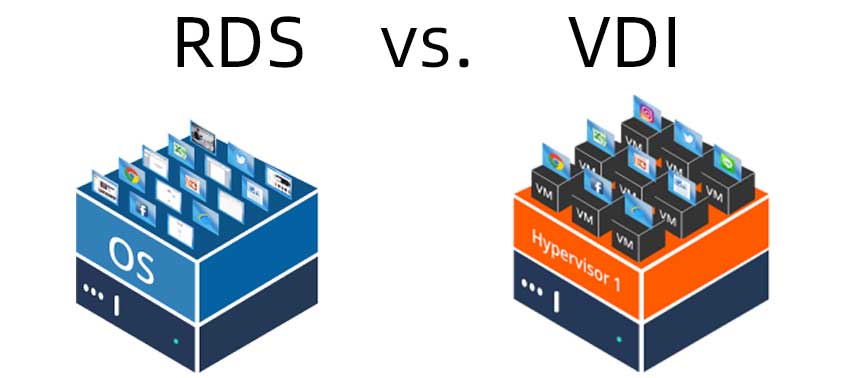
There are two main architectural approaches to desktop virtualization:
- Virtual Desktop Infrastructure (VDI): Each user gets their own dedicated virtual machine with a full operating system. This provides strong isolation and a personalized environment.
- Remote Desktop Services (RDS) / Session-based Virtualization: Multiple users share a single server and its operating system. Each user gets an isolated session on that shared OS. This is more resource-efficient but offers less isolation and personalization than VDI.
The following diagram clearly illustrates the architectural difference.
1.2 Use Cases for Desktop Virtualization
Based on the video and common industry practice, here are key use cases:
- Secure Remote Work: Employees can access their full corporate desktop from any device, anywhere, without storing sensitive company data on their personal machines. This is a major enabler for "Bring Your Own Device" (BYOD) policies.
- High-Security Environments: In sectors like finance or government, where data cannot leave the secure data center, VDI ensures that information is only viewed as an image on the user's screen and never stored locally.
- Contact Centers and "Hot Desking": Agents can log into any available workstation and instantly get their personalized desktop environment. This increases flexibility and reduces hardware costs.
- Healthcare: As seen in the hospital example, clinicians can move from room to room, accessing patient records from different devices while maintaining a persistent session, improving workflow efficiency.
- Specialized Software Access: Providing access to resource-intensive applications (like CAD for architects or data science tools) without needing to buy powerful, expensive laptops for every user. The heavy processing is done on the powerful central server.
2. Application Virtualization
While desktop virtualization delivers an entire desktop environment, application virtualization delivers just a single application. It decouples the application from the underlying operating system and local hardware.
Application Virtualization vs. Desktop Virtualization - Citrix
Let's again turn to the Citrix article for a formal definition of application virtualization.
Read the sections 'What is application virtualization?' and 'How does application virtualization work?'. This explains the core concept of running an app without it being traditionally installed on the user's OS.
The key idea is that the application runs in a virtual environment or is "streamed" from a server to the end-user's device. The user interacts with it as if it were installed locally, but in reality, it's running either on the server or in an isolated "bubble" on the client machine. This prevents conflicts between different applications or different versions of the same application.
What is Application Virtualization?
This short video provides another perspective on application virtualization, including a very clear, final definition.
Watch the first 1 minute and 33 seconds (00:00 - 01:33) for an introduction to the problem it solves. Then, skip to the end and watch the summary definition from 06:31 to 06:56.
2.1 Use Cases for Application Virtualization
Application virtualization is extremely useful for simplifying software management and deployment. The diagram below summarizes several key use cases.

Let's expand on a few of these:
- Legacy Application Support: Run older applications that are incompatible with modern operating systems (e.g., an old app that only works on Windows XP) without needing to maintain old physical machines.
- Simplified Application Deployment & Updates: IT administrators can update an application once on the central server, and all users will immediately have access to the new version. This eliminates the need to install or patch software on hundreds or thousands of individual PCs.
- Eliminating Installation Conflicts: Run multiple versions of the same software (e.g., Python 2.7 and Python 3.9) on the same machine without them interfering with each other.
- Secure Remote Access to Specific Apps: Provide contractors or partners with access to a single required application (e.g., a specific ERP module) without giving them access to the full corporate network or desktop.
- Software as a Service (SaaS): Many SaaS providers use application virtualization behind the scenes to deliver their software to users through a web browser.
3. Comparison: Desktop vs. Application Virtualization
For your exams, being able to directly compare these two technologies is crucial. The main distinction is the scope: environment vs. application.
- Desktop Virtualization provides a full workspace (OS + apps + data).
- Application Virtualization provides access to a single, isolated application.
Application Virtualization vs. Desktop Virtualization - Citrix
The Citrix article we've been using contains a perfect, exam-ready comparison table. This is a high-value resource for your notes.
Locate the table under the heading 'Application virtualization vs. desktop virtualization'. Study the points of comparison carefully.
Here is a summary of that comparison in a format ideal for exam preparation:
| Feature | Application Virtualization | Desktop Virtualization (VDI) |
|---|---|---|
| Scope of Delivery | A single application. | A complete desktop environment (OS, apps, files). |
| User Experience | User runs the virtual app alongside their local apps. Feels native but is isolated. | User interacts with a full remote desktop, separate from their local machine. |
| Isolation Level | Isolates the application from the local OS and other apps. | Isolates the entire user environment in a dedicated VM on the server. |
| Resource Usage | Generally lower resource consumption (server and network). | Higher resource consumption, as it runs a full OS for each user. |
| Management | Simplifies management and updates for specific applications. | Centralizes management of the entire user desktop and security policies. |
| Best For... | Deploying a few specific apps to many users, resolving app conflicts, or supporting legacy apps. | Providing a standardized, secure, and complete workspace for remote users. |
Conclusion
In this lesson, we have differentiated between the two primary forms of user-facing virtualization. Understanding this distinction is key to comprehending how cloud platforms deliver services to end-users.
Key Takeaways:
- Desktop Virtualization (VDI) provides a complete, remote user workstation hosted in a data center. It's ideal for delivering a full, secure, and standardized work environment.
- Application Virtualization isolates and delivers individual applications, making them run on devices where they aren't installed. It's perfect for simplifying software deployment, management, and compatibility.
- The choice between them depends on the need: do users require a full, managed workspace (Desktop Virtualization), or just access to specific software tools (Application Virtualization)?
Preview of the Next Lesson:
We have now covered the major types of virtualization (server, OS, storage, network, desktop, and application). In the next lesson, we will dive deeper into the core technology that enables much of this magic: the hypervisor. We will define what a hypervisor is, explain its function, and compare the two main types: Type 1 (bare-metal) and Type 2 (hosted).