Welcome to the fourth lesson in our Python Fundamentals module. In our last session, we explored how to work with text in Python, covering string immutability, accessing substrings with indexing and slicing, and using methods like strip() and split() to transform textual data.
Today, we will make our programs interactive. You'll learn how to prompt a user for information using the input() function and how to present your program's results in a clean, readable, and professional manner using f-strings. These are fundamental skills for any programmer, as they form the bridge between your code and the person using it, whether in a simple script, a web application, or a data analysis tool.
1. Reading User Input
So far, our scripts have been static; they run the same way every time. To create dynamic programs that can react to new information, we need a way to get data from the user. Python's built-in input() function is the primary tool for this.
The syntax is straightforward: you call input() with an optional string argument that serves as a prompt for the user. The program then pauses, waits for the user to type something and press Enter, and the function returns the user's entry as a string.
This video from Bro Code provides a clear, step-by-step introduction to the input() function and immediately addresses the most critical concept associated with it.
Watch the first two sections of the video: How to use input: This part demonstrates how to call the input() function with a prompt and assign the result to a variable. Input is a string: This is the most important takeaway. Pay close attention to the TypeError that occurs when the code tries to perform math on the raw input. This highlights why input()'s return type is so important.
The "Input is Always a String" Rule
As the video emphasized, input() always returns a string, regardless of what the user types. If the user enters 21, your program receives the string '21', not the integer 21. This has significant implications. Trying to perform mathematical operations on these string-based numbers will result in a TypeError, as you saw.
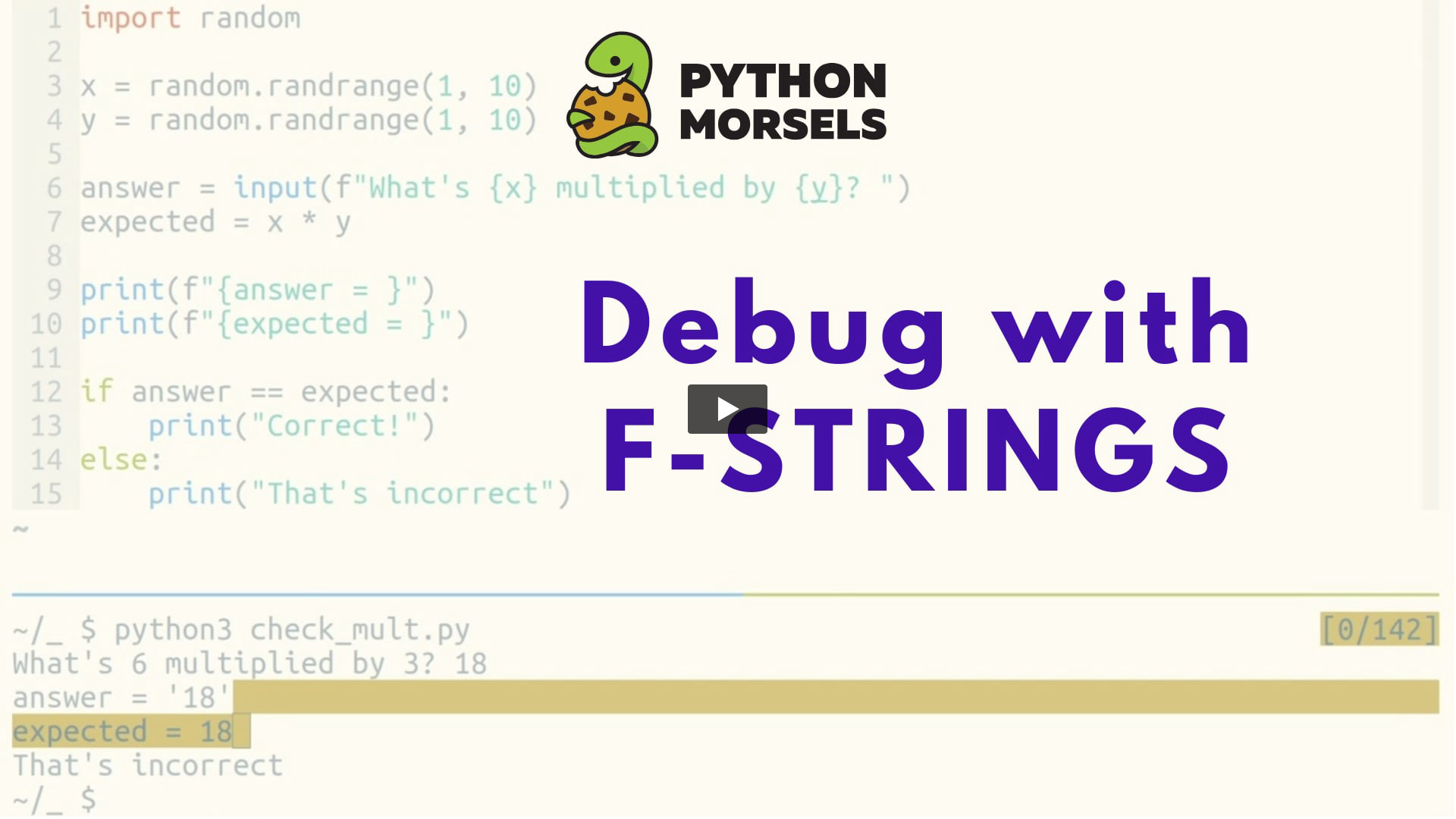
To use the user's input in calculations, you must explicitly convert, or cast, the string to a numeric type. Python provides simple functions for this:
int(): Converts a string to an integer.float(): Converts a string to a floating-point number (a number with a decimal).
Here's the correct way to handle numerical input:
# 1. Prompt the user and get the input as a string
age_str = input("How old are you? ")


# 2. Cast the string to an integer
age_int = int(age_str)


# 3. Now you can perform calculations
next_year_age = age_int + 1

print("Next year, you will be", next_year_age, "years old.")
This process can be combined into a single, more concise line, which you will see frequently:age = int(input("How old are you? "))
This pattern—read as a string, then immediately cast—is fundamental. For a more detailed walkthrough with code examples, please review the following text.
Strings & Input :: Introduction to Python
This resource from the "Introduction to Python" textbook reinforces the concepts of reading and casting user input.
Please read the following two sections: Start with the section on Input in Python to see the basic mechanics of the input() function. Then, read the section on Numerical Input. This part clearly demonstrates how to use int() and float() for type casting and shows the ValueError that occurs if the input cannot be converted (e.g., trying to cast '3.5' to an int).
2. Formatting Output with F-Strings
Once your program has processed data, you need to present the results. While you can use print() with commas or string concatenation (+), these methods can become clumsy and hard to read, especially when mixing text and numbers.
# Clumsy concatenation, requires manual casting with str()
print("Hello, " + name + ". You are " + str(age) + " years old.")
Python 3.6 introduced f-strings (formatted string literals), which offer a more elegant, readable, and efficient way to embed expressions inside strings. To create an f-string, you simply prefix the string literal with the letter f and write your variables or expressions inside curly braces {}.
# Clean and readable with an f-string
print(f"Hello, {name}. You are {age} years old.")
Notice that we did not need to call str(age). F-strings handle the type conversion for you automatically.
Python For Beginners - Inputs & Outputs Explained
This clip from TeachingCS gives a great visual introduction to f-strings and why they are the preferred method for formatting strings in modern Python.
Watch the segment from this timestamp. It effectively contrasts older methods with the simplicity and power of f-strings, showing how to embed multiple variables directly into a sentence.
Advanced Formatting within F-strings
F-strings are not just for simple variable substitution. They support a powerful "mini-language" for formatting expressions. You can control things like decimal precision, padding, alignment, and number representation directly within the curly braces. The syntax is {expression:format_specifier}.
This is particularly useful in data science and analytics for generating clean, well-aligned reports. Let's look at a few common specifiers.
- Floating-Point Precision: To format a number to a specific number of decimal places, use
.Nf, whereNis the number of digits.price = 49.95 tax = price * 0.07 print(f"The tax is: {tax}") # Output: The tax is: 3.4965 print(f"The tax is: {tax:.2f}") # Output: The tax is: 3.50 (notice the rounding!) - Thousands Separator: For large numbers, you can automatically add commas.
population = 12550700 print(f"Population: {population:,}") # Output: Population: 12,550,700 - Padding and Alignment: You can pad a value with spaces or other characters to a specific width, which is great for creating tables.
>right-aligns<left-aligns^centers
item = "Apples" count = 15 print(f"{item:<10}: {count:>5}") # Left-aligns item in 10 chars, right-aligns count in 5 # Output: # Apples : 15 - Zero Padding: A common use case is padding numbers with leading zeros, for example, to create consistent file names or IDs.
file_number = 42
print(f"File_{file_number:05}.txt") # Output: File_00042.txt
This table provides a helpful summary of common numeric formatting options.

3. Practice Exercises
Your preference for hands-on learning is the best way to internalize these concepts. Let's apply what you've learned.
Exercise 1: Simple Interactive Calculator
Write a small program that does the following:
- Asks the user to enter a number.
- Asks the user to enter a second number.
- Calculates the sum, difference, and product of the two numbers.
- Prints the results in a nicely formatted way using f-strings. For example:
For numbers 10.5 and 2.0:
Sum = 12.5
Difference = 8.5
Product = 21.0
Hint and Solution
Hint: Remember to cast the input from the user to a numeric type, like float, to allow for decimal numbers.
Solution:
# 1. Get user input
num1_str = input("Enter the first number: ")
num2_str = input("Enter the second number: ")


# 2. Cast input to float
num1 = float(num1_str)
num2 = float(num2_str)


# 3. Perform calculations
sum_result = num1 + num2
diff_result = num1 - num2
prod_result = num1 * num2


# 4. Print formatted output
print(f"\nFor numbers {num1} and {num2}:")
print(f"Sum = {sum_result}")
print(f"Difference = {diff_result}")
print(f"Product = {prod_result}")
Exercise 2: Advanced Formatting Practice
The PYnative website offers excellent, purpose-driven exercises. Working through these is a great way to build practical skill.
Python Input and Output Exercise
This resource provides targeted exercises for common formatting tasks. The explanations connect each problem to a real-world use case.
Try to solve the following three exercises. Read the "Exercise Purpose" for each one to understand its practical relevance. Exercise 7: Practice controlling float precision. This is essential for financial and scientific reporting. Exercise 8: Combine calculation with formatting to display percentages neatly. Exercise 13: A great challenge that combines several specifiers to format currency like a professional application.
Conclusion
In this lesson, you've acquired two indispensable Python skills. You now know how to build interactive programs that can communicate with a user and how to present information clearly and professionally.
Here are the key takeaways:
- The
input()function pauses your program and reads a line of text from the user, always returning a string. - You must cast the string from
input()toint()orfloat()before performing mathematical calculations to avoid aTypeError. - F-strings (e.g.,
f"Value: {my_var}") are the modern, readable, and powerful way to format strings in Python. - F-strings include a format specifier mini-language that gives you precise control over padding, alignment, decimal precision (
:.2f), and thousands separators (:,).
You've moved from writing static scripts to creating dynamic applications. In our next lesson, we will build directly on this by learning how to make decisions in our code. We'll explore conditional statements (if, elif, else), which will allow your programs to execute different logic based on the user input you now know how to collect.