Hello! In our last lesson, we mastered how to work with JSON data locally in Python—serializing objects into JSON strings/files and deserializing them back. Today, we'll take that skill and apply it to the web by learning how to fetch data from external APIs.
This lesson is a critical step toward our main goal of building a grasp.study clone. The heart of that project is communicating with the Anthropic Claude API, which, like most modern web services, sends and receives data in JSON format. Your experience with APIs in the MERN stack and using tools like Postman means you're already familiar with the concepts of HTTP methods like GET and POST. Today, you'll learn how to implement these interactions the Python way, using the powerful and popular requests library.
The requests Library: Your Gateway to the Web
Python's standard library includes modules for handling HTTP, but the third-party requests library has become the de facto standard for its simplicity and elegance. It abstracts away much of the complexity, allowing you to interact with web services in a clean, human-readable way.
Since requests isn't part of the standard library, it needs to be installed in your virtual environment. You can do this with pip:pip install requests
Once installed, you can import it into your scripts with a simple import requests.
Making Your First GET Request
The most common type of HTTP request is GET, used to retrieve data from a specific URL or API endpoint. With the requests library, this is a one-line command: requests.get().
When you make a request, the server sends back a response, which requests encapsulates in a Response object. This object contains everything you need: the data, the status code, the headers, and more.
Let's explore the fundamental workflow: making a request and inspecting the response.
Python's Requests Library (Guide)
This guide from Real Python is the definitive introduction to the requests library. We'll start with the basics of making a request and checking its status.
First, read the section Make a GET Request to see how to initiate the call. Then, read the subsection Work With Status Codes. Pay close attention to two key ideas: Accessing the status code directly via response.status_code. Using the response object itself in a conditional statement (if response:), which is a convenient Pythonic way to check for a successful request (any status code in the 200-399 range).
As the reading highlights, checking the status code is the first step to verify if your request was successful. A code of 200 means "OK," while codes in the 4xx range (like 404 Not Found) indicate a client-side error.
A more robust way to handle errors is to use the response.raise_for_status() method. This method will do nothing if the request was successful (status code 2xx), but it will raise an HTTPError exception if the status code was a 4xx or 5xx error. This is a great way to integrate API calls into the try...except blocks we learned about previously.
import requests
from requests.exceptions import HTTPError

url = "https://api.github.com/invalid-endpoint"

try:
    response = requests.get(url)
    # Raise an exception for bad status codes (4xx or 5xx)
    response.raise_for_status()
except HTTPError as http_err:
    print(f"HTTP error occurred: {http_err}") # e.g., 404 Client Error
except Exception as err:
    print(f"Other error occurred: {err}")
else:
    print("Success!")
Processing the JSON Response
Once you've confirmed a successful request, you need to access the data in the response body. The Response object gives you a few ways to do this, but the most important one for our purposes connects directly to our last lesson.
Python's Requests Library (Guide)
Now let's see how to get the actual data from the response, specifically when it's in JSON format.
Read the section Access the Response Content to understand the difference between response.content (bytes) and response.text (string). Then, read the crucial subsection that follows it, starting from the paragraph that introduces the .json() method and ending before the "View Response Headers" heading. This method is the key takeaway: it automatically deserializes the JSON response into a Python dictionary.
So, while response.text gives you the raw JSON string (which you could parse with json.loads()), the response.json() method is a convenient shortcut that does the work for you. After calling it, you have a standard Python dictionary or list that you can work with.
This image shows the entire process in a Python IDE:
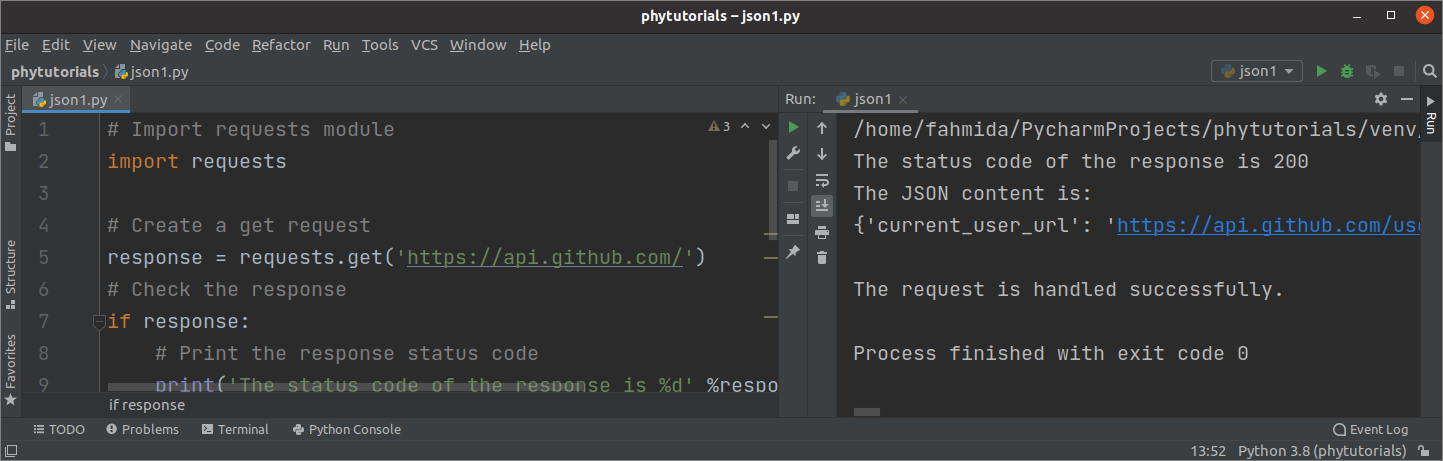
A simple script showing import requests, a requests.get() call to the GitHub API, and printing the status code and JSON content from the successful response.
The following short video provides a great end-to-end demonstration of this entire workflow, from installing requests to parsing the data.
Request API data using Python in 8 minutes! ↩️
This "Bro Code" video walks through a complete, practical example of hitting a public API and using the data.
Watch the entire video. It's short and covers: Installing requests if you haven't already. Making the request and checking the status_code. Using .json() to parse the response into a dictionary. Accessing data from the resulting dictionary using keys.
Customizing Your Requests
Often, you'll need to provide more information to an API, for instance, to search for something specific or to authenticate yourself.
Query Parameters
Many APIs use query parameters in the URL to filter or specify data. For example: https://api.example.com/search?q=python&sort=popular. While you could build this string yourself, requests provides a cleaner way using the params argument.
Python's Requests Library (Guide)
This section shows the proper way to add query string parameters to your GET requests.
Read the section Add Query String Parameters. The example demonstrates how to pass a dictionary to the params argument, which requests then correctly formats and appends to the URL.
Using the params dictionary is less error-prone and makes your code more readable than manually concatenating strings.
POST Requests and Sending Data
While GET is for retrieving data, POST is for sending data to a server to create or update a resource. This is what you'll use when you send your prompt to the Claude API.
With POST requests, the data is sent in the request body, not the URL. Your experience with web development has likely exposed you to form data and JSON payloads. The requests library handles both elegantly. For our purposes, sending JSON is the most relevant.
You can use requests.post() and pass your Python dictionary directly to the json argument. The library will automatically serialize your dictionary to a JSON string and set the appropriate Content-Type header to application/json.

This example shows a requests.post() call. The output confirms the method was POST, the status was 200, and the Content-Type of the response was application/json.
Python's Requests Library (Guide)
This reading covers other HTTP methods, focusing on how to send data with a POST request.
First, quickly skim Use Other HTTP Methods to see the functions available for POST, PUT, DELETE, etc. Then, focus on the section Send Request Data. The key part here is the explanation of the json parameter, which simplifies sending JSON data in the body of a POST request.
Here is a simple example of posting JSON data to httpbin.org, a service designed for testing requests:
import requests

url = "https://httpbin.org/post"
payload = {
    "username": "learner123",
    "action": "submit_query",
    "query_details": {
        "topic": "Python requests",
        "length": "concise"
    }
}

try:
    # Use the `json` parameter to send the payload
    response = requests.post(url, json=payload)
    response.raise_for_status()

    # The response from httpbin includes the data we sent
    response_data = response.json()
    print("Data received by server:")
    print(response_data['json'])

except requests.exceptions.HTTPError as err:
    print(f"HTTP error occurred: {err}")
Conclusion
You've now added a vital tool to your Python toolkit. By combining your knowledge of JSON from the last lesson with the requests library, you can now communicate with the vast majority of web APIs.
Key Takeaways:
- The
requestslibrary is the standard for making HTTP requests in Python. - Use
requests.get()to retrieve data andrequests.post()to send data. - The
Responseobject returned by a request contains thestatus_code,headers, and the response body. - Check for success by inspecting
response.status_codeor by using theresponseobject in a conditional (if response:). - Use
response.raise_for_status()within atry...exceptblock for robust error handling. - The
response.json()method is the most direct way to parse a JSON response into a Python dictionary. - For
GETrequests, pass a dictionary to theparamsargument to add query parameters. - For
POSTrequests, pass a dictionary to thejsonargument to send a JSON payload.
In our next and final lesson of this module, we will put all these foundational skills together. We'll perform our first Project Milestone: initializing the project repository with a standard Python structure, including a virtual environment, a .gitignore file, and a requirements.txt file to manage dependencies like requests. This will set up the professional workspace for building our grasp.study clone.