Welcome to the next lesson in our journey to build a strong foundation in Python. In our last session, we mastered functions, learning how to create reusable blocks of code. This was a crucial step towards writing clean, modular programs—a practice essential for any professional developer.
Today, we'll take that skill and apply it to a fundamental aspect of backend engineering: making our programs interact with the outside world by reading from and writing to files. Nearly every application you build will need to handle data persistence, whether it's reading configuration settings, writing log files, or ingesting large datasets for processing—a core task at a data-centric company like Infilect. This lesson directly addresses the learning outcome of using Python's built-in file operations to read and write text files, a skill that underpins many of the advanced data pipelines we'll build later.
1. Opening Files: The Gateway to Data
Before you can read or write a file, you must first open it. The primary tool for this is Python's built-in open() function. This function requires at least one argument: the path to the file. But what exactly is a "path"? And how does Python know where to look?
The following video provides an excellent explanation of file paths, covering the crucial concepts of the current working directory, absolute paths, and relative paths. Understanding this is vital to avoid the common FileNotFoundError.
How to Read and Write Files in Python | File Handling Tutorial in Python
This video from the techTFQ channel clearly explains how Python locates files on your system.
Watch the segment from this timestamp. Focus on understanding: What the "current working directory" is and how to find it with os.getcwd(). The difference between an absolute path (the full path from the root of your system) and a relative path (the path from your current working directory).
Once you specify the path, the second crucial argument for the open() function is the mode. The mode is a simple string character that tells Python what you intend to do with the file.
The three most common modes are:
'r': Read mode. This is the default. It opens the file for reading. If the file doesn't exist, it raises an error.'w': Write mode. It opens the file for writing. If the file exists, its contents are erased before writing. If it doesn't exist, a new file is created.'a': Append mode. It opens the file for writing, but instead of erasing it, the file pointer is placed at the end. Any new data is added after the existing content. If the file doesn't exist, a new file is created.
This decision-making process can be summarized visually.
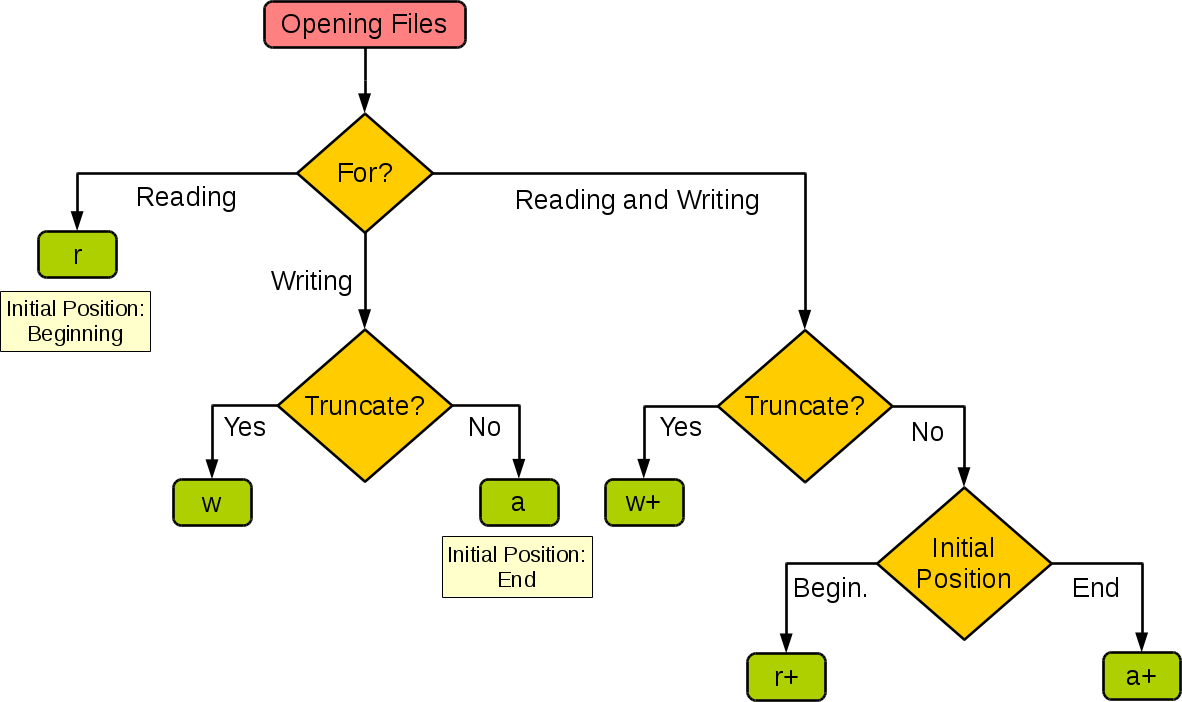
For a detailed breakdown of all available modes, including those that allow for both reading and writing (like 'r+' and 'w+'), the following resource is excellent.
How to Open, Read, and Write Files
This DigitalOcean article provides clear tables explaining the primary file modes and what happens when the file does or does not exist.
Focus on the tables under the section "Open a file in Python". You don't need to memorize every mode, but make sure you understand the core difference between 'r', 'w', and 'a'.
2. The with Statement: Python's Safety Net
In the past, you had to manually close a file using file.close() after you were done with it. Forgetting to do this could lead to resource leaks or corrupted data, especially if an error occurred before the close() method was called.
Modern Python provides a much safer and more elegant solution: the context manager, accessed via the with keyword.
with open('my_file.txt', 'r') as f:


    # Work with the file object 'f' inside this indented block.
    content = f.read()
    print(content)


# Once the block is exited, Python automatically and safely closes the file.
# This happens even if an error occurs inside the 'with' block.
The with open(...) as f: syntax is the standard, recommended way to handle files. It guarantees that resources are managed correctly, making your code more robust. The following video gives a fantastic explanation of why this is considered a best practice.
Python Tutorial: File Objects - Reading and Writing to Files
Corey Schafer's tutorial provides a crystal-clear rationale for using context managers.
Watch from this section where he compares the old method (f.close()) with the with statement and demonstrates why the latter is superior.
3. Reading File Content
Once a file is open, you can read its content in several ways. The most common methods are:
f.read(): Reads the entire content of the file into a single string.f.readlines(): Reads all lines into a list of strings, with each string representing a line.f.readline(): Reads just one line from the file.
While f.read() is simple, it can be dangerous. If you're working with a large file—like a multi-gigabyte log file or a dataset for an ML model—reading the entire contents into memory at once can crash your application. This is a critical consideration for building the scalable systems required by your target job.

The most memory-efficient and Pythonic way to read a large text file is to iterate over the file object directly in a for loop.
with open('large_file.txt', 'r') as f:
    for line in f:


        # Each 'line' is a string representing one line from the file.
        # This approach only loads one line into memory at a time.
        process(line)
Corey Schafer's video demonstrates these reading methods and highlights the efficiency of the for loop approach.
Python Tutorial: File Objects - Reading and Writing to Files
This part of the video covers the various methods for reading file content.
Watch the following segments: Reading Methods: This part demonstrates f.read(), f.readlines(), and f.readline(). Efficient Iteration: This part shows the memory-efficient for line in f: loop, which is the best practice for large files.
4. Writing to Files
Writing to files is just as straightforward. You'll primarily use the f.write() method. The behavior of write() depends entirely on the mode you used to open the file.
- Write Mode (
'w'): Overwrites the file completely. - Append Mode (
'a'): Adds new content to the end of the file.
The following resource provides clear examples distinguishing these two essential modes.
Python Write to File – Open, Read, Append, and Other ...
This freeCodeCamp article clearly illustrates how to write and append to files.
Read the section "How to Modify a File". Pay close attention to the examples for "Append" ("a") and "Write" ("w") to solidify your understanding of how they differ.
5. Hands-On Practice: Log File Processor
Now, let's put everything together. We will create a script that reads a log file, uses a function to identify important lines, and writes those lines to a separate file. This simulates a common backend task.
Setup:
-
Create a new Python file named
log_processor.py. -
In the same directory, create a text file named
system_logs.txtand paste the following content into it:INFO: Application startup successful. DEBUG: User authentication request initiated. INFO: User 'admin' logged in. WARNING: Disk space is running low (90% usage). ERROR: Failed to connect to database server at 192.168.1.100. INFO: Data export task started. ERROR: NullPointerException in module 'DataProcessor'. INFO: Data export task completed.
Task:
Write the Python code in log_processor.py to perform the following steps:
- Define a function
is_error_log(log_line)that takes a stringlog_lineas input and returnsTrueif the line starts with "ERROR:", andFalseotherwise. - Use a
withstatement to opensystem_logs.txtfor reading. - Use another (nested)
withstatement to open a new file,error_report.txt, for writing ('w'mode). - Iterate through
system_logs.txtline by line. - For each line, call your
is_error_log()function. - If the function returns
True, write that line toerror_report.txt. - After the script runs, verify that
error_report.txtwas created and contains only the two error lines.
# Your solution for log_processor.py goes here.

def is_error_log(log_line):
    """Checks if a log line is an error."""
    return log_line.startswith("ERROR:")

try:
    with open('system_logs.txt', 'r') as infile, open('error_report.txt', 'w') as outfile:
        for line in infile:
            if is_error_log(line):
                outfile.write(line)

    print("Log processing complete. 'error_report.txt' has been created.")

except FileNotFoundError:
    print("Error: 'system_logs.txt' not found. Please create it in the same directory.")
This exercise combines concepts from our previous lesson (functions) with the file I/O techniques you've learned today, mirroring a real-world data filtering task.
Conclusion
You have now learned one of the most fundamental skills in programming: file handling. This ability to read and write data is the bridge between your application's logic and persistent storage.
Key Takeaways:
- Always use the
with open(...)context manager to ensure files are closed automatically and safely. - The file
mode('r','w','a') dictates what you can do with the file and is the most common source of errors for beginners. - For reading large files, always iterate line by line (
for line in f:) to avoid consuming excessive memory. - Writing with
'w'erases the file, while'a'adds to the end. Choose wisely.
In our next lesson, we will move on to another cornerstone of Python: Object-Oriented Programming. We'll learn how to define simple classes and instantiate objects. This will allow us to represent data read from files not just as raw strings or numbers, but as structured, meaningful objects, which is the foundation for building the complex backend systems required for your career goal.