Hello! Welcome to the final lesson in our module on core formulas for conditional logic.
In previous lessons, we learned to use IF for single conditions and then COUNTIFS and SUMIFS to aggregate data based on multiple criteria. This is great for creating summary tables. But what if you need to apply a specific label or perform a calculation on a single row based on several conditions at once?
For example, how would you flag a cybersecurity incident as "Critical" only if its status is "Open" and its severity is "High"? COUNTIFS can tell you how many such incidents exist, but it can't label each one in your tracker.
This is where today's lesson comes in. We will focus on the learning outcome: Combine logical functions (AND, OR) with IF statements for complex condition handling. By embedding AND and OR inside an IF statement, you can build powerful and precise business rules directly into your trackers and reports.
In this lesson, you'll learn to:
- Use
IFwith theANDfunction to test if all specified conditions are met. - Use
IFwith theORfunction to test if any of the specified conditions are met. - Nest these combined functions to create multi-layered rules for sophisticated data categorization.
Mastering this skill is fundamental for creating the dynamic, intelligent trackers required in an MIS role.
1. The Core Idea: Giving IF More Power
Remember the structure of the IF function: IF(logical_test, value_if_true, value_if_false).
So far, our logical_test has been a single question, like B2 > 50. The AND and OR functions allow you to replace that single question with a whole set of questions.
- The
ANDfunction returnsTRUEonly if all of its arguments are true. - The
ORfunction returnsTRUEif any of its arguments are true.
By placing AND(...) or OR(...) inside the logical_test part of an IF statement, you make the IF function much more powerful.
Excel Logical Functions - IF, AND, OR
This short clip from the Yoda Learning Academy clearly explains why AND and OR are perfect candidates to be used inside an IF statement's logical test.
Watch from 04:40 to 05:49. The key takeaway is that because AND and OR functions produce a TRUE/FALSE result, they fit perfectly into the logical_test argument of an IF function.
2. IF with AND: When All Conditions Must Be True
The most common scenario is needing to check that multiple conditions are all met simultaneously. This is where you combine IF and AND.
The syntax is: IF(AND(condition1, condition2, ...), value_if_true, value_if_false)
Let's imagine you're building an incident report tracker like the one below. You might need to create a column that flags incidents requiring immediate high-level attention.

For example, you need to label an incident "Critical Alert" if its Severity is "High" and its Status is "Open".
The following video demonstrates exactly how to build this type of formula.
Excel IF Formula: Simple to Advanced (multiple criteria, nested IF, AND, OR functions)
In this segment from her video on the IF function, Leila Gharani shows how to embed the AND function to check if a value falls within a specific range. The principle is the same for any type of multiple conditions.
Watch from 03:17 to 05:00. Notice how she places the AND function with its two logical tests directly into the first argument of the IF function.
A Practical Example: Numerical Ranges
A very frequent use case in MIS is checking if a value falls between two numbers. For example, in your incident response work, you might need to categorize data breaches by size:
- Small: 1-10 GB
- Medium: 11-100 GB
- Large: >100 GB
To flag the "Medium" tier, you'd check if the data loss is >=11 AND <=100.
IF AND in Excel: nested formula, multiple statements, and more
This article from Ablebits provides clear, text-based examples. I recommend reading this section for a solid example of using IF with AND to check if a value is between two numbers.
Read the section titled 'Excel IF: greater than AND less than'. This reinforces the concept you saw in the video and shows how to include boundary values using >= and <=. Pay attention to the use of absolute references ($F$1) for criteria stored in cells, a key best practice.
3. IF with OR: When Any Condition is Enough
Sometimes, you don't need all conditions to be true. If any one of several conditions is met, you want to take action. This is the job for IF combined with OR.
The syntax is: IF(OR(condition1, condition2, ...), value_if_true, value_if_false)
Let's connect this to your recruitment background. Imagine you're managing a candidate tracker, as shown below.
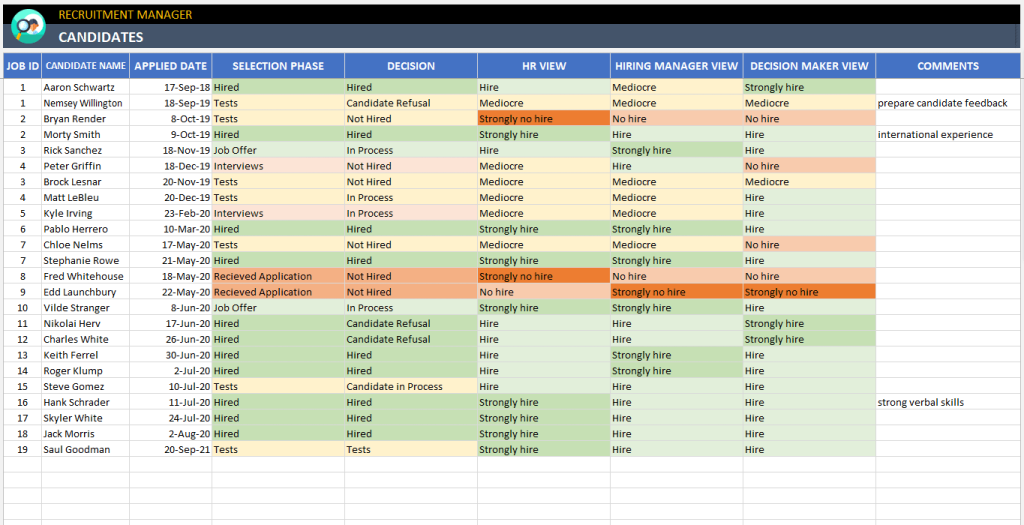
You might want a formula to flag a candidate for "Priority Screening" if their source was a "Referral" or if they have applied for a "Manager" level role.
Let's return to the video to see how this is constructed.
Excel IF Formula: Simple to Advanced (multiple criteria, nested IF, AND, OR functions)
This clip demonstrates the IF with OR combination. The logic is similar to IF/AND, but the outcome is triggered if any single condition is met.
Watch from 07:42 to 09:18. The example flags revenue that is either too high OR too low, leaving the middle values alone. This is a common pattern for identifying outliers.
4. Combining It All: Nested IFs with AND/OR
Now, let's take it a step further. You can nest these complex IF statements to create a hierarchy of rules. This is how you build sophisticated logic for categorizing data into multiple tiers.
The structure looks like this:=IF(AND(condition_A, condition_B), "Result 1", IF(OR(condition_C, condition_D), "Result 2", "Result 3"))
In plain English:
- First, check if conditions A and B are both true. If so, return "Result 1" and stop.
- If not, then check if either condition C or D is true. If so, return "Result 2" and stop.
- If none of the above, return "Result 3".
This layered approach is extremely common in MIS for creating status columns like "Priority Level", "Risk Category", or "Performance Tier".
Excel IF Formula: Simple to Advanced (multiple criteria, nested IF, AND, OR functions)
Let's watch one more clip that demonstrates a nested IF statement where the first condition uses an AND. This shows how you can create a sequence of checks.
Watch from 05:00 to 07:42. The formula first checks for 'Good' revenue (between 15k and 20k). If that's false, it proceeds to the next IF to check for 'Exceptional' revenue. This demonstrates the sequential nature of nested IFs.
5. Hands-on Practice
Let's apply these concepts to a scenario from your cybersecurity background. Imagine you have the following data in an incident tracker.
| Incident ID | Type | Severity | Data Impact (GB) | Status |
|---|---|---|---|---|
| INC-001 | Malware | High | 50 | Open |
| INC-002 | Phishing | Medium | 120 | Closed |
| INC-003 | Equipment Failure | Low | 0 | Open |
| INC-004 | Phishing | High | 25 | Open |
| INC-005 | Malware | Critical | 600 | Open |
Your task is to add two new columns using formulas.
Task 1: Create a "Review Priority" column.
An incident should be marked as "Urgent" if its Severity is "High" AND its Status is "Open". All other incidents should be marked as "Standard".
Task 2: Create an "Alert" column.
An alert needs to be sent ("Send Alert") if the incident Type is "Phishing" OR the Data Impact (GB) is greater than 100. Otherwise, the cell should be blank ("").
Take a moment to write down the formulas you would use.
Click to see the solutions
Assuming the data starts in A1, with "Incident ID" in A1 and "INC-001" in A2:
Solution for Task 1 (in cell F2):=IF(AND(C2="High", E2="Open"), "Urgent", "Standard")
- For INC-001:
AND("High"="High", "Open"="Open")isTRUE, so the result is "Urgent". - For INC-002:
AND("Medium"="High", "Closed"="Open")isFALSE, so the result is "Standard". - For INC-004:
AND("High"="High", "Open"="Open")isTRUE, so the result is "Urgent".
Solution for Task 2 (in cell G2):=IF(OR(B2="Phishing", D2>100), "Send Alert", "")
- For INC-002:
OR("Phishing"="Phishing", 120>100)isTRUE(because both conditions are actually true), so the result is "Send Alert". - For INC-004:
OR("Phishing"="Phishing", 25>100)isTRUE(because the first condition is true), so the result is "Send Alert". - For INC-005:
OR("Malware"="Phishing", 600>100)isTRUE(because the second condition is true), so the result is "Send Alert".
Key Takeaways
IF(AND(...))is for situations where all conditions must be met to trigger thevalue_if_true.IF(OR(...))is for situations where any one of the conditions is enough to trigger thevalue_if_true.- The
ANDandORfunctions are placed within thelogical_testargument of theIFfunction. - You can nest these structures to build complex, multi-layered business rules for categorizing and flagging data. This is a core skill for automating your data trackers.
Next Lesson
You have now completed the module on core conditional formulas! You can write formulas to handle single conditions (IF), multiple conditions (IF/AND, IF/OR), and aggregate data based on those conditions (SUMIFS, COUNTIFS).
In the next module, we move on to another essential pillar of Excel for MIS: Lookup Formulas. We'll start with the most famous one: VLOOKUP. You'll learn how to use it to retrieve data from a vertical table based on a matching key. This is critical for enriching your data, for instance, pulling an employee's department from a master employee list into your incident tracker using just the employee ID.