Hello! Welcome to your first lesson in the "Core Formulas for Conditional Logic" module.
In our last session, we mastered sorting and filtering data within Excel Tables. These skills are essential for organizing and drilling down into large datasets. However, the real power of Excel for an MIS Executive comes from performing calculations across that data efficiently.
Today's lesson is the absolute cornerstone of writing scalable and efficient formulas. We'll be addressing the learning outcome: Use absolute ($A$1), relative (A1), and mixed (A$1, $A1) cell references correctly when copying formulas.
Mastering this concept means you can write a formula once and then confidently copy it across thousands of rows or columns, knowing it will adjust correctly. This is the key to automating calculations in your trackers and reports, a skill you'll use daily.
We will cover:
- Relative References (A1): The default behavior, where formulas adjust as you copy them.
- Absolute References ($A$1): How to "lock" a formula to a specific cell.
- Mixed References ($A1 or A$1): The flexible approach of locking just the column or just the row.
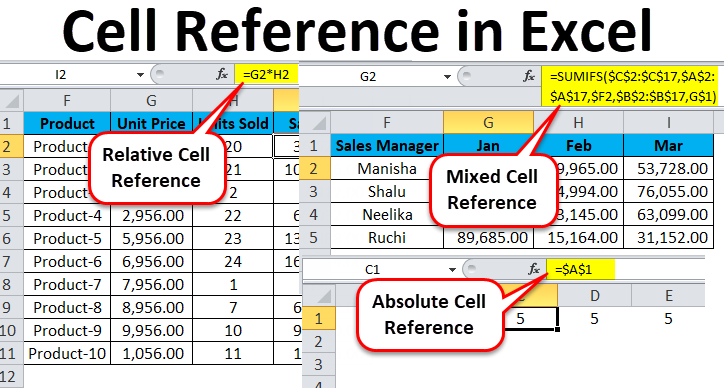
1. Relative References: The Default Behavior
By default, all cell references in Excel are relative. This means when you copy a formula from one cell to another, the cell references inside the formula change relative to the new location.
Think about a simple sales tracker. If you have a Quantity in column B and a Unit Price in column C, you'd write the formula =B2*C2 in cell D2 to get the total price. When you drag that formula down to cell D3, Excel is smart enough to know you now want to calculate =B3*C3. The references update automatically.
This is the most common and intuitive behavior, forming the basis of most row-by-row calculations in any data tracker.
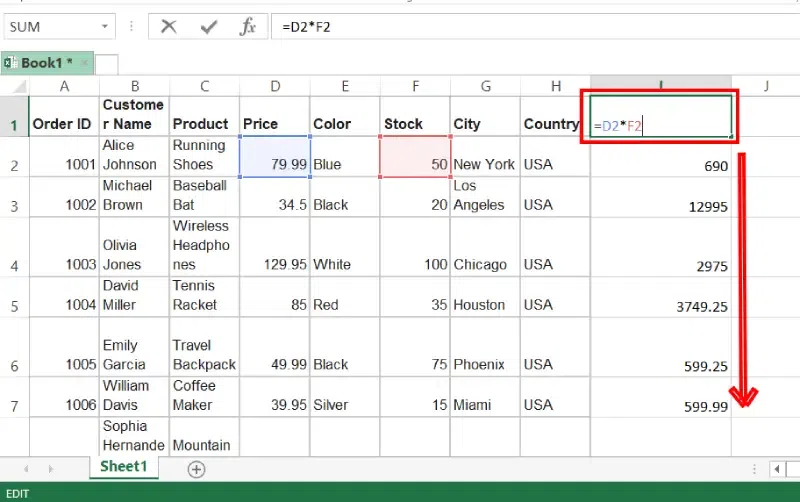
To see a clear demonstration of this, let's watch a short video.
How to Cell Reference in Excel
This clip from Kevin Stratvert provides a clear explanation of what relative references are and how they adjust both vertically (down rows) and horizontally (across columns).
Please watch from 02:11 to 04:36. Notice how the formula changes automatically as he copies it to new cells.
For a detailed text explanation with another practical example, the following article is excellent.
Why use dollar \$ in Excel formula: relative & absolute cell reference
This article from Ablebits.com explains the concept clearly. The example of converting USD to EUR demonstrates a typical use case for relative references.
Read the section titled 'Excel relative cell reference (without $ sign)'. Focus on how the formula =B2*0.93 is copied down the column.
2. Absolute References: Locking a Cell
Relative references are great, but what happens when you need part of your formula to point to the exact same cell every time?
Imagine you have that list of prices in US dollars, and you want to convert them to another currency. You could hardcode the exchange rate in the formula (=B2*0.93), but a better practice is to put the exchange rate in a single, dedicated cell (e.g., cell C1). This way, if the rate changes, you only have to update it in one place.
If you write the formula =B2*C1 and drag it down, it will become =B3*C2, =B4*C3, and so on. The reference to C1 will shift, leading to errors.
To prevent this, you use an absolute reference. By adding a dollar sign $ before the column letter and the row number ($C$1), you tell Excel: "No matter where I copy this formula, always refer to cell C1."
The F4 Shortcut
Typing the dollar signs manually is tedious. The universal shortcut is to press the F4 key on your keyboard after typing or selecting a cell reference in your formula. It cycles through the four possible reference types:
A1(relative) ->$A$1(absolute) ->A$1(mixed) ->$A1(mixed) ->A1(relative)
Let's see this in action.
How to Cell Reference in Excel
Continuing with the same video, Kevin Stratvert now demonstrates a scenario (calculating sales tax) where an absolute reference is necessary. He also introduces the F4 shortcut.
Please watch from 04:36 to 06:27 and then from 07:00 to 07:52. Pay close attention to how the formula breaks without the dollar sign and how the F4 key makes it easy to lock the cell.
Now, let's look at some more business-oriented examples that combine relative and absolute references.
Why use dollar \$ in Excel formula: relative & absolute cell reference
The Ablebits.com article provides two excellent examples relevant to MIS tasks: applying a variable exchange rate and calculating days until a delivery date from a fixed 'today's date'.
Read the section 'Using relative and absolute cell references in one formula'. Notice how in both examples, one part of the formula needs to change (relative) while the other needs to stay fixed (absolute).
3. Mixed References: Locking a Column or a Row
You now know how to let a reference change completely (relative) or not at all (absolute). The most advanced and flexible option is the mixed reference, where you lock either the column or the row, but not both.
$A1: The column is absolute (it will always be column A), but the row is relative (it will change as you copy the formula down).A$1: The column is relative (it will change as you copy across), but the row is absolute (it will always be row 1).
When would you use this? The classic example is creating a two-dimensional table, like a multiplication table or a pricing matrix. Imagine you have a list of products down column A and a list of different discount percentages across row 1. You want to create a table showing the discounted price for each product at each discount level.
To do this with a single formula, you'd need to:
- Reference the product price, always keeping it in column A but allowing the row to change (
$A2). - Reference the discount percentage, always keeping it in row 1 but allowing the column to change (
B$1).
The formula =$A2*B$1 could then be copied across the entire table.
This video from GoSkills.com gives an outstanding demonstration of mixed references, starting with the classic multiplication table example. This is the best way to understand the concept.
Watch from 00:49 to 03:54. First, focus on the logic of the multiplication table ($A4*B$3). Then, see how the same principle is applied to a more practical business scenario of calculating upgraded room rates.
This technique is incredibly powerful for building summary tables and financial models. Here is one more excellent, practical example.
Why use dollar \$ in Excel formula: relative & absolute cell reference
Let's return to the Ablebits article for a final example. It shows how to use a single formula with mixed references to build a table that converts a list of USD prices into multiple different currencies.
Please read the section 'Excel mixed cell reference'. Follow the logic of the formula =$B5*C$2. Understand why the column is locked for the price ($B5) and the row is locked for the exchange rate (C$2). This is a perfect example of an MIS task.
Key Takeaways
You've just learned one of the most fundamental and powerful concepts in Excel. Understanding this will separate you from casual users.
- Relative Reference (A1): The default. References change as you copy the formula. Use this for standard row-by-row calculations.
- Absolute Reference ($A$1): Locks the reference to one specific cell. Use this for constants like a tax rate, commission percentage, or a specific date.
- Mixed Reference ($A1 or A$1): Locks either the column or the row. Use this to build 2D matrices of data, like pricing tables or currency conversion charts.
- F4 is Your Best Friend: Use the F4 key to quickly cycle through the four reference types. This will save you an immense amount of time.
Next Lesson
Fantastic work today! This skill is crucial, and we are going to use it immediately.
In our next lesson, we will dive into writing IF and nested IF formulas to categorize data. You'll see how combining an IF statement with the correct use of absolute and relative references allows you to write one powerful, flexible formula that can be applied to an entire dataset to classify information based on logical conditions.