Hello! Welcome back to our journey from design to code.
In the last lesson, we identified the most basic HTML building blocks: headings (<h1>), paragraphs (<p>), images (<img>), links (<a>), and the all-important generic container, the <div>. We talked about how a <div> is like the "Group" command in Figma—a way to bundle elements together.
Today, we're going to make those groups much smarter.
1. What We Are Learning
In this lesson, you will learn to explain how semantic HTML improves accessibility and SEO. We'll move beyond the generic <div> and introduce structural elements that have meaning, such as:
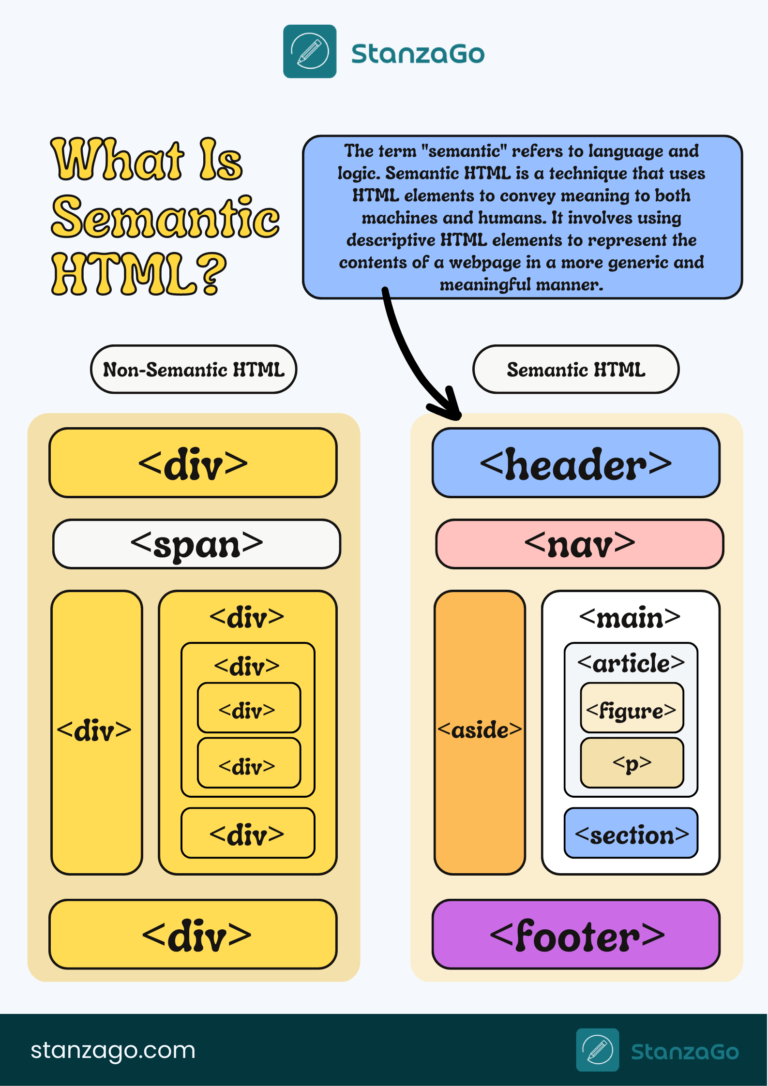
<header>: The banner/top section of a page.<main>: The primary content area.<section>: A thematic group of content.<footer>: The bottom section of a page.
2. Why This Matters
As a designer, you don't just create unlabeled gray boxes. You create a "Hero Section," a "Navigation Bar," a "Features Grid," and a "Footer." You name your layers and frames in Figma to create order and clarity.
Semantic HTML is the exact same concept, but for code. Instead of wrapping everything in generic <div> boxes, we use tags that describe the purpose of the content inside. This creates a clear, logical structure that has two huge, real-world benefits:
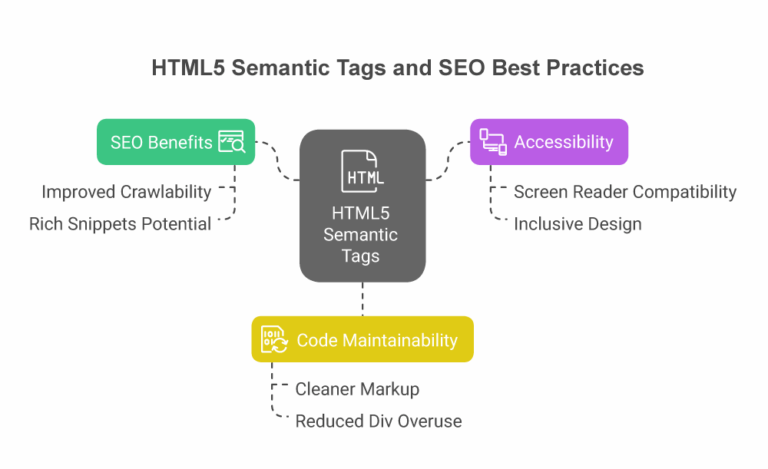
- Accessibility: It makes your website navigable for users with disabilities who use assistive technologies like screen readers.
- Search Engine Optimization (SEO): It helps search engines like Google understand your content, which can improve your site's ranking in search results.
By using semantic tags, you're not just building a page; you're telling a story that both humans and machines can understand.
3. Step-by-Step Instructions
Let's break down how this works.
Step 1: Understand the Problem of "Div Soup"
When a web page is built using almost nothing but <div> tags, developers call it "div soup." It's messy and lacks meaning.
Stop Using <div> for Everything!
This short article, "Stop Using for Everything!", quickly explains why relying only on <div> is a problem. It sets the stage for why semantic HTML is the solution.
Read the first two sections, "Stop Using for Everything!" and "Why Not Just <div>?". Notice the quote from the official HTML specification—it emphasizes that <div> should be a last resort.
Step 2: The Benefits for Accessibility and SEO
Now let's dive into the "why." Using meaningful tags provides crucial context for machines that read your page.
Semantic HTML: What It Is and Why It Matters!
This video from The Common Coder gives a fantastic overview of what semantic HTML is and why it's so important for both SEO and accessibility.
Watch from 00:53 to 04:52. The video clearly explains how semantic tags help screen readers announce different parts of a page and how search engines use them to better understand and rank your content.
To go a bit deeper, semantic HTML helps create what's called an Accessibility Object Model (AOM). Think of it as a special map of your page made just for assistive devices. A good map makes navigation easy.
The Importance of Semantic HTML for SEO & Web Accessibility
For a more detailed look at the direct impact on SEO, this article from Momentic Marketing is excellent. You don't need to memorize everything, but reading it will solidify your understanding of the business value.
Read the sections titled "HTML Accessibility: A Win-Win" and "5 Specific SEO Benefits of Semantic HTML". This will give you a solid grasp of how these tags directly impact users and search engine performance.
Step 3: Meet the Key Structural Tags
Now, let's learn the names and jobs of the most common semantic structural tags. We'll watch a demonstration of a non-semantic page being converted into a semantic one.
Semantic HTML Tags | HTML5 Semantic Elements Tutorial
In this clip, Dave Gray will introduce the three main pillars of a page layout: <header>, <main>, and <footer>. This is the most fundamental structure for any webpage.
Watch from 03:58 to 07:48. Pay attention to how he wraps the top content in <header>, the main content in <main>, and the bottom content in <footer>. He also points out there should only be one <main> element per page.
Here's a quick summary of those primary tags:
<header>: Represents the introductory content for a page. Typically contains the site logo, the main<h1>of the page, and the primary navigation.<main>: Contains the dominant, unique content of the page. This is the "star of the show."<footer>: The footer of the page. Usually contains copyright information, contact details, and secondary links.
Now let's add a few more important tags to our vocabulary.
Semantic HTML Tags | HTML5 Semantic Elements Tutorial
This next clip introduces other crucial tags like <nav>, <section>, <article>, and <aside>. These help us organize the content within the <main> element.
Watch from 07:34 to 13:54. Notice the distinction he makes between <section> (a thematic grouping) and <article> (a self-contained piece of content). This is analogous to how you might group related components in a 'Features' frame versus creating a self-contained 'Blog Post Card' component in Figma.
<nav>: Specifically for major navigation blocks.<section>: A thematic grouping of content. Think of a "How it Works" or "Testimonials" block on a landing page.<article>: For a self-contained piece of content that could be distributed on its own, like a blog post, a user comment, or a product card.<aside>: For content that is tangentially related to the main content, like a sidebar with related links.
4. What Could Go Wrong
-
Problem: I'm confused between
<head>and<header>.- Reason: This is a very common point of confusion! They sound similar but do totally different things.
- Solution: Remember:
<head>(with an 'a') is the invisible part of your HTML document for metadata (like the page title in the browser tab).<header>(with an 'er') is the visible banner at the top of your webpage where you put your logo and navigation.
-
Problem: I'm using
<section>for everything!- Reason: It can be tempting to replace every
<div>with a<section>, but that's not quite right. - Solution: Ask yourself: "Does this group of content have a clear, thematic purpose that I would put a heading on?" If yes,
<section>is great. If you're just grouping elements for styling purposes (e.g., to create a flex container for two buttons), a<div>is still the right tool for the job. Use semantic tags when the grouping has meaning.
- Reason: It can be tempting to replace every
5. Mini Exercise
Let's apply this by refactoring the index.html file you worked on in the last lesson.
-
Open your
my-landing-pageproject in VS Code. -
Your
<body>tag currently contains your<h1>,<p>,<a>, and<img>. -
Let's give it a proper semantic structure:
a. Add a
<header>:
Create a<header>element at the top of your<body>. Move your<h1>Hello World</h1>line inside this<header>.b. Add a
<footer>:
Create a<footer>element at the very bottom of your<body>. Inside it, add a new paragraph with a copyright notice:<p>© 2024 Your Name</p>(
©is a special code that renders the © symbol).c. Add a
<main>container:
Wrap all the content between your new<header>and<footer>inside a<main>tag. This will include your paragraph, link, and image from the last lesson. -
Your final
<body>structure should look something like this:<body> <header> <h1>Hello World</h1> </header> <main> <p>I am a product designer learning to build for the web.</p> <a href="https://www.figma.com">This is my favorite design tool.</a> <img src="https://via.placeholder.com/200x100" alt="A 200 by 100 pixel placeholder image"> <!-- Or, if you used a div last lesson: --> <div> <p>I am a product designer learning to build for the web.</p> <a href="https://www.figma.com">This is my favorite design tool.</a> <img src="https://via.placeholder.com/200x100" alt="A 200 by 100 pixel placeholder image"> </div> </main> <footer> <p>© 2024 Your Name</p> </footer> </body> -
Save your
index.htmlfile. Visually, your page in the browser won't look much different, but you have fundamentally improved its underlying structure and meaning.
6. Checklist Before Moving Ahead
- I can explain that semantic HTML uses tags that describe the meaning of the content.
- I can list the two main benefits of semantic HTML (Accessibility and SEO).
- I can describe the purpose of the
<header>,<main>, and<footer>tags. - I can explain the difference between
<head>and<header>. - I have successfully refactored my
index.htmlpage to include a<header>,<main>, and<footer>.
Fantastic work. You've now learned how to structure a webpage not just for looks, but for meaning. This is a critical skill for creating professional, high-quality websites and for effectively guiding the AI tools we'll use later.
A Look Ahead: In the next lesson, we'll shift our focus from structure (HTML) to layout and spacing. We will explore the CSS Box Model (content, padding, border, margin). As a designer, this will feel very familiar, as it's the code equivalent of the spacing and border properties you use every day.