Welcome to the final lesson in our module on WLC Configuration and Management. In our previous session, you learned how to navigate the WLC's monitoring interfaces to verify client connectivity and check vital statistics like RSSI and SNR. We saw that a client's status in the WLC—for example, whether it has an IP address—provides the first clues for troubleshooting.
Today, we will build directly on that foundation, moving from monitoring to active diagnosing. This lesson is dedicated to systematically identifying and resolving the most common issues that prevent wireless clients from connecting successfully. You will learn to diagnose failures such as client exclusion, security type mismatches, and incorrect VLAN assignments by correlating symptoms with specific log messages and configuration errors. This will equip you with a practical, step-by-step methodology for tackling real-world wireless problems.
A Systematic Approach to Troubleshooting
When a client fails to connect, it's rarely a complete mystery. The client gets stuck at a specific stage of the connection process. A successful connection follows a clear sequence: Association -> Layer 2 Authentication -> DHCP IP Assignment -> Ready to Pass Traffic (Run state). Our job as troubleshooters is to figure out where the client is getting stuck.
The video below provides an excellent overview of this layered connection process and introduces the key states you'll see a client transition through on the WLC.
Client Troubleshooting- Cisco Wireless Controller
This video from the Cisco Community channel frames the client connection as a sequence of states, which is fundamental to a logical troubleshooting approach.
First, watch the introduction from the beginning to understand the high-level connection process. Then, pay close attention to the explanation of the client policy manager states, such as 802.1X_REQD, DHCP_REQD, and RUN. These states are your primary indicators of where a problem lies.
The most powerful tools for digging into these states are the WLC's logging and debugging capabilities. For modern Catalyst 9800 controllers, this is Radioactive Trace. For older AireOS controllers, the command is debug client <mac_address>. These tools capture the detailed messages exchanged between the client, AP, and WLC, giving you the raw data needed to pinpoint the failure.
Let's now dive into specific failure scenarios, looking at the symptoms, the log messages to watch for, and the configuration fixes.
Scenario 1: Incorrect VLAN Assignment
This is one of the most common "day one" issues after setting up a new WLAN. The user reports that they can connect to the Wi-Fi, but they have no internet access.
- Symptom: From the user's perspective, they are connected to the SSID, but no websites load. When you check their device, it has an IP address like 169.254.x.x (an APIPA address) or no IP address at all.
- WLC Status: In the WLC's client monitoring page, you'll see the client is associated but stuck in the
DHCP_REQDstate. This tells you the Layer 2 authentication was successful, but the Layer 3 process (getting an IP address) failed.
The root cause is almost always a misconfiguration in how the wireless network is mapped to the wired network.
Troubleshoot Catalyst 9800 Wireless Controllers Common ... - Cisco
This Cisco support document provides a clear, scenario-based guide to troubleshooting. This section details the exact logs and resolution steps for a VLAN mapping issue on a Catalyst 9800.
In the "Scenarios When the Client Cannot Connect" section, read the subsection titled No Valid VLAN. Pay attention to the log message Unable to get active_feature_ctx for vlan group name and the step-by-step GUI and CLI process to verify and correct the Policy Profile's VLAN assignment.
As the document explains, the issue occurs when the Policy Profile associated with the WLAN points to a VLAN that doesn't exist on the WLC, or more commonly, that VLAN doesn't have a configured DHCP server or a DHCP relay (ip helper-address) set up on its corresponding router interface (SVI).
The fix involves verifying two things:
- The VLAN exists on the WLC (
Configuration > Layer2 > VLAN). - The correct VLAN ID is assigned in the WLAN's Policy Profile, as shown below.
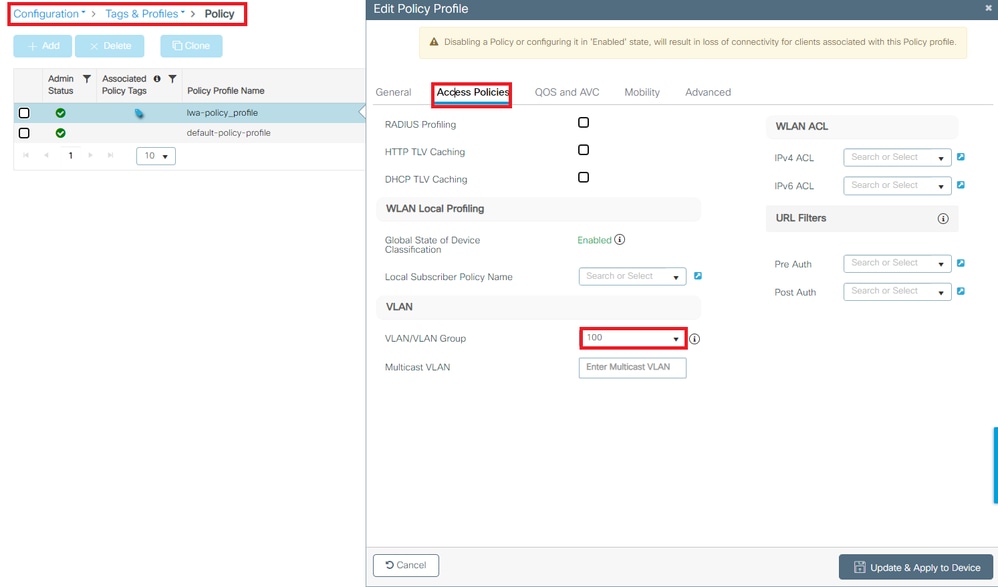
Once the correct VLAN is assigned, clients on that WLAN will be placed into the correct broadcast domain and should be able to receive an IP address from the DHCP server for that subnet. The image below shows where the DHCP server itself can be specified in the same policy profile, often used to override the global DHCP settings.

Scenario 2: Security Mismatches
If a client can't even get to the DHCP_REQD state, the problem is likely at Layer 2: authentication. This usually boils down to a mismatch between what the client is configured to use and what the WLAN is configured to accept.
A. Incorrect Pre-Shared Key (PSK)
- Symptom: The user tries to connect, enters the password, and is immediately rejected or sees "Unable to join network."
- WLC Status: The client may appear briefly in the client list and then disappear, or it may fail to associate at all.
- Diagnosis: The logs will show a failure during the 4-way handshake that establishes the encryption keys.
Troubleshoot Catalyst 9800 Wireless Controllers Common ... - Cisco
This document provides the log signature for a PSK failure on a modern C9800.
Find the subsection Wrong Password. The key log message to look for is Keymgmt: Failed to validate eapol mic. MIC mismatch. This "Message Integrity Check" (MIC) failure is a definitive sign of a password mismatch.
For AireOS controllers, you'll see a slightly different message in the debug client output.
Use this Cheat Sheet for Common Wireless Issues - Cisco
This "cheat sheet" gives the corresponding debug output for an AireOS controller.
Read Scenario 1. The key indicator here is a timeoutEvt for M2, which refers to a timeout waiting for message 2 of the 4-way handshake. While it could be a driver issue, it most commonly points to an incorrect PSK.
The solution is straightforward: verify the PSK on the WLAN's Layer 2 security settings and provide the correct password to the user.
B. 802.1X/RADIUS Authentication Failures
For enterprise networks using 802.1X, the number of potential failure points increases.
- Symptom: The user is prompted for a username and password but is unable to connect.
- WLC Status: The client is stuck in the
802.1X_REQDstate. - Diagnosis: This requires checking the communication path: Client -> AP -> WLC -> RADIUS Server.
WLC & RADIUS Tutorial and Free PT Lab | Cisco CCNA 200-301
This video by Keith Barker explains the relationship between the WLC and a RADIUS server, highlighting common points of failure in the configuration.
Watch the conceptual overview of the WLC and RADIUS interaction. Then, see where the RADIUS server is configured on the WLC from this section. Notice the key parameters: the server's IP address and the shared secret. A mismatch in either of these will cause all 802.1X authentications to fail.
Common causes for 802.1X failures include:
- Incorrect User Credentials: The user entered the wrong username or password.
- RADIUS Server Unreachable: The WLC cannot reach the RADIUS server's IP address due to a network issue (routing, firewall).
- Incorrect Shared Secret: The shared secret configured on the WLC does not match the one configured on the RADIUS server for that WLC.
- EAP Timeout: The client device did not respond to the RADIUS server's EAP request in time. This can sometimes be a client-side driver or supplicant issue. The Cisco guide provides the log signature for this.
Troubleshoot Catalyst 9800 Wireless Controllers Common ... - Cisco
This section shows the log for an EAP timeout.
Read the short subsection EAP Timeout. This points to a failure in the communication between the RADIUS server and the end-client device.
Troubleshooting 802.1X involves a process of elimination: Can the WLC ping the RADIUS server? Is the shared secret correct? Does the user's account exist and have the correct password on the RADIUS server?
Scenario 3: Client Exclusion
Client exclusion is a security feature where the WLC blocks a client from connecting, either manually by an admin or automatically due to security policy violations.
- Symptom: A single client is completely unable to connect, while other identical devices can connect without issue. The client may not even see the SSID in some cases.
- WLC Status: The client does not appear in the active client list. You must check the exclusion list.
- Diagnosis: The primary cause is either an admin manually de-authenticating the client or the client being automatically blocked after too many failed authentication attempts.
Troubleshoot Catalyst 9800 Wireless Controllers Common ... - Cisco
This guide shows the log messages for manual client removal.
Under "Scenarios When the Client Cannot Connect", find the subsection The Client is Manually Removed. This shows the log entry generated when an admin kicks a client off the network. An automatic exclusion for failed auth attempts would also generate specific log entries.
The solution is to navigate to the client exclusion list on the WLC (Monitor > Clients on AireOS, and check policies on C9800), find the client's MAC address, and remove it from the list. After removal, the client can attempt to connect again—this time, hopefully with the correct credentials.
Conclusion
You have now learned to diagnose and resolve some of the most frequent wireless connectivity issues. By adopting a systematic approach that follows the client's connection state, you can efficiently isolate problems.
Key Takeaways:
- Troubleshooting wireless is a layered process. Identify which state the client is failing in: Association, L2 Authentication (
802.1X_REQD), or L3 Addressing (DHCP_REQD). - Incorrect VLAN Assignment is a common cause of DHCP failure. The symptom is a connected client with no IP address, stuck in the
DHCP_REQDstate. The fix is in the WLC's Policy Profile. - Security Mismatches cause authentication failures.
MIC mismatchlogs point to a wrong PSK.EAP Timeoutor RADIUS server errors point to 802.1X problems. - Client Exclusion prevents a specific client from connecting. This is a security feature that can be triggered manually or automatically by repeated failed authentications. The fix is to remove the client from the exclusion list.
- Your primary diagnostic tools are the WLC's monitoring pages and detailed logging capabilities like Radioactive Trace (C9800) and
debug client(AireOS).
In the next module, we will shift our focus from establishing connectivity to ensuring its quality. You will be introduced to the principles of Quality of Service (QoS), learning how to classify, mark, and prioritize network traffic to provide a better experience for real-time applications like voice and video.