Hello! In our last lesson, you successfully built a fully functional contact form and learned how to handle submissions using the power of Astro Actions and a third-party email service. This was a crucial step in adding dynamic server-side capabilities to our project.
Today, we're diving into another advanced feature essential for any content-rich website: search. This lesson directly addresses the learning outcome: Generate a JSON search index from content collections during the build process. We'll lay the foundation for a fast, client-side search experience by pre-compiling all our searchable content into a single, optimized file.
For a static site, performing a search doesn't require a live database. Instead, we can create a data file during the build process that contains all the text from our blog posts and service pages. A script on the user's browser can then fetch this file once and search it instantly. This is the core principle of a client-side search architecture, and it's incredibly fast and cost-effective.
1. The Power of Build-Time Generation
Your project is configured for Static Site Generation (SSG) at its core, even with the server-side capabilities we added for Astro Actions. This means Astro generates all your pages as static HTML files when you run the npm run build command.
We can leverage this same build process to create other files, not just HTML. The perfect tool for this in Astro is a static endpoint.
An endpoint is a file in your src/pages/ directory that generates a non-HTML response. While these can act as live API routes in a server-rendered setup, in a static build, they run once at build time to produce a static file (like a JSON file).
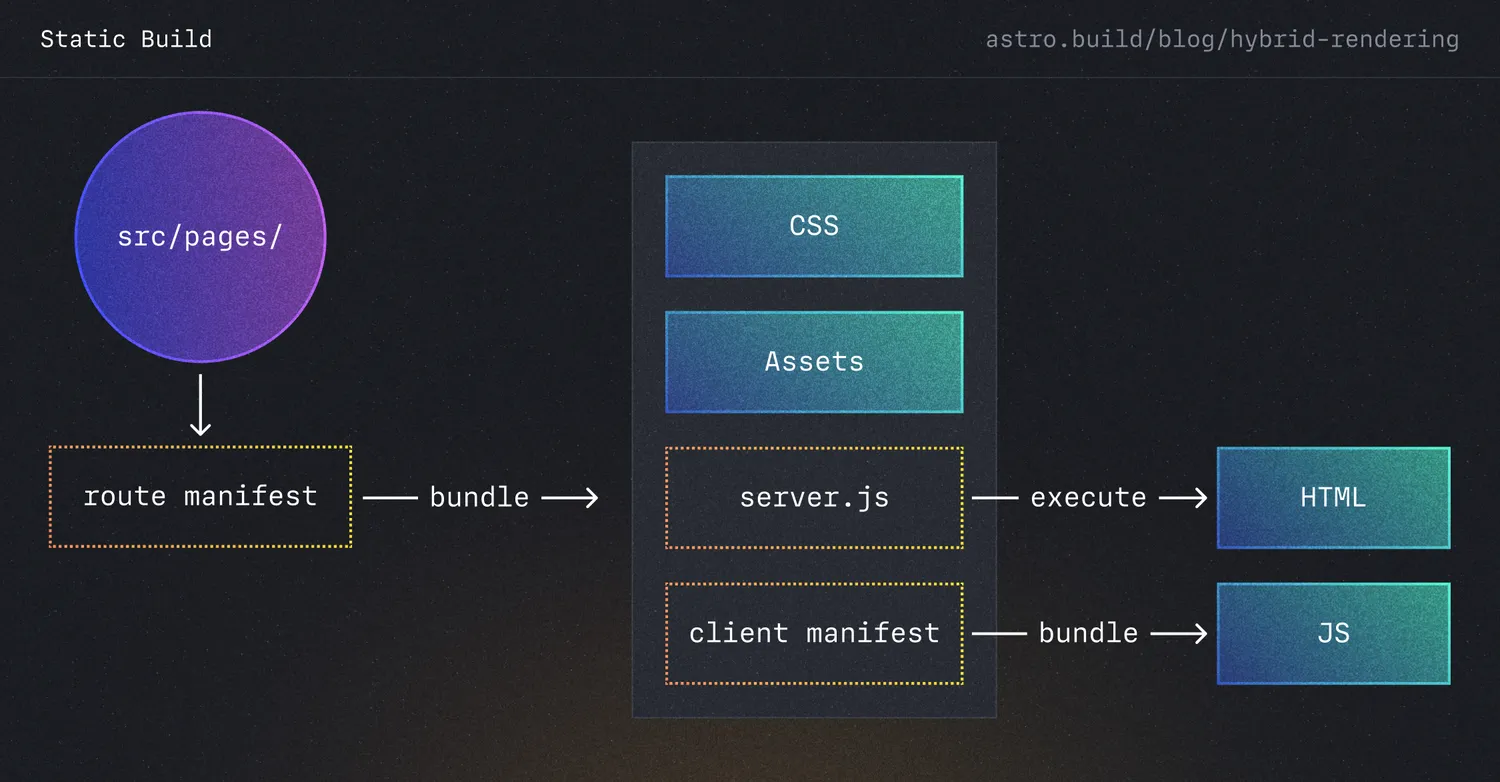
This approach is ideal for search because:
- The search index is always perfectly in sync with your site's content.
- Searching becomes incredibly fast for the user since there are no round-trips to a server for each query.
- It's secure and private, as the user's search queries never leave their browser.
2. Creating the Search Index Endpoint
Let's start by creating the file that will generate our search index. In your src/pages/ directory, create a new file named search-index.json.ts. The name is important: because it ends in .json.ts, Astro knows to treat it as an endpoint that will produce a JSON file.
Inside this file, we'll export an async function named GET. This is the function Astro will execute during the build.
The first article provides a concise example of creating such an endpoint to query a content collection.
How to Build Site Search with Astro, Qwik and Fuse.js
The article 'How to Build Site Search with Astro, Qwik and Fuse.js' by Paul Scanlon demonstrates the fundamental pattern for creating a static endpoint to query content collections. We'll use this as our starting point.
Please read the section 'How to Query Astro’s Content Collections'. Focus on how getCollection('posts') is used and how the resulting data is transformed with .filter() and .map() before being returned as a JSON response.
Based on that pattern, let's create the basic structure for our endpoint. For your accounting website, you'll want to search both blog posts and service pages. We can fetch both using getCollection.
// src/pages/search-index.json.ts
import { getCollection } from 'astro:content';

export async function GET() {
  const blogPosts = await getCollection('blog'); // Assuming your collection is named 'blog'
  const servicePages = await getCollection('services'); // Assuming 'services' collection

  const searchIndex = []; // We will populate this array

  // We will add logic here to process and combine the collections...

  return new Response(JSON.stringify(searchIndex), {
    headers: {
      'Content-Type': 'application/json',
    },
  });
}
This sets up the endpoint, but right now it just returns an empty array. The next, and most crucial, step is to process the content from each page into a clean, searchable format.
3. Processing MDX Content into Plain Text
When you fetch a collection entry, its body property contains the raw MDX content. This includes Markdown syntax (#, *, []()), frontmatter, and potentially JSX components. If we put this directly into our search index, search results would be polluted with this syntax.
We need to convert the MDX body into plain text. The best way to do this is by parsing the content.
How to add fast, client-side search to Astro static sites
The article 'How to add fast, client-side search to Astro static sites' from Evil Martians provides an excellent deep dive into this exact problem. It explains why we need to strip the extra syntax and offers a robust solution using a few specialized libraries.
First, read the section starting with 'But wait… how to get that JSON?'. Then, carefully study the section 'Stripping the extra stuff'. Pay close attention to the mdxToPlainText utility function. You don't need to memorize the code, but understand its purpose: to parse MDX and output clean, searchable text.
As the article explains, we'll use a set of tools from the "unified" ecosystem, which are designed for processing text with syntax trees. You're familiar with Abstract Syntax Trees (ASTs) from compiler theory in your computer science studies; this is a direct practical application.
First, let's install the necessary packages:
npm install unified remark-parse remark-mdx remark-rehype remark-gfm hast-util-to-text unist-util-visit mdast-util-to-string
Now, let's create a utility file to hold the processing logic. Create a new file at src/utils/mdx.ts:
// src/utils/mdx.ts
import { unified } from 'unified';
import remarkParse from 'remark-parse';
import remarkMdx from 'remark-mdx';
import remarkGfm from 'remark-gfm';
import { visit, SKIP } from 'unist-util-visit';
import { toText } from 'hast-util-to-text';
import { toString as mdastToString } from 'mdast-util-to-string';
import type { Root, Content } from 'mdast';

// This utility strips JSX elements from the MDX tree
function stripJsx() {
  return (tree: Root) => {
    visit(
      tree,
      ['mdxJsxFlowElement', 'mdxJsxTextElement', 'mdxjsEsm', 'mdxFlowExpression', 'mdxTextExpression'],
      (node, index, parent) => {
        if (!parent || index === null) return;
        // Replace the JSX node with its children, if any. Otherwise, remove it.
        const children = (node as any).children || [];
        parent.children.splice(index, 1, ...children);
        return [SKIP, index];
      }
    );
  };
}

// This utility extracts all headings from the tree
export function getHeadings(tree: Root): string[] {
  const headings: string[] = [];
  visit(tree, 'heading', (node) => {
    headings.push(mdastToString(node));
  });
  return headings;
}

// Main function to convert MDX to plain text and extract headings
export async function mdxToPlainText(mdx: string) {
  const file = await unified()
    .use(remarkParse)
    .use(remarkMdx)
    .use(stripJsx) // Our custom plugin to remove JSX
    .use(remarkGfm)
    .process(mdx);

  const mdast = file.result as Root;
  const text = toText(mdast as any); // The 'any' cast is a pragmatic workaround for type complexities

  return { text, mdast };
}
This utility does three key things:
- Parses the raw MDX string.
- Uses our
stripJsxplugin to remove all JSX-related nodes from the syntax tree. - Converts the cleaned-up tree into a plain text string.
- It also prepares the
mdasttree and agetHeadingsfunction so we can extract headings, which is useful for weighting search results (a topic for our next lesson).
4. Assembling the Final Search Index
Now we can put everything together in our endpoint file. We will import our new utility, loop through our blog posts and service pages, process their content, and build our final searchIndex array.
Update your src/pages/search-index.json.ts file:
// src/pages/search-index.json.ts
import { getCollection } from 'astro:content';
import { mdxToPlainText, getHeadings } from '../utils/mdx';

export async function GET() {
  const blogPosts = await getCollection('blog');
  const servicePages = await getCollection('services');

  const allContent = [...blogPosts, ...servicePages];

  const searchIndex = await Promise.all(
    allContent.map(async (entry) => {
      const { text, mdast } = await mdxToPlainText(entry.body);
      const headings = getHeadings(mdast);

      return {
        slug: entry.slug,
        collection: entry.collection,
        title: entry.data.title,
        headings: headings,
        body: text,
      };
    })
  );

  return new Response(JSON.stringify(searchIndex), {
    headers: {
      'Content-Type': 'application/json',
    },
  });
}
In this final script, we:
- Fetch entries from both the
blogandservicescollections and merge them into one array. - Use
Promise.allwithmapto process all entries asynchronously, which is efficient. - For each entry, we call
mdxToPlainTextto get the clean body text andgetHeadingsto extract headings. - We construct a clean JSON object for each page, containing only the data needed for search: a
slugfor the link, thecollectiontype, thetitle, theheadings, and the processedbody. - Finally, we stringify the array and return it as the response.
5. Verifying the Output
To see the result of your work, run the build command in your terminal:
npm run build
Once the build is complete, look inside the newly created dist/ directory. You should find a file named search-index.json. Open it, and you will see the structured JSON array of all your searchable content, ready to be consumed by a client-side search script.
The output for a single entry will look something like this:
{
  "slug": "first-post",
  "collection": "blog",
  "title": "My First Blog Post",
  "headings": ["Introduction", "Main Point", "Conclusion"],
  "body": "This is the full text of the blog post, with all markdown and JSX stripped out. It is now clean and ready for searching."
}
Test your understanding!
Imagine you've added a case-studies collection to your site. How would you update src/pages/search-index.json.ts to include these case studies in the same search index?
Show answer
You would need to make two small changes:
- Use
getCollectionto fetch the 'case-studies' entries. - Add the fetched entries to the
allContentarray to be processed.
// src/pages/search-index.json.ts
import { getCollection } from 'astro:content';
import { mdxToPlainText, getHeadings } from '../utils/mdx';

export async function GET() {
  const blogPosts = await getCollection('blog');
  const servicePages = await getCollection('services');
  const caseStudies = await getCollection('case-studies'); // 1. Fetch the new collection

  // 2. Add it to the array to be processed
  const allContent = [...blogPosts, ...servicePages, ...caseStudies];

  const searchIndex = await Promise.all(
    // ... the rest of the map function remains the same
    allContent.map(async (entry) => {
      // ...
    })
  );

  return new Response(JSON.stringify(searchIndex), {
    headers: {
      'Content-Type': 'application/json',
    },
  });
}
This shows how scalable the solution is. Adding new content types to the search index is straightforward.
Conclusion
Congratulations! You have successfully created a static search index from your content collections. This is a robust, performant, and maintainable way to prepare content for a client-side search feature.
Key Takeaways:
- Astro Endpoints in SSG mode are powerful tools that run at build time to generate static files like JSON.
- The
src/pages/my-file.json.tsnaming convention tells Astro to create amy-file.jsonat build time. - You can use
getCollectioninside an endpoint to access all your site's content. - Raw MDX content must be processed into plain text to be useful for search. Libraries like
unifiedandremarkprovide the tools to parse the content and strip unwanted syntax. - The final output is a single, static JSON file that contains all the necessary data for a client-side search implementation.
Up Next:
We now have our data source (search-index.json). In the next lesson, we will build the other half of this feature: an interactive search UI with React. You will learn how to fetch this JSON file and use a client-side search library to filter and display results to the user in real-time.