Hello! Welcome back to our journey with Django.
In our last lesson, you successfully defined the data structure for our task manager by creating a Task model in tasks/models.py. That was a crucial step, but right now, that model only exists as Python code. Your database is completely unaware of it.
This lesson bridges that gap. We'll dive into Django Migrations, the powerful system Django uses to translate your Python models into a database schema and keep them synchronized. You'll learn the essential workflow for making your models a reality in the database.
By the end of this lesson, you will be able to: Create and apply database migrations to manage schema changes. This is a fundamental skill you'll use constantly in Django development.
1. What Are Migrations and Why Do We Need Them?
Before we start running commands, let's clarify what migrations are. Think of them as version control for your database schema.
In the previous lesson, we discussed how Django's ORM maps your model classes to database tables. The image below, which we saw before, shows this relationship.
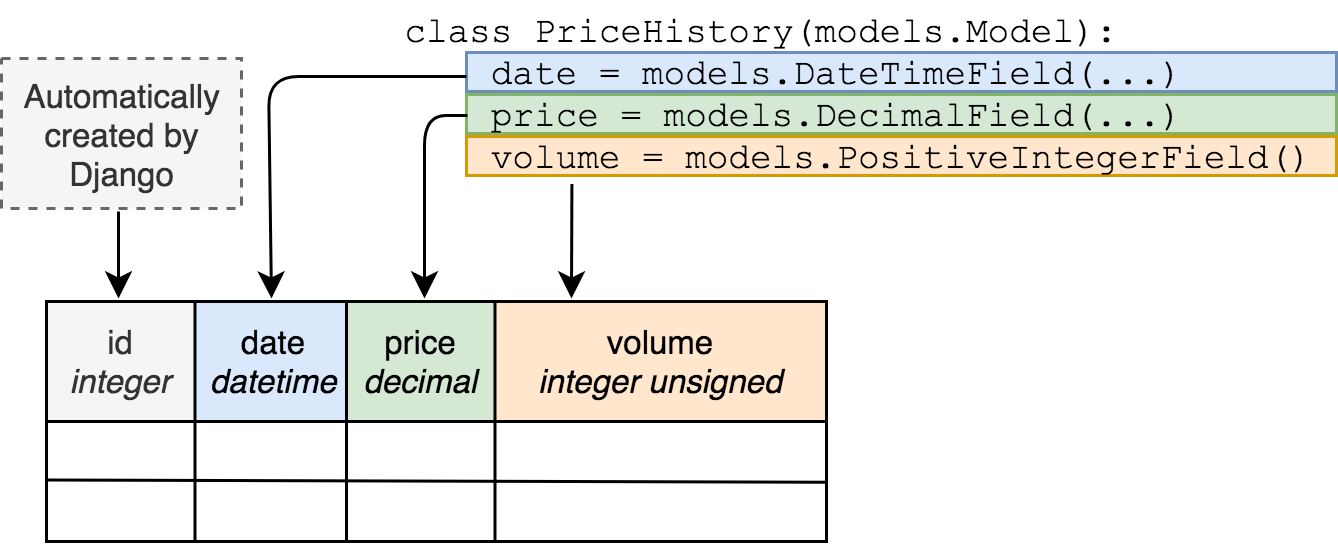
Migrations are Python files that Django generates. Each file contains the instructions needed to apply changes to the database, like creating a new table or adding a new column.
To understand why this is so important, let's turn to a clear explanation from Real Python.
The article "Django Migrations: A Primer" explains the core problems that migrations solve. Reading this will give you a solid understanding of why this feature is a cornerstone of the framework.
Read the section titled "The Problems That Migrations Solve". Focus on these key benefits: Making Database Changes Without SQL: You can manage your database schema using Python, not raw SQL. Ensuring Synchronization: All developers on a team (and your production server) can have a database schema that perfectly matches the models. Tracking Changes: Since migration files are just code, you can track them in version control (like Git) just like any other part of your project.
In short, migrations automate the tedious and error-prone process of keeping your database schema in sync with your application's code.
2. The Two-Step Migration Workflow
The migration process in Django is a simple, two-step workflow. You will use these two commands constantly.
makemigrations: Scans your models for changes and creates new migration files.migrate: Applies any unapplied migrations to the database.
Let's apply this to the Task model you created in the last lesson.
Step 1: makemigrations – Creating the Blueprint
First, we need to tell Django to inspect our tasks app, see the new Task model, and create a migration file for it.
Open your terminal, make sure you are in the root directory of your project (where manage.py is), and run the following command:
python manage.py makemigrations tasks
You should see output similar to this:
Migrations for 'tasks':
  tasks/migrations/0001_initial.py
    - Create model Task
What just happened?
- Django looked at your
tasksapp. - It noticed the
Taskmodel exists but there's no migration for it yet. - It created a new directory,
tasks/migrations/, if it didn't exist. - Inside, it generated a new file,
0001_initial.py. This file contains the Python code that describes how to create theTasktable in the database.
At this point, your database has not been changed yet. We have only created the blueprint for the change.
Step 2: migrate – Applying the Changes
Now that we have our migration file, we can apply it to the database. Run the following command:
python manage.py migrate
This time, you'll see a lot more output, something like this:
Operations to perform:
  Apply all migrations: admin, auth, contenttypes, sessions, tasks
Running migrations:
  Applying contenttypes.0001_initial... OK
  Applying auth.0001_initial... OK
  Applying admin.0001_initial... OK
  ... (many more lines for Django's built-in apps) ...
  Applying tasks.0001_initial... OK
  Applying sessions.0001_initial... OK
What just happened?
- Django looked for any migrations that haven't been applied yet across all of your installed apps.
- Since this is our first time, it found migrations for Django's built-in apps (
admin,auth, etc.) and our new migration for thetasksapp. - It ran all of them, executing the necessary SQL commands to create all the tables.
Your database now contains a tasks_task table with columns corresponding to the fields you defined in your Task model (id, title, description, completed, created_at). Congratulations, your model is now reflected in the database!
For a quick visual recap of this two-step process, the following video from Net Ninja is excellent.
Django Tutorial #7 - Migrations
Watch these short clips from the "Django Tutorial #7 - Migrations" by Net Ninja. They concisely demonstrate the makemigrations and migrate commands in action.
Watch from 02:28 to 04:37. This covers: Running makemigrations to generate the migration file for a new model. Running migrate to apply that change to the database.
Test your understanding!
What is the key difference between the makemigrations and migrate commands? If you ran makemigrations but forgot to run migrate, would your application be able to save a new Task to the database?
Show answer
The makemigrations command creates the Python files that describe the database changes, but it does not alter the database itself.
The migrate command reads those files and applies the changes to the database.
If you only ran makemigrations, the application would fail if it tried to save a Task because the tasks_task table would not exist in the database yet. You would likely get an OperationalError.
3. Managing Schema Changes
Your application requirements will evolve, and so will your models. This is where the migration system truly shines. Let's say you decide that tasks should have an optional due date.
First, update your model. Open tasks/models.py and add a DateField. Let's also add an ordering Meta class to sort tasks by their creation date by default. Your file should now look like this:
# tasks/models.py

from django.db import models
from django.utils import timezone # Import timezone

class Task(models.Model):
    title = models.CharField(max_length=200)
    description = models.TextField(null=True, blank=True)
    completed = models.BooleanField(default=False)
    created_at = models.DateTimeField(auto_now_add=True)
    due_date = models.DateField(null=True, blank=True) # New field

    def __str__(self):
        return self.title

    class Meta:
        ordering = ['created_at'] # New Meta class
Note: We've made due_date optional with null=True, blank=True because our existing tasks in the database won't have a value for it.
Now your model definition is out of sync with your database schema. To fix this, we simply repeat the two-step workflow.
-
Run
makemigrationsagain:python manage.py makemigrations tasksDjango will detect the new
due_datefield and generate a new migration file:Migrations for 'tasks': tasks/migrations/0002_task_due_date.py - Add field due_date to task -
Run
migrateagain:python manage.py migrateDjango sees the new, unapplied
0002_...migration and applies it:Operations to perform: Apply all migrations: admin, auth, contenttypes, sessions, tasks Running migrations: Applying tasks.0002_task_due_date... OK
That's it! Django automatically handled the ALTER TABLE SQL command to add the new due_date column to your tasks_task table. This simple, repeatable process is how you'll manage all future changes to your database schema.
4. Peeking Under the Hood (Optional)
You don't need to know SQL to use Django, but understanding the connection between the ORM and the database is valuable. Django provides commands to inspect the migration process.
showmigrations: Lists all migrations in your project and shows which ones have been applied with an[X].sqlmigrate: Shows the actual SQL that a specific migration will run.
Let's see the SQL for the migration we just created. Run this command (you may need to adjust the migration number if yours is different):
python manage.py sqlmigrate tasks 0002
This will output the raw SQL statement, which for SQLite will look something like this:
--
-- Add field due_date to task
--
ALTER TABLE "tasks_task" ADD COLUMN "due_date" date NULL;
COMMIT;
This confirms that Django is simply automating the SQL you would have otherwise had to write manually. The following video provides a great visual walkthrough of these useful commands.
Django - What are migrations - actually? Introduction to migrations and the Django database
This video from Very Academy, "Django - What are migrations - actually?", does an excellent job of exploring what happens behind the scenes. Watching this segment will clarify the link between migrations and SQL.
Watch the following two clips: 23:42 - 25:03: This part introduces the showmigrations command, which helps you see the status of all migrations in your project. 27:48 - 29:08: This part demonstrates the sqlmigrate command, showing you the exact SQL generated from a migration file that alters a table.
Conclusion
You've just mastered one of the most fundamental and powerful features of Django. By understanding and using migrations, you can confidently evolve your application's data structure in a safe, repeatable, and automated way.
Key Takeaways:
- Migrations are Django's way of keeping your database schema synchronized with your
models.pyfiles. - The core workflow is a two-step process:
python manage.py makemigrationsto generate migration files from your model changes.python manage.py migrateto apply those changes to the database.
- This workflow is used both for creating initial tables and for applying subsequent changes (like adding or removing a field).
- Commands like
showmigrationsandsqlmigratecan help you inspect and understand the migration process.
Preview of the Next Lesson:
Our Task model is now set up, but most real-world applications have data that relates to other data. For example, a task in our app will eventually need to belong to a specific user. In the next lesson, we'll explore how to create these relationships between models using fields like ForeignKey and ManyToManyField.