In our last session, we looked at the big picture, establishing that HTML's primary role is to provide structure and meaning to web content. You learned that we achieve this by wrapping our content in special markers. Today, we'll zoom in and get precise with our terminology. This is crucial because, in web development, precision matters.
This lesson will define and differentiate between the three fundamental building blocks of HTML: tags, elements, and attributes. Mastering these concepts is like learning the basic grammar of a language; once you understand the rules, you can start building sentences—or in our case, web pages.
Tags: The Building Blocks
In the previous lesson, you saw tags like <p> and </p>. These are the most basic syntactic feature of HTML. A tag is a marker enclosed in angle brackets (<>) that tells the browser where a piece of content starts and ends.
Most tags come in pairs:
- An opening tag, like
<h1>, marks the beginning of a piece of content. - A closing tag, like
</h1>, marks the end. The closing tag is identical to the opening tag but includes a forward slash (/) before the tag name.
Elements: The Complete Structure
While people often use the terms "tag" and "element" interchangeably, they have distinct meanings. An element is the entire unit, which consists of the opening tag, the content it contains, and the closing tag.
So, <p> is an opening tag, but the following entire line is a complete paragraph element:<p>This is a paragraph.</p>
The relationship can be summarized with a simple formula:
Opening Tag + Content + Closing Tag = Element
This distinction is important. A tag is just the marker, while the element is the whole structural component of the page, including the content it affects. The image below, from the Mozilla Developer Network, provides a clear visual breakdown.
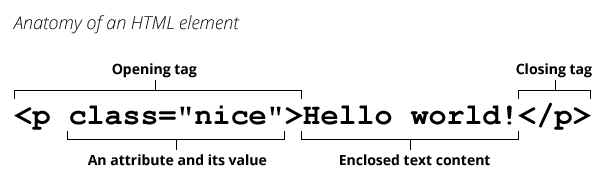
To solidify these definitions, please review the following short article.
HTML Tags vs Elements vs Attributes: The Core Concepts Explained | Projectworlds
This article from Projectworlds provides clear, concise definitions for tags and elements.
Please read the first two sections, Tags: The Building Blocks and Elements: The Complete Structure. Focus on the distinction between a tag as a marker and an element as the complete unit.
Empty Elements
Some elements are "self-contained" and don't wrap around content. These are called empty elements (or sometimes void elements). They consist of a single tag and do not have a closing tag because they don't contain any text or other elements. You've already seen an example in our future lessons' syllabus: the <img> tag for images. Another common one is <br> for a line break.
The following video quickly explains the difference between regular elements that have closing tags and these empty elements.
3: Learn About HTML Elements and Attributes | Learn HTML and CSS | Learn HTML & CSS Full Course
In this video, Dani Krossing clarifies the difference between regular and empty HTML elements.
Watch the short segment from the beginning of the video. Pay attention to the distinction she makes between elements that have opening and closing tags and those that do not.
Attributes: Providing Extra Information
The final piece of our HTML grammar is the attribute. An attribute provides additional information, configuration, or functionality for an element. Attributes are always placed inside the opening tag and are written as name/value pairs.
The syntax is always: name="value"
Let's consider a hyperlink, which is created with an <a> element. The <a> tag by itself tells the browser "this is a link," but it doesn't say where the link should go. We provide that crucial piece of information with an attribute. The href (hypertext reference) attribute specifies the destination URL.
Here is a complete hyperlink element:<a href="https://www.mozilla.org">Visit the MDN website</a>
Let's break this down:
- Element: The entire line of code.
- Tags: The opening tag is
<a href="https://www.mozilla.org">and the closing tag is</a>. - Attribute:
href="https://www.mozilla.org"is the attribute.hrefis the attribute's name, and"https://www.mozilla.org"is its value. - Content: The text "Visit the MDN website" is what the user sees and clicks on.
The following video segment demonstrates how attributes add functionality, using the title attribute as an example to create a tooltip.
In this segment from his "Learn HTML in 1 hour" course, Bro Code explains and demonstrates attributes.
Watch from this timestamp. He first demonstrates the essential href attribute for a link and then adds the title attribute to show how it provides extra, optional information.
Tying It All Together
Understanding the relationship between these three concepts is key. A helpful way to think about it is that elements are the objects on your page, tags are the syntax you use to create them, and attributes are the settings you use to configure them.
The article from GeeksforGeeks provides a useful table that summarizes the differences.
Tags vs Elements vs Attributes in HTML - GeeksforGeeks
This article provides a direct comparison of the three concepts.
Focus on the table under the heading Tags vs Elements vs Attributes difference. This table is a great reference to quickly review the key distinctions between tags, elements, and attributes.
Conclusion
In this lesson, we dissected the core grammar of HTML. You now have precise definitions for the fundamental components you will use to build every web page.
Key Takeaways:
- Tags are the markers with angle brackets (
<>) that define the start and end of content. They come in opening (<p>) and closing (</p>) pairs. - Elements are the complete structural units, consisting of an opening tag, the content, and a closing tag. Some "empty elements" like
<img>have only a single tag. - Attributes provide extra information or settings for an element. They are always located in the opening tag and use a
name="value"format (e.g.,href="some-url").
With this foundational vocabulary established, you are ready to start setting up your tools. In the next lesson, we will install and configure a code editor, the professional software you'll use to write your HTML code efficiently.