In our previous lessons, you've set up your code editor and created a minimal, valid HTML document, complete with a proper title and character set. You now have an index.html file on your computer, but so far, you've only seen it as code. The goal of this lesson is to bridge the gap between the code you write and the final webpage a user sees. We'll explore how to open your local HTML file in a web browser to view it as a live page.
This is a fundamental skill in web development. The cycle of writing code, viewing the result in a browser, and refining your work is at the heart of the entire process. We'll start with simple, manual methods and then introduce a professional tool that will dramatically speed up your workflow.
From Code to Visuals: The Browser's Role
First, it's important to understand what happens when you "open" an HTML file. Your index.html file is, at its core, just a plain text document. It contains instructions written in the language of HTML. A web browser, such as Google Chrome, Firefox, or Safari, is a specialized program designed to read these instructions, interpret the tags, and render a visual representation of the document—a webpage.
Today, you will take the index.html file you created in your vscode101 folder and instruct a browser to render it.
Opening Your HTML File Manually
There are several straightforward ways to open a local file in your browser. All of them begin with locating the file on your computer using your operating system's file manager (File Explorer in Windows or Finder in macOS).
Let's review two of the most common and reliable methods. The following article provides a good overview.
How to Open an HTML File in Google Chrome
This article from Tiiny.host clearly explains several ways to view your local HTML files. We will focus on the two most direct methods.
Please read the following two sections: Start with Drag and Drop. This is often the most intuitive method. Next, read Right-Click "Open With". This method gives you explicit control over which browser to use.
Hands-On: Viewing Your Page
Now, let's put this into practice with your index.html file.
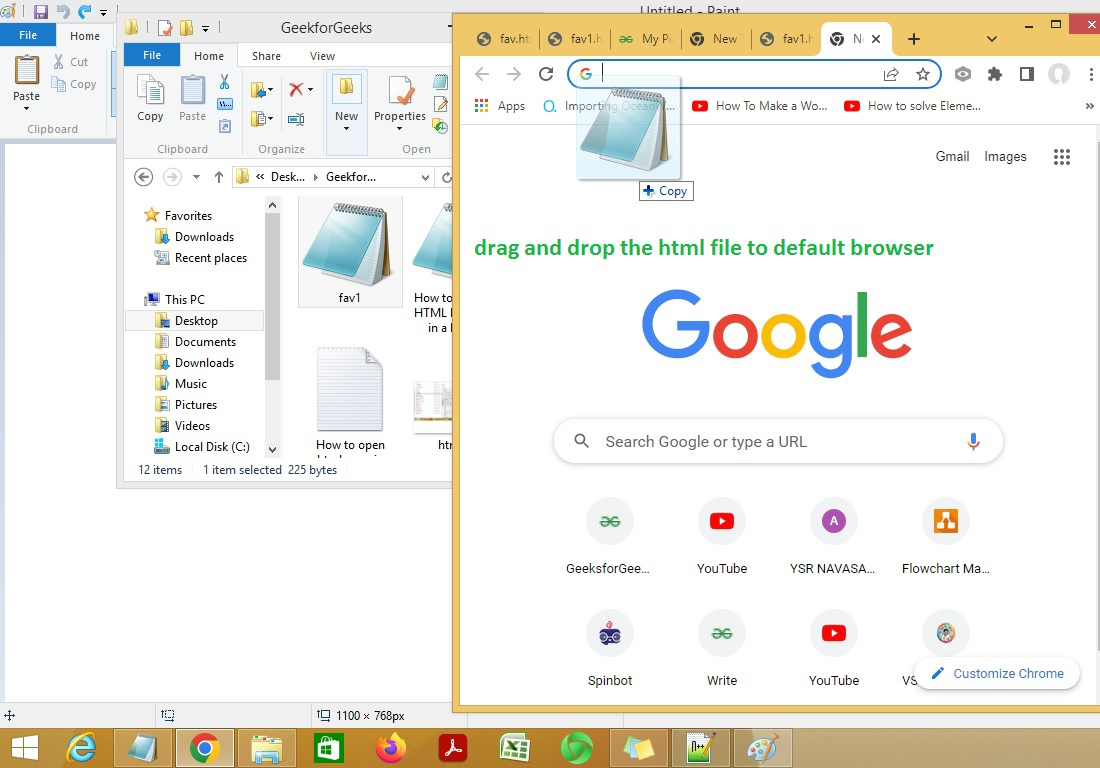
1. Using Drag and Drop:
- Open your computer's file manager and navigate to the
vscode101folder you created earlier. You should see yourindex.htmlfile inside. - Open your web browser (e.g., Google Chrome) in a separate window.
- Click and drag the
index.htmlfile from your file manager directly into the browser window, then release the mouse button.
2. Using "Open With":
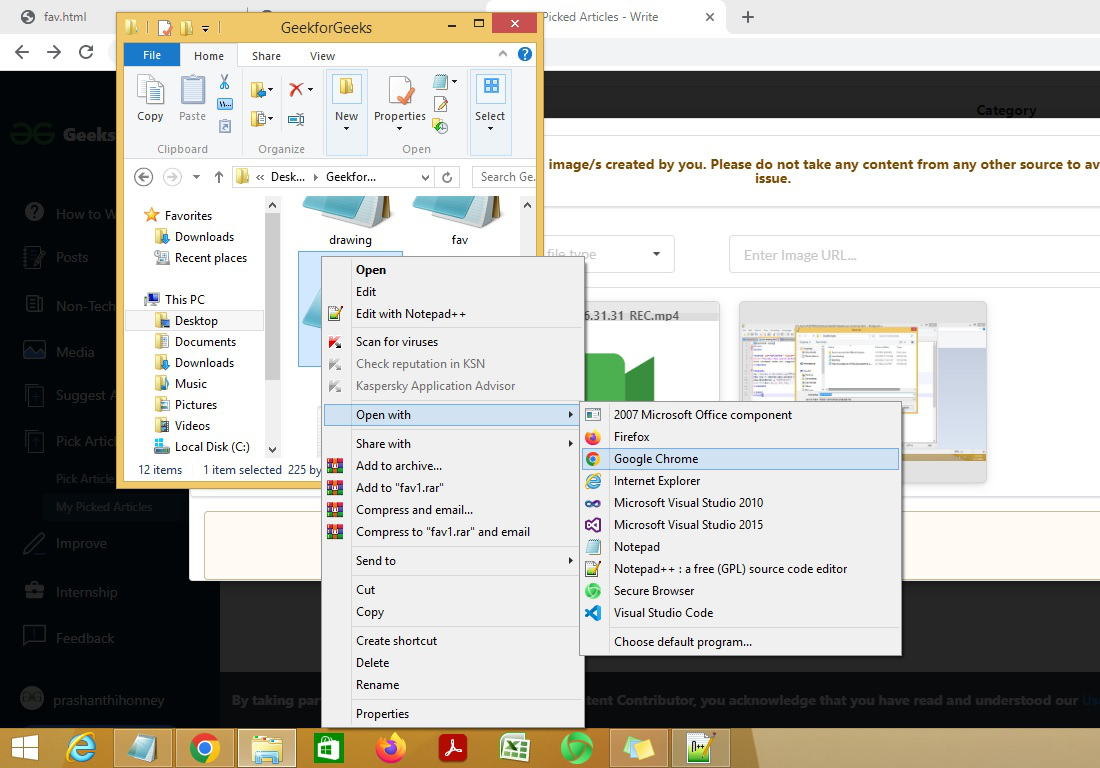
- In your file manager, navigate to your
index.htmlfile. - Right-click on the
index.htmlfile. - From the context menu that appears, hover over "Open with" and select your preferred web browser from the list.
After using either method, you should see your webpage. It will be a blank white page, but look closely at the browser tab. It should say "My First Web Page"—the title you set in the last lesson! Also, notice the address bar. It will show a local file path, beginning with file:///.
A Professional Workflow: The Live Server Extension
Manually opening your file is simple enough, but the process quickly becomes tedious. Every time you make a change to your code, you have to:
- Save the file in VS Code.
- Switch to your browser.
- Manually refresh the page to see the update.
This slows down your feedback loop. Modern web development uses tools to automate this. For VS Code, the most popular tool for this is the Live Server extension. It launches a small web server on your computer and automatically reloads your webpage in the browser every time you save your file.
The following video provides an excellent demonstration of why Live Server is so useful and how to get it running.
This video by The Coding Sloth introduces the Live Server extension and shows exactly how it improves the development process.
First, watch the brief introduction explaining the extension's purpose. Then, skip ahead and watch the detailed walkthrough of installing and using Live Server, starting from the "Go Live" button.
Hands-On: Setting Up Live Server
Let's set up this professional workflow for yourself.
-
Install the Extension:
- In VS Code, click on the Extensions icon in the Activity Bar on the left (it looks like four squares).
- In the search bar, type
Live Server. - The top result should be an extension by Ritwick Dey. Click the
Installbutton next to it.
-
Launch Your Page:
- Once installed, open your
index.htmlfile in VS Code. - Look at the blue status bar at the bottom of the VS Code window. You should see a new button that says
Go Live. - Click
Go Live.
- Once installed, open your
Your default browser should automatically open a new tab with your index.html page. This time, notice the address bar. It will show an address like http://127.0.0.1:5500/index.html. This indicates your page is being served by the local server, not just opened as a file.
- See the Magic:
- Arrange your VS Code and browser windows side-by-side.
- In
index.html, inside the<body>tags, type the textHello, world!. - Save the file (
Ctrl+SorCmd+S).
Watch your browser window. The moment you save, the page should refresh on its own, and "Hello, world!" will appear. You've just created a seamless, real-time development environment!
Conclusion
In this lesson, you successfully viewed your HTML code as a real webpage. You learned both the basic manual methods for opening a local file and a more advanced, automated workflow used by professionals.
Key Takeaways:
- A web browser's job is to interpret an HTML file and render it as a visual webpage.
- You can open a local HTML file manually using methods like drag-and-drop or the "Open With" menu.
- When viewing a local file directly, the URL in the address bar starts with
file:///. - The Live Server extension for VS Code automates the development process by creating a local server and auto-refreshing the browser on save. This is the recommended workflow.
Now that you can see your page, the next step is to understand its structure from the browser's perspective. In our next lesson, we will explore how to use browser developer tools to inspect the HTML of any webpage, which is an essential skill for debugging and learning.