Hello! Welcome to your third lesson.
In our last session, we explored the "map" of the Linux world—the Filesystem Hierarchy Standard (FHS). You learned the purpose of key directories like /etc, /home, and /var. You now know what these places are for.
Today, we'll learn how to get around. This lesson focuses on the learning outcome: Navigate the Linux file system using cd, ls, and pwd commands. These three commands are the absolute foundation of command-line navigation. Mastering them will allow you to move confidently through the directory structure you just learned about, making them some of the most frequently used commands in your toolkit.
1. Where Am I? The pwd Command
Before you can navigate, you need to know your starting point. In the Linux terminal, your location is called the "working directory." The pwd command is your "You Are Here" sign.
pwd stands for print working directory. When you run it, the system tells you the full, or absolute, path from the root directory (/) to your current location.
pwd
The output might look something like /home/yourusername.
Let's get a more formal introduction to pwd and the basic structure of the filesystem.
Lesson 1 - Using Directories and Listing Files
The Linux Professional Institute provides a concise explanation of basic navigation concepts. This reading will introduce pwd and set the stage for our next commands.
Please read the section titled 'Getting Current Location'. It's short and will clearly explain how pwd works and how your current location is represented.
2. What's Here? The ls Command
Once you know where you are, you'll want to see what's in the directory with you. The ls command lists the contents of a directory.
In its simplest form, ls shows you the names of files and subdirectories.
ls
However, ls becomes much more powerful when you use options (also called flags or switches) to modify its behavior. Two of the most important options are -l and -a.
ls -l: The-loption provides a long listing format, showing detailed information.ls -a: The-aoption shows all files, including hidden files (those whose names start with a.dot).

To see these options in action and learn how to combine them, let's watch a video demonstration.
Terminal Commands Lesson 01 - pwd, cd, ls, man, --help
This clip from DistroTube demonstrates the ls command and its most common options. Pay attention to how the -a and -l flags change the output and how they can be combined.
Watch from 06:23 to 09:58. The video covers the basic ls command, the -a flag for hidden files, the -l flag for a long listing, and how to combine them into ls -la.
As the video showed, you can combine options like ls -l -a or, more commonly, ls -la. This is one of the most useful combinations for getting a complete, detailed view of a directory's contents.
3. How Do I Move? The cd Command
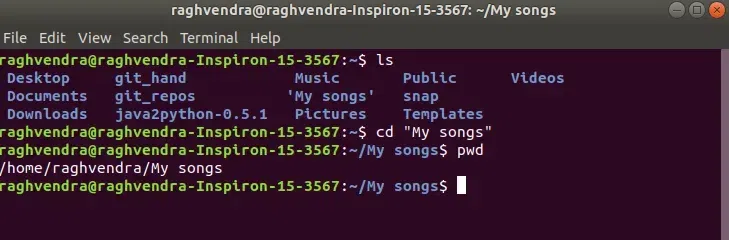
Now that you can see where you are and what's around you, it's time to move. The cd command, which stands for change directory, is your tool for navigation.
To use it, you type cd followed by the path to the directory you want to move to.
# Example: move into a directory named 'Documents'
cd Documents
Paths and Shortcuts
A "path" is the address of a file or directory. As we prepare for the next lesson, it's useful to know there are two main types of paths, and cd can use both. The LPI reading below gives a great analogy to understand the difference.
Lesson 1 - Using Directories and Listing Files
This section of the LPI article explains the crucial difference between an absolute path and a relative path, and introduces some essential navigation shortcuts.
Read the sections 'Changing Current Directory', 'Absolute and Relative Paths', and 'Special Relative Paths'. This will introduce you to cd and the shortcuts . (current directory) and .. (parent directory).
To summarize and add one more critical shortcut, here are the special characters for navigation:
~(Tilde): A shortcut for your personal home directory (e.g.,/home/yourusername). Typingcdwith no path at all also takes you home..(Single Dot): Represents the current directory you are in...(Double Dot): Represents the parent directory (one level up).
This next video demonstrates how to use cd with both directory names and these powerful shortcuts.
Navigating The Linux Terminal (pwd, ls & cd) - The Basics!
This clip from NCSU BIT visually demonstrates the cd command and the use of the special path shortcuts.
Watch from 08:14 to 11:57. The video shows how to change into a subdirectory, use a full (absolute) path, and then explains and demonstrates the ~, ., and .. shortcuts.
4. Putting It All Together: A Navigation Workflow
Theory is great, but practice is what builds skill. Let's walk through a typical navigation sequence. Please open the terminal on your Linux system and follow along.
-
Go Home: First, let's make sure we have a known starting point. Go to your home directory.
cd ~Alternatively, just
cdby itself does the same thing. -
Confirm Your Location: Use
pwdto verify you are in your home directory.pwd # Expected output: /home/yourusername -
Explore Your Surroundings: See what's in your home directory with a detailed, all-inclusive list.
ls -la -
Move to a System Directory: Let's navigate to the directory for system configuration files, which you learned about in the last lesson. We will use its absolute path.
cd /etc -
Look Around: Now that you're in
/etc, list its contents. You'll see many configuration files.ls -
Move Up a Level: Now, let's move "up" from
/etcto its parent directory, which is the root (/) directory. We'll use a relative path for this.cd .. -
Confirm Again: Check your location. You should now be at the very top of the filesystem.
pwd # Expected output: / -
Return Home Instantly: From anywhere in the filesystem, you can get back to your home directory with a single command.
cdRun
pwdone last time to confirm you're back where you started.
This simple sequence—pwd to check, ls to look, cd to move—is a loop you will perform countless times as you work with Linux.
Test your understanding!
You are currently in the /usr/share/doc directory. Answer the following two questions:
- What is the single shortest command to navigate to the
/usr/bindirectory? - From
/usr/bin, what is the single shortest command to navigate back to/usr/share/doc?
Show answer
-
The shortest command is
cd ../../bin...takes you fromdocup toshare.../..takes you fromdocup tousr.- From
usr, you can then go down intobin.
-
The shortest command is
cd ../share/doc...takes you frombinup tousr.- From
usr, you can go down intoshareand then intodoc.
Conclusion
Great job! You have just mastered the three most fundamental commands for finding your way around the Linux command line. These commands are the building blocks for almost everything else you will do.
Key Takeaways:
pwd(Print Working Directory): Tells you your current absolute path.ls(List): Shows the contents of a directory. Usels -lfor details andls -ato include hidden files. These are often combined asls -la.cd(Change Directory): Moves you to another directory.- Navigation Shortcuts:
~orcdalone takes you to your home directory...moves you to the parent directory./at the beginning of a path always starts from the root.
In our next lesson, we will expand on what you learned today by taking a deeper dive into absolute and relative paths. You'll master how to reference any file or directory from anywhere on the system, a critical skill for writing scripts and managing files efficiently.