Hello! Welcome back to our course.
In the last lesson, you learned how to use fundamental commands like whoami, uname, and uptime to get your bearings and understand the user and system context. You now know how to answer the question, "Who and what is this system?"
Today, we move on to a new question: "Where are things located on this system?" This lesson addresses the learning outcome: Explain the purpose of standard directories in the Filesystem Hierarchy Standard (FHS). We will explore the "map" of the Linux filesystem, a standardized layout that brings order and predictability to every Linux distribution. Understanding this structure is a cornerstone of Linux administration and is essential for passing the CompTIA Linux+ exam.
1. The "Why": Introducing the Filesystem Hierarchy Standard (FHS)
Imagine moving into a new city where every house puts its mailbox in a different place—some on the porch, some by the street, some on the roof. It would be chaos for the mail carrier! The Filesystem Hierarchy Standard (FHS) is the "zoning code" for Linux that prevents this kind of chaos. It defines a common set of directories and specifies what kind of files should go into each one.
This standardization, maintained by the Linux Foundation, is incredibly important because it means that:
- System administrators can find configuration files or logs in the same place, regardless of whether they're using Ubuntu, Fedora, or another distribution.
- Software developers can create applications that know where to install their components and find necessary libraries.
- You, as a learner, can apply your knowledge of the filesystem structure across virtually any Linux system you encounter.
Everything in Linux starts from a single top-level directory called the root directory, represented by a forward slash (/). Unlike other operating systems you might have heard of that use drive letters (like C:), Linux organizes everything into a single, unified tree structure branching from this root.

2. A Video Tour of the Linux Filesystem
To get a comprehensive overview of the most important directories, let's start with a well-structured video walkthrough. The video groups directories into logical categories, which is a great way to understand their relationships.
Linux File System Structure Explained: From / to /usr | Linux Basics
The video 'Linux File System Structure Explained' by WhiteboardDoodles provides an excellent animated tour of the FHS. It clearly explains the purpose of each major directory.
Please watch the video from the beginning until 16:27. Pay close attention to the purpose assigned to each directory, as this is the core of today's lesson. You can skip the final summary (from 16:27 onwards) as we'll cover that together.
3. Key Directories by Function
The video gave you a great tour. Now, let's solidify that knowledge by reviewing the directories grouped by their function. This will help you build a mental model of the system's layout.
The article "Classic SysAdmin: The Linux Filesystem Explained" from the Linux Foundation provides a great narrative walkthrough of these directories.
Classic SysAdmin: The Linux Filesystem Explained
To reinforce the video's content and get another perspective, please read the core section of this article from the Linux Foundation.
Please read the 'Directories' section. It starts with an explanation of /bin and ends with /var. This will give you a detailed description of each directory's role.
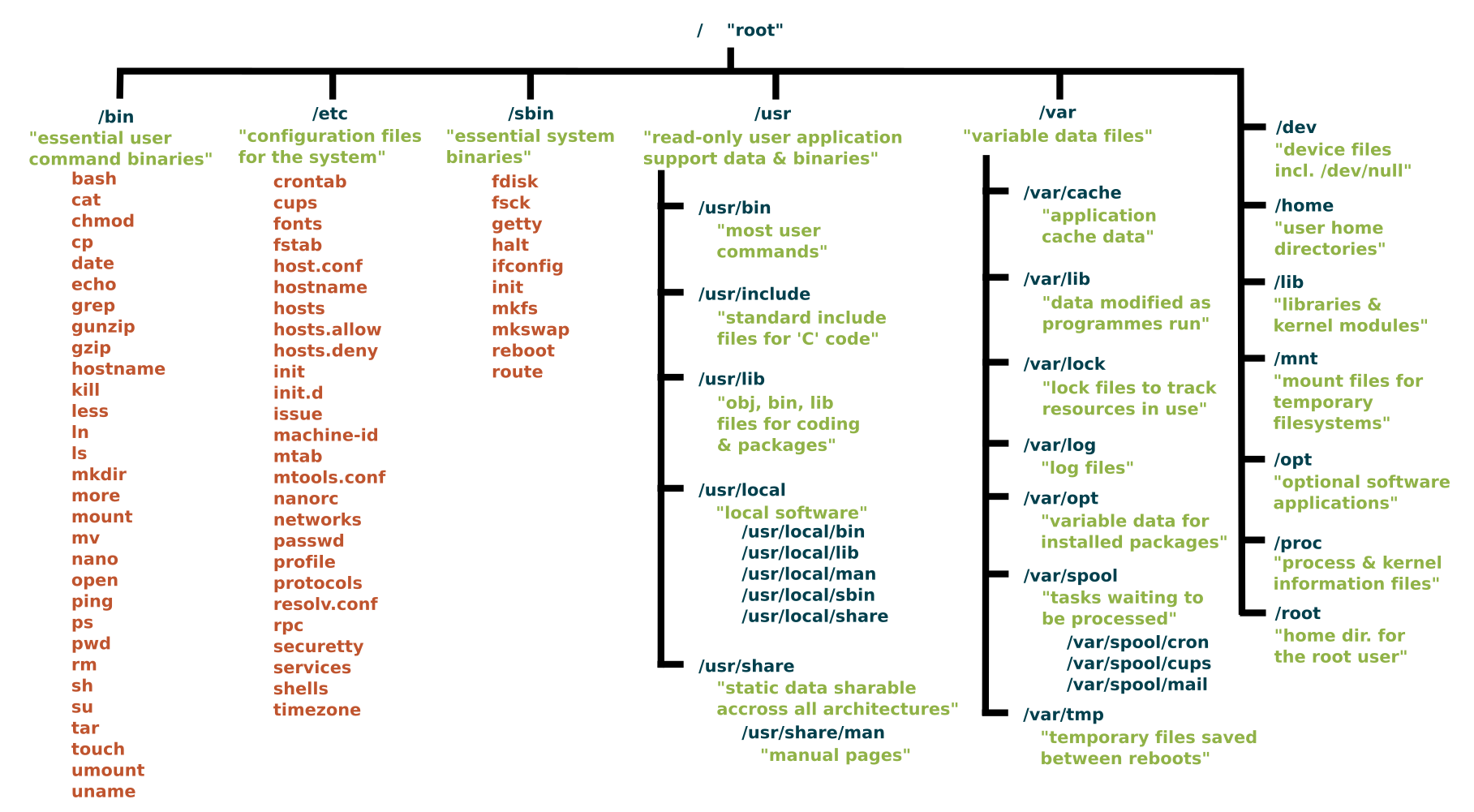
Now, let's organize the most critical directories from the FHS into logical groups.
Group 1: Core System & Executables
These directories contain the essential commands and system binaries needed for the system to boot and be functional, even in a minimal recovery mode.
/bin: Binaries. Essential user commands available to all users (e.g.,ls,cp,mv)./sbin: System Binaries. Essential system administration commands, typically reserved for the root user (e.g.,fdisk,reboot)./lib: Libraries. Shared libraries required by the binaries in/binand/sbin.
Group 2: System Configuration & Boot Files
These directories manage how the system is configured and how it starts up.
/etc: Et Cetera / Editable Text Configurations. This is the nerve center for system-wide configuration files (e.g., user passwords, network settings, software configurations)./boot: Boot Files. Contains the Linux kernel, bootloader configuration (GRUB), and other files critical for starting the operating system. This is a sensitive directory; never modify files here unless you know exactly what you are doing.
Group 3: User & Application Data
These directories store personal files and installed software.
/home: Home Directories. Contains a personal directory for each regular user. This is where you'll store your documents, downloads, and personal configuration files./root: Root's Home. The personal home directory for the superuser (root). It's separate from/homefor security and to ensure the root user can log in even if/homeis on a separate, unavailable partition./usr: Unix System Resources. Contains the majority of user-installed software, their libraries, and documentation. It has its ownbin,sbin, andlibsubdirectories for non-essential programs./opt: Optional. Reserved for add-on software from third-party vendors that doesn't follow the standard FHS structure (e.g., Google Chrome, Slack).
Group 4: Variable & Temporary Data
These directories are for files that are expected to change or grow in size.
/var: Variable. For files that change during system operation, such as logs (/var/log), caches, and mail spools./tmp: Temporary. A world-writable directory for temporary files created by applications. Files here are usually deleted upon reboot./run: Runtime. A temporary filesystem for runtime data from system processes, such as process IDs (PIDs). It is cleared on reboot.
Group 5: Devices & Mount Points
These directories are used to interact with hardware and attach other filesystems.
/dev: Devices. Contains special "device files" that represent hardware components like hard drives (/dev/sda), keyboards, and mice./media: Media. The standard location where modern systems automatically mount removable media like USB drives and SD cards./mnt: Mount. A generic mount point for system administrators to temporarily mount filesystems manually.
Group 6: Virtual Filesystems
These are not real directories on the disk but are created in memory by the kernel to provide information about the system's state.
/proc: Processes. Provides a view into running processes and kernel information./sys: System. An interface to interact with kernel drivers and hardware.
Test your understanding!
You've downloaded a proprietary application (e.g., a specific piece of scientific software) that comes as a self-contained folder. According to the FHS, which top-level directory is the most appropriate place to install it to keep it separate from the main system software?
Show answer
The /opt directory is the correct place. It is designated for optional, add-on software packages that don't follow the standard file placement rules.
4. Practical Exploration
Your preference for hands-on work is key to mastering Linux. Let's apply what you've learned. The Linux Foundation article you read mentioned the tree command. It's not installed by default, but it's perfect for visualizing the directory structure.
-
Install
tree:
In your terminal, run the following command to install it:sudo apt update && sudo apt install treeYou'll be prompted for your password. This is an example of using a package manager, which we'll cover in detail later.
-
View the Top Level:
Now, run this command to see the first level of your filesystem:tree -L 1 /The
-L 1option tellstreeto only show "Level 1" of the hierarchy. You should see a list that matches the directories we've just discussed! -
Peek Inside:
Use thelscommand to look inside a few key directories and see the theory in practice. Try these:ls /bin(See the essential commands)ls /etc(Notice the many configuration files)ls /home(You should see your own user directory here)
Test your understanding!
A web server is running on your Linux machine, and you need to check its error logs to diagnose a problem. Based on the FHS, in which directory's subfolders would you most likely start looking for these log files?
Show answer
You would start in the /var directory, specifically within /var/log. This is the standard location for system and application log files.
Conclusion
Excellent work! You've just covered one of the most fundamental concepts in Linux. Understanding the "why" and "where" of the Filesystem Hierarchy Standard is crucial for becoming a competent Linux user and administrator.
Key Takeaways:
- The Filesystem Hierarchy Standard (FHS) provides a consistent layout for all Linux distributions.
- Everything starts at the root (
/) directory. - Directories are grouped by function: core binaries (
/bin,/sbin), configuration (/etc), user data (/home), applications (/usr,/opt), variable data (/var), and more. - Virtual filesystems like
/procand/devprovide a special interface to the kernel and hardware.
You now have the map of the Linux filesystem. In our next lesson, we'll learn how to use that map. We will cover the essential navigation commands—cd, ls, and pwd—that allow you to move around the filesystem, list contents, and always know where you are.