Hello! Welcome to your fourth lesson.
In our last session, you got your bearings with the fundamental navigation commands: pwd, ls, and cd. We briefly touched on the idea of paths and special shortcuts like ~ and ...
Today, we will master the concept of paths. This lesson directly addresses the learning outcome: Use absolute and relative paths to reference files and directories. Understanding how to construct and use paths is one of the most critical skills for working on the command line. It's the "GPS" of your filesystem, allowing you to tell any command exactly which file or directory you want it to work with, no matter where you are.
1. The Two Types of Addresses: Absolute and Relative Paths
Every file and directory in Linux has an address, called a path. Think of it like a street address. There are two ways to describe this address:
- Absolute Path: This is the full, complete address starting from the very top of the filesystem, the root directory (
/). An absolute path is unambiguous; it points to the same location regardless of where you are currently. You can always identify an absolute path because it always begins with a forward slash (/). - Relative Path: This is a partial address that gives directions from your current working directory. A relative path is context-dependent; the same path will point to different locations depending on where you execute the command. Relative paths never begin with a forward slash (
/).
This distinction is fundamental. Let's look at a visual representation.
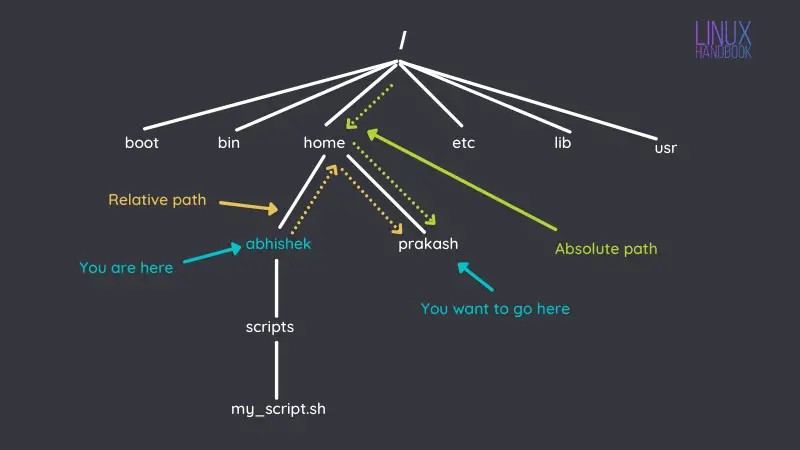
To solidify these definitions, the following reading provides a clear and concise explanation.
Linux Tutorial - 2. Master File System Navigation
This article from Ryan's Tutorials offers a great introduction to the concept of paths. Focus on how it defines and contrasts absolute and relative paths.
Please read the first two sections, 'Paths' and 'Absolute and Relative Paths'. Pay close attention to the defining characteristic of an absolute path (it starts with /).
2. Building Paths: The Special Characters
Now that you know what paths are, let's learn how to construct them using special characters. You've already seen some of these, but we'll now explore them in detail.
Absolute Paths and the Home Shortcut (/ and ~)
Absolute paths are straightforward because they always start from the same place: root (/). However, typing the full absolute path to your own files can be tedious (e.g., /home/yourusername/Documents/project.txt). This is where the tilde (~) comes in.
The shell automatically expands the ~ character into the absolute path of your home directory.
cd ~/Documentsis the same ascd /home/yourusername/Documents- You can even refer to another user's home directory with
~username(e.g.,ls ~alice/Downloads).
This video provides an excellent demonstration of absolute paths and the powerful ~ shortcut.
Linux Filesystem Basics - Structure, Navigation, Absolute and Relative-To-Home Pathnames
This video by M Heidenreich clearly explains how paths are constructed, defines absolute paths, and demonstrates the utility of the ~ shortcut.
Watch from 09:29 to 14:25. The video covers: The special meaning of the ~ character. The formal definition of 'absolute' and 'relative-to-home' paths. How to use ~ to refer to your own and other users' home directories.
Relative Paths: Navigating from Here (. and ..)
Relative paths are built using two other special directory references:
.(a single dot): Refers to the current directory...(a double dot): Refers to the parent directory (the directory one level above the current one).
These are the building blocks for most relative navigation. For example:
- If you are in
/home/user/Documentsand want to go to/home/user/Pictures, you can usecd ../Pictures. The..takes you up to/home/user, and from there you go down intoPictures. - You can chain them:
cd ../../would take you up two directory levels.
This next video focuses specifically on using . and .. to construct relative paths.
Relative and Absolute Paths - Linux Tutorial 7
Caleb Curry's tutorial provides a focused look at relative paths using the . and .. notations. This is the other major piece of the path puzzle.
Watch from the beginning to 04:56. The video demonstrates how to use . and .. with commands like ls and cd to navigate relative to your current position.
Test your understanding!
Imagine the following directory structure:/usr/local/
├── bin/
├── etc/
└── share/
└── docs/
└── app/
You are currently in the /usr/local/share/docs/app directory.
- What is the absolute path to the
bindirectory? - What is the relative path from your current location to the
etcdirectory?
Show answer
- The absolute path is
/usr/local/bin. Absolute paths are always the full path from the root (/). - The relative path is
../../../etc.- The first
..takes you fromapptodocs. - The second
..takes you fromdocstoshare. - The third
..takes you fromsharetolocal. - From
local, you can then enteretc.
- The first
3. Using Paths Efficiently
A common mistake for beginners is to cd into a directory just to run a single command, and then immediately cd back. This is inefficient. Most commands that operate on files or directories accept a path as an argument.
You can list the contents of another directory, copy a file, or edit a configuration file without ever leaving your current directory, simply by providing the correct path.
# Instead of this:
cd /etc
ls
cd - # Go back to the previous directory

# You can just do this:
ls /etc
The following clip demonstrates this exact principle of using paths with commands like ls to work more efficiently.
Linux Filesystem Basics - Structure, Navigation, Absolute and Relative-To-Home Pathnames
Let's return to the video by M Heidenreich to see a practical demonstration of using paths with commands other than cd.
Watch from 14:25 to 17:32. This segment explains how you can apply path knowledge to commands like ls to avoid unnecessary navigation.
4. When to Use Absolute vs. Relative Paths
So, which type of path should you use? The choice depends on your goal.
Absolute and Relative Pathnames in Linux
This article from GeeksforGeeks provides a clear set of guidelines for when to choose an absolute path versus a relative one.
Please read the section titled 'When to Use Absolute or Relative Path'. This will give you practical rules of thumb.
To summarize the key ideas from the reading:
Use absolute paths when:
- You need to reference a specific, fixed location, such as a system configuration file (e.g.,
/etc/fstab). - You are writing a script that needs to run from anywhere on the system and always find its target file.
- You need to ensure there is no ambiguity about the location.
Use relative paths when:
- You are working within a self-contained project (like a website or code repository). If you move the entire project folder, the relative links between files (
../images/logo.png) will not break. - You want to create portable scripts or applications.
- You are simply moving around directories close to your current location, as it often involves less typing.
Conclusion
You have now mastered one of the most essential concepts in Linux. Understanding paths allows you to precisely target any file or directory, which is the foundation for managing the entire system from the command line.
Key Takeaways:
- Absolute Path: Starts with
/, is unambiguous, and provides the full address from the root. - Relative Path: Does not start with
/, is relative to your current location, and uses.(current) and..(parent) for navigation. - The
~character is a vital shortcut to your home directory. - Use absolute paths for fixed, system-wide locations and relative paths for portability and local navigation.
- You can use paths with almost any command (
ls,cp,mv, etc.) to operate on files without having tocdthere first.
In our next lesson, we will put this knowledge into immediate practice. Now that you can reference any location, we'll learn the commands to create, copy, move, and delete files and directories, using the absolute and relative path skills you've just acquired.