Hello! Welcome to your fifth lesson in the Linux Fundamentals module.
In our last session, we mastered the "GPS" of the Linux command line: using absolute and relative paths to reference any file or directory. You learned how to construct paths with special characters like /, ~, ., and .. and why it's efficient to use paths directly with commands.
Today, we'll put that knowledge into action. Now that you can point to any location, we'll learn the commands to manipulate the filesystem itself. This lesson directly addresses the learning outcome: Create, copy, move, and delete files and directories. These commands are the fundamental tools you'll use daily to organize your work.
We will cover five core commands:
mkdir- make directorytouch- create an empty filecp- copy a file or directorymv- move or rename a file or directoryrm- remove a file or directory
1. Creating Files and Directories
First, let's learn how to create the basic building blocks of your filesystem: directories to hold things and empty files to work with.
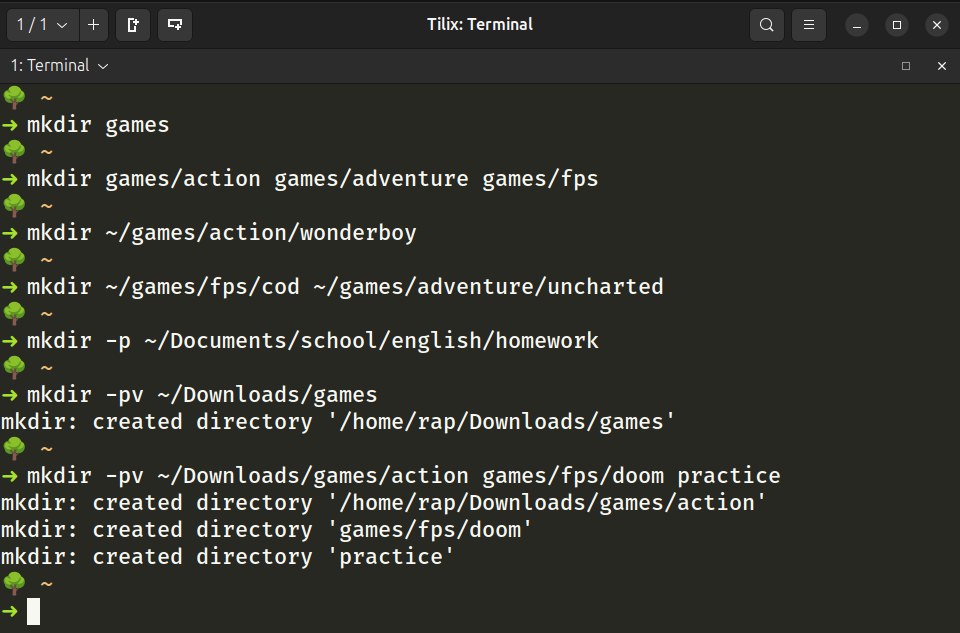
mkdir(make directory): This command creates a new directory. Its simplest form ismkdir directory_name.touch: This command's primary purpose is to update a file's timestamp, but if the file doesn't exist,touchconveniently creates a new, empty file for you.
To see these commands in action and understand their basic usage, the following video provides a clear, step-by-step demonstration. The presenter shows the commands in the terminal and the result in a graphical file manager simultaneously, which is very helpful for visualizing what's happening.
Linux/Mac Terminal Tutorial: Create, Copy, Move, Rename and Delete Files and Directories
Watch this segment from a tutorial by Corey Schafer. It will walk you through creating a directory with mkdir and an empty file with touch.
Watch from 00:51 to 02:00. Pay attention to how mkdir creates a new folder and touch creates a new, empty file within it.
Creating Nested Directories with mkdir -p
What if you want to create a directory inside another directory that doesn't exist yet? For example, creating project/assets when project doesn't exist. Running mkdir project/assets would fail.
The -p (for parent) option tells mkdir to create any necessary parent directories along the way.
# This command creates 'project', then 'assets' inside it, then 'images' inside that.
mkdir -p project/assets/images
2. Copying, Moving, and Renaming
Once you have files and directories, you'll need to organize them. This is done with the cp (copy) and mv (move) commands.
cp(copy): Creates a duplicate of a file or directory.cp source_file destination_file
mv(move): This command has a dual purpose:- It moves a file or directory to a different location.
- It renames a file or directory if the destination is in the same location but has a new name.
The syntax for both is similar: command source destination. The video below demonstrates this beautifully. It shows how mv is used for both renaming and moving, and how cp creates a duplicate.
Linux/Mac Terminal Tutorial: Create, Copy, Move, Rename and Delete Files and Directories
Let's continue with Corey Schafer's video to see how cp and mv work.
Watch from 02:00 to 04:48. Notice the key difference: after cp, the original file still exists; after mv, it does not.
Working with Directories: The -r Flag
When you want to copy a directory, you must tell cp to operate recursively—that is, to copy the directory and everything inside it. This is done with the -r flag.
cp -r source_directory destination_directory
Interestingly, the mv command does not require a -r flag to move or rename a directory. It automatically moves the directory and all its contents.
This next segment explains this crucial distinction.
Linux/Mac Terminal Tutorial: Create, Copy, Move, Rename and Delete Files and Directories
This final segment from the same video explains how to copy and move entire directories, highlighting the required -r flag for cp.
Watch from 05:41 to 09:12. Pay close attention to the error you get when you try to cp a directory without -r, and how mv handles directories without needing a special flag.
Test your understanding!
You are in your home directory (~). You have a directory named project_alpha containing a file named report.txt.
Your goal is to have a new directory structure where you have a backup of the original project and a new working version. The final state should look like this:
~/
├── project_alpha_backup/
│ └── report.txt
└── project_beta/
└── draft_report.txt
What sequence of commands would you use to get from the initial state to the final state, without using cd?
Show answer
Here is one possible solution:
cp -r project_alpha project_alpha_backup- This recursively copies the
project_alphadirectory and its contents to a new directory namedproject_alpha_backup.
- This recursively copies the
mv project_alpha project_beta- This renames the original
project_alphadirectory toproject_beta.
- This renames the original
mv project_beta/report.txt project_beta/draft_report.txt- This renames the file inside the
project_betadirectory.
- This renames the file inside the
3. Deleting Files and Directories
The final fundamental operation is deletion, which is handled by the rm command.
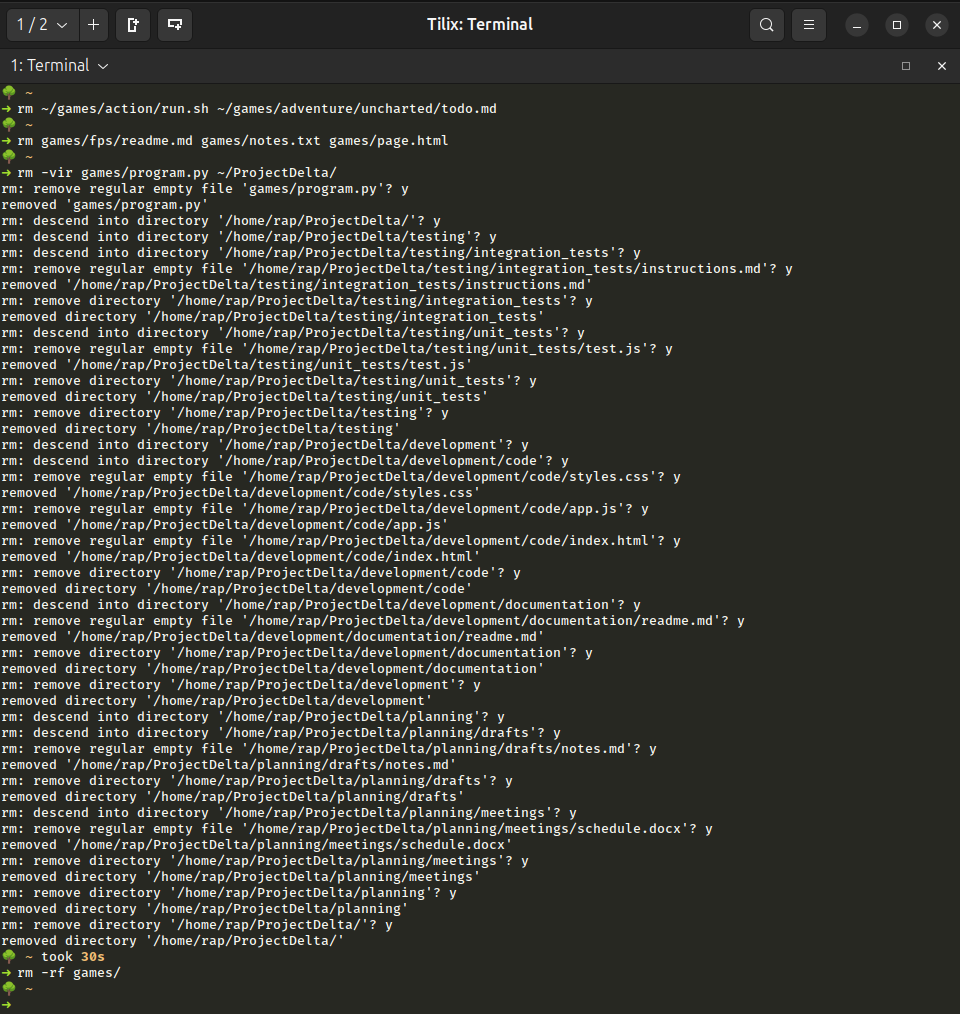
A very important warning: In the Linux command line, there is no "Trash Can" or "Recycle Bin". When you use rm, the file is gone permanently. Always double-check your rm commands before pressing Enter.
rm(remove): Deletes a file.rm file_name
rmdir(remove directory): Deletes an empty directory. It will fail if the directory contains any files or other directories.rm -r: To delete a directory and all of its contents (recursively), you use the same-rflag we saw withcp.
The last video clip demonstrates these deletion commands and reiterates the warning about their permanence.
Linux/Mac Terminal Tutorial: Create, Copy, Move, Rename and Delete Files and Directories
This clip covers file deletion with rm, empty directory deletion with rmdir, and non-empty directory deletion with rm -r.
Watch from 04:48 to 05:41 and from 09:12 to 11:03. Pay very close attention to the warnings about the rm and rm -rf commands.
The -f (force) option can be combined with -r (rm -rf) to remove files and directories without any prompts, even if they are write-protected. This is one of the most powerful and potentially destructive commands in Linux. Use it with extreme caution.
4. Summary and Reference
You've just learned the essential commands for file and directory management. To help you review, this webpage provides a concise summary table and more examples for each command.
This webpage from CIS-106 Linux Fundamentals serves as an excellent quick reference. The table at the top is particularly useful for a quick review.
Review the 'Commands reference table' at the top of the page. It summarizes the syntax and purpose of all the commands we've discussed today. You can also skim the rest of the page for more detailed examples.
Conclusion
You now have the core skills to manage the filesystem from the command line. By combining these five commands (mkdir, touch, cp, mv, rm) with your knowledge of paths from the last lesson, you can create, organize, and clean up files and directories anywhere on the system.
Key Takeaways:
- Create:
mkdirfor directories (use-pfor parents) andtouchfor empty files. - Copy:
cpfor files. Usecp -rfor directories. - Move/Rename:
mvhandles both moving and renaming for files and directories. - Delete:
rmfor files,rmdirfor empty directories. Userm -rto delete a directory and its contents. - Be Careful: The
rmcommand is permanent.rm -rfis extremely powerful and should be used with great care.
In our next lesson, we will build directly on this foundation. Instead of manipulating one file at a time, you'll learn how to use file globbing patterns and wildcards to perform batch operations on many files at once—a huge time-saver