Hello! Welcome to your next lesson in preparing for the Linux+ exam.
In our last session, we got hands-on with Access Control Lists (ACLs), using getfacl and setfacl to manage fine-grained permissions on files and directories. That was all about controlling what a user is allowed to do. Today, we shift our focus to the user's working environment itself—the settings that control how their shell and other programs behave.
This lesson addresses the learning outcome: Explain and manage user environment variables for a shell session. You'll learn what these variables are, the difference between shell and environment variables, and how to view, create, and manage them for the duration of a shell session. This is a foundational topic that affects everything from which commands you can run to how applications are configured.
1. Understanding Shell vs. Environment Variables
At its core, a variable in a shell is a named piece of data, a key-value pair, that the shell or other programs can use. For example, a variable named USER might hold the value alice.
However, not all variables are created equal. They fall into two main categories based on their scope and how they are passed to other programs.
How To Read and Set Environmental and Shell Variables on Linux
To start, let's get a precise definition of these two types of variables. This article from DigitalOcean provides a clear and concise explanation.
Read the 'Introduction' and 'How the Environment and Environmental Variables Work' sections. Focus on the definitions of Environmental variables and Shell variables and the concept of inheritance.
As you just read, the key difference is inheritance:
- Shell Variables: These are local to the shell session in which they are created. They are not passed on to any programs or new shells (child processes) that you start from your current shell.
- Environment Variables: These are global. They are inherited by any child process you launch, making them the standard way to pass configuration information to programs.
By convention, environment variables use ALL_CAPS, while shell variables that you create for temporary use should use lowercase to avoid accidentally overwriting a critical system environment variable.
2. Viewing Variables in Your Session
Before you can manage variables, you need to see what's already there. Several commands help you do this.
This short video from Microsoft Developer provides a great visual introduction to the most common commands for viewing and creating variables.
What are Environment variables? [10 of 20] | Bash for Beginners
Watch this quick overview to see the basic commands in action.
Watch the first 1 minute and 47 seconds of the video. Pay attention to: The purpose of environment variables. The env command to list all environment variables. The echo $VARNAME command to print the value of a specific variable (notice the $ prefix).
Let's summarize and expand on those commands:
printenvorenv: Lists all environment variables.set: Lists everything—environment variables, shell variables, and also any defined shell functions. The output can be very long, so you might pipe it toless(e.g.,set | less).echo $VARNAME: Prints the value of a single, specific variable. The dollar sign$tells the shell to substitute the variable's name with its value.
3. Common and Important Environment Variables
Your system comes with many predefined environment variables that are essential for it to function correctly. Understanding a few key ones is crucial.
| Variable | Description |
|---|---|
USER |
The username of the current user. |
HOME |
The absolute path to the current user's home directory (e.g., /home/alice). |
SHELL |
The path to the user's default shell program (e.g., /bin/bash). |
PWD |
The path of the Present Working Directory. |
UID |
The numeric User ID of the current user. Scripts often use this to check if the user is root (UID will be 0). |
PATH |
This is one of the most important variables. It's a colon-separated list of directory paths. When you type a command (like ls or grep), the shell searches these directories in order to find the executable program. If it's not in the PATH, you'd have to type the full path to the program (e.g., /usr/bin/ls). |
The video below gives excellent context on PATH and other useful variables like UID.
How To Use Shell Environment Variables
Let's explore the purpose of the PATH variable and see a practical example of how the UID variable is used in scripting.
Watch from 05:37 to 10:25. Focus on the explanation of the UID variable and the detailed breakdown of what the PATH variable does and why it's so important.
4. Managing Variables: Create, Export, and Unset
Now for the hands-on part: creating and managing your own variables. This process clearly illustrates the difference between shell and environment variables.
Creating and Exporting Variables
-
Create a shell variable:
# Note: no spaces around the = sign
# Use quotes if the value has spaces
my_var="Hello from a shell variable"
This variable is now a shell variable. It exists only in this specific terminal session. You can verify this:
echo $my_var # Output: Hello from a shell variable # Now, check if it's an environment variable printenv | grep my_var # (No output is returned) -
Demonstrate Scope: If you start a new shell within your current one, the new shell (the "child") will not know about
my_var:bash # Starts a new shell session echo $my_var # (No output) exit # Returns to the original shell -
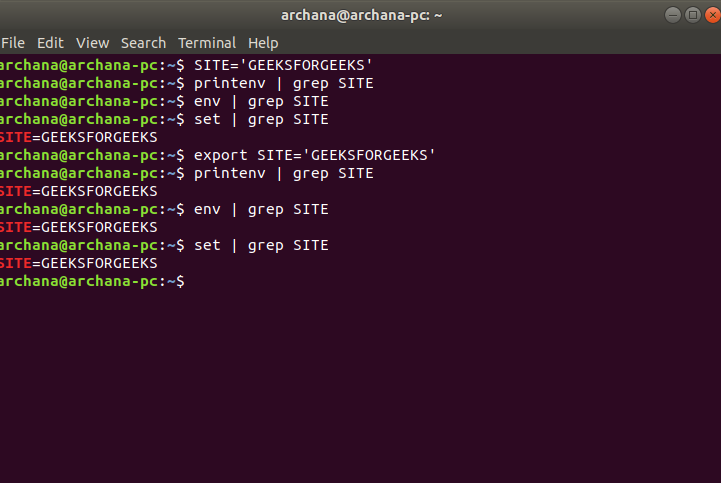
Promote to an Environment Variable: To make a shell variable available to child processes, you must export it.
export my_varNow,
my_varis an environment variable. It will be inherited.printenv | grep my_var # Output: my_var=Hello from a shell variable # Try the child shell experiment again bash echo $my_var # Output: Hello from a shell variable exit
You can also create and export a variable in a single step:
export MY_FANCY_VAR="This is global from the start"
The following image perfectly captures this entire process.
Unsetting Variables
To completely remove a variable (either shell or environment), use the unset command.
unset my_var
echo $my_var
# (No output)
Test your understanding!
You write a simple script called run.sh that needs to use an API key stored in a variable named API_KEY. Before running the script, you execute API_KEY="secret123" in your terminal. However, when you run ./run.sh, the script fails, saying the API key is missing.
What is the most likely reason for this, and what single command can you run in your terminal (before running the script) to fix it?
Show answer
The most likely reason is that API_KEY was created as a shell variable, so it was not inherited by the run.sh script (which runs as a child process).
To fix this, you need to export it, making it an environment variable: export API_KEY.
5. Making Variables Persistent
There's one last crucial piece of the puzzle. All the variables we've set so far are temporary. They will disappear the moment you close your terminal window.
So, how do you make a variable permanent, so it's automatically available every time you log in?
You need to add the export command to a special configuration file that your shell reads every time it starts. For the bash shell, the most common file for this is ~/.bashrc.
How To Read and Set Environmental and Shell Variables on Linux
The DigitalOcean article you viewed earlier has an excellent section explaining where to save your variables for them to persist across sessions.
Read the section titled 'Setting Environmental Variables at Login'. Focus on the subsection 'Implementing Environmental Variables'. This will explain why ~/.bashrc is the correct file for user-specific settings in most cases.
To make a variable permanent, you would:
- Open your
~/.bashrcfile with a text editor (likenanoorvim).nano ~/.bashrc - Add the export line anywhere in the file (the end is a good place).
export MY_PERMANENT_VAR="This will always be here" - Save the file and exit the editor.
- To apply the change to your current session without logging out, use the
sourcecommand:source ~/.bashrc
Now, MY_PERMANENT_VAR will be set in this terminal, and in every new terminal you open.
Conclusion
You now have a solid grasp of how to manage the variables that define a user's shell environment. This is a fundamental skill that underpins many administrative tasks, from simple command-line work to complex application deployment and scripting.
Key Takeaways:
- Shell variables are local to the current session; environment variables are inherited by child processes.
- Use
printenvto see environment variables andsetto see all variables.echo $VARNAMEshows a specific value. - The
PATHvariable is critical for telling the shell where to find executable commands. - Create shell variables with
var="value". - Promote a shell variable to an environment variable with
export var. - Remove any variable with
unset var. - Variables set on the command line are temporary. To make them permanent, add the
exportcommand to your~/.bashrcfile.
Preview of the Next Lesson:
We've just seen that ~/.bashrc is the key to making variables persistent. In our next lesson, Customize a user's environment using shell startup scripts, we will dive deeper into this file and others like it. You'll learn how to fully customize your environment, going beyond variables to create aliases, write functions, and tailor your command prompt.