Hello! Welcome to your next lesson in preparing for the Linux+ exam.
In our last session, you learned how to manage environment and shell variables for a single session. We ended with a crucial insight: to make variables permanent, you need to place them in a special startup file, ~/.bashrc.
Today, we'll expand on that idea to fully cover the learning outcome: Customize a user's environment using shell startup scripts (e.g., .bashrc, .profile). We will explore the different startup scripts your shell uses, understand when and why each one is executed, and learn how to use them to create a powerful, personalized, and efficient command-line environment.
1. Why So Many Files? Login vs. Non-Login Shells
You might wonder why Linux uses multiple configuration files like .bash_profile, .profile, and .bashrc. The reason lies in the distinction between two types of interactive shells:
- Login Shell: This is the shell session that starts when you first log in to the system. This happens when you log in at the text-mode console or connect remotely via SSH. It's a "per-session" startup.
- Non-Login Shell: This is any shell you start after you have already logged in, without re-entering your credentials. The most common example is opening a new terminal window in a graphical desktop environment. It's a "per-shell" startup.
This distinction is fundamental because Bash runs different scripts for each type.
To get a solid grasp of these concepts, the following article provides a clear breakdown.
Understanding Bash startup scripts
This post from Christophe Pallier clearly explains the different types of shells and the rules that govern which startup scripts are executed for each.
Read from the beginning down to the section 'Here are the implications:'. Focus on the examples of different shell types (interactive login, interactive non-login) and the rules that specify which files are executed.
2. The Startup Script Hierarchy
As you just read, Bash follows a specific order when looking for startup scripts. This hierarchy is key to understanding where to put your customizations.
This video provides an excellent visual walkthrough of this process.
The difference between .bashrc, .bash_profile, .profile, and .bash_login (login vs non login shells)
Zach Gollwitzer walks through the startup file hierarchy, explaining the difference between login and non-login shells and what each file is typically used for.
Watch from the beginning to 08:48. Pay close attention to: The sequence of files loaded for a login shell (/etc/profile, ~/.bash_profile, ~/.profile). The files loaded for a non-login shell (/etc/bash.bashrc, ~/.bashrc). The general purpose of each file.
To summarize the rules for a user's home directory (~/):
-
For a login shell, Bash executes the first file it finds from this list:
~/.bash_profile~/.bash_login~/.profile
-
For an interactive non-login shell, Bash executes:
~/.bashrc
This diagram provides a great visual summary of the flow:

3. A Unified Environment: The Best of Both Worlds
You've now seen that login shells run ~/.bash_profile and non-login shells run ~/.bashrc. This can lead to an inconsistent environment. For example, an alias defined in ~/.bashrc wouldn't be available when you log in via SSH.
The standard solution is to have ~/.bash_profile explicitly run ~/.bashrc. This way, all your customizations are consolidated in one place (~/.bashrc) but are loaded by both login and non-login shells.
The following video demonstrates this technique perfectly.
Customizing Your Terminal: .bash_profile and .bashrc files
Corey Schafer explains the login vs. non-login shell difference with a practical demo and then shows how to source .bashrc from .bash_profile for a consistent setup.
Watch from 03:14 to 07:41. Notice how the echo statements help identify which file is running. The key part is the code snippet he adds to .bash_profile to source .bashrc.
To implement this, you would add the following lines to your ~/.bash_profile file. Most modern Linux distributions include this by default.
# if running bash
if [ -n "$BASH_VERSION" ]; then
    # include .bashrc if it exists
    if [ -f "$HOME/.bashrc" ]; then
        . "$HOME/.bashrc"
    fi
fi
This code checks if a file named .bashrc exists in your home directory and, if so, executes it. The . command is a synonym for source.
With this setup, the general rule of thumb is:
- Place settings that should only be run once per session, like environment variable definitions (
export PATH=...), in~/.profile. - Place settings for interactive use, like aliases and functions, in
~/.bashrc. - Ensure
~/.bash_profilesources both~/.profileand~/.bashrc.
4. Practical Customizations for Your .bashrc
Now that we know the "why" and "where," let's get to the "what." Your .bashrc file is a playground for making your command-line life easier. Before you edit it, always make a backup!
cp ~/.bashrc ~/.bashrc.bak
If you make a mistake that breaks your terminal, you can restore the backup to fix it.
The following article is packed with excellent, practical examples you can add to your .bashrc.
What Is .bashrc in Linux? Configuration Explained
This DigitalOcean tutorial provides a treasure trove of practical examples for customizing your .bashrc file, along with best practices.
Read the sections 'Practical .bashrc examples' and 'Best practices for a clean .bashrc file'. You don't need to implement every example, but focus on understanding how to create aliases, write a simple function, and modify the PATH.
Here are some of the most common and useful customizations:
Aliases
Aliases are simple shortcuts for longer commands.
# Make 'ls' show colors and classify files
alias ls='ls --color=auto -F'

# A common alias for a detailed, human-readable file listing
alias ll='ls -lha'

# Alias for updating a Debian/Ubuntu system
alias update='sudo apt update && sudo apt upgrade -y'
Functions
Functions are like powerful aliases that can accept arguments. The mkcd function is a classic time-saver.
# Creates a directory and then changes into it
mkcd() {
    mkdir -p "$1" && cd "$1"
}
After adding this to .bashrc and sourcing it, you can run mkcd my_new_project to do two steps in one.
Customizing the PATH
As we discussed in the last lesson, the PATH variable tells your shell where to look for commands. You can add your own directories, like a personal script folder.
# Add a 'bin' directory in the home folder to the PATH
export PATH="$HOME/bin:$PATH"
Crucially, remember to include :$PATH at the end. Forgetting this will overwrite the existing PATH, breaking most of your system commands.
5. Applying Your Changes
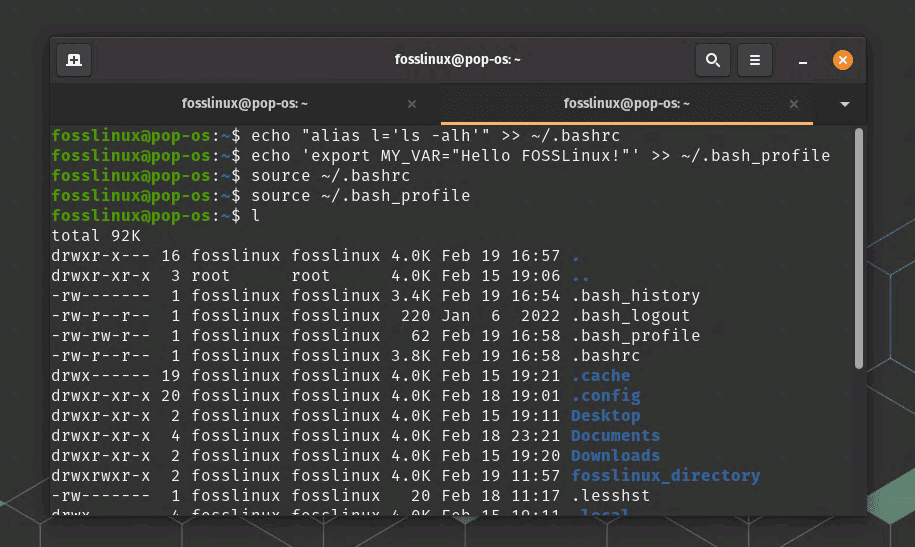
After editing your .bashrc or .bash_profile, the changes are not applied automatically to your current terminal session. You have two options:
- Close your terminal and open a new one.
- Use the
sourcecommand to execute the file in your current session.
source ~/.bashrc
Test your understanding!
You want to create a shortcut so that whenever you type ports, the system runs netstat -tulpn.
- What is the line of code you would add to your configuration file?
- Which file is the most appropriate place to add this line?
- What command would you run to make the shortcut available immediately in your current terminal?
Show answer
alias ports='netstat -tulpn'~/.bashrcis the correct file, as this is a customization for an interactive shell.source ~/.bashrc
Conclusion
You are now equipped with the knowledge to take full control of your shell environment. By understanding the different startup scripts and how to use them, you can build a more productive and personalized workspace.
Key Takeaways:
- Bash distinguishes between login shells (e.g., SSH) and non-login shells (e.g., new terminal window).
- Login shells typically run
~/.bash_profile, which should source~/.profile. - Non-login interactive shells run
~/.bashrc. - The best practice is to have
~/.bash_profilealso source~/.bashrcfor a consistent environment. - Use
~/.bashrcto define your personal aliases, functions, and interactive settings. - Use
~/.profilefor setting environment variables likePATH. - Always backup your configuration files before editing.
- Use
source ~/.bashrcto apply changes to your current session.
Preview of the Next Lesson:
Now that you've learned how to customize your user environment, we'll shift our focus to managing the software within that environment. Our next lesson will be the first in a new module: Software and Package Management. We will begin by exploring the concept of package dependencies and how package managers like apt and yum make software installation and maintenance manageable.